> For the complete documentation index, see [llms.txt](https://docs.kiloiot.io/llms.txt). Markdown versions of documentation pages are available by appending `.md` to page URLs; this page is available as [Markdown](https://docs.kiloiot.io/ai-assistant/building-with-ai.md).
# Building With the Assistant
Hand setup work to the Kilo IoT AI Assistant — onboard devices, deploy rules with their CEL, and configure alarms.
Kilo’s AI Assistant puts an experienced integrator by your side as you build your project. Describe the outcome, and it helps work through the device and connection choices, then handles the platform configuration: registering devices, mapping readings, creating alarms, and building and deploying the rules that respond. Keep refining the setup in the same conversation as your requirements develop.
Start in **AI Chat** with your equipment details or a project goal. For example: *“Set up temperature monitoring for this cold room and notify the facilities team when this sensor reports above −18 °C.”* The assistant asks for the identifiers, connection, and recipients it needs. You can inspect the devices, rules, and alarms it creates in their normal platform pages.
## How acting works
When you ask the assistant to set something up, it doesn't hand you a checklist to follow. It carries out the task using the platform's real operations, on your behalf and within your permissions, then reads the result back to confirm it worked. Two principles govern every action:
* **You approve consequential changes.** Before anything destructive or hard to reverse — deleting a device or rule, resolving an alarm — the assistant pauses and shows a confirmation with **Confirm Action** and **Cancel**. When it needs a decision or a missing detail mid-task, it asks with a structured prompt rather than guessing.
* **It verifies its own work.** After making a change, it re-reads the affected object so it can tell you what actually exists now, not just what it intended to do.
## Onboard a device
Describe the device you want to add and the assistant runs the onboarding flow with you — choosing the connector, naming the device, capturing identifiers, and selecting the right profile. For a LoRaWAN device, if you provide the **DevEUI** and **AppKey** up front, it can complete the setup automatically and then run diagnostics to confirm the device is actually reporting. It onboards MQTT devices and trackers the same way.
### MIOTY endpoints
The assistant can commission a [MIOTY endpoint](/devices/mioty-devices.md) on an existing MIOTY connection and bind a compatible [blueprint](/devices/mioty-blueprints.md), so its payload is decoded into named readings.
Before you start, create the MIOTY connection that will carry the endpoint. Then have the endpoint information supplied with the device:
* **EUI** — the 16-character hexadecimal device identifier
* **Network Session Key** — the 32-character hexadecimal secret used to secure communication
* **Short address**
* **Endpoint class** — **Z** for an uplink-only endpoint or **A** for a bidirectional endpoint; Kilo uses **Z** when you omit it
* **Application Key**, if the endpoint uses one
Tell the assistant what you are adding, which existing MIOTY connection it should use, and where the device belongs. It searches both the System catalog and your organization's Custom catalog for the manufacturer, model, and available blueprint versions. If more than one match is possible, it asks you to choose. It then validates the endpoint details, resolves the model's Type EUI, and registers the endpoint. Select a blueprint from that model when its payload needs to be decoded; a blueprint is optional when no decoder is required.
> *"Register the MIOTY water meter in Plant 2. Its EUI is 70B3D5..., its Network Session Key is ..., its short address is 0042, and it is a class Z endpoint."*
> *"Add the new CO2 sensor in Lab 2. DevEUI 24E124..., AppKey ..."* The assistant provisions the device, binds it, and checks whether data is arriving — flagging it if the device stays silent.
The result is a registered endpoint. When you select a blueprint, its readings use the field names defined by that blueprint. The assistant does not invent missing identifiers or keys; it asks for any required value you have not supplied.
## Build and deploy an automation
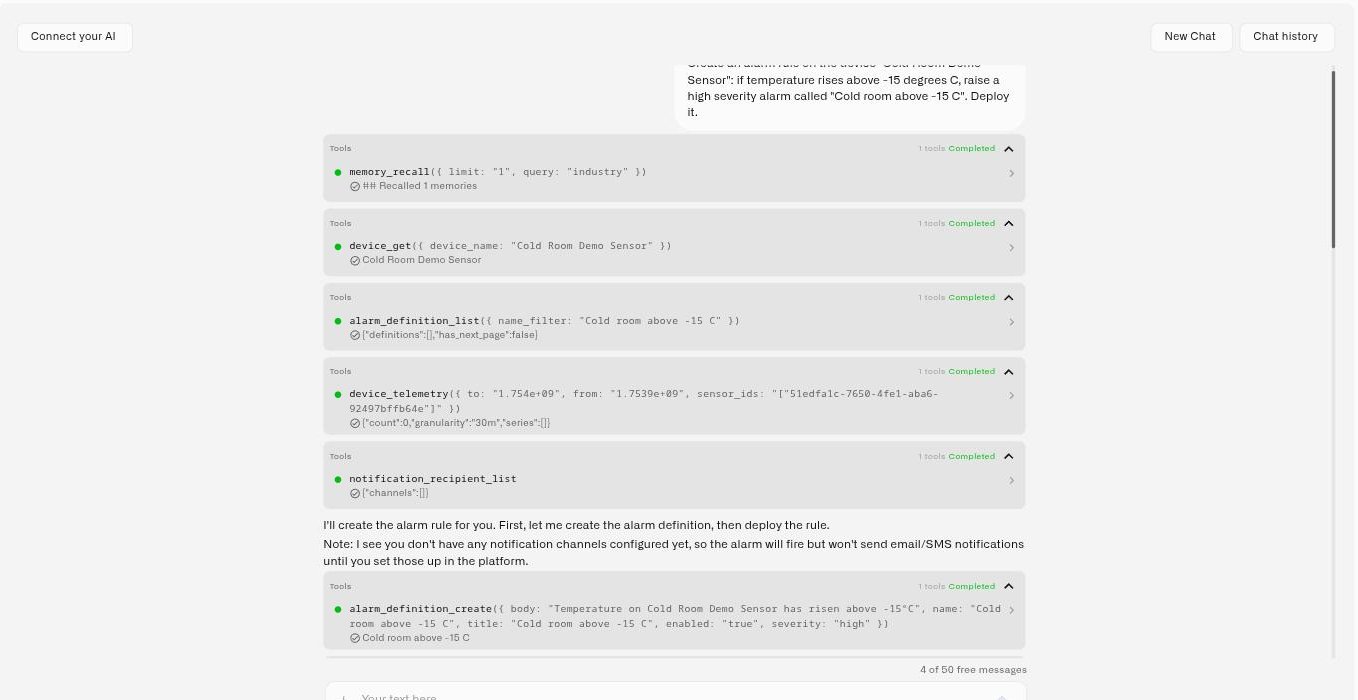
This is the assistant's most powerful capability. Describe the behavior you want in plain language, and it **authors the rule — including the** [**CEL**](/rules-engine/cel-reference.md) **expressions — builds it, and deploys it. You can then ask it to simulate sample readings and inspect the result.**
> *"Alert the on-call engineer when the temperature sensor on Freezer A reports above −18 °C."* The assistant writes the threshold condition as a CEL expression and provisions the sensor-started rule. After deployment, it can simulate matching and non-matching readings to check the workflow, with side effects captured by the simulation.
By asking it to simulate matching and non-matching readings, you're not trusting a black box: you see the rule run on the case that should match and stay quiet on the case that shouldn't. From there you can refine it conversationally ("change the temperature threshold to −16 degrees", "also notify the facility manager") and the assistant updates and redeploys.
To learn the rules engine itself, see [Rules Engine](/rules-engine.md). You can produce and refine a rule in conversation, then inspect its diagram and results without hand-building every step on the canvas.
## Prepare dashboards and views
Ask the assistant to create a dashboard or folder for a site, give it a useful name, and organize the views you want to build. It can update dashboard settings and the layout of existing widgets, while the [widget editor](/dashboards/adding-widgets.md) is where you add widgets and configure their readings, appearance, and controls.
> *“Create a Cold Room Monitoring dashboard inside a Warehouse B folder.”*
You can then add a temperature chart and a latest-value display in the editor. Ask the assistant to explain suitable thresholds or investigate the readings as you refine the view.
## Configure alarms and access
* **Alarms** — Ask it to create an alarm definition with severity and an escalation chain, and it sets up the recipients, channels, and steps. It can also resolve an alarm event (with your confirmation) when you tell it the situation is handled.
* **Team** — It can invite a user and assign a role, so onboarding a new operator or contractor is a sentence rather than a sequence of screens.
* **Hardware** — Ask what sensor fits a goal and it recommends compatible options drawn from the partner catalog and current references, so you're choosing from real, fitting hardware rather than a generic list.
## Run a device command
The assistant can operate your equipment, not just describe it. Ask what a device can do and it lists the commands configured on it; ask it to run one and it executes it — after showing you what it is about to send and waiting for your confirmation.
> *"What commands are available on the cold room controller?"* *"Set its reporting interval to five minutes."* The assistant lists the device's commands, shows the parameters it will use, asks you to confirm, sends it, and then reports whether it was delivered.
Three controls make the action reviewable:
* **It executes commands that already exist.** Commands are defined once on the device's **Commands & States** tab, with typed parameters and optional verification. The assistant runs those definitions — it does not invent new ones or improvise a payload.
* **It always asks first.** Command execution has real physical effects, so every one goes behind an explicit confirmation.
* **It checks the result.** Delivery is asynchronous, so after sending, the assistant reports the execution status rather than assuming success. The device also has to be online to receive the command.
This applies to devices that can receive downlinks in the first place — MQTT devices, Class C LoRaWAN devices, and emulated devices with **Support commands** enabled. A Class A LoRaWAN sensor only opens a brief receive window after each uplink, so it is not available for on-demand control. See [Device Commands](/devices/commands.md).
## Set up a gateway
The assistant can explain which gateway path your equipment needs and walk you through it. Register LoRaWAN gateways or MIOTY base stations in the [Gateways section](/gateways.md), then apply the connection details to the hardware. With that network in place, continue in chat to onboard devices and build their response workflows.
## Drive the emulator
The assistant can run the whole [emulated device](/devices/emulated-devices.md) workflow in conversation: list the available device presets, provision a device from a preset or from metrics you describe, read and change its configuration and reporting interval, and send a one-off reading to exercise a rule. It can also take the device live onto a real **LoRaWAN** connection when the hardware arrives, and move a real device onto the Emulator to reproduce something. Other connector types are a manual swap on the device's Connection tab.
> *"Create an emulated air-quality sensor in Cold Room 3 and send a temperature of −20."* A device that reports on its own, ready for the dashboards and rules you are about to build.
## What it builds versus what it operates
The distinction worth holding onto is between the automations the assistant *writes* and the commands it *runs*.
The assistant builds saved workflows for monitoring, calculations, decisions, and alarms. To add an equipment action, use the visual editor’s **Execute Command** node and select a saved device command. Review its parameters and feedback before deploying that rule. Directly running a saved command from chat is a separate operation.
And nothing here replaces the manual route: the device's **Commands & States** tab and a dashboard [Control widget](/dashboards/adding-widgets/control-widget.md) are still there for one-tap operation.
## Creating a saved trigger
A saved **trigger** is separate from the rule workflow the assistant builds. It stores a monitoring condition, timing, and selected devices. The assistant can explain the setup, but creating or editing the saved trigger currently happens in **Rules Engine → Triggers → Add trigger**. Then select it in a rule's **Start Event → Start source → Trigger condition**, save the rule, build it, and deploy it. See [Triggers](/rules-engine/triggers.md) for the complete steps.
## Tips for delegating well
* **State the outcome, not the clicks.** "Onboard this sensor and alert the lab team when its temperature exceeds 30 °C" beats a step-by-step dictation — the assistant knows the steps.
* **Give it the specifics it needs.** Identifiers, thresholds, durations, and recipients up front mean fewer round-trips.
* **Read the confirmation before approving.** The confirmation card spells out the change; it's your last checkpoint before anything happens.
* **Iterate.** Treat the first result as a draft you can refine in the same conversation.
## See also
* [Working With the Assistant](/ai-assistant/querying-your-data.md) — the ask-and-analyze side
* [Device Commands](/devices/commands.md) — defining the commands the assistant can run, and running them by hand
* [Rules Engine](/rules-engine.md) — the automation surface the assistant builds into
---
# Agent Instructions
This documentation is published with GitBook. GitBook is the documentation platform designed so that both humans and AI agents can read, navigate, and reason over technical content effectively. Learn more at gitbook.com.
## Querying This Documentation
If you need additional information that is not directly available in this page, you can query the documentation by asking a question.
Perform an HTTP GET request on the following URL with the `ask` and `goal` query parameters:
```
GET https://docs.kiloiot.io/ai-assistant/building-with-ai.md?ask=&goal=
```
`ask` is the immediate question: it should be specific, self-contained, and written in natural language.
`goal` is what the user is ultimately trying to achieve, the reason they need the answer. Sharing it helps GitBook give you a better, more relevant answer. A goal is most helpful when it describes the outcome the user wants rather than restating the question. For example, with `ask=how do I create an API token`, a goal like `automate deployments from our CI pipeline` lets GitBook tailor the answer to that use case.
The response will contain a direct answer to the question and relevant excerpts and sources from the documentation.
Use this mechanism when the answer is not explicitly present in the current page, you need clarification or additional context, or you want to retrieve related documentation sections.