> For the complete documentation index, see [llms.txt](https://docs.kiloiot.io/llms.txt). Markdown versions of documentation pages are available by appending `.md` to page URLs; this page is available as [Markdown](https://docs.kiloiot.io/alarm/inbox-and-resolution.md).
# Inbox and Resolution
Manage the Kilo IoT alarm Inbox — filter by severity or status, search, resolve events, trace back to the source rule.
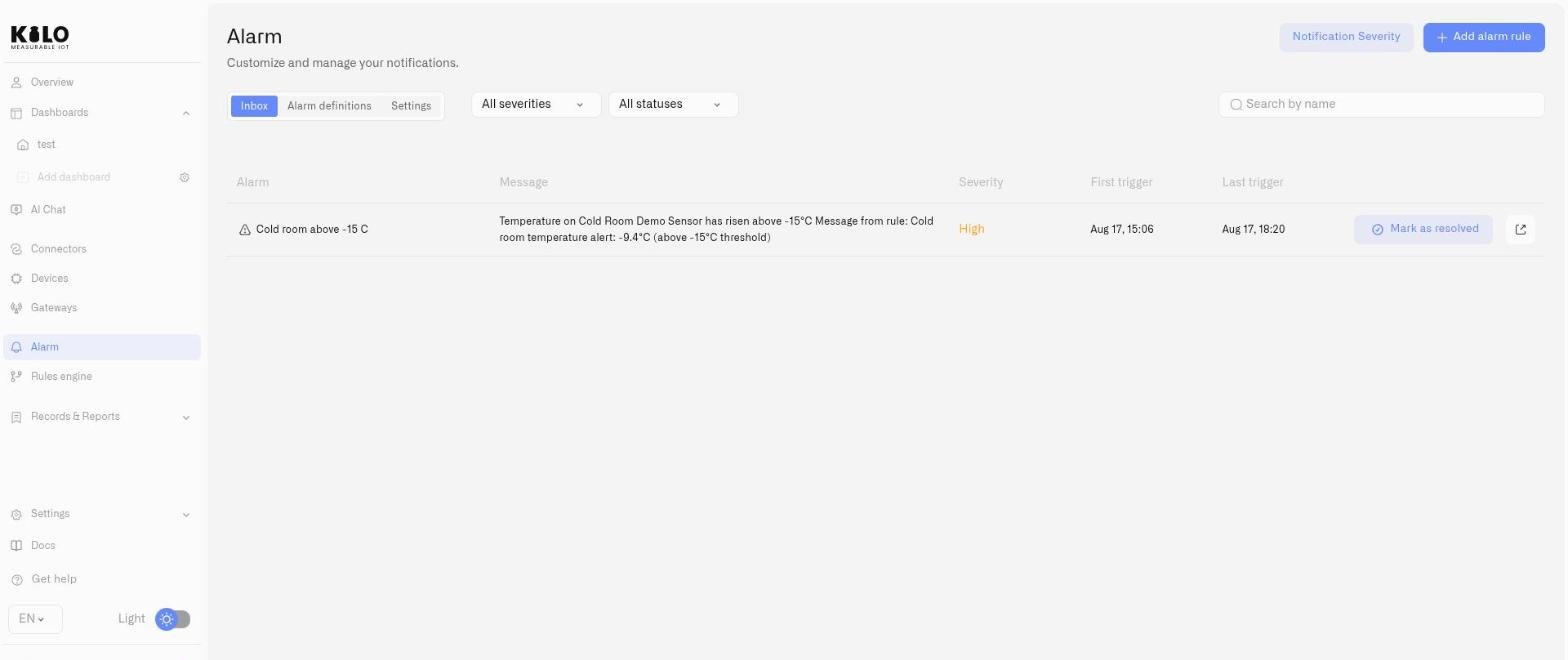
Every time an alarm fires, an event appears in the Inbox. This is the operational triage queue — where your team reviews what has happened, assesses priority, resolves events, and traces back to the originating automation for investigation.
The Inbox is the default tab when you open the **Alarm** page from the sidebar.
## Filtering
Two dropdown filters above the alarm list allow your team to scope the view:
| Filter | Options |
| ------------ | ----------------------------------------------- |
| **Severity** | All severity, Critical, High, Medium, Low, Info |
| **Status** | All status, Active, Resolved |
During shift handoffs, filtering to **Active** shows everything that still requires attention. During post-incident review, filtering to a specific severity level helps reconstruct the timeline.
## Searching
A search input filters alarms by title. This is useful when your Inbox contains events across many alarm definitions and you need to locate a specific one quickly.
If no results match, the Inbox displays: *"We can't find your alarm."*
## Alarm event list
On desktop, each alarm event is displayed as a row:
| Column | Content |
| ----------------- | ---------------------------------------------------------------------------------------------------------------------- |
| **Alarm** | Event title (or alarm definition name), with a status indicator — warning triangle for Active, checkmark for Resolved. |
| **Message** | The notification message body from the alarm definition. |
| **Severity** | Severity level, color-coded by priority. |
| **First trigger** | Timestamp of the initial alarm event. |
| **Last trigger** | Timestamp of the most recent alarm event from this definition. |
| **Actions** | **Mark as resolved** button and a link to the originating rule in the Rules Engine. |
On mobile, events appear as compact cards with the same information in a condensed layout.
### Empty state
If no alarms have been triggered, the Inbox shows: *"No alarms yet — To see alarms, create a rule and let it generate activity."*
## Resolving an alarm event
Click **Mark as resolved** on an active alarm event. This action:
1. Changes the event status from **Active** to **Resolved**.
2. Cancels any remaining [escalation steps](/alarm/escalation-and-response.md) for this event — no further notifications are sent.
Resolved events remain in the Inbox as a historical record. They are not removed.
Resolution is the mechanism that closes the loop on an operational alert. Until someone resolves the event, the escalation chain continues to fire according to its configured steps and delays.
## Navigating to the originating rule
Each alarm event includes a link that opens the Rules Engine automation responsible for triggering the alarm (at `/rules/:ruleId/view`). Use this to:
* Investigate what conditions produced the alarm
* Review the sensor data and rule logic
* Adjust thresholds or conditions if the alarm is firing incorrectly
## Operational workflows
**Shift handoff:** Filter to **Active** and review all unresolved events. Resolve anything that has been addressed. Hand off remaining active events to the incoming team with context.
**Post-incident review:** Filter by severity and time range. Use the originating rule link to reconstruct the automation logic that produced each alarm. Verify that escalation reached the correct recipients.
**False alarm triage:** If an alarm fires repeatedly for non-actionable conditions, navigate to the originating rule and adjust the conditions, or modify the alarm definition's suppression window or schedule to reduce noise.
## After resolving an incident
Resolution does not alter the source reading or disable its rule. If the raise condition still qualifies, later readings can create another incident according to the configured suppression and trigger timing. Review the [trigger behavior](/rules-engine/triggers/trigger-timing.md) when investigating repeats. The inbox scrolls within its available space; continue to the final visible rows when reviewing a long list.
---
# Agent Instructions
This documentation is published with GitBook. GitBook is the documentation platform designed so that both humans and AI agents can read, navigate, and reason over technical content effectively. Learn more at gitbook.com.
## Querying This Documentation
If you need additional information that is not directly available in this page, you can query the documentation by asking a question.
Perform an HTTP GET request on the following URL with the `ask` and `goal` query parameters:
```
GET https://docs.kiloiot.io/alarm/inbox-and-resolution.md?ask=&goal=
```
`ask` is the immediate question: it should be specific, self-contained, and written in natural language.
`goal` is what the user is ultimately trying to achieve, the reason they need the answer. Sharing it helps GitBook give you a better, more relevant answer. A goal is most helpful when it describes the outcome the user wants rather than restating the question. For example, with `ask=how do I create an API token`, a goal like `automate deployments from our CI pipeline` lets GitBook tailor the answer to that use case.
The response will contain a direct answer to the question and relevant excerpts and sources from the documentation.
Use this mechanism when the answer is not explicitly present in the current page, you need clarification or additional context, or you want to retrieve related documentation sections.