> For the complete documentation index, see [llms.txt](https://docs.kiloiot.io/llms.txt). Markdown versions of documentation pages are available by appending `.md` to page URLs; this page is available as [Markdown](https://docs.kiloiot.io/alarm/iot-alerts-app/managing-alerts.md).
# Acknowledge and Resolve
Acknowledge and resolve Kilo alarms from your phone — Inbox, Alert Definitions, and platform switching.
The IoT Alerts app lets Kilo responders inspect alarm events, stop the sound on their phone, and resolve events after handling them. An **alarm event** is a shared record in the organization's Inbox; the sound and notification on one phone are its local presentation.
**Stop sound** silences the phone without resolving the shared event. **Resolve** updates the event for the organization when the request succeeds. Choose the action that matches your response: silencing a phone does not tell the rest of the team that the issue is handled.
[Set up the app](/alarm/iot-alerts-app/getting-started.md) and select the correct organization before using its **Inbox** and **Alert Definitions** tabs.
## Inbox
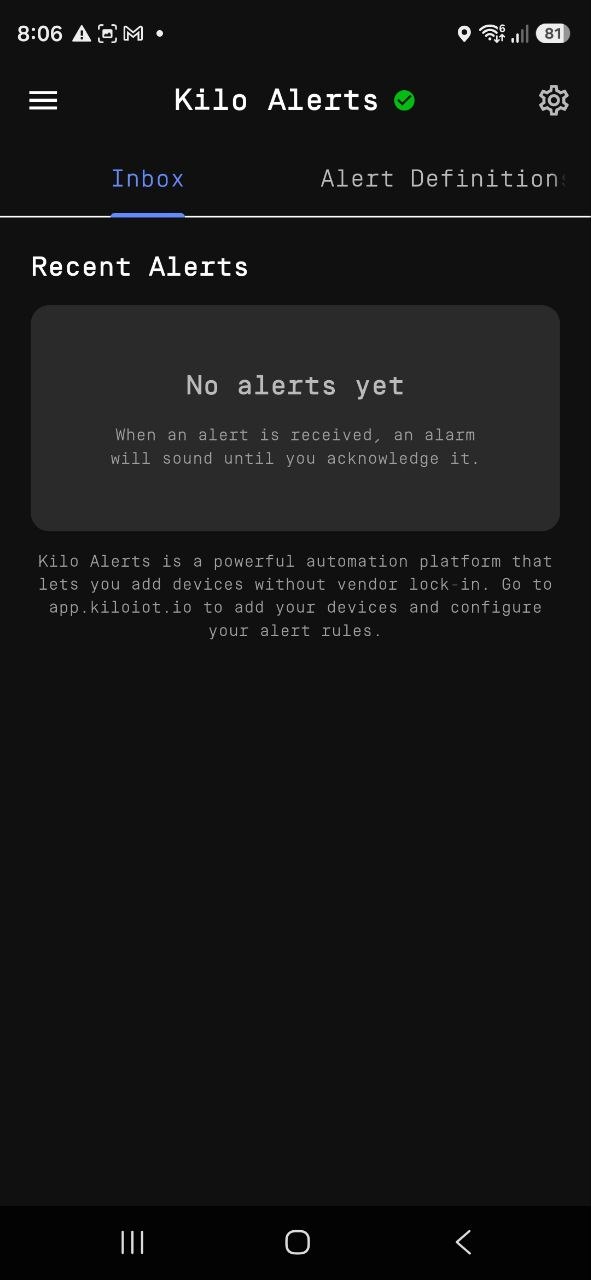
The **Inbox** tab lists alarm events for the currently selected organization, newest first, and refreshes on its own while the app is open. Each entry shows the alert title and message, the time it triggered, and a status indicator — active versus resolved.
### Resolving an event
Tap an active event to resolve it. A confirmation appears, then the event is marked **resolved in Kilo for everyone** — its status flips, other recipients see it as resolved, and any remaining [escalation](/alarm/escalation-and-response.md) steps stop firing. This is the same outcome as **Dismiss & Acknowledge** on the full-screen alarm; it acknowledges the event platform-wide, not just on your device.
Resolution is the operational hand-off signal. Resolve an event only once it's genuinely handled, since doing so halts escalation for every other responder in the chain.
### Clearing an event from your view
Removing an event from your Inbox list takes it off your phone. Use it to tidy already-handled items — distinct from resolving, which changes the event's status for the whole deployment.
## Alert Definitions
The **Alert Definitions** tab lists the alarm definitions from your Kilo deployment. Use the search field to find one by name, then use its per-row toggle to **enable or disable** it.
This is the field control for a definition that's firing too often — mute it from the phone immediately, then refine its [conditions](/rules-engine.md), [severity](/alarm/notification-delivery-settings.md), or [suppression settings](/alarm/notification-rules.md) on the web when you're back at a workstation. Definitions themselves are authored and edited on the web; the app gives you the on/off switch.
## Switching organization and platform
* **Organization** — if your account spans several organizations, switch between them from the app menu; the Inbox and Alert Definitions update to the selected one.
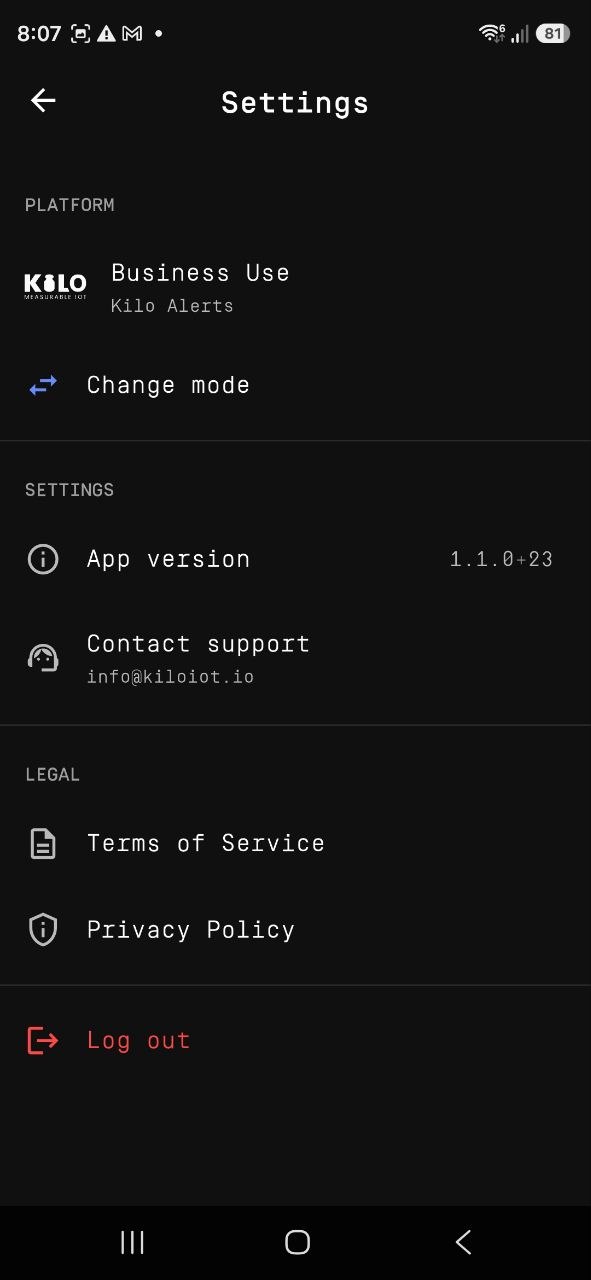
* **Platform** — **Settings → Platform → Change mode** changes which platform the app is connected to. Changing it signs you out, because each platform uses its own account; sign back in afterward.
## Acknowledgment paths at a glance
| Action | What it does | Where |
| ------------------------- | -------------------------------------------------------------------------------------------- | ----------------- |
| **Close** | Silences the alarm tone on this phone only; the event stays active and escalation continues. | Full-screen alarm |
| **Dismiss & Acknowledge** | Silences the alarm and resolves the event in Kilo for everyone. | Full-screen alarm |
| **Tap to resolve** | Resolves the event in Kilo for everyone. | Inbox |
| **Disable definition** | Stops a definition from firing further alarms. | Alert Definitions |
---
# Agent Instructions
This documentation is published with GitBook. GitBook is the documentation platform designed so that both humans and AI agents can read, navigate, and reason over technical content effectively. Learn more at gitbook.com.
## Querying This Documentation
If you need additional information that is not directly available in this page, you can query the documentation by asking a question.
Perform an HTTP GET request on the following URL with the `ask` and `goal` query parameters:
```
GET https://docs.kiloiot.io/alarm/iot-alerts-app/managing-alerts.md?ask=&goal=
```
`ask` is the immediate question: it should be specific, self-contained, and written in natural language.
`goal` is what the user is ultimately trying to achieve, the reason they need the answer. Sharing it helps GitBook give you a better, more relevant answer. A goal is most helpful when it describes the outcome the user wants rather than restating the question. For example, with `ask=how do I create an API token`, a goal like `automate deployments from our CI pipeline` lets GitBook tailor the answer to that use case.
The response will contain a direct answer to the question and relevant excerpts and sources from the documentation.
Use this mechanism when the answer is not explicitly present in the current page, you need clarification or additional context, or you want to retrieve related documentation sections.