> For the complete documentation index, see [llms.txt](https://docs.kiloiot.io/llms.txt). Markdown versions of documentation pages are available by appending `.md` to page URLs; this page is available as [Markdown](https://docs.kiloiot.io/alarm/notification-channels.md).
# Delivery Channels
Manage alarm delivery channels in Kilo IoT — verified Email contacts, SMS with credit balance, Push notifications.
Delivery channels let you match an alarm to the way its recipients work: email for a record, SMS for a phone message, or push to the [IoT Alerts app](/alarm/iot-alerts-app.md) for mobile response. A **channel** is the delivery method; a **contact** is the verified address, number, or registered app destination used by that method.
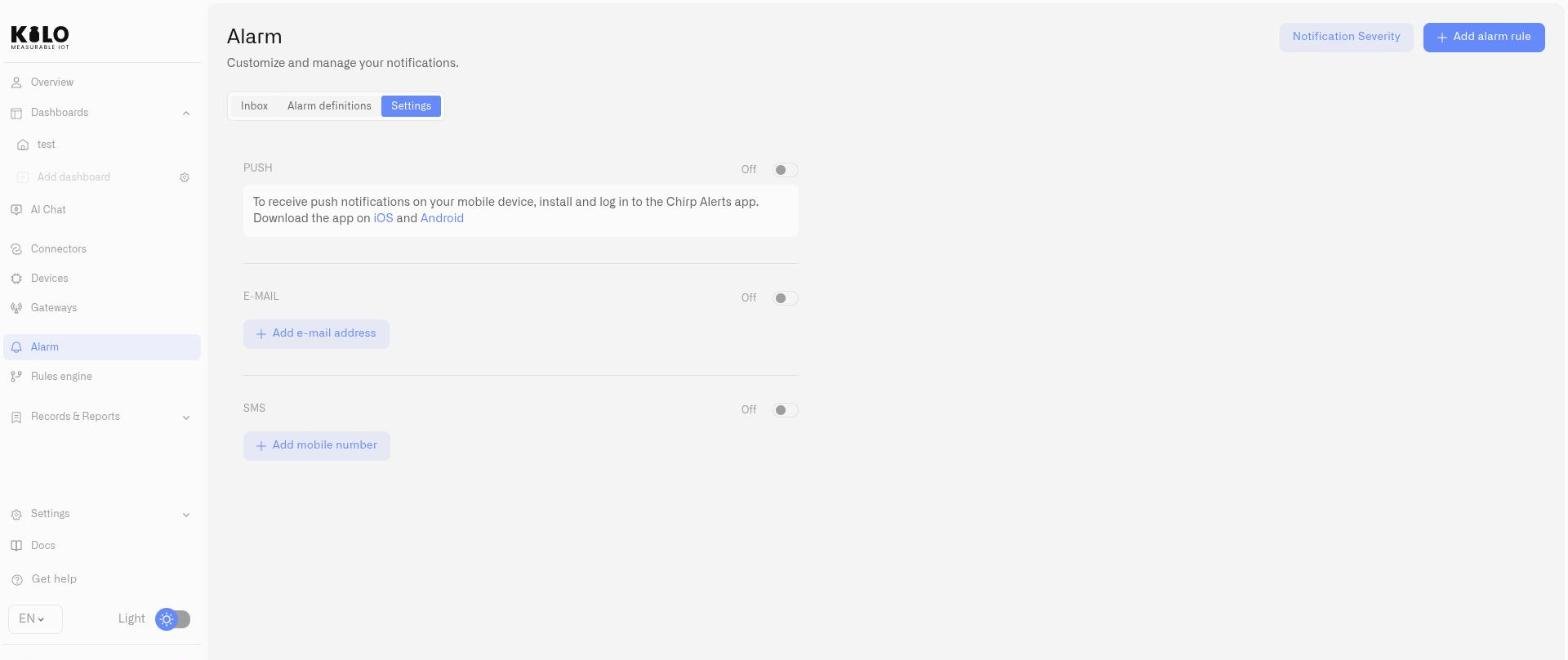
Use **Alarm → Settings** to verify contacts and enable the required channels. The [alarm definition](/alarm/notification-rules.md) chooses recipients and notification behavior; the channel settings make those delivery routes available. Configure both before expecting an operational alert to reach your team.
## Email
Email is the baseline delivery channel.
### Enabling and disabling
An **On/Off** toggle at the top of the Email section controls whether email notifications are delivered across all alarm definitions. Turning it **Off** disables ALL email-based alarm delivery — a confirmation dialog appears before this takes effect. Turning it back **On** resumes delivery for every alarm that uses email in its escalation chain. The toggle may be unavailable if no contacts are configured or if the channel is not available in the current account context.
### Adding contacts
Click the add button to enter a new email address. A verification email is sent immediately. The contact appears in your list with an unverified indicator until the recipient completes verification.
### Verification
Every email address must be verified before it receives alarm notifications. Unverified contacts display a warning indicator. Verification can be resent if the original email was not received.
### Removing contacts
Click the remove button next to a contact. A confirmation dialog appears before removal. The primary email contact cannot be removed; this restriction follows the contact's primary status, not its position in the list.
Contacts cannot be edited after creation. To update an email address, remove the existing contact and add the new one.
## SMS
SMS is present in the Alarm settings and selectable as a delivery channel in [escalation chain steps](/alarm/escalation-and-response.md). The SMS section follows the same pattern as Email: add contacts, verify them, enable or disable the channel with the On/Off toggle, and remove contacts you no longer need.
Turning SMS **Off** stops all alarm notifications via SMS across every alarm definition. The same confirmation dialog applies.
For operations teams, SMS provides a high-reliability delivery path that reaches recipients even when email is inaccessible — field technicians, on-call engineers, or facility managers responding from mobile devices.
## Push notifications
Push notifications are available when enabled for the account. When available, a push notification section appears at the top of the Settings tab with device-specific setup instructions.
Push provides device-level mobile alerts, making it suitable for time-sensitive escalation tiers. Delivery runs through the [IoT Alerts App](/alarm/iot-alerts-app.md), where Critical alarms can break through silent mode on a responder's phone — install it and turn this toggle On to start receiving alarms on a device.
## Connecting channels to escalation
The contacts configured here populate the **Choose recipients** dropdown in [escalation chain steps](/alarm/escalation-and-response.md). Each step in the escalation chain can select different recipients and different channels:
* **Tier 1 (Immediate):** On-call engineer via email and push.
* **Tier 2 (After delay):** Shift supervisor via email and SMS.
* **Tier 3 (After further delay):** Site operations manager via SMS.
If you turn a channel **Off** in Settings, that channel is disabled for delivery across every alarm definition and every escalation step that references it. This is useful for planned maintenance windows or when a channel is temporarily unreliable — disable it globally, then re-enable once the maintenance is complete.
---
# Agent Instructions
This documentation is published with GitBook. GitBook is the documentation platform designed so that both humans and AI agents can read, navigate, and reason over technical content effectively. Learn more at gitbook.com.
## Querying This Documentation
If you need additional information that is not directly available in this page, you can query the documentation by asking a question.
Perform an HTTP GET request on the following URL with the `ask` and `goal` query parameters:
```
GET https://docs.kiloiot.io/alarm/notification-channels.md?ask=&goal=
```
`ask` is the immediate question: it should be specific, self-contained, and written in natural language.
`goal` is what the user is ultimately trying to achieve, the reason they need the answer. Sharing it helps GitBook give you a better, more relevant answer. A goal is most helpful when it describes the outcome the user wants rather than restating the question. For example, with `ask=how do I create an API token`, a goal like `automate deployments from our CI pipeline` lets GitBook tailor the answer to that use case.
The response will contain a direct answer to the question and relevant excerpts and sources from the documentation.
Use this mechanism when the answer is not explicitly present in the current page, you need clarification or additional context, or you want to retrieve related documentation sections.