> For the complete documentation index, see [llms.txt](https://docs.kiloiot.io/llms.txt). Markdown versions of documentation pages are available by appending `.md` to page URLs; this page is available as [Markdown](https://docs.kiloiot.io/alarm/notification-rules.md).
# Alarm Definitions
Configure alarm definitions in Kilo IoT — severity, escalation, repeat cadence, channels, schedule, suppression, body.
An **alarm definition** is a reusable response plan for notifications: what to say, how urgent it is, who receives it, and how it escalates. Configure the facilities team's response once, then use that definition from the rules monitoring different pieces of equipment.
The definition is separate from both the **alarm event** your team handles and the **rule** that raises it. Configure the condition and response workflow in the [Rules Engine](/rules-engine.md); choose this definition in the rule's **Set Alarm** step.
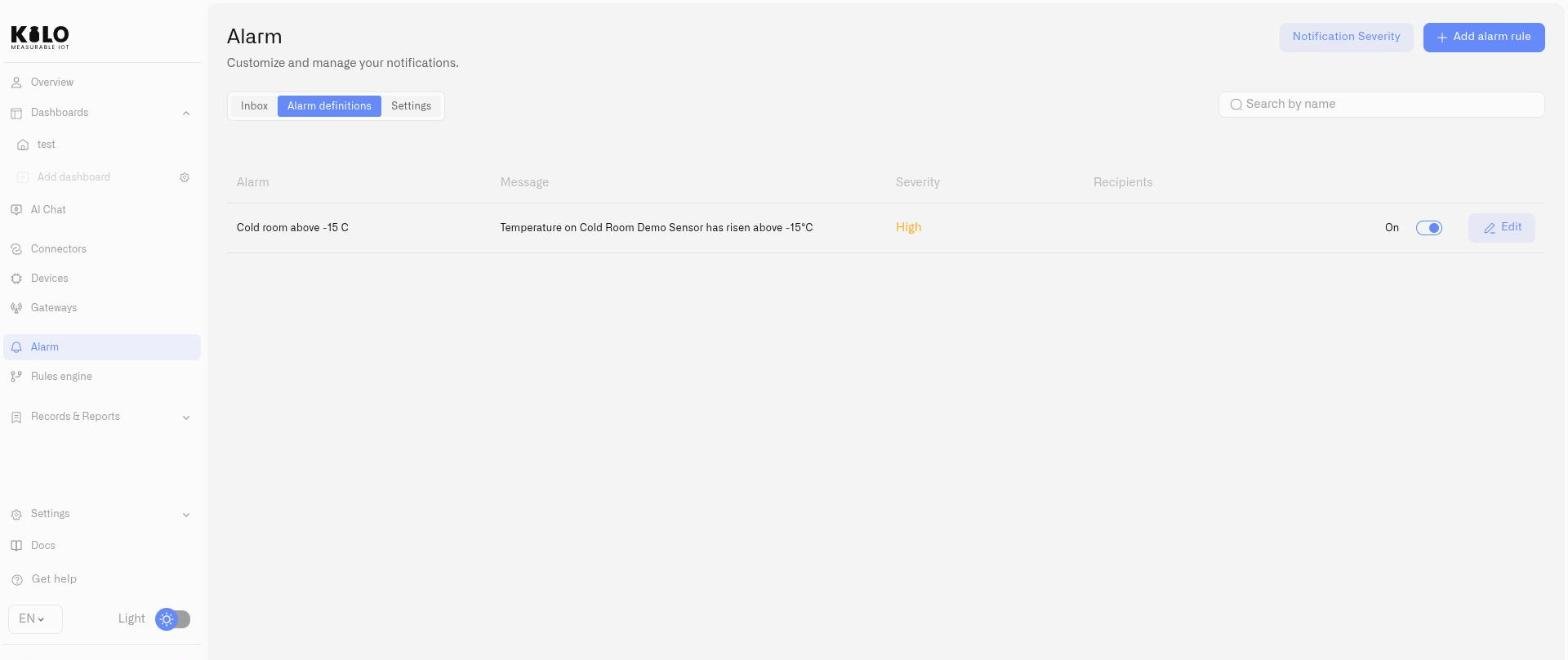
Manage definitions in **Alarm → Alarm definitions**. Click **Add alarm rule** to create one or **Edit** to change one, and make sure the recipients have the [delivery channels](/alarm/notification-channels.md) they need.
## Definition form fields
### Alarm name
| Field | Detail |
| -------------- | --------------------------------------------------------------------------------------------------------------------------------------- |
| **Alarm name** | Text field. Placeholder: *Enter name*. Required. This name appears in the Inbox when the alarm fires and in notification subject lines. |
### Severity
| Field | Detail |
| ------------------- | --------------------------------------------------------------- |
| **Choose severity** | Dropdown. Options: Critical, High, Medium, Low, Info. Required. |
Severity determines the notification repeat cadence (configured in [Notification Severity](/alarm/notification-delivery-settings.md)) and the visual priority in the Inbox. After selecting a severity, the form displays the current repeat policy for that level. Per-alarm overrides are available via the Custom Notification interval section below.
### Custom Notification interval
Override the global repeat policy for this specific alarm.
| Field | Detail |
| -------------------------------- | ------------------------------------------------------------------------------------------------------------------------------------------------------------------------------------------------------------------------------------------------------------------ |
| **Custom Notification interval** | Toggle (Off by default). When On, reveals interval and one-time controls. |
| **Interval** | Number + unit (Hours or Days). Controls how frequently notifications re-send while the alarm remains active. |
| **One-time notification** | Toggle. When On, one notification is sent and no repeats follow. A contextual message appears confirming: *"\[Severity] notifications are sent once. You can change it below."* — where \[Severity] matches the severity level selected for this alarm definition. |
### Escalation chain
Multi-step escalation for unresolved alarms. The first step is **Immediate** and cannot be removed. Additional steps fire after configurable delays if the alarm remains unresolved.
For a detailed walkthrough, see [Escalation and Response](/alarm/escalation-and-response.md). In brief:
* Each step specifies: **Notify** (recipients from the organization — **required**, at least one recipient must be selected), **Via** (delivery channels).
* Click **Add step** to append escalation tiers with configurable delays.
* Resolution at any point halts further escalation.
### Schedule
| Field | Detail |
| ------------------- | -------------------------------------------------------------------- |
| **Schedule** | Displays the current schedule or "24/7 by default". |
| **Change schedule** | Opens a popover with day-of-week toggles and a From / To time range. |
Use scheduling to scope alarms to business hours, shift windows, or after-hours monitoring — for example, a server room temperature alarm that only fires outside of maintenance windows.
### Suppress duplicates
| Field | Detail |
| ------------------------------------------------------- | ------------------------------------------------------------------------------------------------------------- |
| **Suppress duplicates within this window (in minutes)** | Slider. Range: 1–60 minutes. Prevents the same alarm from firing repeatedly when a sensor reports frequently. |
### Message
| Field | Detail |
| ---------------- | ------------------------------------------------------------------------------- |
| **Theme** | Notification subject line. Placeholder: *Fire alarm in the kitchen*. Required. |
| **Message body** | Notification body (multiline, 3 rows). Placeholder: *Your text here*. Required. |
Write messages that are immediately actionable — include what happened, where, and what the expected response is.
## Saving and managing
Click **Add new alarm rule** to create the definition, or **Save** when editing. Click **Cancel** to discard changes.
The **Alarm definitions** tab lists all definitions with the following columns:
| Column | Content |
| -------------- | ---------------------------- |
| **Alarm** | Definition name |
| **Message** | Message body (truncated) |
| **Severity** | Severity level (color-coded) |
| **Recipients** | Escalation step recipients |
Each row has:
* **Toggle** — Enable or disable the definition without deleting it. Disabled definitions do not fire even when the Rules Engine triggers them.
* **Edit** — Reopen the definition form.
To delete a definition permanently, open it in Edit mode and click **Delete alarm** at the bottom of the form.
## Why didn't my alarm notify anyone?
Work through these in order:
1. **The alarm never fired.** An alarm definition only sends what a rule raises. Open the rule in the [IoT Rules Engine](/rules-engine.md) and check that its condition was actually met.
2. **The definition is switched off.** Check its toggle in the **Alarm definitions** list. Disabled definitions do not fire even when a rule triggers them.
3. **It fired outside its schedule.** A definition with a [schedule](#schedule) other than 24/7 stays quiet outside its days and hours.
4. **It was suppressed as a duplicate.** Within the [suppression](#suppress-duplicates) window, repeats of the same alarm are not sent again.
5. **The recipient has no working channel.** Check that each person in the escalation chain has a verified contact on an enabled [delivery channel](/alarm/notification-channels.md). SMS also needs credit.
## Enterprise examples
* **Cold-chain temperature exceedance:** Severity Critical. Immediate notification to on-call refrigeration technician. Escalate to shift supervisor, then site manager. Schedule: 24/7. Suppression: 10 minutes.
* **Server room humidity alarm:** Severity High. Immediate notification to data center operations. Theme: "Humidity exceedance in DC-3." Message: "Rack row B humidity has exceeded the operational threshold."
* **Pump pressure deviation:** Severity Medium. Business hours only (Mon–Fri 06:00–22:00). Notify maintenance team. One-time notification — do not repeat.
## Group the definition with its solution
Choose **Application** in the alarm definition dialog to associate it with the devices, dashboards, and rules for a use case. Save the definition after changing the field. This association does not automatically connect a rule to the alarm: select the definition in the rule’s alarm action. See [Organizing Content](/applications/organizing-content.md).
---
# Agent Instructions
This documentation is published with GitBook. GitBook is the documentation platform designed so that both humans and AI agents can read, navigate, and reason over technical content effectively. Learn more at gitbook.com.
## Querying This Documentation
If you need additional information that is not directly available in this page, you can query the documentation by asking a question.
Perform an HTTP GET request on the following URL with the `ask` and `goal` query parameters:
```
GET https://docs.kiloiot.io/alarm/notification-rules.md?ask=&goal=
```
`ask` is the immediate question: it should be specific, self-contained, and written in natural language.
`goal` is what the user is ultimately trying to achieve, the reason they need the answer. Sharing it helps GitBook give you a better, more relevant answer. A goal is most helpful when it describes the outcome the user wants rather than restating the question. For example, with `ask=how do I create an API token`, a goal like `automate deployments from our CI pipeline` lets GitBook tailor the answer to that use case.
The response will contain a direct answer to the question and relevant excerpts and sources from the documentation.
Use this mechanism when the answer is not explicitly present in the current page, you need clarification or additional context, or you want to retrieve related documentation sections.