> For the complete documentation index, see [llms.txt](https://docs.kiloiot.io/llms.txt). Markdown versions of documentation pages are available by appending `.md` to page URLs; this page is available as [Markdown](https://docs.kiloiot.io/api/mcp-server.md).

# MCP Server

Connect an AI agent to your Kilo IoT deployment through the MCP server, authorized by your own Kilo sign-in.

Connect your preferred AI client to Kilo and use it to work on the deployment: onboard devices, create dashboards, configure alarms, and build and deploy automation rules. You can keep the project conversation in the tool you already use while Kilo supplies the device connections and execution workflows.

**MCP (Model Context Protocol)** lets an AI client discover and call those platform operations. Kilo exposes an MCP endpoint for clients such as Claude (listed in the [Claude connectors directory](https://claude.ai/directory/kilo-iot-platform)), Claude Code, Claude Desktop, ChatGPT, Codex, and Cursor; the client uses your account's access to the selected organization.

This is one integration path for the [Physical AI Platform for AI Agents](/physical-ai.md). Kilo remains the governed execution layer between the client and real infrastructure, so the model does not need to recreate device protocols, organization boundaries, or the operational lifecycle around a change.

Because MCP is an open standard rather than a per-vendor integration, this is not a fixed list. Any client that speaks MCP over Streamable HTTP can connect, and the walkthroughs below cover the two flows most clients follow: a command-line setup and a connector dialog.

The endpoint is:

```
https://mcp-auth.kiloiot.io/mcp
```

You authorize the connection in your browser with your usual Kilo account. There is no API key to mint, no token to paste, and nothing to store on the machine running the client.

## Why Use the Kilo MCP Server With an AI Client?

Without MCP, putting an assistant to work against a live deployment means writing an integration first: a key, a client library, a script per question. That is fine for a scheduled job and heavy for an incident at 2 a.m.

With the MCP server connected, the client you already use becomes an operator's console over your deployment — and it can act, not only read. An operations engineer can ask which devices in a site have stopped reporting and review the alarms around a failure window in one conversation, against live data. An integrator building a rollout can have it provision a batch of devices against the right connector instead of clicking through the same dialog fifty times. A team lead can ask for open alarm statistics before a shift handover. And because the toolset includes device commands, the same conversation can change a reporting interval or switch a relay. What governs that — and why an AI acting on physical infrastructure is a different proposition from one acting on data — is set out in [Physical AI](/physical-ai.md).

Because the connection carries your own account, the assistant is not an extra identity to govern. It can do what you can do, in the organization you are working in, and nothing else.

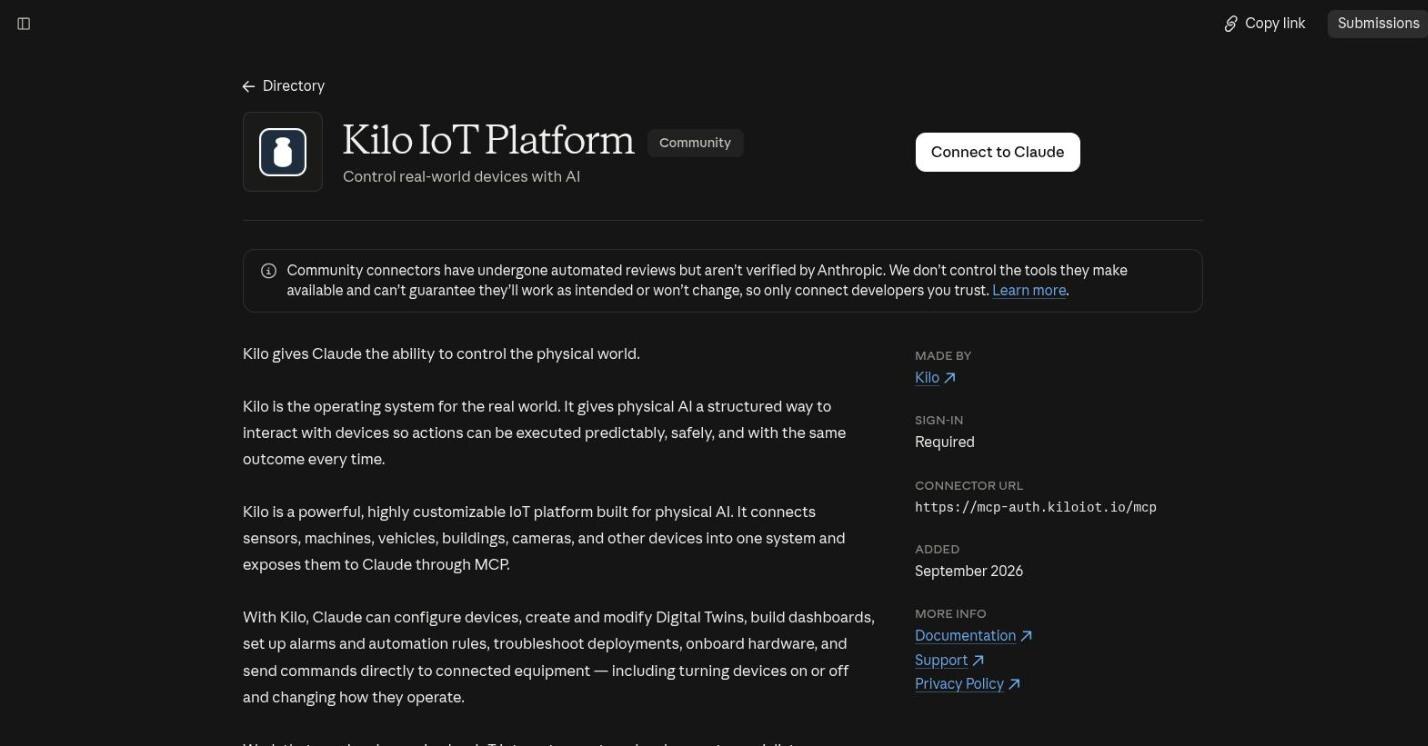
## How Do I Add Kilo From the Claude Connectors Directory?

Kilo is listed in Claude's connectors directory as **Kilo IoT Platform**, so you can add it without typing a URL.

<figure><img src="https://2057878315-files.gitbook.io/~/files/v0/b/gitbook-x-prod.appspot.com/o/spaces%2FtNQh1wBSHSaknslMdOXm%2Fuploads%2Fgit-blob-ca7f3ca6930d18653d7fe648912f9e7fb0da89da%2Fkilo-claude-directory-listing.jpg?alt=media" alt="The Kilo IoT Platform listing in the Claude connectors directory, with the Connect to Claude button"><figcaption><p>The Kilo IoT Platform listing in the Claude connectors directory.</p></figcaption></figure>

1. Open the [Kilo IoT Platform listing](https://claude.ai/directory/kilo-iot-platform), or open **Customize → Connectors** in Claude and search the directory for **Kilo**.
2. Click **Connect to Claude**.
3. Your browser opens the Kilo sign-in. Sign in with your usual Kilo account and approve the request.
4. Start a conversation and ask: *"Using Kilo, which organization am I working in? List its devices."* Check that it names the organization you expect before you ask for anything that changes a deployment.

The connector works in Claude on the web, Claude Desktop, and mobile, and in Claude Code (see below). It uses the same endpoint and the same permissions as every other client on this page.

**Claude Team and Enterprise.** An organization Owner adds the connector under **Organization settings → Connectors**. Members then connect from Customize → Connectors and authorize with their own Kilo account, so each person gets only the access their Kilo role allows. On Team, a member without permission sees a **Request** button that asks the Owners.

## How Do I Connect Claude Code to Kilo?

**Use the directory connector.** A connector you added in Claude appears in Claude Code automatically when you are signed in with a Claude subscription. Run:

```
/mcp
```

Select **Kilo IoT Platform**, authorize in the browser if asked, and wait until it is reported as **connected**. If it is missing, run `/status`: connectors do not load when Claude Code authenticates with `ANTHROPIC_API_KEY`, `ANTHROPIC_AUTH_TOKEN`, a `claude setup-token` token, Amazon Bedrock, or Google Vertex. Unset the variable, run `/login`, and choose your Claude account.

**Or add the server directly.** This works with any login method:

1. Add the server, giving it the name `kilo`:

   ```bash
   claude mcp add --transport http kilo https://mcp-auth.kiloiot.io/mcp
   ```
2. Start Claude Code in your project and run `/mcp`.
3. Select the `kilo` server. Claude Code opens your browser for authorization.
4. Sign in with your usual Kilo account and approve the request. The browser confirms the authorization, and you can return to the terminal.
5. Run `/mcp` again to check the result. When the `kilo` server is reported as **connected**, its tools are available and you can start asking questions in plain language.

If you add Kilo both ways, the server you added directly takes precedence and the directory connector is hidden in `/mcp`.

## How Do I Connect Claude Desktop to Kilo Without the Directory?

If you cannot see the directory listing, add Kilo as a custom connector:

1. Open **Customize → Connectors**.
2. Click **Add custom connector**.
3. Paste the endpoint URL — `https://mcp-auth.kiloiot.io/mcp` — into the URL field.
4. Click **Connect**. Claude opens your browser for authorization.
5. Sign in with your usual Kilo account and approve the request.
6. Back in Claude, confirm the connector shows as active. Its tools are now available in any conversation.

## How Do I Connect Grok to Kilo?

Connect Grok to Kilo through MCP to check device readings, review alarms, and run commands already configured on your devices. Set up the connection on your phone or computer.

1. Sign in to Grok and open [Connectors](https://grok.com/connectors).
2. Select **New Connector → Custom**.
3. Enter `https://mcp-auth.kiloiot.io/mcp` as the MCP server URL.
4. Complete the browser authorization with your usual Kilo account and approve the connection. You do not need a Kilo API key or an xAI API key.
5. Return to Grok and ask: *“Using Kilo, which organization am I working in? List its devices.”* Check that it identifies the expected organization before continuing.
6. Try a data request: *“What is the latest office temperature, and when was it reported?”* For control, ask *“List the commands available for Office Lights”*, then request the saved **Turn off** command.

Grok's own connector settings are the authority for these steps and can change. If your Grok plan is managed by a team administrator, the administrator may need to allow custom connectors first; each user then authorizes their own Kilo access.

For voice access on the road, continue with [Use Kilo in Your Tesla](/ai-assistant/tesla-grok.md).

## How Do I Connect ChatGPT, Codex or Cursor to Kilo?

ChatGPT, Codex, Cursor, and other MCP-capable clients follow one of the same two shapes. Where the client has a connector or integrations dialog, add a custom MCP server and paste the endpoint URL, as in the custom connector steps above. Where it is configured from a command line or a config file, register the endpoint as a **Streamable HTTP** server — the transport this endpoint serves — as in the Claude Code steps.

Either way the authorization is the same: the client opens your browser, you sign in with your usual Kilo account, and the connection carries your permissions. Consult your client's own documentation for where it keeps MCP servers; nothing about this endpoint is client-specific.

## What Does a Connected MCP Session Look Like?

<figure><img src="https://2057878315-files.gitbook.io/~/files/v0/b/gitbook-x-prod.appspot.com/o/spaces%2FtNQh1wBSHSaknslMdOXm%2Fuploads%2Fgit-blob-c76dbc8c4ecd947cc8440377d59be70c5367d640%2Fmcp-claude-session.jpg?alt=media" alt="A Claude Code session connected to Kilo over MCP, calling the connection_list tool and asking permission before continuing"><figcaption><p>An authenticated Claude Code session working a live deployment: asked to configure a LoRaWAN sensor, it recommends provisioning through the platform, calls a Kilo tool, and stops for permission before continuing</p></figcaption></figure>

The client can answer from your actual deployment because it can read the connections and devices available to your account. The approval prompt belongs to the client: Kilo publishes safety information with each tool, and compatible clients can use it to request confirmation. Kilo enforces your account permissions regardless of how the client handles that information. See [Security and permissions](#is-the-kilo-mcp-server-secure).

## How Do I Choose Which Organization the MCP Server Uses?

`https://mcp-auth.kiloiot.io/mcp` works against the organization **currently selected in the Kilo web app**. This is the right default for most people: whatever you are working on in the platform is what your client sees.

If you switch the active organization in the web app, reconnect the client so the default endpoint picks up the change.

To pin a client to one organization regardless of what is selected in the web app, connect it to the organization-scoped form of the endpoint instead:

```
https://mcp-auth.kiloiot.io/o/{organizationId}/mcp
```

Replace `{organizationId}` with the organization's ID from the web app. Pinning is worth doing when a client should always operate against a single production organization — an integrator maintaining one customer's deployment, for example, or a workstation that must never touch staging.

If you are not a member of the organization you pin to, the request is refused.

## What Can an AI Agent Do Through the Kilo MCP Server?

Once connected, the client sees a set of tools it calls on your behalf. You do not call them yourself — you describe the task, and the client picks the tools it needs. The table is a summary of the tools the server registers, grouped by area; it includes tools that change or delete things, marked in bold. Which tools your client can actually use depends on your Kilo permissions, and the exact set can grow between releases.

| Area             | What the connected client can do                                                                                                                                                                                                                                                                                                                                                                                                                                                                                                 |
| ---------------- | -------------------------------------------------------------------------------------------------------------------------------------------------------------------------------------------------------------------------------------------------------------------------------------------------------------------------------------------------------------------------------------------------------------------------------------------------------------------------------------------------------------------------------- |
| **Devices**      | List and inspect devices, read their telemetry and diagnostics, provision LoRaWAN, MQTT and tracker devices, read device profiles, and inspect or add sensor mappings and sensor templates. **Update and delete devices.** `device_list`, `device_get`, `device_telemetry`, `device_diagnostics`, `device_provision_lorawan`, `device_provision_mqtt`, `device_provision_tracker`, `device_profile_list`, `sensor_map`, `sensor_add`, `sensor_template_list`, `sensor_template_create`, **`device_update`**, **`device_delete`** |
| **MIOTY**        | Browse a MIOTY connection's device catalog — manufacturers, device models and their blueprints, across both the System and Custom scopes — and commission an endpoint from it. `mioty_catalog_list`, `device_provision_mioty`                                                                                                                                                                                                                                                                                                    |
| **Hardware**     | Search the partner catalog and the open web for equipment that fits a described need, then present a shortlist of those products. These are the two tools that reach outside your organization. `hardware_search`, `recommend_products`                                                                                                                                                                                                                                                                                          |
| **Commands**     | List the commands configured on a device, request execution under the client's approval policy, and inspect the recorded lifecycle state. `device_command_list`, `device_command_execute`, `device_command_status`                                                                                                                                                                                                                                                                                                               |
| **Emulator**     | Browse device presets, provision an [emulated device](/devices/emulated-devices.md), read and update its configuration and interval, send a one-off reading, and move a device between the emulator and real hardware — any real device onto the Emulator, and an emulated device onto a real LoRaWAN connection. `emulator_preset_list`, `emulator_preset_get`, `device_provision_emulator`, `emulator_config_get`, `emulator_config_update`, `emulator_send_once`, `device_connection_swap`                                    |
| **Connectors**   | Review the connectors defined in the organization, list connections, and create a connection for a device to report through. **Delete a connection.** `connector_list`, `connection_list`, `connection_create`, **`connection_delete`**                                                                                                                                                                                                                                                                                          |
| **Rules**        | Review rules and rule examples, prepare and deploy automation under the client's approval policy, simulate logic before deployment, and inspect execution history. **Update, stop and delete rules.** `rule_list`, `rule_get`, `rule_example_get`, `rule_provision`, `rule_simulate`, `rule_execution_history`, **`rule_update`**, **`rule_stop`**, **`rule_delete`**                                                                                                                                                            |
| **Alarms**       | List alarms, read their history, summarize alarm activity for a shift or a site, and manage alarm definitions and notification channels. **Resolve alarms, and create, update or delete alarm definitions.** `alarm_list`, `alarm_get`, `alarm_history`, `alarm_stats`, `alarm_definition_list`, `notification_channel_configure`, `notification_recipient_list`, **`alarm_resolve`**, **`alarm_definition_create`**, **`alarm_definition_update`**, **`alarm_definition_delete`**                                               |
| **Dashboards**   | List dashboards and query the data behind a widget, so the client can reason about the same numbers your operators watch. **Create and update dashboards.** `dashboard_list`, `widget_data_query`, **`dashboard_create`**, **`dashboard_update`**                                                                                                                                                                                                                                                                                |
| **Organization** | Read organization details, your own permissions and user records, list teams, invite users, and assign roles. **Update the organization and user records.** `org_get`, `my_permissions`, `user_get`, `team_list`, `user_invite`, `user_role_assign`, **`org_update`**, **`user_update`**                                                                                                                                                                                                                                         |

## How Do MCP Clients Tell Read Actions From Write Actions?

Kilo publishes a title, description, and safety annotations with each MCP tool. Compatible clients can read these annotations before choosing whether to run the tool immediately or ask you to confirm.

| Annotation                            | Examples                                                                                                            | What it tells the client                                                                  |
| ------------------------------------- | ------------------------------------------------------------------------------------------------------------------- | ----------------------------------------------------------------------------------------- |
| **Read-only**                         | List devices, read alarm history, query widget data                                                                 | The tool does not change your deployment.                                                 |
| **Changes or removes data**           | Delete a device, rule or connection, resolve an alarm, update a dashboard, swap a connection, send a device command | The tool can affect your deployment or equipment, so the client can ask for confirmation. |
| **Reaches outside your organization** | Search the partner catalog or the open web for hardware                                                             | The tool accesses information beyond your organization's data.                            |

Creating a device or dashboard changes your organization, but it does not overwrite or stop an existing resource and can be reversed by deleting the new resource. Kilo therefore does not describe creation as destructive.

Safety annotations are information for the client, not an authorization control. Clients decide how to present confirmations. Your Kilo permissions remain the enforced boundary, so a client cannot perform an action that your account is not allowed to perform.

## Is the Kilo MCP Server Secure?

Configure the external client to request approval before consequential tool calls. The MCP server marks device-command execution as destructive; tool annotations describe the operation to the client, but do not enforce a confirmation dialog in every third-party application. The built-in Kilo assistant has its own confirmation workflow. Authentication, organization scope and command authorization remain platform controls.

Command execution is asynchronous. An accepted request is not proof that equipment changed state. Read the command history, then inspect supported device confirmation or subsequent telemetry.

* **You sign in, not a service account.** Authorization happens in your browser against your normal Kilo account. No key is generated, copied, or stored for the connection.
* **Your permissions are the ceiling.** The connection carries your own access. The client can only do what your account is allowed to do — if you cannot deploy a rule or invite a user, neither can it.
* **Organization boundaries hold.** A request for an organization you are not a member of is refused, whether it comes from the default endpoint or a pinned one.
* **Actions retain their operational records.** Rule changes and executions appear in rule history, device-command dispatches appear in command execution history, and organization access changes appear in the Audit Trail. These are separate records for their corresponding workflows, not one generic conversation log.

Treat an authorized client like a signed-in session: it belongs on machines you control.

## Kilo MCP Server vs the Built-In AI Assistant

Kilo’s built-in [AI Assistant](/ai-assistant.md) is like having an experienced integrator by your side: describe the project, and it can register devices, build and deploy rules, and configure alarms. Open it using **AI Chat** in the sidebar; no external AI client connection is needed. That is the fastest path for most people, and it is where confirmation gates, inline charts, and the platform knowledge base live.

The MCP server points the other way: it brings **your own client** to the same deployment. Use it when you want your deployment in the tool you already have open — a terminal beside the code of the integration you are building, or a desktop client where the deployment sits next to your other context. Both talk to the same platform, so which one you use is a question of where you are working.

## Kilo MCP Server vs REST and gRPC

The [Public REST API](/api/public-rest-api.md) and the [gRPC API](/api/grpc-api.md) are for programs you write: a sync job, a reporting pipeline, a SCADA bridge. They authenticate with a scoped [API key](/settings/api-keys.md) that runs unattended. MCP is for an AI client acting on your behalf, authorized by your own sign-in and bounded by your own permissions. If you are writing code, use REST. If you are working with an assistant, use MCP.

## What Are Good Practices for Using Kilo Through MCP?

* **Name the server `kilo` in Claude Code.** The direct-add command does this, and it gives you a short handle when you want to point the client at a specific server.
* **Start read-only.** Ask for a device list or an alarm summary before you ask for a provisioning run. It is a quick way to confirm the connection landed on the organization you expected.
* **Confirm the organization before batch work.** Ask the client which organization it is connected to, or pin the endpoint, before anything that creates or changes resources.
* **Pin production, leave staging on the default.** A pinned endpoint cannot be moved by a stray click in the web app's organization switcher.
* **Reconnect after switching organizations** in the web app if you are using the default endpoint — the existing connection keeps the organization it authorized against.

## Why Isn't Claude Connecting to Kilo?

* **Kilo does not appear in Claude Code.** Run `/status` and confirm you are signed in with your Claude account rather than an API key, then see [Connect Claude Code](#how-do-i-connect-claude-code-to-kilo).
* **Claude shows the wrong organization.** The default endpoint follows the organization selected in the Kilo web app. Switch it there and reconnect, or [pin the connection to one organization](#how-do-i-choose-which-organization-the-mcp-server-uses).
* **Claude says an action is not allowed.** The connection carries your own Kilo permissions. Ask an organization admin to change your role if you need the action.
* **The authorization page does not open.** Remove the connector in Claude and connect again.

## Where Can I Learn More About the Kilo MCP Server?

* [Physical AI Platform for AI Agents](/physical-ai.md) — how models, Kilo, and physical infrastructure divide responsibility.
* [IoT AI Assistant](/ai-assistant.md) — the assistant built into the platform.
* [Public REST API](/api/public-rest-api.md) — the integration path for programs you write.
* [Authentication & API keys](/api/authentication-and-api-keys.md) — how key-based API requests authorize.


---

# Agent Instructions
This documentation is published with GitBook. GitBook is the documentation platform designed so that both humans and AI agents can read, navigate, and reason over technical content effectively. Learn more at gitbook.com.

## Querying This Documentation
If you need additional information that is not directly available in this page, you can query the documentation by asking a question.

Perform an HTTP GET request on the following URL with the `ask` and `goal` query parameters:

```
GET https://docs.kiloiot.io/api/mcp-server.md?ask=<question>&goal=<user_goal>
```

`ask` is the immediate question: it should be specific, self-contained, and written in natural language.
`goal` is what the user is ultimately trying to achieve, the reason they need the answer. Sharing it helps GitBook give you a better, more relevant answer. A goal is most helpful when it describes the outcome the user wants rather than restating the question. For example, with `ask=how do I create an API token`, a goal like `automate deployments from our CI pipeline` lets GitBook tailor the answer to that use case.

The response will contain a direct answer to the question and relevant excerpts and sources from the documentation.

Use this mechanism when the answer is not explicitly present in the current page, you need clarification or additional context, or you want to retrieve related documentation sections.
