> For the complete documentation index, see [llms.txt](https://docs.kiloiot.io/llms.txt). Markdown versions of documentation pages are available by appending `.md` to page URLs; this page is available as [Markdown](https://docs.kiloiot.io/applications/browsing-and-previewing-solutions.md).

# Browse and Preview Solutions

Open the Solutions tab, read every card, and preview a live dashboard, devices, rules, and alarms before you install a Kilo solution.

A solution is a complete answer to one problem. Before you install anything, Kilo lets you walk through it: you see what it contains, you watch its dashboard with live data, and you read the explanation that comes with it. This guide shows each screen in the order you meet it.

## How do I open the Solutions tab?

1. In the left sidebar, select **Applications**.
2. Under the page title **Applications and solutions**, select the **Solutions** tab (it is the first tab).

The tab opens with a heading, **Solutions**, and an introduction: ready-made solutions from Kilo, each with emulator devices, rules, alarms, and a ready-made dashboard. The emulator devices send sample readings, so the dashboard is live the moment you install, with no hardware required. Installed solutions land in **Applications**, where you swap the emulator devices for real ones (LoRaWAN, MIOTY, MQTT, or Traccar) to go live.

<figure><img src="https://2057878315-files.gitbook.io/~/files/v0/b/gitbook-x-prod.appspot.com/o/spaces%2FtNQh1wBSHSaknslMdOXm%2Fuploads%2Fgit-blob-b662131d1056e3be892a72b1ca562a004c816f8c%2Fkilo-solutions-catalog.jpg?alt=media" alt="The Solutions tab with six solution cards: Fire &#x26; Gas Safety, Smart Building, Cold Chain, Water &#x26; Leak, Energy monitoring, and Asset tracking, each with a photo, counters, and a Preview button"><figcaption><p>Example solution cards on the Solutions tab.</p></figcaption></figure>

## What is on a solution card?

Every card has the same parts, so you can compare solutions at a glance:

* **Photo.** The picture chosen for the solution.
* **Name and description.** The name is the problem or setting the solution addresses. The description is a one-line summary of the use case.
* **Four counters.** **Virtual devices**, **rules**, **widgets**, and **alarms**. They tell you how big the install will be before you open anything. (The card calls them virtual devices; this guide calls them emulator devices.)
* **Preview.** The button at the bottom of the card. It opens the solution without installing anything.

If no solutions are available yet, the tab says **Your provider has not published any solutions yet**. If the catalog cannot be loaded, you see **Couldn't load the solution catalog**.

## How do I preview a solution?

Select **Preview** on a card. The preview page has a header and two tabs.

The header contains a back arrow (it returns you to the catalog), the solution name with its description, and a **Use this solution** button on the right. That button continues to [the install screen](/applications/installing-a-solution.md); previewing never creates anything.

### What does the Dashboard tab show?

**Dashboard** is the first tab. It shows the solution's ready-made dashboard with live data. This is not a screenshot: the emulator devices are running, so the gauges move and the charts draw.

<figure><img src="https://2057878315-files.gitbook.io/~/files/v0/b/gitbook-x-prod.appspot.com/o/spaces%2FtNQh1wBSHSaknslMdOXm%2Fuploads%2Fgit-blob-b08600e4b29426189872d957cae27a939bc529f5%2Fkilo-solutions-preview-dashboard.jpg?alt=media" alt="The Building Monitoring preview on the Dashboard tab with an Indoor CO2 gauge, an Air Quality Trend chart, a Site Devices card, and a text widget naming a motion monitoring rule"><figcaption><p>The Dashboard tab of the Building Monitoring preview, with live values from a virtual device.</p></figcaption></figure>

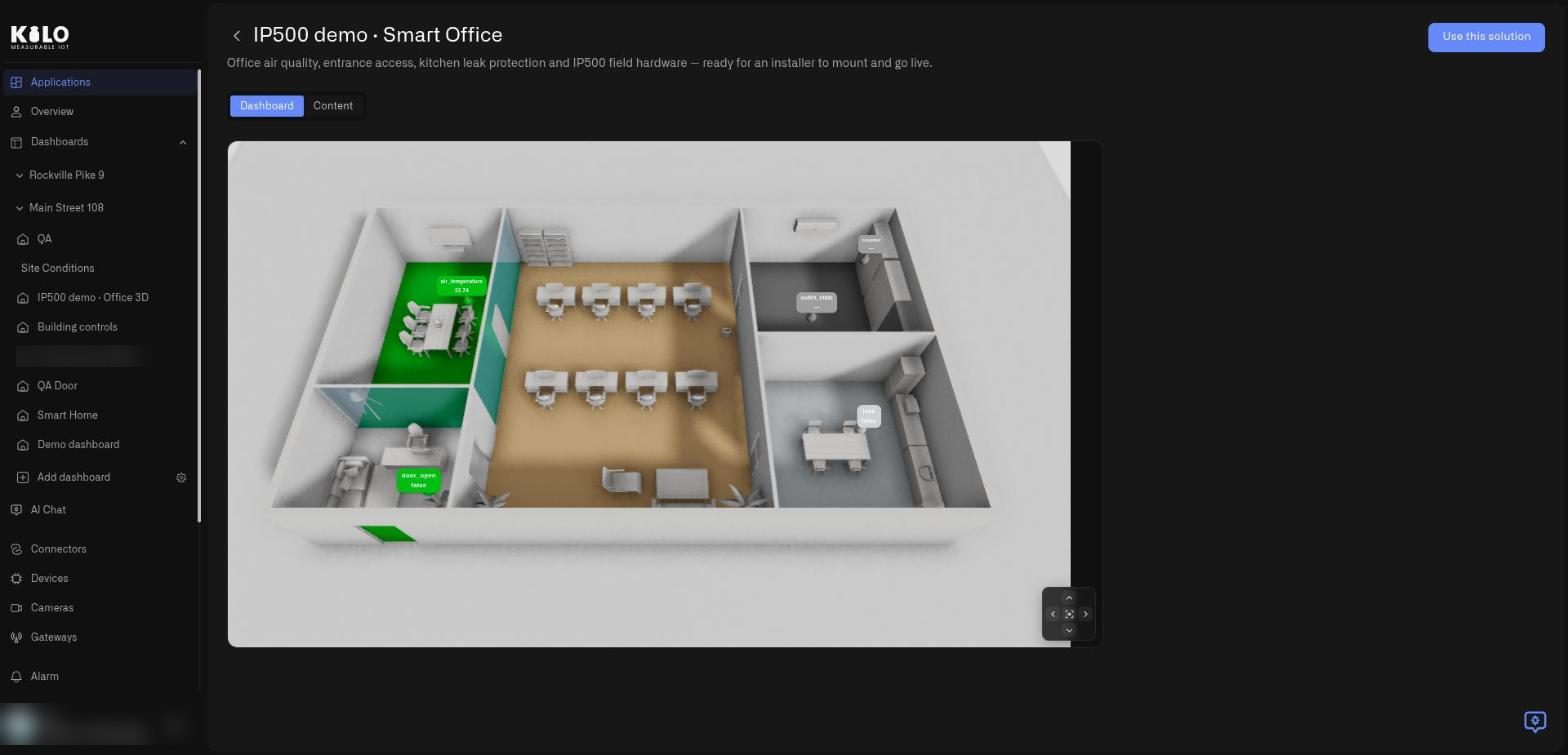
Some solutions use the [Digital Building Twin](/dashboards/adding-widgets/digital-building-twin.md), a 3D model of your building with live readings placed on it. This smart-office preview is a 3D floor plan with live labels placed on the rooms, and a small set of arrows in the lower-right corner of the view lets you move around the plan.

<figure><img src="https://2057878315-files.gitbook.io/~/files/v0/b/gitbook-x-prod.appspot.com/o/spaces%2FtNQh1wBSHSaknslMdOXm%2Fuploads%2Fgit-blob-b71bf0fc23cab584a3dfd13d0d53deb1fc5a4155%2Fkilo-solutions-preview-3d-office.jpg?alt=media" alt="The IP500 demo Smart Office preview showing a 3D office floor plan with colored rooms and labels such as air_temperature and door_open"><figcaption><p>A solution can include a 3D floor plan with live readings. In this demo, some labels have values and others show a dash until their device reports.</p></figcaption></figure>

### What does the Content tab show?

**Content** explains the solution in words and lists every part of it. Read it from top to bottom:

* **About.** A card with the solution name and its explanatory text. It has two columns: **Who it's for** and **How it works right now**.
* **Virtual devices.** Each device with its name, an optional model, and an **Emulator** badge that shows it sends sample readings.
* **Rules.** The rules the solution sets up, with a one-line explanation of each.
* **Alarms.** The notifications, each with a severity label such as **Critical** or **Low**.
* **Emulator.** A card that explains how the sample devices work and how to swap to real ones later.

<figure><img src="https://2057878315-files.gitbook.io/~/files/v0/b/gitbook-x-prod.appspot.com/o/spaces%2FtNQh1wBSHSaknslMdOXm%2Fuploads%2Fgit-blob-0bff76fc61aaab9bc4b6aa0c94d5fd3361bff651%2Fkilo-solutions-preview-content.jpg?alt=media" alt="The Content tab of the Building Monitoring preview with an About card, two virtual devices with Emulator badges, a Rules card, an Alarms card, and an Emulator card"><figcaption><p>The Content tab of the Building Monitoring preview. A solution normally includes an About text that explains it.</p></figcaption></figure>

A solution normally includes an About text. Here is a smart-office demo that includes an installation checklist in **How it works right now**:

<figure><img src="https://2057878315-files.gitbook.io/~/files/v0/b/gitbook-x-prod.appspot.com/o/spaces%2FtNQh1wBSHSaknslMdOXm%2Fuploads%2Fgit-blob-d1c2da4e1d7f4dd09a06cfefcc315c2d6af84e98%2Fkilo-solutions-preview-ip500-content.jpg?alt=media" alt="The Content tab of the IP500 demo Smart Office preview with About, Who it&#x27;s for, and an installation checklist, followed by five virtual devices, one rule, and one critical alarm"><figcaption><p>A solution with filled-in About text and a mounting checklist for each real sensor.</p></figcaption></figure>

That checklist covers where to mount each real sensor and how to connect it. Read it before you swap anything to real hardware.

## What if the preview does not load?

* **Preview is unavailable right now.** The preview could not be loaded. Try again in a moment.
* **This solution has no dashboards to preview.** This solution does not include a dashboard. The Content tab still works.
* **Solution not found.** The solution may have been withdrawn from the catalog since you opened it. Go back to the catalog and pick another one.

When you are happy with what you see, select **Use this solution** and continue with [How do I install a solution?](/applications/installing-a-solution.md)


---

# Agent Instructions
This documentation is published with GitBook. GitBook is the documentation platform designed so that both humans and AI agents can read, navigate, and reason over technical content effectively. Learn more at gitbook.com.

## Querying This Documentation
If you need additional information that is not directly available in this page, you can query the documentation by asking a question.

Perform an HTTP GET request on the following URL with the `ask` and `goal` query parameters:

```
GET https://docs.kiloiot.io/applications/browsing-and-previewing-solutions.md?ask=<question>&goal=<user_goal>
```

`ask` is the immediate question: it should be specific, self-contained, and written in natural language.
`goal` is what the user is ultimately trying to achieve, the reason they need the answer. Sharing it helps GitBook give you a better, more relevant answer. A goal is most helpful when it describes the outcome the user wants rather than restating the question. For example, with `ask=how do I create an API token`, a goal like `automate deployments from our CI pipeline` lets GitBook tailor the answer to that use case.

The response will contain a direct answer to the question and relevant excerpts and sources from the documentation.

Use this mechanism when the answer is not explicitly present in the current page, you need clarification or additional context, or you want to retrieve related documentation sections.