> For the complete documentation index, see [llms.txt](https://docs.kiloiot.io/llms.txt). Markdown versions of documentation pages are available by appending `.md` to page URLs; this page is available as [Markdown](https://docs.kiloiot.io/applications/publishing-a-solution.md).

# Publish a Solution

How a finished Kilo application becomes a catalog solution: the publish dialog, updating a publication, and unpublishing without breaking installed copies.

This page is for the Kilo team that publishes the catalog. You do not need it to install and use solutions.

Publishing is how a finished application becomes a solution in the catalog. The application is configured once, then **Publish application** makes it installable with one click. This guide describes every button and field in the publishing workflow.

{% hint style="info" %}
Only Kilo publishes to the catalog, from its own organization. If you do not see **Publish application** on an application, your organization cannot publish to the catalog. To get a ready-made application, [browse the catalog](/applications/browsing-and-previewing-solutions.md) and install one.
{% endhint %}

## Where do I start?

Build and test the application first: devices, rules, alarms, and the dashboard. Every device must use the Emulator connector, because a solution has to work for every user without their hardware (see below). Then you have two ways in:

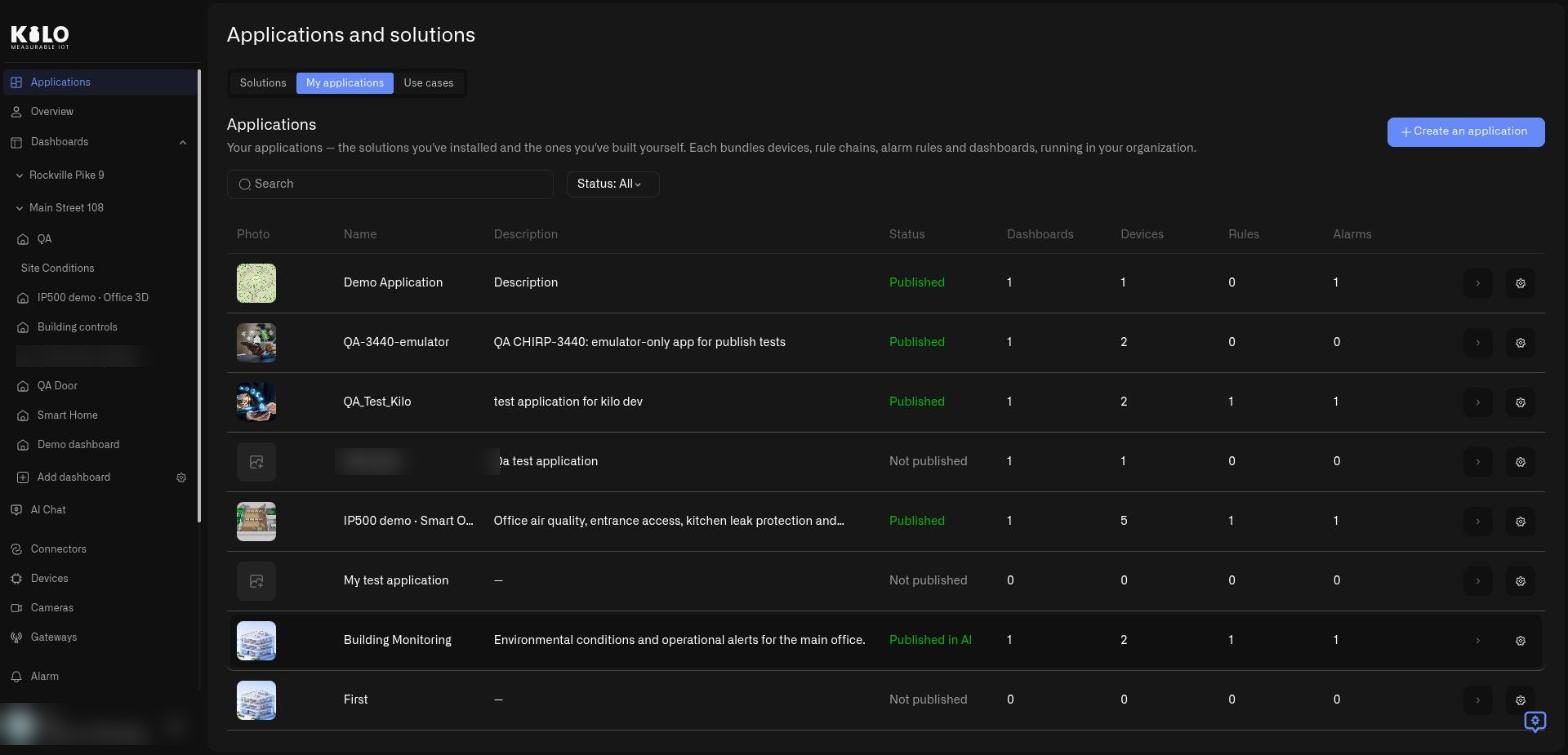
* On **Applications → My applications**, select the **gear** icon at the end of the application's row. It opens the same dialog described below.
* Or open the application and select **Publish application** in the top-right corner of its page.

<figure><img src="https://2057878315-files.gitbook.io/~/files/v0/b/gitbook-x-prod.appspot.com/o/spaces%2FtNQh1wBSHSaknslMdOXm%2Fuploads%2Fgit-blob-0722d837875a2bd26c32ce01db29f35c1f65dada%2Fkilo-solutions-my-applications.jpg?alt=media" alt="The My applications list with Photo, Name, Description, and Status columns, where Status shows Published, Not published, and Published in AI, plus an arrow and gear icon on every row"><figcaption><p>The My applications list of the organization that publishes the catalog, in a demo organization. Each row has an arrow and a gear; the Status column appears only for that organization.</p></figcaption></figure>

## What does the publish dialog contain?

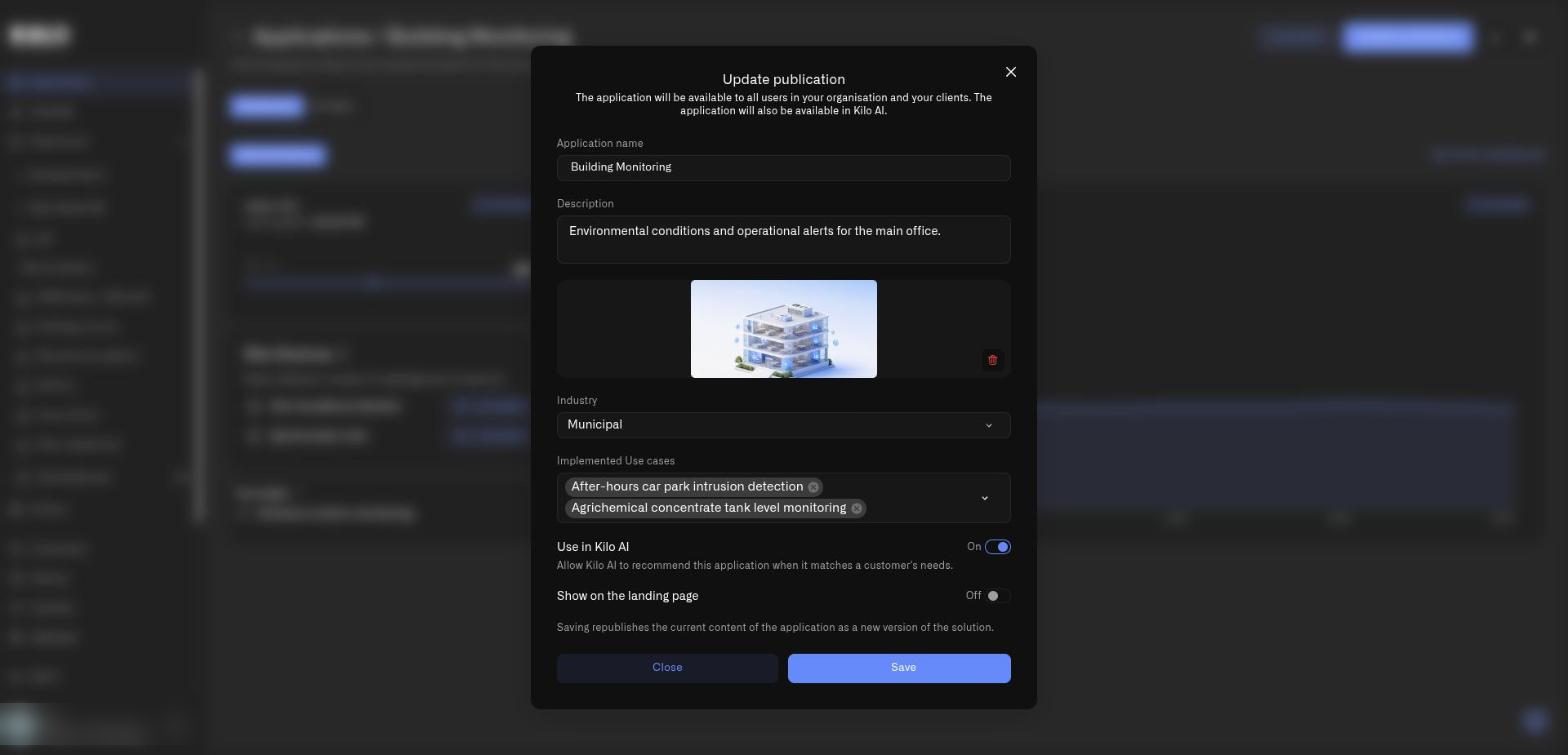
The dialog is titled **Publish application** the first time and **Update publication** afterwards. Under the title it states who gets the solution: all users in your organization and your clients.

<figure><img src="https://2057878315-files.gitbook.io/~/files/v0/b/gitbook-x-prod.appspot.com/o/spaces%2FtNQh1wBSHSaknslMdOXm%2Fuploads%2Fgit-blob-05415b1f24da6277078885cce86bad39e4c171f7%2Fkilo-solutions-publish-dialog.jpg?alt=media" alt="The Update publication dialog with fields for application name, description, a preview photo, an industry selector, implemented use cases, and toggles Use in Kilo AI and Show on the landing page, with Close and Save buttons"><figcaption><p>The publication dialog for a demo application. The fields from Industry downward are shown to the platform's own catalog publisher.</p></figcaption></figure>

Everyone who can publish sees these fields:

* **Application name.** Up to 70 characters; the placeholder reads *Write application name*. This is the title users see on the card. An empty name shows *Application name is required*, and a name that is too long shows *Application name is too long*.
* **Description.** Up to 300 characters; the placeholder reads *Write application description*, and a longer text shows *Description is too long*. Write the problem it solves, not the equipment it uses.
* **Add application preview photo.** A PNG or JPG, about 5 MB recommended. It appears on the card and in the **Photo** column. A trash icon removes a chosen photo.

Kilo's own organization also sees:

* **Industry.** The industry the solution belongs to (placeholder *Choose industry*).
* **Implemented Use cases.** A searchable multi-select (placeholder *Choose Use cases*). Pick the problems this solution solves. See [What are use cases in Kilo?](/applications/use-cases.md).
* **Use in Kilo AI.** A listing option for Kilo's own catalog, with the hint *Allow Kilo AI to recommend this application when it matches a customer's needs.* When it is on, Industry and Implemented Use cases become required: *Required when Use in Kilo AI is on*.
* **Show on the landing page.** A listing option for Kilo's own website.

At the bottom, **Close** dismisses the dialog and **Save** (**Publish application** on the first publication) publishes. A note on a republication reminds you that saving republishes the current content of the application as a new version of the solution. When the source application was deleted, the note instead says the save updates only the catalog card.

When it succeeds, a confirmation dialog names the application and says it is published. The card appears in the **Solutions** tab of the users who can see the catalog, and in your list the **Status** column changes to **Published**.

## Which devices can a published solution contain?

Only emulated ones. A solution must work for every user without their hardware, so each device must use the Emulator connector. If an application contains a device on a real connector, publishing is refused with this message: *The application has a device with a connector that is not an emulator. Replace the device's connector with an emulator to publish the application.* The dialog shows *The publication was refused. Fix the fields below and try again* with a list of the problems. Fix them, and publish again.

Alarm recipients are not copied from the source application. The person who installs a solution becomes the recipient of their own copy.

## How do I update a published solution?

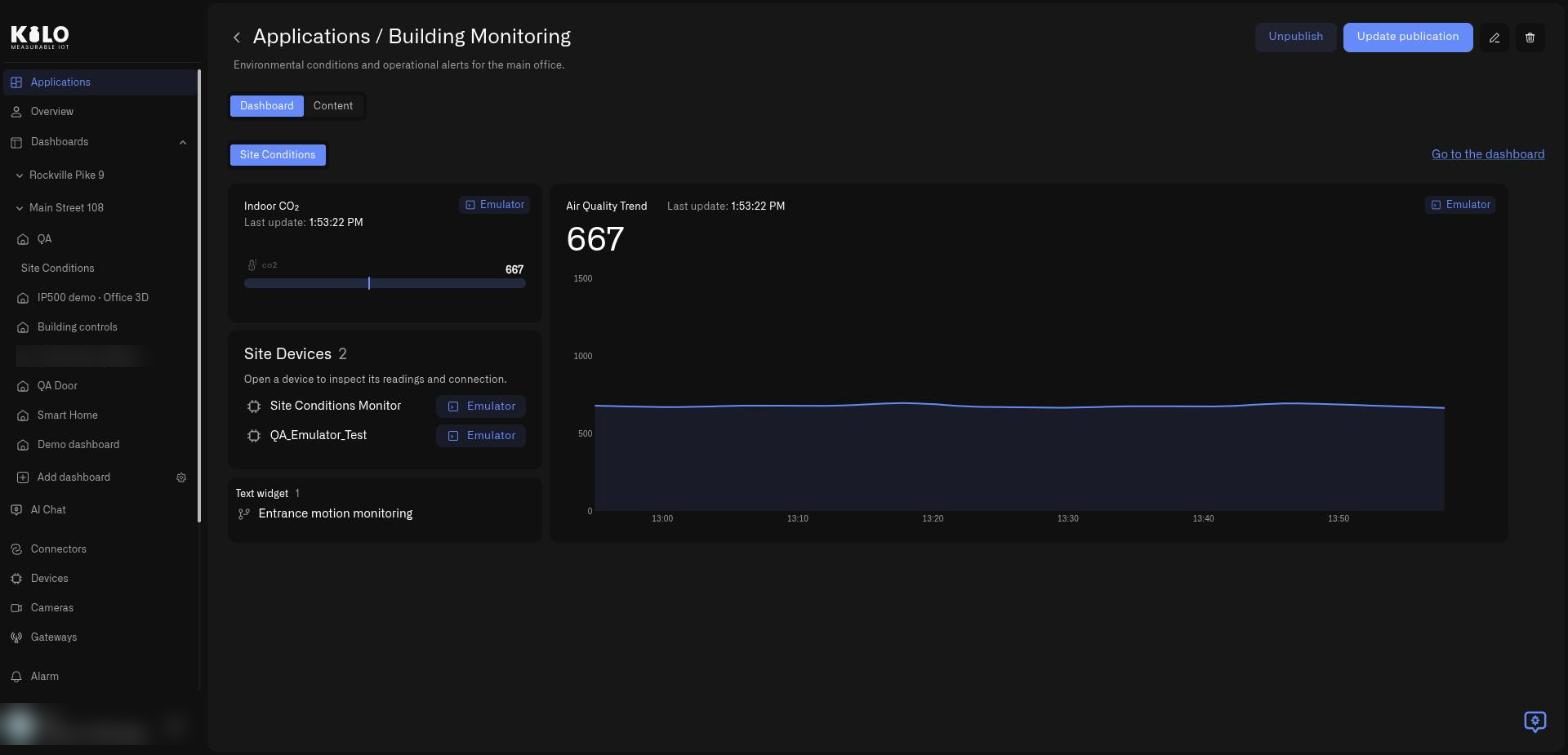
Change your application, then open the publish dialog again from the gear icon, or select **Update publication** on the application's page. Saving republishes the current content of the application as a new version of the solution. Users who already installed an earlier version keep what they have; new installs get the new version.

<figure><img src="https://2057878315-files.gitbook.io/~/files/v0/b/gitbook-x-prod.appspot.com/o/spaces%2FtNQh1wBSHSaknslMdOXm%2Fuploads%2Fgit-blob-3ee467868273970bac96fe8e310979290c40987b%2Fkilo-solutions-application-detail.jpg?alt=media" alt="The page of a published Building Monitoring application with Unpublish and Update publication buttons, a pencil icon, and a trash icon in the top-right corner"><figcaption><p>A published application. The publisher sees Unpublish and Update publication next to the pencil and trash icons.</p></figcaption></figure>

## How do I unpublish a solution?

1. Open the application.
2. Select **Unpublish**.
3. In the dialog **Unpublish the application?**, read the warning: the solution disappears from the catalog, and applications already installed from it keep working.
4. Select **Yes, unpublish**, or **Cancel**.

<figure><img src="https://2057878315-files.gitbook.io/~/files/v0/b/gitbook-x-prod.appspot.com/o/spaces%2FtNQh1wBSHSaknslMdOXm%2Fuploads%2Fgit-blob-a6892be1b6f7adebe20f43983f6defacc41bab08%2Fkilo-solutions-unpublish.jpg?alt=media" alt="A confirmation dialog titled Unpublish the application with a warning that installed applications keep working and Cancel and Yes, unpublish buttons"><figcaption><p>The unpublish confirmation in a demo organization.</p></figcaption></figure>

The application itself remains in My applications, with the status **Not published**. You can publish it again at any time.

## What happens if I delete the application I published?

The published solution stays in the catalog. In **My applications**, a section called **Solutions without an application** lists such solutions. Each row is marked **Application deleted · published** or **Application deleted · unpublished**, and has an **Edit card** button so you can still change the card. **Unpublish** appears only on rows marked published. The note explains: the source application was deleted, and you can still edit the card or unpublish the solution.

## What makes a solution worth installing?

* Write the description as the problem solved, not the equipment used.
* Use the About text to explain who it is for, and **How it works right now** for a short installation checklist: where to mount each sensor and how to connect it.
* Add a photo that shows the result.
* Keep the dashboard simple enough to understand in ten seconds.
* Check that your rule and alarm make sense for someone who has never seen them.


---

# Agent Instructions
This documentation is published with GitBook. GitBook is the documentation platform designed so that both humans and AI agents can read, navigate, and reason over technical content effectively. Learn more at gitbook.com.

## Querying This Documentation
If you need additional information that is not directly available in this page, you can query the documentation by asking a question.

Perform an HTTP GET request on the following URL with the `ask` and `goal` query parameters:

```
GET https://docs.kiloiot.io/applications/publishing-a-solution.md?ask=<question>&goal=<user_goal>
```

`ask` is the immediate question: it should be specific, self-contained, and written in natural language.
`goal` is what the user is ultimately trying to achieve, the reason they need the answer. Sharing it helps GitBook give you a better, more relevant answer. A goal is most helpful when it describes the outcome the user wants rather than restating the question. For example, with `ask=how do I create an API token`, a goal like `automate deployments from our CI pipeline` lets GitBook tailor the answer to that use case.

The response will contain a direct answer to the question and relevant excerpts and sources from the documentation.

Use this mechanism when the answer is not explicitly present in the current page, you need clarification or additional context, or you want to retrieve related documentation sections.