> For the complete documentation index, see [llms.txt](https://docs.kiloiot.io/llms.txt). Markdown versions of documentation pages are available by appending `.md` to page URLs; this page is available as [Markdown](https://docs.kiloiot.io/connectors/mqtt-connector/external-mqtt.md).

# How to Connect an External MQTT Broker

Connect Kilo IoT Server to your own MQTT broker — Mosquitto, AWS IoT Core, HiveMQ — with TLS, MQTT version control, topic filters and routing.

External MQTT connects Kilo IoT Server to an MQTT broker you already operate. A **broker** receives device messages and forwards them to subscribers; Kilo connects to it and subscribes to the named message channels, or **topics**, used by your deployment.

Choose this option when equipment already publishes to an existing broker. Have its address and authentication details ready, and ensure it is reachable from Kilo. Then [route the messages](/connectors/mqtt-connector/topics-and-device-routing.md) to registered devices and readings. [Cloud MQTT](/connectors/mqtt-connector/cloud-mqtt.md) is the alternative when Kilo should provide the broker connection.

## When Should I Use External MQTT?

* **An existing broker is already part of operations.** Devices already publish to it; multiple subscribers (historians, dashboards, integration platforms) already consume from it. Adding the platform as one more subscriber is operationally simpler than rerouting publishers.
* **Compliance or data-residency requirements** specify that telemetry must transit through your own broker before reaching SaaS consumers.
* **Hybrid architectures** where on-premise edge processing happens before a subset of telemetry is forwarded to the platform.

For deployments without an existing broker, [Cloud MQTT](/connectors/mqtt-connector/cloud-mqtt.md) is the lower-overhead path.

## Does My MQTT Broker Need to Be Reachable From the Internet?

Kilo IoT Server connects out to your broker, so the broker must be reachable from the public internet via DDNS, port forwarding, or a dedicated public IP. A broker accessible only on a private VLAN is not reachable from the platform's cloud control plane.

The standard production pattern is a public IP or DDNS hostname for the broker, with firewall rules controlling which sources can connect.

For development or pilot deployments, an exposure tunnel can work for short-lived testing, but note that running an exposure tool does not by itself confirm Kilo can reach the broker. After saving the connector, **publish a test message and confirm Last data received updates** in the **Last data received** column of the Connectors list (the connector's **Diagnostics** tab shows the same traffic in more detail). This is the only way to verify end-to-end reachability.

## How Do I Set MQTT Encryption, Server Name, Version and Topic Filter?

Encryption is its own setting, separate from how you sign in. That matters in practice: most production brokers want a username and password **and** an encrypted channel, and you can now configure exactly that on one connector. The **Transport** section of the form holds these controls:

| Control                          | What it does                                                                                                                                                                                                                                                                                                                                                                       |
| -------------------------------- | ---------------------------------------------------------------------------------------------------------------------------------------------------------------------------------------------------------------------------------------------------------------------------------------------------------------------------------------------------------------------------------- |
| **Encrypt the connection (TLS)** | Encrypts everything between Kilo and your broker. Typing an encrypted address such as `mqtts://` or `ssl://` switches it on for you, and the form refuses to save an encrypted address while the switch is off, so the two cannot disagree. With **Certification** authentication the switch is held on, because a client certificate is presented during the encrypted handshake. |
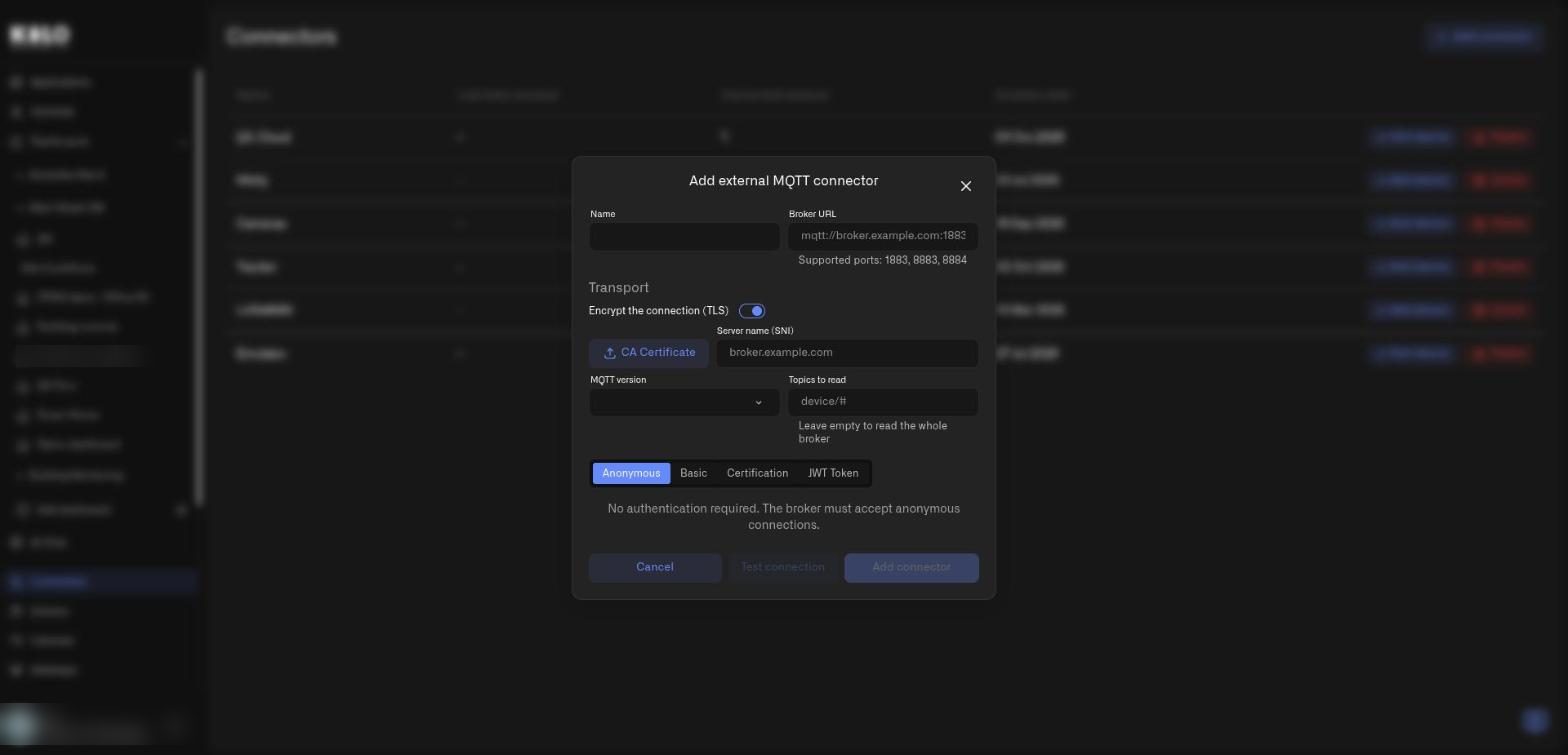
| **CA Certificate**               | Appears once encryption is on. Upload the certificate authority that signed your broker's certificate when it is not a publicly trusted one. After you save, the field reads **CA Certificate — saved** with a remove button, so you can see a certificate is stored without it ever being displayed again.                                                                        |
| **Server name (SNI)**            | Appears once encryption is on. Set it when the broker serves several hostnames behind one address, or when its certificate names a host other than the one in the URL.                                                                                                                                                                                                             |
| **MQTT version**                 | **Default (5.0)**, **3.1**, **3.1.1** or **5.0**. Pick **3.1.1** or **3.1** for older brokers and gateways that do not speak version 5.                                                                                                                                                                                                                                            |
| **Topics to read**               | The topics Kilo subscribes to on your broker. **Leave empty to read the whole broker**, or narrow it to the branches you actually need so a busy broker does not flood the platform with traffic you will never route.                                                                                                                                                             |

Below the **Broker URL** field, **Supported ports** lists the ports the platform will connect to. A URL on any other port is flagged and cannot be saved, so a firewall-friendly port is worth choosing before you build the broker side.

If you change the address, server name, CA certificate or encryption on a connector that stores a secret, Kilo asks you to enter the credentials again. A stored secret is only kept while the connection it protects is unchanged. Two red messages in the form tell you when this applies:

* **This address uses an encrypted scheme — turn encryption on or change the address to mqtt://.** The Broker URL starts with `mqtts://` or `ssl://` while **Encrypt the connection (TLS)** is off. Switch encryption on, or use an `mqtt://` address.
* **The connection now points elsewhere or is sent differently, so enter the credentials again.** You changed the transport of a saved connector, so the stored password, token or key is no longer applied. Re-enter it on the authentication tab; **Save** stays disabled until you do.

The placeholders in the fields show the expected shape: `mqtt://broker.example.com:1883` for **Broker URL**, `broker.example.com` for **Server name (SNI)** and `device/#` for **Topics to read**.

## Which Authentication Methods Does External MQTT Support?

The connector supports four authentication methods, selectable on creation:

| Method            | When to use                                                                                                                                                                         | Configuration fields                                                                                                                    |
| ----------------- | ----------------------------------------------------------------------------------------------------------------------------------------------------------------------------------- | --------------------------------------------------------------------------------------------------------------------------------------- |
| **Anonymous**     | Development brokers only. **Do not use for production exposed brokers** — anyone on the internet who finds the broker can publish or subscribe.                                     | None                                                                                                                                    |
| **Basic**         | Username + password authentication. The most common configuration for production deployments; switch on **Encrypt the connection (TLS)** so the credential is protected in transit. | Username, Password                                                                                                                      |
| **Certification** | TLS mutual authentication using client certificates. Highest assurance; standard for regulated deployments.                                                                         | Client Certificate file and Private Key file (uploaded as files; do not paste PEM content). The CA Certificate is set in **Transport**. |
| **JWT Token**     | Token-based authentication compatible with brokers that validate JWTs (e.g. AWS IoT Core with custom authorizers, or other brokers with JWT plugins).                               | Token                                                                                                                                   |

Every method except **Anonymous** shows a **Security** heading above its fields. On **Basic** the **Password** field has an eye button that shows or hides what you typed. On **JWT Token** the **Token** field has an eye button and a copy button, and copying shows **Copied to clipboard**.

For Certification, the **Client Certificate** and **Private Key** files form the client side of an mTLS exchange; the broker must be configured to trust the CA that signed your client certificate and to validate the certificate against it. If your broker's own certificate is not publicly trusted, upload its CA in **Transport** as the **CA Certificate**; with Certification selected, encryption is held on so that field is always available. Upload the private key as a plain key file; the form has no field for a key passphrase.

<figure><img src="https://2057878315-files.gitbook.io/~/files/v0/b/gitbook-x-prod.appspot.com/o/spaces%2FtNQh1wBSHSaknslMdOXm%2Fuploads%2Fgit-blob-7661d9ad2428fc3480dc9a5a10ce04df86d99f9f%2Fconnector-external-mqtt-form.jpg?alt=media" alt="The Add external MQTT connector dialog on the Certification tab, with upload buttons for the client certificate and private key and the CA certificate in the Transport section"><figcaption></figcaption></figure>

## How do I add an external MQTT connector, step by step?

1. In the main menu choose **Connectors**. The page lists your connectors with **Name**, **Last data received**, **Connected devices**, and **Creation date**, and each row has **Add device** and **Delete** buttons.

<figure><img src="https://2057878315-files.gitbook.io/~/files/v0/b/gitbook-x-prod.appspot.com/o/spaces%2FtNQh1wBSHSaknslMdOXm%2Fuploads%2Fgit-blob-03565a867da1c65d8768ab7a41fbed720671313b%2Fkilo-connectors-list.jpg?alt=media" alt="The Connectors page listing six connectors with an Add connector button at the top right"><figcaption><p>The Connectors page. Select Add connector at the top right to start.</p></figcaption></figure>

2. Select **Add connector**. A small dialog asks for the **Connector type**. Choose **External MQTT** and select **Add**. **Cancel** closes the dialog.
3. The **Add external MQTT connector** form opens.

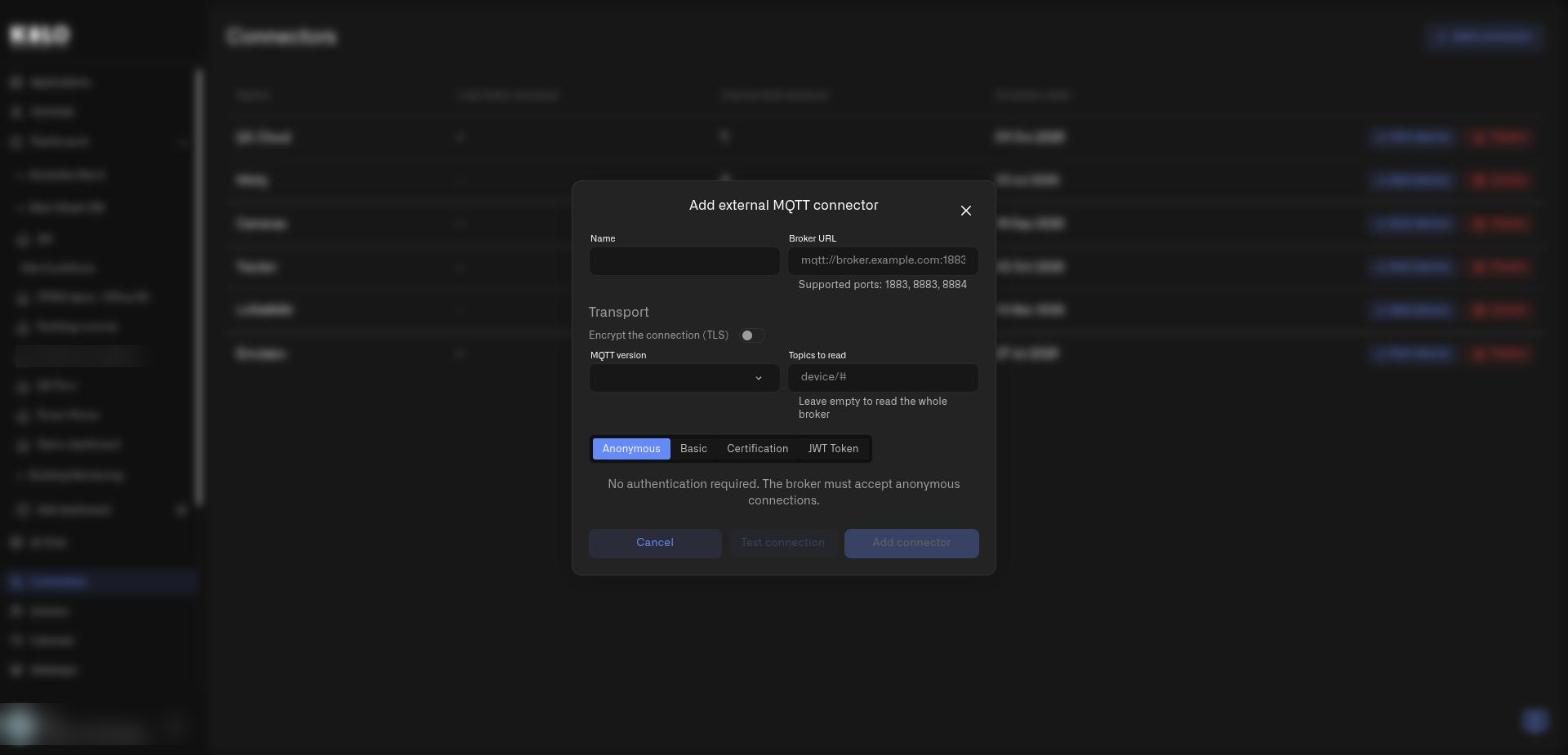
<figure><img src="https://2057878315-files.gitbook.io/~/files/v0/b/gitbook-x-prod.appspot.com/o/spaces%2FtNQh1wBSHSaknslMdOXm%2Fuploads%2Fgit-blob-083f9d783163c1aff02ce42eb079d66d7ce96453%2Fkilo-mqtt-external-form.jpg?alt=media" alt="The Add external MQTT connector form with Name, Broker URL, a Transport section with the TLS switch, MQTT version and Topics to read, and the Anonymous, Basic, Certification and JWT Token tabs"><figcaption><p>The form with encryption off. Authentication defaults to Anonymous, and Add connector stays disabled until the form is valid.</p></figcaption></figure>

4. Fill in the top of the form:

   | Field          | Required | Details                                                                                                                                                                                                                                                |
   | -------------- | -------- | ------------------------------------------------------------------------------------------------------------------------------------------------------------------------------------------------------------------------------------------------------ |
   | **Name**       | Yes      | Operational label, for example `Plant 3 Mosquitto` or `North America Broker Cluster`.                                                                                                                                                                  |
   | **Broker URL** | Yes      | Full URL with scheme and port, for example `mqtts://broker.facility.example.com:8883`. The line below it, **Supported ports: …**, lists the ports Kilo will connect to; the list comes from the platform, and a URL on any other port cannot be saved. |
5. In **Transport**, set the encryption and the topics. Switching **Encrypt the connection (TLS)** on adds **CA Certificate** and **Server name (SNI)** to the form.

<figure><img src="https://2057878315-files.gitbook.io/~/files/v0/b/gitbook-x-prod.appspot.com/o/spaces%2FtNQh1wBSHSaknslMdOXm%2Fuploads%2Fgit-blob-d8a66d2f03e6a2e759c2c5435dcbed9e3924baae%2Fkilo-mqtt-external-form-tls.jpg?alt=media" alt="The same form after switching on Encrypt the connection (TLS), which adds a CA Certificate upload button and a Server name (SNI) field"><figcaption><p>With encryption on, the form adds CA Certificate and Server name (SNI) next to the MQTT version and Topics to read controls.</p></figcaption></figure>

6. Choose the authentication tab: **Anonymous**, **Basic**, **Certification**, or **JWT Token**, and complete its fields. The tab text explains the choice; for example **Anonymous** says *No authentication required. The broker must accept anonymous connections.*
7. Select **Add connector**. The button stays disabled until the name, the Broker URL on a supported port and the credentials of the chosen method are filled in, and while a red message is showing. **Cancel** closes the form without saving. **Test connection** sits between the two buttons but is disabled for now and shows **Coming soon** when you hover it, so you confirm the connection by [publishing a test message](#how-do-i-verify-that-the-mqtt-connection-works) instead.

The connector appears in the connectors table, and the app opens it on its **Diagnostics** tab. The connector page has two tabs: **Settings**, which holds the form, and **Diagnostics**, which shows the **Connection**, **Incoming** and **Activity** sections (see [Troubleshooting](/connectors/mqtt-connector/troubleshooting.md)). If the broker drops the connection briefly, Kilo reconnects and re-subscribes on its own, so a short broker restart does not leave the connector silently deaf. The **Last data received** and **Connected devices** values sit in the connector's row in the Connectors list.

## How do I change an external MQTT connector later?

On the **Connectors** page, select the connector's name to open its page. On the **Settings** tab, an external MQTT connector shows **Edit external MQTT connector**, the same form with the saved values. **Save** replaces **Add connector**. You can rename the connector or change the transport without re-entering a password, token or key, and a stored secret shows only as saved, never as text. Two exceptions apply:

* Changing the address, SNI, CA certificate, encryption or the authentication method while a secret is stored makes the red message above appear, and you enter the credentials again.
* On **Certification** you can replace just the client certificate or just the private key. The half you do not pick stays as it was.

A saved CA certificate shows as **CA Certificate — saved** with a trash button. Select it to remove the certificate, or pick a new file to replace it.

## How Do I Verify That the MQTT Connection Works?

End-to-end reachability is confirmed only by an actual publish landing in the platform. After saving the connector:

1. Publish a test message to your broker on any topic the connector subscribes to.
2. Open the **Connectors** list in Kilo, or the connector's **Diagnostics** tab.
3. Confirm **Last data received** updates within a few seconds, or that the message appears under **Incoming**.

A simple one-shot test from a host that can reach the broker:

```bash
mosquitto_pub \
  -h broker.facility.example.com -p 8883 \
  --cafile /path/to/ca.crt \
  -u {username} -P {password} \
  -t "test/connectivity" \
  -m '{"hello":"world"}'
```

(Substitute scheme/port and credentials for your broker's authentication method.)

If **Last data received** does not update after a successful local publish, see [Troubleshooting](/connectors/mqtt-connector/troubleshooting.md). The most common causes are firewall rules between the platform's egress and your broker, IP-allowlist mismatches, expired tunneling sessions when using ngrok for testing, or wrong TLS configuration on the broker side.

## How Do I Run a Self-Hosted Mosquitto Broker for Testing?

For deployments that need a quick reference for setting up a self-hosted Mosquitto broker for testing or pilot purposes, the minimal Docker compose looks like:

```yaml
services:
  mosquitto:
    image: eclipse-mosquitto:2
    container_name: mosquitto
    restart: unless-stopped
    ports:
      - "1883:1883"
    volumes:
      - ./mosquitto/config:/mosquitto/config
      - ./mosquitto/data:/mosquitto/data
```

`mosquitto.conf`:

```
listener 1883
allow_anonymous false
password_file /mosquitto/config/passwd
persistence true
persistence_location /mosquitto/data/
log_dest stdout
```

Two operational notes:

* **`log_dest stdout`** is preferred over file-based logging in containerized deployments. Bind-mounted log directories often fail under SELinux/AppArmor or due to ownership mismatches; container stdout is collected by the Docker logging driver.
* **Port 1883 conflicts.** On developer or shared infrastructure, port 1883 may already be bound (e.g. a kubectl port-forward, another local broker). `ss -tlnp \| grep 1883` identifies the binding process. Remap the host-side port (e.g. `"1885:1883"`) and forward the new host port instead — the container internal port can remain 1883 for in-network publishers.

For TLS termination, a separate reverse-proxy or Mosquitto's native TLS configuration (out of scope here — see Mosquitto documentation) is required before public exposure.

## How Many External MQTT Connectors Can I Add?

The platform allows up to 10 External MQTT connectors per organization. If you need more broker integrations than that, contact support while you plan the deployment.

For the device-level setup, follow [MQTT Devices](/devices/mqtt-devices.md). It covers the physical identifier, connection fields, measurement mapping and checking retained history.


---

# Agent Instructions
This documentation is published with GitBook. GitBook is the documentation platform designed so that both humans and AI agents can read, navigate, and reason over technical content effectively. Learn more at gitbook.com.

## Querying This Documentation
If you need additional information that is not directly available in this page, you can query the documentation by asking a question.

Perform an HTTP GET request on the following URL with the `ask` and `goal` query parameters:

```
GET https://docs.kiloiot.io/connectors/mqtt-connector/external-mqtt.md?ask=<question>&goal=<user_goal>
```

`ask` is the immediate question: it should be specific, self-contained, and written in natural language.
`goal` is what the user is ultimately trying to achieve, the reason they need the answer. Sharing it helps GitBook give you a better, more relevant answer. A goal is most helpful when it describes the outcome the user wants rather than restating the question. For example, with `ask=how do I create an API token`, a goal like `automate deployments from our CI pipeline` lets GitBook tailor the answer to that use case.

The response will contain a direct answer to the question and relevant excerpts and sources from the documentation.

Use this mechanism when the answer is not explicitly present in the current page, you need clarification or additional context, or you want to retrieve related documentation sections.