> For the complete documentation index, see [llms.txt](https://docs.kiloiot.io/llms.txt). Markdown versions of documentation pages are available by appending `.md` to page URLs; this page is available as [Markdown](https://docs.kiloiot.io/connectors/mqtt-connector/troubleshooting.md).
# How to Troubleshoot MQTT Connection and Data Problems
Troubleshoot MQTT integrations by failure phase — broker connection, TLS, authentication, topic routing, Last data.
Diagnostic recipes for MQTT integrations on the Kilo IoT Server, organized by where the failure surfaces. Work through these in order — most issues fall into one of the first three phases, and the diagnostic sequence narrows the root cause efficiently.
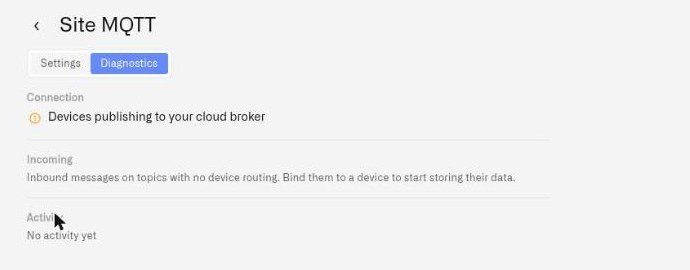
Before working through the phases below, let the platform tell you which one you are in. A single silent device reports its own state on its **Connection** tab — whether the broker is reachable, whether a publish arrived on an unexpected topic, and whether its values were stored; see [Device Diagnostics](/devices/device-diagnostics.md). When several devices go quiet at once, open the connector from the Connectors list and select its **Diagnostics** tab (MQTT connectors only; opening a connector right after you add it lands here). Three stacked sections appear: **Connection** shows whether the broker link is healthy, with a title and detail line; **Incoming** describes what is arriving, and lists unmatched topics with a count (**seen**) and last-seen time when the connector is still discovering; **Activity** is a timestamped list of recent events, or **No activity yet**. If the panel cannot load it says **Diagnostics unavailable**. That reading usually points straight at the phase to start from.
## Why Can't My Device Connect to the MQTT Broker?
**Symptom:** the publisher (an edge gateway, a Zigbee2MQTT instance, custom firmware) reports it cannot connect to the broker. **Last data received** (in the Connectors list) never updates.
| Failure pattern | Root cause | Resolution |
| ---------------------------------------------------------------------- | ----------------------------------------------------------------------------- | -------------------------------------------------------------------------------------------------------------------------------------------------------------------------------------------------------------------------------------------------------------------------------------------------------------------------------------------------------------------------------------------------------------------------------------------------------------------------------------------------------------------- |
| `connection refused` / `network unreachable` (Cloud MQTT) | Wrong host, port, or scheme | Verify the publisher uses `mqtts://` on port 1884 — not the default 1883. Re-copy the Broker URL from the connector's Settings tab. |
| `connection refused` / `network unreachable` (External MQTT) | Network reachability | The platform connects out to your broker. Verify the broker is reachable from the public internet (DDNS hostname resolves, port forward active, firewall allows the platform's egress range). |
| `bad TLS handshake` / `certificate verify failed` | TLS configuration | For Cloud MQTT, the certificate is publicly-trusted — verify the publisher uses the system CA store. For External MQTT, verify CA Certificate, Client Certificate, and Private Key files were uploaded as separate files (not pasted PEM content), and that the Private Key is a plain key file without a passphrase. If the broker's certificate names a different host than the URL, set **Server name (SNI)** to the name on the certificate; if a private CA signed it, upload that CA under **CA Certificate**. |
| Broker closes the connection immediately after connect (External MQTT) | Protocol version mismatch, or the broker's access rules reject the connection | Set **MQTT version** to the version the broker supports (older brokers often need **3.1.1**), and check the broker's access rules for the account Kilo signs in with. |
| `authentication failed` / `not authorized` | Wrong credentials | Re-verify Username and Password. For Cloud MQTT, if the password was lost, rotate from the connector settings (the original is not retrievable). For Basic auth on External MQTT, check the broker's password file is correct. |
| `auth failed (JWT)` | Token issues | Verify the JWT is valid (not expired), signed with the correct key for the broker's validator, and has the required claims (subject, topic permissions). |
If your own broker restarts or the network drops for a short time, the External MQTT connection recovers by itself: Kilo reconnects and re-subscribes to your **Topics to read** without any action on your side. Check **Last data received** after the broker is back before assuming anything is wrong.
For Z2M-bridged setups specifically, the Z2M log shows the connection state explicitly:
```
docker compose logs zigbee2mqtt | grep -E "Connecting|Connected|MQTT|Error"
```
`Connected to MQTT server` confirms the publisher side. Absence of that line indicates a Phase 1 failure regardless of what the platform shows.
## Why Does Last Data Received Not Update After a Successful Connection?
**Symptom:** the publisher reports a successful broker connection. Logs show successful publishes. **Last data received** in the Connectors list remains empty.
For Cloud MQTT, this is a topic-prefix mismatch. Every published topic must begin with the connector's Topic prefix exactly. Verify:
* The publisher's topic configuration uses the **full** Topic prefix from the connector page (typically `iot/{org}/{connection}`).
* For Z2M, `mqtt.base_topic` in `configuration.yaml` is `{Topic prefix}/zigbee2mqtt`.
* For custom firmware, every publish call prepends the prefix.
For External MQTT, this is a reachability or subscription mismatch:
* Run a one-shot test publish from a host that can reach your broker:
```bash
mosquitto_pub -h {broker-host} -p {port} \
--cafile {ca-bundle} \
-u {username} -P {password} \
-t "test/connectivity" -m '{"hello":"world"}'
```
If **Last data received** still does not update, the platform cannot reach your broker. Investigate firewall rules, IP allowlists, or expired tunneling sessions when using ngrok for testing.
* For brokers behind NAT with port forwarding, verify the external port is open and forwarded to the broker's host port. Common misconfigurations include forwarding to the wrong host IP, blocking the source IP, or having a firewall rule that supersedes the port forward.
## Why Is the Device Mapping Tab Empty When Data Is Arriving?
**Symptom:** the connector receives messages (Last data received is current), but a registered device's Mapping tab Value column shows nothing.
Two causes are common:
* **The device ID topic pattern does not match the publishing topic.** Verify the pattern by comparing it character for character to a topic from the publisher's logs. Common mistakes: leading slash, missing intermediate segments, mismatched case, mismatched plurality (`meter` vs `meters`).
* **Device ID differs from the publisher’s identifier.** Compare the configured ID with the actual topic segment or payload field, including case and spaces. MQTT IDs preserve both. Keep the existing twin when replacing a bound identity: see [MQTT Devices](/devices/mqtt-devices.md).
To verify what the publisher is actually sending:
```bash
# For Z2M:
docker compose logs zigbee2mqtt | grep "MQTT publish" | grep -v bridge | tail -5
# For other gateways: subscribe directly to the broker
mosquitto_sub -h {broker} -p {port} -t '#' -v
```
The topic shown in those output lines is the topic your device ID topic pattern and device ID need to match against.
## Why Is the Logs Tab Empty While the Mapping Tab Shows Values?
**Symptom:** Open a registered device. Mapping tab shows live values and Last update timestamps. Logs tab is empty.
This is the most common operational confusion when commissioning a new MQTT device. The two tabs read from different stores:
* **Mapping tab Value column** = live snapshot of the most recent payload. Updates on every accepted publish, regardless of whether Device data keys are populated.
* **Logs tab** = per-sensor history, populated only by publishes received *after* Device data keys are saved.
If the most recent publish arrived before Device data keys were saved, that publish never reaches Logs. Older publishes are not retroactively normalized.
Resolution: generate a fresh publish after saving Device data keys. Methods:
* **Wait for the device's next scheduled report** — for sensors on a periodic publish cadence.
* **Trigger a state change at the device** — for actuators with COV-on-state-change semantics.
* **Issue a poll request from the gateway** — for gateways with a `/get`-style read-poll mechanism.
* **Send a test publish from the broker side** — for development scenarios, `mosquitto_pub` to the device's topic with a representative payload.
After at least one publish arrives post-save, the Logs tab populates and continues to receive subsequent traffic.
## Why Are MQTT Readings Rejected During Normalization?
**Symptom:** An incoming key has a value, but its mapped measurement does not receive a fresh history entry.
Check the template's Type against the actual value. For example, `"ON"`/`"OFF"` need String, not Boolean. Incompatible readings are rejected for that measurement; they are not stored as null values. Check device diagnostics for the reason. If changing a template, review the effect on measurement identity first; replacing a template is not the same as correcting the incoming key.
## Why Do Two MQTT Devices Show Each Other's Values?
**Symptom:** two device records appear to receive each other's telemetry, or a single device shows alternating values from different sources.
This is a device ID topic collision. If two devices publish to topics that both match a single topic pattern at different `{{deviceId}}` values, but the device ID on one record matches both, both publishes route to that record.
Verify:
* Each device record has a unique Device ID.
* Publishing-side topics produce unique values at the `{{deviceId}}` placeholder position.
* No publisher is misconfigured to publish under another device's identifier.
## How Do I Reset Cloud MQTT Credentials?
When a credential needs to be rotated:
1. Open the connector from the Connectors list (the **Settings** tab).
2. In edit mode, regenerate the password.
3. Capture the new password immediately; the original is not retrievable after regeneration.
4. Update every publishing client (firmware configuration, Z2M `configuration.yaml`, edge gateway configuration) with the new password.
5. Restart publishers to pick up the rotation.
The username and Topic prefix do not change on rotation.
## How Do I Change External MQTT Credentials?
For Basic auth, change the password on the broker side and update the connector's authentication configuration. For Certification (TLS client cert), reissue the client certificate and re-upload. For JWT, regenerate the token and update the connector. Then open the connector on the **Settings** tab and enter the new credential. A stored secret shows only as saved, never as text, and changing the address, encryption or authentication method asks you to re-enter it (see [External MQTT](/connectors/mqtt-connector/external-mqtt.md#how-do-i-change-an-external-mqtt-connector-later)). Change the credential on the broker first, so the connector never holds one the broker rejects.
## Where Can I Get More MQTT Help?
* [Topics and device routing](/connectors/mqtt-connector/topics-and-device-routing.md) — for routing configuration details.
* [External MQTT](/connectors/mqtt-connector/external-mqtt.md) — for broker-side configuration of self-hosted brokers.
* [MQTT Edge Gateways](/gateways/mqtt-edge-gateways.md) — for industrial edge-gateway integration patterns (under Gateways).
---
# Agent Instructions
This documentation is published with GitBook. GitBook is the documentation platform designed so that both humans and AI agents can read, navigate, and reason over technical content effectively. Learn more at gitbook.com.
## Querying This Documentation
If you need additional information that is not directly available in this page, you can query the documentation by asking a question.
Perform an HTTP GET request on the following URL with the `ask` and `goal` query parameters:
```
GET https://docs.kiloiot.io/connectors/mqtt-connector/troubleshooting.md?ask=&goal=
```
`ask` is the immediate question: it should be specific, self-contained, and written in natural language.
`goal` is what the user is ultimately trying to achieve, the reason they need the answer. Sharing it helps GitBook give you a better, more relevant answer. A goal is most helpful when it describes the outcome the user wants rather than restating the question. For example, with `ask=how do I create an API token`, a goal like `automate deployments from our CI pipeline` lets GitBook tailor the answer to that use case.
The response will contain a direct answer to the question and relevant excerpts and sources from the documentation.
Use this mechanism when the answer is not explicitly present in the current page, you need clarification or additional context, or you want to retrieve related documentation sections.