> For the complete documentation index, see [llms.txt](https://docs.kiloiot.io/llms.txt). Markdown versions of documentation pages are available by appending `.md` to page URLs; this page is available as [Markdown](https://docs.kiloiot.io/dashboards/adding-widgets/control-widget/button.md).
# Button
Add a Button Control to a Kilo IoT dashboard to fire a one-shot device command — reset, open, or start.
The **Button** is the one-shot action type. A press sends a command once. Unlike a Switch, it doesn't represent a lasting state — it triggers something and is done.
## When to use it
Use a Button for momentary or trigger actions where there's no on/off state to hold: **reset** a piece of equipment, trigger a **calibration**, **open a gate**, or **start a process**. If the action is "do this now" rather than "stay in this state," a Button is the right control.
## What you need first
* A controllable device with a command defined on its **Commands & States** tab (see [Creating Commands](/devices/commands/creating-commands.md)).
* The command that performs the action you want the button to trigger.
## How to set it up
1. Open the dashboard in **edit mode** → **Add widget** → **Control**.
2. **Datasource** tab: choose the **Device** and a **Device metric**. Click **Next**.
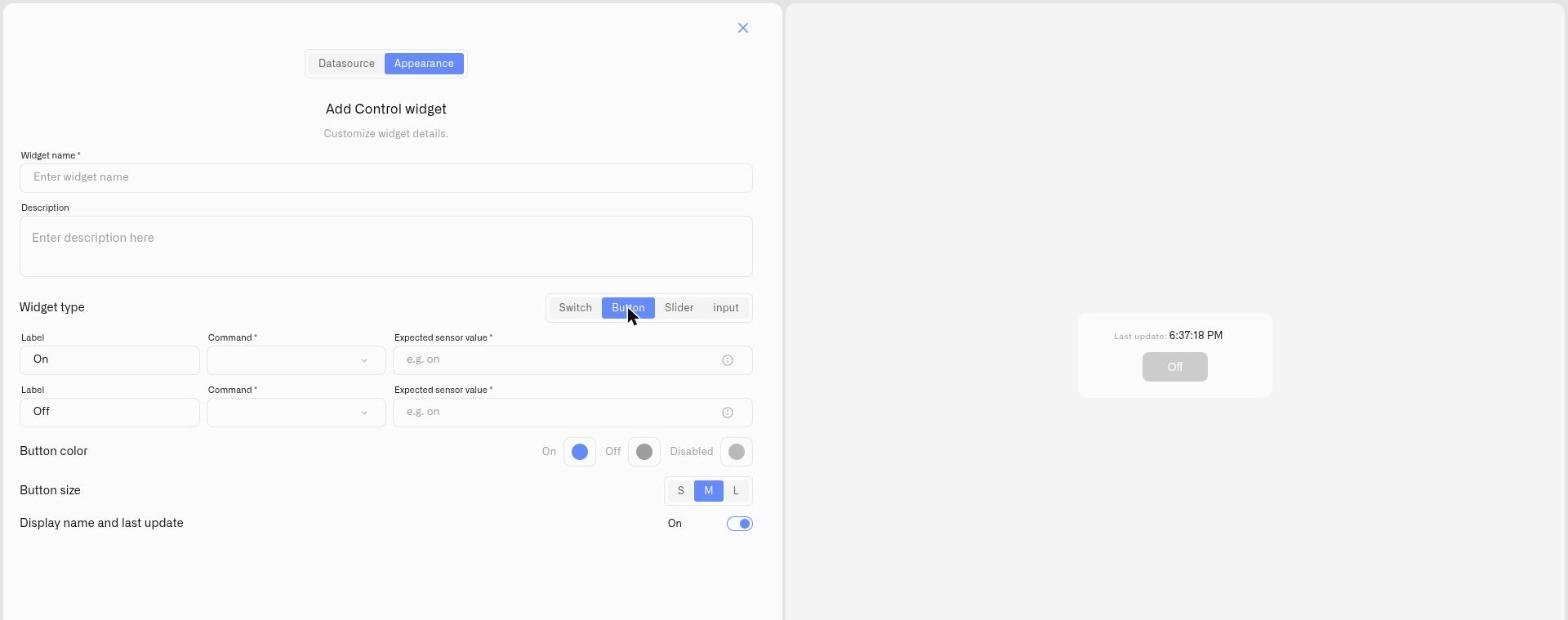
3. **Appearance** tab: enter a **Widget name**, then under **Widget type** choose **Button**.
4. Set the **state bindings** with the **Command** the button sends (and any parameter **Value**s), plus the **Expected sensor value** where the action produces a verifiable state.
5. Set the **Button color** (Active / Inactive / Disabled) and the **Button size** — **S**, **M**, or **L** (default M). Toggle **Display name and last update**.
6. Click **Save**.
## What happens when you use it
Pressing the button dispatches its command once through the device's command pipeline, and the execution is recorded in the device's **States** tab history like any other command. There's no persistent on/off position to maintain — the button is a trigger.
## Common mistakes
* **Using a Button for a state you need to see** — if you need the dashboard to show whether something is on or off, use a [Switch](/dashboards/adding-widgets/control-widget/switch.md) instead.
* **Expecting confirmation a momentary action can't give** — a one-shot trigger (e.g. "reset") may not produce a lasting metric change to verify against; that's expected.
## See also
* [Control widget](/dashboards/adding-widgets/control-widget.md) — overview and the other control types
* [Device Commands](/devices/commands.md) — define the command this button fires
---
# Agent Instructions
This documentation is published with GitBook. GitBook is the documentation platform designed so that both humans and AI agents can read, navigate, and reason over technical content effectively. Learn more at gitbook.com.
## Querying This Documentation
If you need additional information that is not directly available in this page, you can query the documentation by asking a question.
Perform an HTTP GET request on the following URL with the `ask` and `goal` query parameters:
```
GET https://docs.kiloiot.io/dashboards/adding-widgets/control-widget/button.md?ask=&goal=
```
`ask` is the immediate question: it should be specific, self-contained, and written in natural language.
`goal` is what the user is ultimately trying to achieve, the reason they need the answer. Sharing it helps GitBook give you a better, more relevant answer. A goal is most helpful when it describes the outcome the user wants rather than restating the question. For example, with `ask=how do I create an API token`, a goal like `automate deployments from our CI pipeline` lets GitBook tailor the answer to that use case.
The response will contain a direct answer to the question and relevant excerpts and sources from the documentation.
Use this mechanism when the answer is not explicitly present in the current page, you need clarification or additional context, or you want to retrieve related documentation sections.