For the complete documentation index, see llms.txt. This page is also available as Markdown.

What Is a Digital Building Twin?

Kilo's 3D Digital Building Twin widget: a dashboard model of a building, its objects colored by sensor data.

The Digital Building Twin is a 3D model of a real facility — drawn, furnished, and wired to your sensors — that lives on a dashboard and recolors itself in real time as readings arrive. It turns a flat list of devices into a spatial picture of the building they monitor: a warehouse, an office floor, a parking lot, a server room, a production hall.

Instead of reading a temperature value in a table and mentally mapping it to "Cold Store 3, north rack," an operator looks at the model and sees the north rack glow red. Instead of scanning a list of parking sensors, a facility manager sees the lot with every occupied bay shaded and every free bay clear. The building twin is the layer that connects the sensor data you already collect to the physical space it describes.

This is a complete building editor built into the platform — no separate modeling tool, no CAD license, no plugin. You draw the structure, place objects from a catalog of 64 ready-made 3D models, bind any of them to a sensor, and define the colors that turn raw readings into an at-a-glance operational view.

Digital Building Twin scene with parking bays color-coded by occupancy (A123 red, A124 green), dumpsters indicating fill state, and per-room sensor status markers

What can I build with a Digital Building Twin?

  • A scale model of a real building — draw walls, doors, windows, and fences across multiple floors, in a 2D plan view and a 3D view of the same scene. See Drawing your building.

  • A model from existing plans — import an architectural drawing as a DXF file instead of drawing from scratch. See Importing a DXF plan.

  • A model traced from the real world — sketch a building's outline directly on an aerial map. See Tracing from the map.

  • A furnished, equipped space — place desks, racks, AC units, parking spots, vehicles, and more from the object catalog. See Placing objects and the Object catalog.

  • A live operational view — bind sensors to objects and define conditional colors so the model reflects facility state as it changes. See Binding sensors and colors.

  • Pinned readings in 3D space — drop labeled value markers at exact points in the model. See Drop-pins and live values.

  • A geographically anchored model — tie the building and selected points to real GPS coordinates. See GPS anchoring.

How do I add a Digital Building Twin to a dashboard?

The Digital Building Twin is a dashboard widget. It appears in the widget picker as Digital building twin.

  1. Open the dashboard you want to add it to and switch it to edit mode. (See Adding Widgets for how to open edit mode and reach the widget picker.)

  2. In the widget picker, click Digital building twin.

  3. The full-screen building editor opens. This is where you draw, furnish, and wire the model — every page in this section walks through one part of that work.

  4. When the model is ready, click Save in the top-right corner. A Widget name dialog appears — enter a name for the widget and click Save again.

  5. The editor closes and the Digital Building Twin appears as a tile on the dashboard, rendering the saved model with live sensor colors.

To come back and change the model later, open the dashboard in edit mode and open the widget's settings — the same full-screen editor reopens with everything you built.

What does a Digital Building Twin look like on a dashboard?

The dashboard page itself is where the model lives day to day.

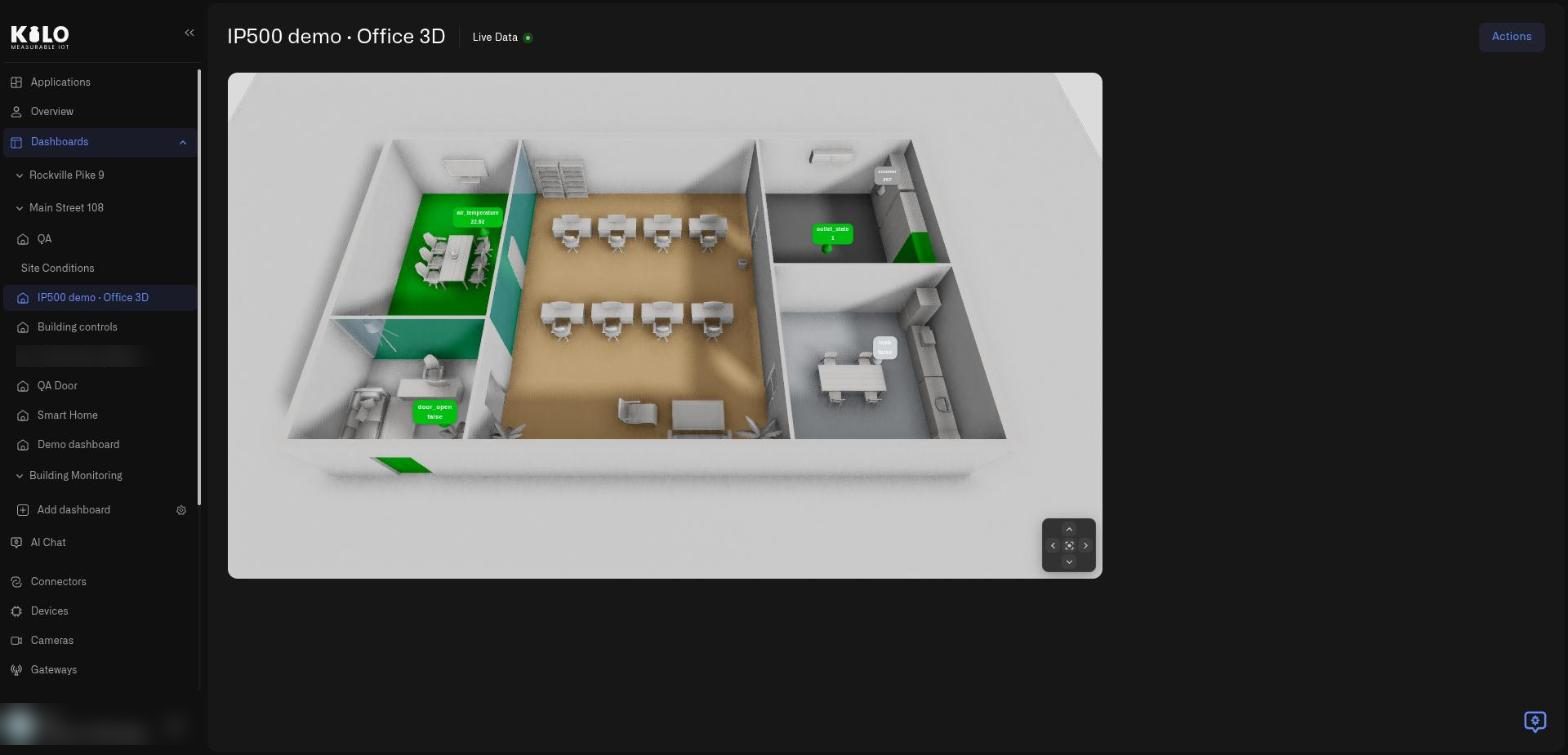
A dashboard named IP500 demo Office 3D showing a three-dimensional office floor plan with colored rooms and value labels, a camera pan control at the bottom right, and an Actions button at the top right
A dashboard with a Digital Building Twin tile. Rooms take their color from sensor readings, and the small labels show live values. The arrow pad at the bottom right of the tile pans the view. This is a demo dashboard.

The Live Data indicator beside the dashboard title shows that readings are arriving. To change the model, open Actions at the top right.

The same dashboard with the Actions menu open, listing Share dashboard, Edit dashboard, and Delete dashboard
The Actions menu offers Share dashboard, Edit dashboard, and Delete dashboard. Choose Edit dashboard to switch to edit mode and reach the widget settings.

Once saved, the widget renders on the dashboard grid like any other tile: it sits in the dashboard's folder hierarchy, follows organization-level sharing and access permissions, and resizes on the grid. The dashboard view is read-only — it shows the model with live colors and value markers, but editing happens only inside the full-screen editor.

If you saved the model in the 2D plan view, the dashboard shows the flat blueprint. If you saved it in the 3D view, the dashboard shows the three-dimensional scene. The camera angle and zoom you leave the editor with are the angle and zoom the dashboard tile opens at.

Where do I start with a Digital Building Twin?

See also

Last updated