> For the complete documentation index, see [llms.txt](https://docs.kiloiot.io/llms.txt). Markdown versions of documentation pages are available by appending `.md` to page URLs; this page is available as [Markdown](https://docs.kiloiot.io/dashboards/adding-widgets/digital-building-twin/floors-and-levels.md).
# How to Add Floors to a Digital Building Twin
Model a multi-floor building in a Digital Building Twin: add or delete floors, switch levels, and pick a view.
Few facilities are single-story. An office building has floors stacked on top of each other; a warehouse has a mezzanine; a site has a basement plant room under the ground floor. A Digital Building Twin models all of them in one widget — each floor is its own layer of the same model, with its own walls, objects, and sensor bindings.
This page covers adding floors, moving between them, and the two ways to view a multi-floor model.
## What does the floor selector show?
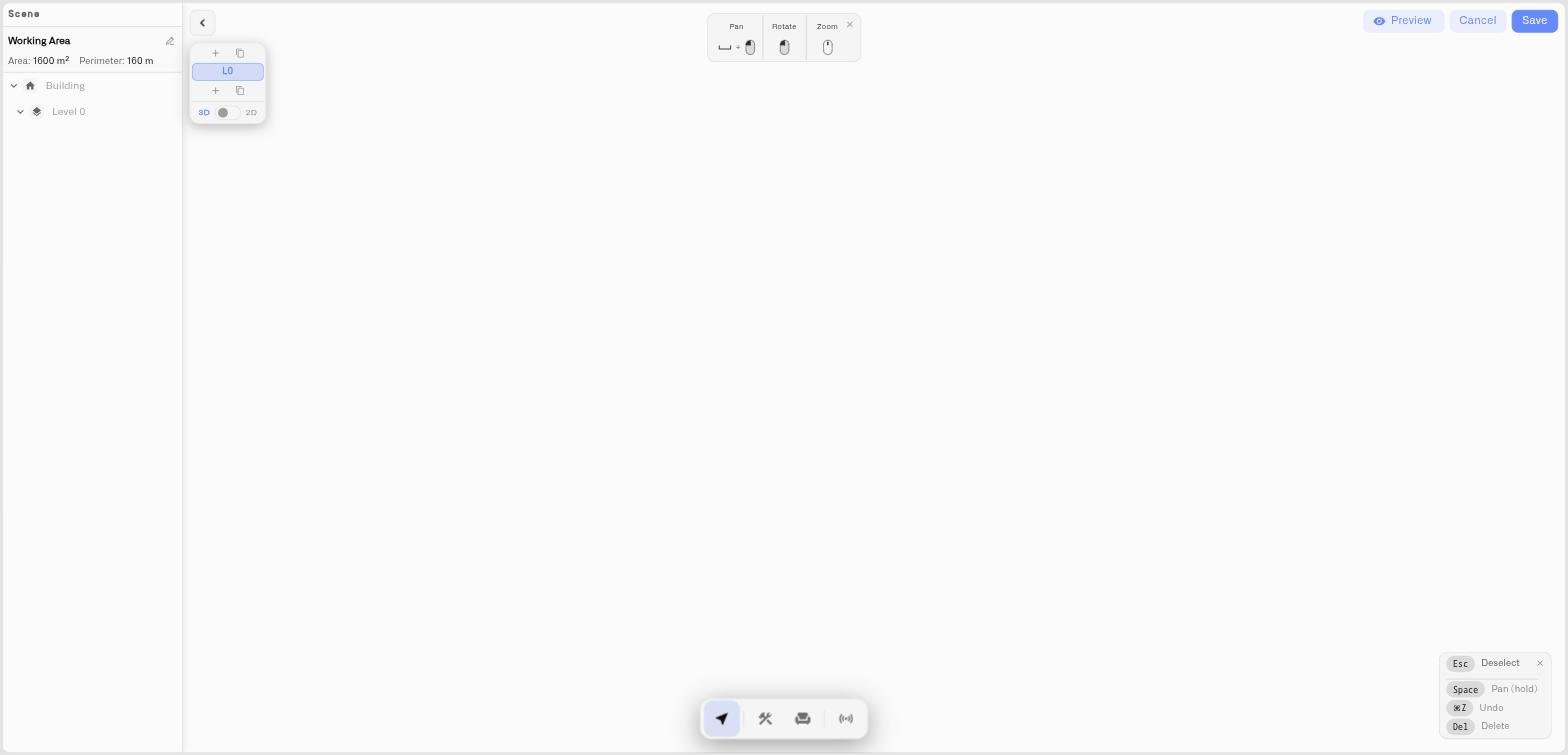
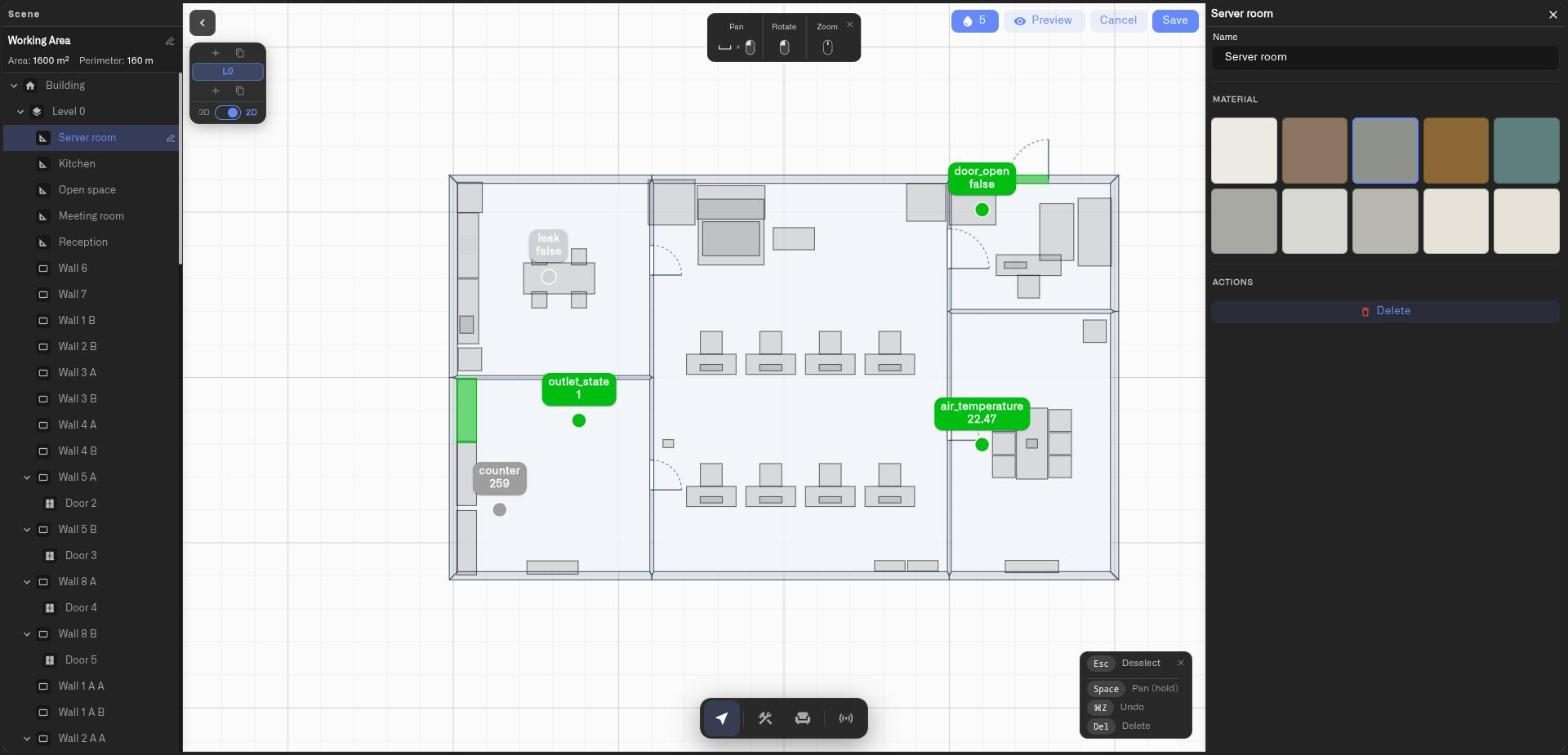
A floating stack of floor buttons sits to one side of the editor. It is the control center for everything to do with floors:
* Each floor is a button, labeled **L0**, **L1**, **L2**, and so on. The highest floor is at the top of the stack, the lowest at the bottom — the same order they sit in the real building.
* The **active floor** is highlighted. Everything you draw, place, or bind goes onto the active floor.
* Click any floor button to make that floor active and bring it into focus.
## How do I add a floor?
* Click the **+** button at the **top** of the stack to add a floor **above** the highest one.
* Click the **+** button at the **bottom** of the stack to add a floor **below** the lowest one.
A new floor gets a slab (a floor plate) traced from the walls of the closest floor that has any, or from that floor's existing slabs, so it starts with a footprint instead of empty space. If no floor has walls or slabs yet, it gets a default 10 m × 7 m plate. From there you draw its walls, place its objects, and bind its sensors independently.
A common pattern for a multi-story building: add all the floors first, then work through them one at a time — make a floor active, build it out, move to the next.
## How do I copy a floor?
Next to each **+** button sits a **Copy floor above** or **Copy floor below** button (a copy icon). It clones the active floor onto a new floor stacked above the highest floor or below the lowest one, together with its walls, doors, windows and placed objects. If the source floor has no slab, a slab is traced from its walls so the copy still has a floor.
Sensor bindings and pins are not copied. A device stays on the floor where you placed it, so bind the copy's sensors yourself.
## How do I delete a floor?
Select the floor in the stack, then click the **delete** icon on its button. A model must keep at least one floor, so the delete control only appears when there is more than one.
## How do I view a multi-floor model?
Below the floor buttons, the selector carries two view toggles.
### 3D / 2D
Switches the camera between the **3D view** (orbit the model freely) and the **2D view** (a locked top-down plan). This is the same toggle described in the [Editor tour](/dashboards/adding-widgets/digital-building-twin/editor-tour.md). Draw and lay out in 2D; review in 3D.
### Stack / Solo
This toggle controls how floors are shown, and only appears when the model has more than one floor:
* **Stack** — every floor is drawn in its real position, stacked vertically. You see the whole building at once. Best for a final review and for framing the dashboard view.
* **Solo** — only the active floor is shown; the others are hidden. Best while you are working — a single floor with no clutter from the levels above and below.
A typical rhythm: work in **Solo** so each floor is uncluttered while you build it, then switch to **Stack** to see the whole building before you save.
## What does the dashboard show for a multi-floor building?
The dashboard tile renders the model from the camera angle, view mode and level you leave the editor with, including the pan offset, and shows it as saved without re-centering on the building. For a multi-floor building, framing the model in **Stack** with a slight 3D tilt gives the dashboard a clear, whole-building view. If a particular floor is what matters most — the production floor, the floor with the critical cold store — frame that one and save.
## What are the best tips for working with floors?
* Name your floors something meaningful in the **Scene** panel — "Ground Floor," "Mezzanine," "Plant Room" — instead of leaving them as L0, L1, L2.
* Build floor by floor. Switching to **Solo** keeps the floor you're working on free of visual noise.
* Sensor bindings are per-object, so a sensor on the third floor and a sensor on the ground floor stay correctly placed no matter which floor is active.
## See also
* [Editor tour](/dashboards/adding-widgets/digital-building-twin/editor-tour.md) — The 3D/2D toggle and camera controls
* [Drawing your building](/dashboards/adding-widgets/digital-building-twin/drawing-your-building.md) — Build out each floor
* [Binding sensors and colors](/dashboards/adding-widgets/digital-building-twin/binding-sensors-and-colors.md) — Wire sensors on every floor
---
# Agent Instructions
This documentation is published with GitBook. GitBook is the documentation platform designed so that both humans and AI agents can read, navigate, and reason over technical content effectively. Learn more at gitbook.com.
## Querying This Documentation
If you need additional information that is not directly available in this page, you can query the documentation by asking a question.
Perform an HTTP GET request on the following URL with the `ask` and `goal` query parameters:
```
GET https://docs.kiloiot.io/dashboards/adding-widgets/digital-building-twin/floors-and-levels.md?ask=&goal=
```
`ask` is the immediate question: it should be specific, self-contained, and written in natural language.
`goal` is what the user is ultimately trying to achieve, the reason they need the answer. Sharing it helps GitBook give you a better, more relevant answer. A goal is most helpful when it describes the outcome the user wants rather than restating the question. For example, with `ask=how do I create an API token`, a goal like `automate deployments from our CI pipeline` lets GitBook tailor the answer to that use case.
The response will contain a direct answer to the question and relevant excerpts and sources from the documentation.
Use this mechanism when the answer is not explicitly present in the current page, you need clarification or additional context, or you want to retrieve related documentation sections.