> For the complete documentation index, see [llms.txt](https://docs.kiloiot.io/llms.txt). Markdown versions of documentation pages are available by appending `.md` to page URLs; this page is available as [Markdown](https://docs.kiloiot.io/dashboards/adding-widgets/digital-building-twin/object-catalog.md).
# What Objects Are in the Digital Building Twin Catalog?
Browse the Digital Building Twin catalog of 64 scaled 3D objects, from furniture and appliances to outdoor items.
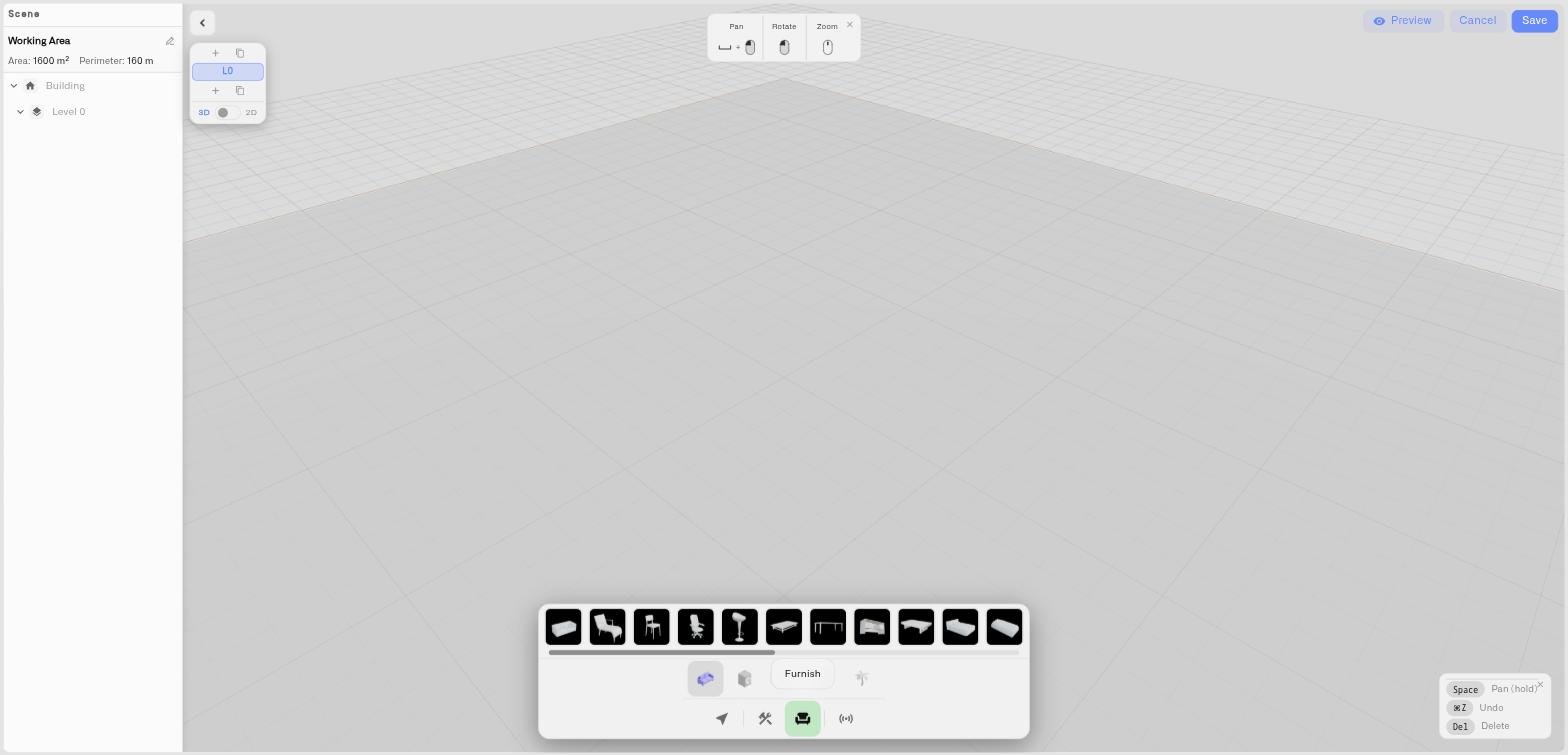
The editor includes a built-in catalog of 64 ready-made 3D objects, organized into five categories. This page is the reference inventory — what's in each category and how to think about using it. For the mechanics of dropping objects into a model, see [Placing objects](/dashboards/adding-widgets/digital-building-twin/placing-objects.md).
Every object is a measured, properly-scaled 3D model, so a desk is desk-sized and a parking spot is the size of a real bay. That accuracy matters: a model built from correctly-scaled objects reads true, and an operator trusts what they see.
## Which furniture objects are in the catalog?
General-purpose objects for offices, interiors, and workspaces:
Sofa, Armchair, Dining Chair, Office Chair, Stool, Coffee Table, Dining Table, Office Table, Pool Table, Double Bed, Single Bed, Bunk Bed, Bookshelf, Dresser, Closet, Shelf, Trash Bin, Column, Round Carpet, Large Plant, Small Plant, Office Trash Bin, Office Wastebasket.
When you're laying out an office or workspace, **Office Table** and **Office Chair** do most of the work — place them as desks and workstations, then bind occupancy or environmental sensors to them. **Column** helps mark the structural grid of a large floor plate. None of this is prescriptive — the categories are a palette, and how you combine them is up to you.
## Which kitchen objects are in the catalog?
Objects for break rooms, canteens, and kitchen areas:
Stove, Fridge, Counter, Microwave.
## Which bathroom objects are in the catalog?
Fixtures for washrooms and facilities:
Toilet, Bathtub, Sink, Faucet, Vessel Sink, Vessel Sink with Faucet.
## Which appliance objects are in the catalog?
Equipment and building services — often the objects you most want to monitor:
Ceiling Lamp, Floor Lamp, Table Lamp, TV, Computer, Washer, AC Unit, Smoke Detector, Water Boiler, Gas Water Heater, Water Pump, Water Pump (Heavy Duty), Water Pump Station, Water Softener Cylinder, Water Softener Tank.
This category carries the building-services objects that map directly to operational monitoring: **AC Unit** for climate zones, **Smoke Detector** for fire-safety coverage, **Water Boiler** and **Gas Water Heater** for plant rooms, and the **Water Pump** and **Water Softener** objects for water-treatment installations. Bind a sensor to one of these and the equipment itself shows fault or status color in the model.
## Which outdoor objects are in the catalog?
Objects for yards, lots, perimeters, and site-level modeling:
Fir Tree, Bush, Patio Umbrella, Parking Spot, Car, AC Condenser, Rooftop AC Unit, Outdoor AC Unit, Traffic Barrier, Gate, Public Trash Bin, Public Trash Bin (Round), Wheelie Bin, Wheeled Trash Container, Waste Dumpster, Large Waste Dumpster.
If you're modeling a car park or a yard, **Parking Spot** is the object to reach for — it carries a **Spot #** label, and an occupancy sensor binds straight to it. **Traffic Barrier** and **Gate** stand in for access-control points. **AC Condenser** and **Rooftop AC Unit** represent the outdoor side of HVAC plant. The waste-container objects suit facility and waste monitoring — bind a fill-level sensor to a dumpster and the container shades as it fills.
## What is the difference between wall-mounted and floor objects?
Most objects stand on the floor. Some are designed to mount on a wall — wall AC units, TVs, shelves, and wall sinks — and snap to a wall surface when you place them, facing into the room. The catalog handles this automatically; you don't choose a mount type, you just place the object and it behaves correctly. See [Placing objects](/dashboards/adding-widgets/digital-building-twin/placing-objects.md) for placement detail.
## What should I model first in a building twin?
How far you take a building twin is up to you — some teams model every desk and partition, others place only what carries a sensor. What matters is that the model is *legible*: that anyone looking at it instantly knows which part of the building a colored object represents. A practical way to start:
1. Place the objects that carry sensors first — desks, racks, parking spots, AC units, pumps, the equipment you actually monitor.
2. Add structural and contextual objects — columns, a reception layout — so the space is recognizable.
3. From there, model as much or as little as serves your team. Empty floor space is perfectly fine; so is a richly detailed twin. Let the way your operators read the model guide how far you take it — and don't feel bound by these examples, the catalog is there to represent whatever your site actually contains.
## See also
* [Placing objects](/dashboards/adding-widgets/digital-building-twin/placing-objects.md) — How to place, rotate, and arrange objects
* [Binding sensors and colors](/dashboards/adding-widgets/digital-building-twin/binding-sensors-and-colors.md) — Turn objects into live status indicators
---
# Agent Instructions
This documentation is published with GitBook. GitBook is the documentation platform designed so that both humans and AI agents can read, navigate, and reason over technical content effectively. Learn more at gitbook.com.
## Querying This Documentation
If you need additional information that is not directly available in this page, you can query the documentation by asking a question.
Perform an HTTP GET request on the following URL with the `ask` and `goal` query parameters:
```
GET https://docs.kiloiot.io/dashboards/adding-widgets/digital-building-twin/object-catalog.md?ask=&goal=
```
`ask` is the immediate question: it should be specific, self-contained, and written in natural language.
`goal` is what the user is ultimately trying to achieve, the reason they need the answer. Sharing it helps GitBook give you a better, more relevant answer. A goal is most helpful when it describes the outcome the user wants rather than restating the question. For example, with `ask=how do I create an API token`, a goal like `automate deployments from our CI pipeline` lets GitBook tailor the answer to that use case.
The response will contain a direct answer to the question and relevant excerpts and sources from the documentation.
Use this mechanism when the answer is not explicitly present in the current page, you need clarification or additional context, or you want to retrieve related documentation sections.