> For the complete documentation index, see [llms.txt](https://docs.kiloiot.io/llms.txt). Markdown versions of documentation pages are available by appending `.md` to page URLs; this page is available as [Markdown](https://docs.kiloiot.io/dashboards/adding-widgets/last-data-widget/doughnut.md).
# Doughnut Display
Visualize a sensor reading as a proportional ring with the Doughnut display in the Last Data widget — ideal for %.
The Doughnut display draws the reading as a ring that fills proportionally between a minimum and a maximum you define, with the current value in the center. At a glance it answers "how far along is this?" — a quarter full, nearly maxed out — without anyone reading the number.
It suits any reading that lives inside a known range: a fill level, a percentage, a capacity, a value that should sit somewhere within an operating band. The ring's fill makes the position in that range immediate.
## When to choose it
* A reading with a defined operating range where the proportion matters — tank capacity, battery charge, utilization against a limit.
* A dashboard tile where an operator should register low / mid / high in a glance, not parse digits.
* Anywhere a percentage or ratio reads more clearly as a filled ring than as a figure.
Wherever a reading has a meaningful floor and ceiling, the Doughnut turns it into a shape — let your own metrics suggest where it fits.
## Configure a Doughnut display
Here is a full setup for one real case — a ring that shows an office's temperature and whether it is comfortable. A temperature sensor reports the room in °C. A temperature is unlike a tank — it has no natural "empty" or "full", so there is no obvious 0 and 100. The ring still needs a floor and a ceiling, so you pick a window wide enough to hold every temperature the room could realistically reach: for a house room, about -5 °C to +40 °C. This is one example: a Doughnut suits any reading you want to see as a proportion of a range — only the device and the numbers change.
1. Open the dashboard in edit mode and click **Last data** in the widget picker. The settings panel opens on the **Datasource** tab, with no data sources yet.
2. Click **Add datasource**. A **Datasource 1** block appears.
3. In the block, click **Choose device** and select the temperature sensor.
4. Click **Add metric**. A metric row appears.
5. In the row, set **Data type** to **Telemetry**, choose the temperature reading under **Device metric**, and pick an **Icon**.
> **This display needs a number.** The **Device metric** list offers every metric type, but a gauge fills against a scale — pick a numeric reading here; a non-numeric text value reads as 0. (To show text or an on/off value as-is, use the [Value display](/dashboards/adding-widgets/last-data-widget/number.md).) To change how a metric is stored, open **Devices → Metrics** — see [Metrics](/devices/metric-templates.md).
6. Click **Conditions: N** to open the Conditions modal. Set a **Default color** — the color the reading falls back to whenever none of your conditions match the current value — then for each band click **Add condition** and fill the row — enter a **Condition name**, set **Data type** to **Number** (the condition's own Data type, not the metric row's), because a house room realistically swings between -5 °C and 40 °C, enter **From** -5 (the coldest you would expect) and **To** 40 (the hottest), and pick a **Color**. Then you can enter the color levels. For example:
Working up from the coldest:
* "Too cold" — **From** -5, **To** 15 — red
* "Cool" — **From** 15, **To** 18 — yellow
* "Comfortable" — **From** 18, **To** 24 — green
* "Warm" — **From** 24, **To** 28 — yellow
* "Too hot" — **From** 28, **To** 40 — red
Click **Save** to close the modal.
7. Click **Next** to open the **Appearance** tab.
8. Enter a **Widget name** — for example "Office temperature" — and an optional **Description**.
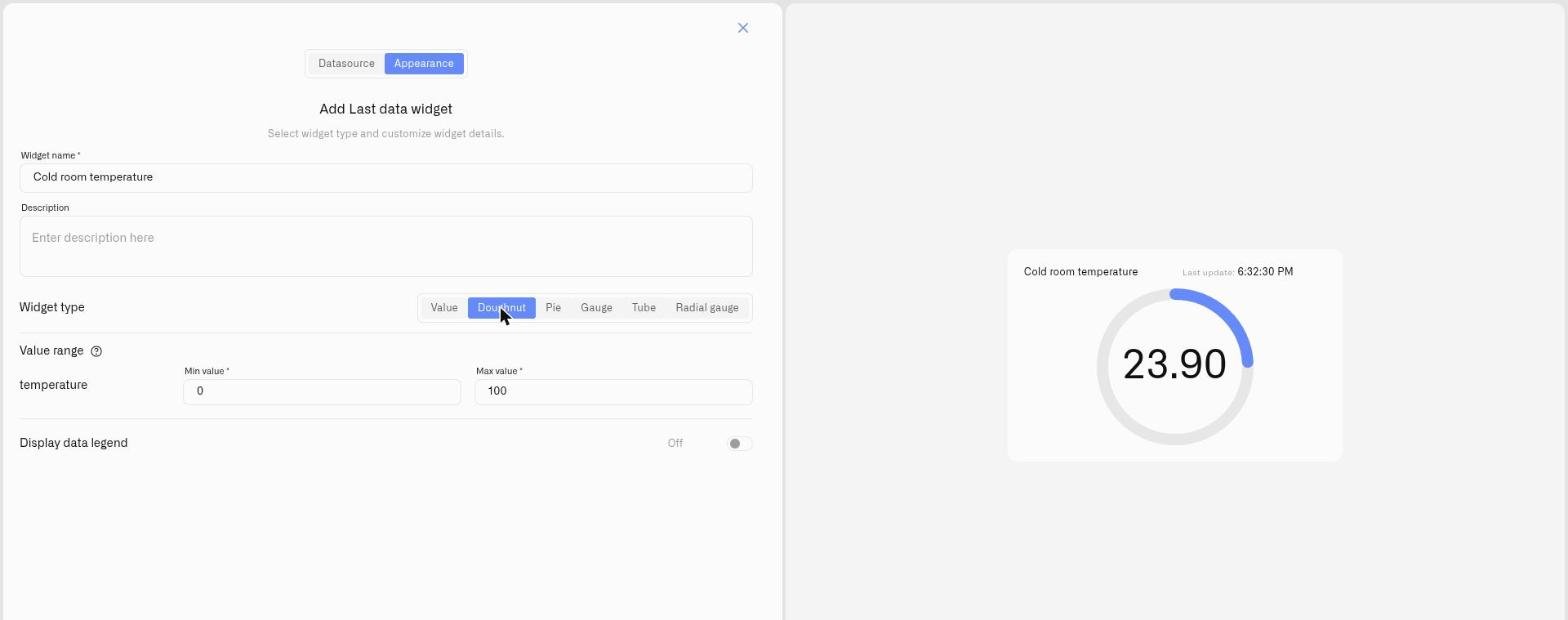
9. Under **Widget type**, choose **Doughnut**. A **Value range** section appears for the metric.
10. Set **Min value** to **-5** and **Max value** to **40** — the window you chose for a house room. The ring fills to show where the current temperature sits across that -5–40 °C span, and the condition the reading falls in colors it.
11. Switch on **Display data legend** if useful, then click **Save**.
The ring shows the temperature as a position in the chosen range and turns green only inside the comfortable band. The same steps fit any reading with a sensible floor and ceiling — only the device, the **Min value**/**Max value**, and the conditions change. A Doughnut earns its place when "how far through the range" is the question; for a temperature you simply want to read off, a Number or Gauge is often the more natural display.
## Worked examples
**The same sensor, a completely different setup — a refrigerator** A refrigerator uses the *same kind* of temperature sensor as the office above, yet every number is different — because the right window depends on what you are measuring. A fridge's safe band is roughly 0–5 °C, so you set the scale a little wider than that band, so a fridge that fails and warms up still shows on the ring: **Min value** **-5**, **Max value** **15**. Then build three conditions: "Too cold" — From -5, To 0 — blue; "Safe" — From 0, To 5 — green; "Too warm" — From 5, To 15 — red. Identical hardware, identical steps — only the window and the bands change, because "good" means something completely different in a fridge than in an office. That is the heart of conditions: you decide what each reading means in its own context.
**A fill level** A Doughnut is a natural fit for a tank or a battery. A level sensor in a 5,000-liter tank reports the contents in liters, so 0 L is an empty tank and 5,000 L is full — **Min value** 0, **Max value** 5000 — with conditions green From 3000 To 5000, yellow From 1000 To 3000, red From 0 To 1000. The ring empties visibly as the tank is drawn down.
## See also
* [Last Data Widget](/dashboards/adding-widgets/last-data-widget.md) — Full setup reference and the other display types
* [Conditions](/dashboards/adding-widgets/conditions.md) — Numeric From/To color rules for each metric
* Other display types: [Value](/dashboards/adding-widgets/last-data-widget/number.md) · [Pie](/dashboards/adding-widgets/last-data-widget/pie.md) · [Gauge](/dashboards/adding-widgets/last-data-widget/gauge.md) · [Tube](/dashboards/adding-widgets/last-data-widget/tube.md) · [Radial gauge](/dashboards/adding-widgets/last-data-widget/radial-gauge.md)
---
# Agent Instructions
This documentation is published with GitBook. GitBook is the documentation platform designed so that both humans and AI agents can read, navigate, and reason over technical content effectively. Learn more at gitbook.com.
## Querying This Documentation
If you need additional information that is not directly available in this page, you can query the documentation by asking a question.
Perform an HTTP GET request on the following URL with the `ask` and `goal` query parameters:
```
GET https://docs.kiloiot.io/dashboards/adding-widgets/last-data-widget/doughnut.md?ask=&goal=
```
`ask` is the immediate question: it should be specific, self-contained, and written in natural language.
`goal` is what the user is ultimately trying to achieve, the reason they need the answer. Sharing it helps GitBook give you a better, more relevant answer. A goal is most helpful when it describes the outcome the user wants rather than restating the question. For example, with `ask=how do I create an API token`, a goal like `automate deployments from our CI pipeline` lets GitBook tailor the answer to that use case.
The response will contain a direct answer to the question and relevant excerpts and sources from the documentation.
Use this mechanism when the answer is not explicitly present in the current page, you need clarification or additional context, or you want to retrieve related documentation sections.