> For the complete documentation index, see [llms.txt](https://docs.kiloiot.io/llms.txt). Markdown versions of documentation pages are available by appending `.md` to page URLs; this page is available as [Markdown](https://docs.kiloiot.io/dashboards/adding-widgets/last-data-widget/number.md).
# Value Display
Show a sensor's latest value — number, text, or Boolean — with the Value display in the Kilo IoT Last Data widget.
The Value display shows a reading's latest value as-is — no gauge, no scale, just the value. It works for **any** metric type: a number with its unit, a **text** value shown verbatim, or a **Boolean** shown as `true` or `false`. When a tile holds several metrics, they sit side by side, each with its own color and label, so one compact panel can carry the temperature, humidity, and CO2 of a zone at once.
Reach for Value when the reading itself is the information and there is no range to visualize against — an exact instrument reading an engineer acts on, a text status, an on/off state, or a multi-metric summary where space is tight.
Because there is no scale, Value is the one Last Data display type with no **Value range** to set.
## When to choose it
* A precise reading operators act on directly — a calibrated pressure, a flow rate, a cold-store temperature.
* A compact multi-metric tile — several readings from one zone or asset in a single panel.
* A status or count value where the number is self-explanatory and a gauge would add nothing.
These are starting points — any reading where the bare figure communicates best suits the Value display.
## Configure a Value display
Here is a full setup for one real case — a tile that shows at a glance whether a pump is running. The pump controller reports just two values — `1` when running and `0` when stopped. Because the reading is only ever 0 or 1, there is nothing to fill or scale: a Value tile is the natural fit, and each condition only has to match one of those two values. This is one example: a Value tile suits any reading where the figure itself is the information — only the device and the conditions change.
1. Open the dashboard in edit mode and click **Last data** in the widget picker. The settings panel opens on the **Datasource** tab, with no data sources yet.
2. Click **Add datasource**. A **Datasource 1** block appears.
3. In the block, click **Choose device** and select the pump controller.
4. Click **Add metric**. A metric row appears.
5. In the row, set **Data type** to **Telemetry**, choose the running-state reading under **Device metric**, and pick an **Icon**.
> **Note on metric types.** The **Device metric** list offers every metric type. The Value display shows whatever the metric reports — a number, a text value, or a Boolean (`true`/`false`) — so no type conversion is needed here. (The gauge-style displays — Doughnut, Pie, Gauge, Tube, Radial gauge — do need a number: a numeric text value is parsed, and a non-numeric one reads as 0. To change how a metric is stored, open **Devices → Metrics** — see [Metrics](/devices/metric-templates.md).)
6. Click **Conditions: N** to open the Conditions modal. Set a **Default color** — the color the reading falls back to whenever none of your conditions match the current value — then for each state click **Add condition** and fill the row — enter a **Condition name**, set **Data type** to **Number** (the condition's own Data type, not the metric row's), because the pump only ever reports 0 or 1, set **From** and **To** to the same number — the value that condition should catch — and pick a **Color**. Then you can enter the two states. For example:
* "Running" — **From** 1, **To** 1 — blue
* "Stopped" — **From** 0, **To** 0 — gray
Click **Save** to close the modal.
7. Click **Next** to move to the **Appearance** tab.
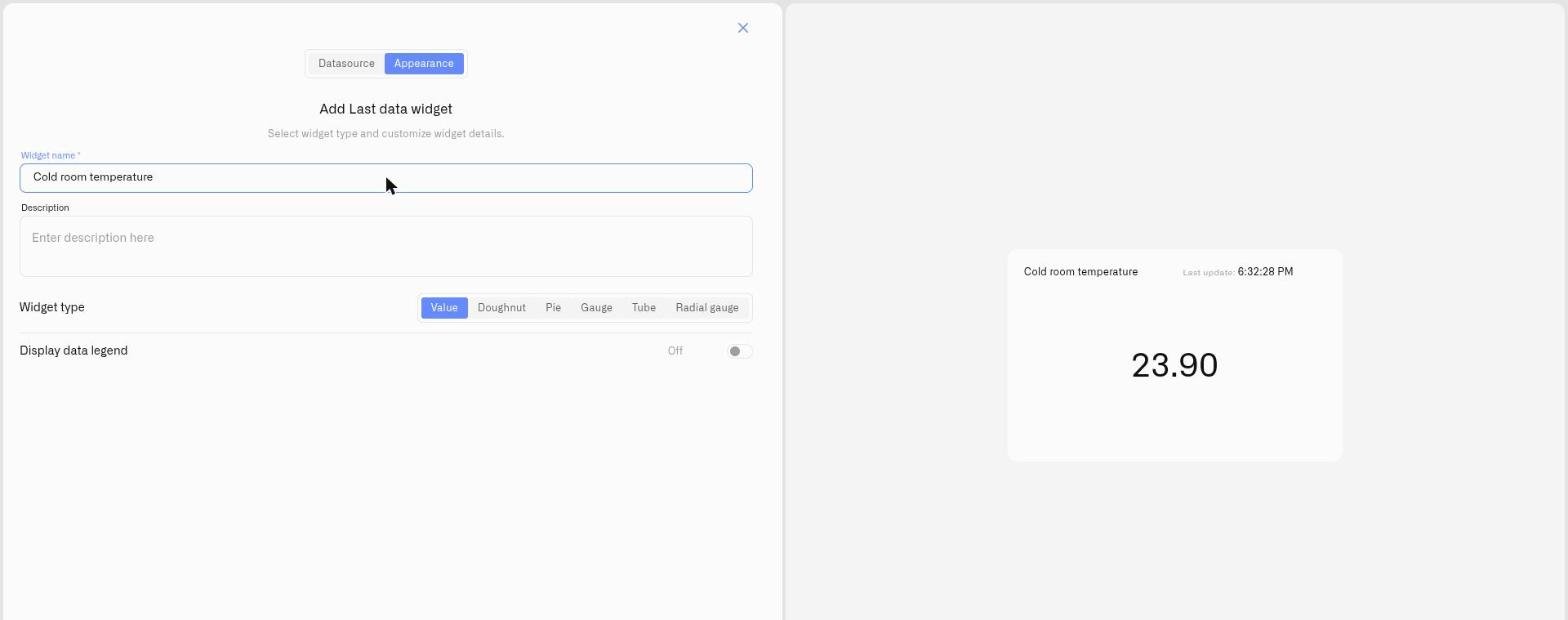
8. Enter a **Widget name** — for example "Pump 1" — and, if useful, a **Description**.
9. Under **Widget type**, choose **Value**. No **Value range** or **Tick marks** fields appear — the Value display has no scale, because a status reading like 0 or 1 has nothing to fill; the value itself is the message.
10. Switch on **Display data legend** if you want a labeled legend, then click **Save**.
The tile still shows the number — `1` or `0` — and the condition color paints it blue when the pump is running and gray when it is stopped, so the state reads at a glance without anyone interpreting the digit. Line up one Value tile per pump and a supervisor takes in the whole fleet at once. The same setup fits any status reading — a valve's open/closed flag, a door contact, a leak sensor — by changing the device and the two conditions.
## Worked examples
**An exact measured value** When the figure itself matters, the Value tile shows it in full. A cold-storage probe reporting in °C needs no scale — the conditions are simply the temperature thresholds that matter. Take three: "Compliant" — From 2, To 8 — green; "Warning" — From 8, To 12 — amber; "Breach" — From 12, To 30 — red (the To value just sits above any temperature the rack would realistically reach). An operator sees the exact reading — `6.4 °C` — and the color delivers the compliance verdict at the same time. The number is never hidden; the color is meaning added on top of it. To confirm the rack held temperature across a whole shift, use the [Chart widget](/dashboards/adding-widgets/chart-widget.md).
**A text or on/off status** The Value display isn't limited to numbers. A device that reports a text status (for example `OPEN`, `CLOSED`, `FAULT`) or a Boolean shows that value directly — the text verbatim, a Boolean as `true`/`false` — with no conversion. Conditions and colors still apply, so you can paint a `FAULT` status red while `OK` stays green.
**A multi-metric tile** A Value widget can carry several readings at once. Add three metrics from one multi-sensor device — temperature, humidity, CO2 — and each keeps its own icon, conditions, and color, sitting side by side as one compact panel for the zone.
## See also
* [Last Data Widget](/dashboards/adding-widgets/last-data-widget.md) — Full setup reference and the other display types
* [Conditions](/dashboards/adding-widgets/conditions.md) — Numeric From/To color rules for each metric
* Other display types: [Doughnut](/dashboards/adding-widgets/last-data-widget/doughnut.md) · [Pie](/dashboards/adding-widgets/last-data-widget/pie.md) · [Gauge](/dashboards/adding-widgets/last-data-widget/gauge.md) · [Tube](/dashboards/adding-widgets/last-data-widget/tube.md) · [Radial gauge](/dashboards/adding-widgets/last-data-widget/radial-gauge.md)
---
# Agent Instructions
This documentation is published with GitBook. GitBook is the documentation platform designed so that both humans and AI agents can read, navigate, and reason over technical content effectively. Learn more at gitbook.com.
## Querying This Documentation
If you need additional information that is not directly available in this page, you can query the documentation by asking a question.
Perform an HTTP GET request on the following URL with the `ask` and `goal` query parameters:
```
GET https://docs.kiloiot.io/dashboards/adding-widgets/last-data-widget/number.md?ask=&goal=
```
`ask` is the immediate question: it should be specific, self-contained, and written in natural language.
`goal` is what the user is ultimately trying to achieve, the reason they need the answer. Sharing it helps GitBook give you a better, more relevant answer. A goal is most helpful when it describes the outcome the user wants rather than restating the question. For example, with `ask=how do I create an API token`, a goal like `automate deployments from our CI pipeline` lets GitBook tailor the answer to that use case.
The response will contain a direct answer to the question and relevant excerpts and sources from the documentation.
Use this mechanism when the answer is not explicitly present in the current page, you need clarification or additional context, or you want to retrieve related documentation sections.