> For the complete documentation index, see [llms.txt](https://docs.kiloiot.io/llms.txt). Markdown versions of documentation pages are available by appending `.md` to page URLs; this page is available as [Markdown](https://docs.kiloiot.io/dashboards/adding-widgets/map-widget.md).
# Map Widget
Place GPS-reporting assets on an interactive map with the Map widget — current position, live metric, route history.
The Map widget places a GPS-reporting asset on a real outdoor interactive map. The marker shows the asset's current position and the current value of **one selected metric** at a time — speed, cargo temperature, engine on/off status, battery level, or any other sensor the device transmits.
Any device that transmits GPS coordinates works — a vehicle tracker via the Tracker connector, a LoRaWAN GPS tag via LNS, or an MQTT-connected field device. The widget detects location from sensor fields named `lat`/`latitude` and `lon`/`longitude`/`lng`. If those fields exist on the device, it appears on the map.
This is different from the [Image Widget](/dashboards/adding-widgets/image-widget.md), which works with any static image you upload. The Map widget is for assets that move — vehicles, mobile equipment, field devices.
Place the Map widget on an operations dashboard alongside Last data and Chart widgets to give dispatchers and supervisors at-a-glance situational awareness: asset location, current metric status, and recent route history, all in one view. Date range controls let operators review route history without navigating away from the dashboard.
## Setting up a Map widget
### Step 1 — Select Map from the widget picker
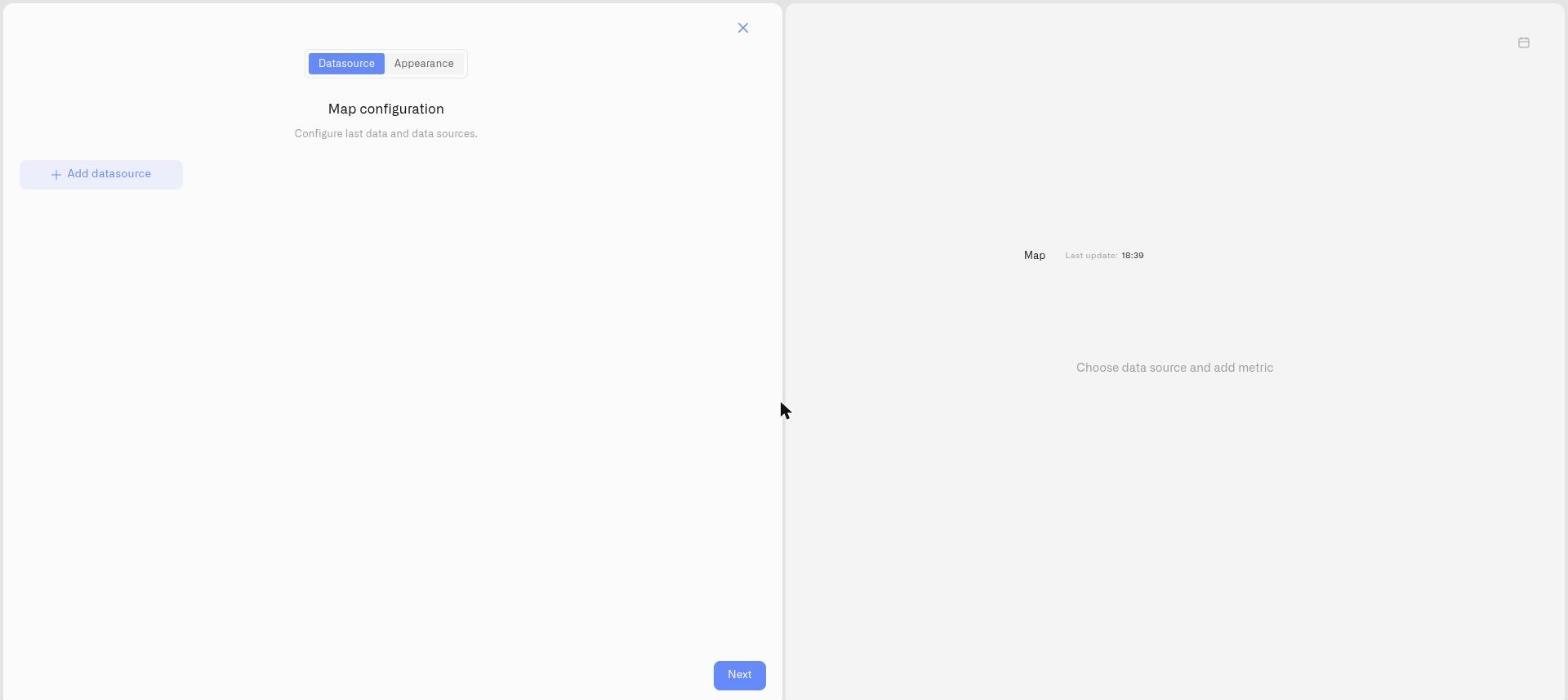
Click **Map** in the picker. (See [Adding Widgets](/dashboards/adding-widgets.md) for how to open edit mode and reach the picker.) The settings panel opens with two tabs: **Datasource** and **Appearance**.
### Step 2 — Datasource tab: select a device and a metric
The Datasource tab is titled **"Map configuration"** with the subtitle **"Configure last data and data sources."**
1. Click the device selector to choose a tracker or GPS-equipped device. The selector does not pre-filter to devices that already have location data — you can pick any device.
2. After selecting a device, the widget automatically looks for sensors whose names match `lat` or `latitude` for latitude and `lon`, `longitude`, or `lng` for longitude. If matching sensors are found, the marker appears on the map.
3. Non-location sensors from the selected device become available to add as an **additional metric**. Choose one to display its current value on the map marker — speed, cargo temperature, battery level, fuel level, or any numeric field the device transmits.
4. The Map widget supports **exactly one additional metric**. Once selected, the Add metric option disappears.
The marker color reflects any conditions configured on the additional metric. If conditions mark cargo temperature red above 12°C, the marker turns red on the dashboard marker as soon as that threshold is reached.
### Step 3 — Appearance tab: name and style
**Widget name** *(required)* — The heading displayed above the map.
**Description** — Optional subtitle.
**Theme** — **Light** or **Dark** map tile color scheme. Independent of the dashboard theme — choose whichever is more readable for the operators who will use it.
**Display data legend** — Toggle to show a legend identifying the displayed metric.
### Step 4 — Save
Click **Save** to add the widget to the dashboard.
## After placing the widget
The map renders with the asset's last known position. The marker shows the selected metric value and uses condition-based color if conditions are configured. As the device transmits new positions, the marker updates automatically.
## Route history controls
* **History** — Click to switch to a date range view.
* **Date range button** — Shows the selected period as **DD.MM.YYYY - DD.MM.YYYY**. Click to change the range.
* **Clear data range** — Returns to the current position view.
When a date range is active, the widget plots the device's recorded locations as a dashed line connecting all positions logged during that period. Up to **500 GPS position points** are rendered per date range.
## Troubleshooting
**No marker on the map:** The widget detects location by looking for sensors named `lat`/`latitude` and `lon`/`longitude`/`lng`. If the device uses different names for its location sensors, the widget cannot find location data. Open the device detail page and check the sensor names — align them to the expected patterns to resolve this.
**Route is empty for the selected date range:** The device was not transmitting during that period, or the GPS did not have a fix. Try a wider date range. If the device has never reported location data, no route will be available.
**Metric value not showing on the marker:** The device has not yet transmitted that field since the widget was configured. Open the device page to confirm whether the metric has any recent values.
## Operational examples
**Fleet vehicle monitoring:** A delivery vehicle transmits GPS position and speed. A Map widget on the depot operations dashboard shows the vehicle's current location with its current speed on the marker — or switch the selected metric to engine on/off status to see whether the vehicle is running while parked at a stop. Conditions on the speed metric can flag the vehicle yellow or red if it exceeds a threshold. The route history lets the operations team review the full day's delivery path after hours.
**Field technician dispatch:** A facilities management team tracks service technicians across a large campus. A Map widget on the NOC dashboard shows each technician's current position with battery level on the marker — so coordinators know who is nearby and available when a new task comes in, without calling each technician.
**Refrigerated transport compliance:** A refrigerated cargo vehicle transmits GPS position and cargo hold temperature. The Map widget shows cargo temperature on the marker with condition-based color: green for compliant (2–8°C), red for breach. Dispatchers can see at a glance whether the load is within spec without drilling into individual device pages. If the marker turns red, they know the location and the temperature simultaneously.
**Delivery route audit:** A logistics supervisor uses the date range controls to review a vehicle's route for a previous day — verifying that the route matched the planned path, checking for unexpected stops, and confirming delivery time windows.
## See also
* [Conditions](/dashboards/adding-widgets/conditions.md) — Color rules for the marker metric
* [Adding Widgets](/dashboards/adding-widgets.md) — Edit mode and widget picker
---
# Agent Instructions
This documentation is published with GitBook. GitBook is the documentation platform designed so that both humans and AI agents can read, navigate, and reason over technical content effectively. Learn more at gitbook.com.
## Querying This Documentation
If you need additional information that is not directly available in this page, you can query the documentation by asking a question.
Perform an HTTP GET request on the following URL with the `ask` and `goal` query parameters:
```
GET https://docs.kiloiot.io/dashboards/adding-widgets/map-widget.md?ask=&goal=
```
`ask` is the immediate question: it should be specific, self-contained, and written in natural language.
`goal` is what the user is ultimately trying to achieve, the reason they need the answer. Sharing it helps GitBook give you a better, more relevant answer. A goal is most helpful when it describes the outcome the user wants rather than restating the question. For example, with `ask=how do I create an API token`, a goal like `automate deployments from our CI pipeline` lets GitBook tailor the answer to that use case.
The response will contain a direct answer to the question and relevant excerpts and sources from the documentation.
Use this mechanism when the answer is not explicitly present in the current page, you need clarification or additional context, or you want to retrieve related documentation sections.