> For the complete documentation index, see [llms.txt](https://docs.kiloiot.io/llms.txt). Markdown versions of documentation pages are available by appending `.md` to page URLs; this page is available as [Markdown](https://docs.kiloiot.io/dashboards/adding-widgets/text-widget.md).
# Text Widget
Kilo's Text widget adds headings, notes, or lists of selected devices, rules, and alarms to your dashboard.
A **Text widget** adds headings and instructions to an operations dashboard. It can also list selected devices, rules, or alarm definitions, so operators can see the equipment and automation behind the readings they monitor.
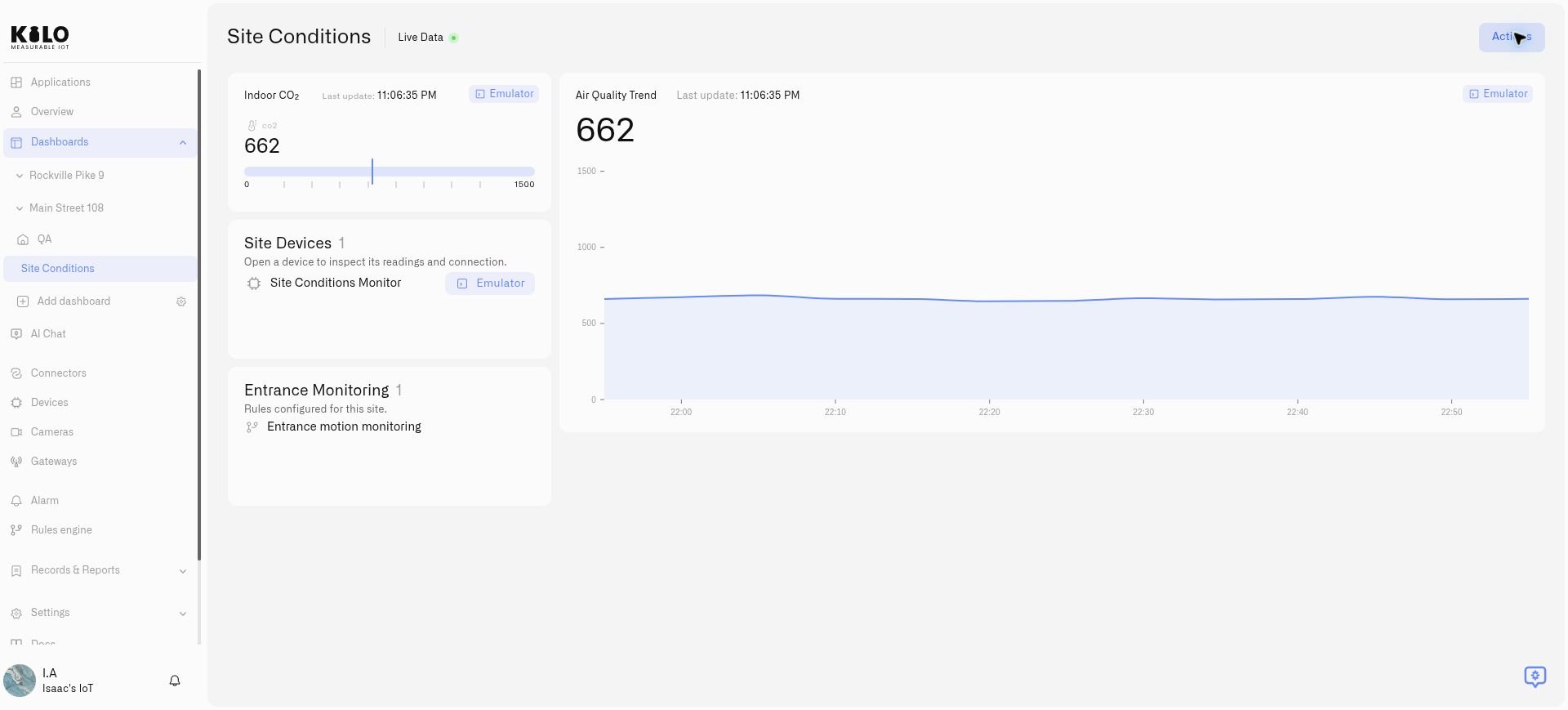
Use a device list next to a site’s air-quality charts, a rule list for entrance monitoring, and an alarm list showing the severity of the definitions used by the team. These lists describe configured resources; they do not replace measurement widgets or the alarm inbox.
## Add a heading or a resource list
1. Open the dashboard and choose **Actions → Edit dashboard**. You need permission to edit it and access to the resources you want to display.
2. Choose **Add widget → Text**.
3. Enter **Widget name**, the heading shown on the tile, and an optional **Description** below it.
4. Select **Data type**. Keep **None** for a heading and note, or choose **Devices**, **Rules**, or **Alarms** for a resource list.
5. For a list, select the entries in **Artifacts**. You can choose several; remove an individual selection to leave it out.
6. Set the display options below, check the preview, and select **Save**.
7. Move or resize the tile, then **Save** the dashboard layout.
Choose the data type and resources, then check the preview before saving.
## Display options
| Data type | Options |
| --------- | ------------------------------------------------------------------------ |
| None | Widget name and optional description only. |
| Devices | **Number of devices**, **Connector**, **Device provider**, and **Icon**. |
| Rules | **Number of rules** and **Icon**. |
| Alarms | **Number of alarms**, **Alarm severity**, and **Icon**. |
Counts refer to the selected resources available to the widget. An alarm count is the number of selected alarm definitions, not the number of open incidents. **Alarm severity** displays the definition's severity. Connector and provider details help distinguish device sources where that information is available.
Keep the selected resources beside the readings they support.
## Use and maintain the list
Open a device by selecting its row in the saved dashboard. Rules and alarms are displayed as list entries; open their platform sections to manage them. Adding a resource to a widget does not change its Application membership or start its automation.
Entries follow the configured selection order. If a selected resource is deleted or is no longer returned to the widget, its entry is omitted and the count reflects the remaining available entries. Edit **Artifacts** to revise the selection as your setup changes.
Organization resource lists are hidden in public/kiosk viewing. Use ordinary headings and notes for information that must appear on a public display.
## When alarm choices do not load
The **Alarms** data type can show **No options** in **Artifacts** even when the organization has alarm definitions. If this happens, use **Alarm → Alarm definitions** to inspect them and **Alarm** to monitor incidents. Device and rule lists can still be configured separately. Do not use an empty alarm-list tile as evidence that the site has no alarms.
## Related tasks
* [Adding Widgets](/dashboards/adding-widgets.md)
* [Application dashboards](/applications/using-application-dashboards.md)
---
# Agent Instructions
This documentation is published with GitBook. GitBook is the documentation platform designed so that both humans and AI agents can read, navigate, and reason over technical content effectively. Learn more at gitbook.com.
## Querying This Documentation
If you need additional information that is not directly available in this page, you can query the documentation by asking a question.
Perform an HTTP GET request on the following URL with the `ask` and `goal` query parameters:
```
GET https://docs.kiloiot.io/dashboards/adding-widgets/text-widget.md?ask=&goal=
```
`ask` is the immediate question: it should be specific, self-contained, and written in natural language.
`goal` is what the user is ultimately trying to achieve, the reason they need the answer. Sharing it helps GitBook give you a better, more relevant answer. A goal is most helpful when it describes the outcome the user wants rather than restating the question. For example, with `ask=how do I create an API token`, a goal like `automate deployments from our CI pipeline` lets GitBook tailor the answer to that use case.
The response will contain a direct answer to the question and relevant excerpts and sources from the documentation.
Use this mechanism when the answer is not explicitly present in the current page, you need clarification or additional context, or you want to retrieve related documentation sections.