> For the complete documentation index, see [llms.txt](https://docs.kiloiot.io/llms.txt). Markdown versions of documentation pages are available by appending `.md` to page URLs; this page is available as [Markdown](https://docs.kiloiot.io/dashboards/real-time-data.md).
# Real-Time Data
How Kilo IoT delivers real-time sensor data to dashboards and Overview — and what to check when updates stop.
The Kilo IoT Server delivers device data to your dashboards and overview page in real time. When a sensor reports a new reading, that reading appears on screen without requiring a page refresh or manual action. This page explains the two Live Data surfaces, how real-time delivery works, and what to check when data is not appearing as expected.
## Two Live Data surfaces
The platform displays real-time status in two places, each with different behavior:
### Overview page: Live Data button
On the [overview page](/overview.md), the header shows a **"Live Data"** label with a clickable icon button. Hovering over the button shows the tooltip **"New data is automatically displayed"**.
**This is an interactive button.** Clicking it triggers a manual data refresh — the overview queries for the latest device and gateway information and updates the summary cards. This is useful when you've just registered a new device or made a configuration change and want to see the result immediately rather than waiting for the automatic refresh cycle.
### Dashboard header: Live Data indicator
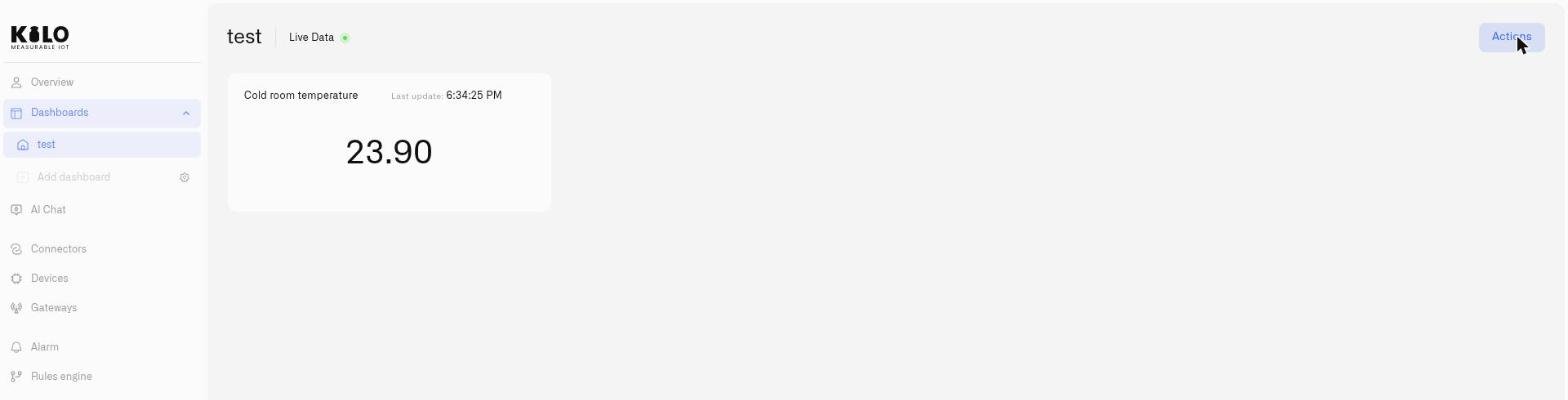
On any [dashboard](/dashboards.md), the header shows a **"Live Data"** label with a small icon. Unlike the overview button, **this is a status indicator, not a button** — it has no click action, no tooltip, and no hover effect.
The label identifies the dashboard's live-data view; it does not report connection health or prove that a sensor has just sent a reading. Check the widget's last-update time and the device's last-reported time when freshness matters. The label disappears when you enter edit mode (replaced by the dashboard metadata edit icon).
## How real-time delivery works
The server uses a persistent connection between your browser and the platform to push data updates as they happen:
1. **Device sends data** — A sensor transmits a new reading through its connector (LoRaWAN, tracker, or other protocol).
2. **Server processes the reading** — The data passes through normalization and is stored for historical queries.
3. **Push to browser** — Simultaneously, the reading is pushed to any active browser session that is viewing a relevant dashboard or widget.
4. **Widget updates** — Dashboard widgets displaying the affected metric refresh their displayed value without a page reload.
This architecture means that a temperature sensor reporting every 60 seconds will update your dashboard widget every 60 seconds — the latency is determined by the device's reporting interval, not by the platform's delivery mechanism.
For integrators building external systems that consume real-time data, the platform supports **SSE (Server-Sent Events)** and **WebSocket** protocols. Dashboard widgets use these same mechanisms internally. If you're building custom integrations that need live data streams, these protocols provide the foundation.
## The "Waiting for live data" state
When a dashboard or widget is connected to the real-time stream but no data has arrived yet, the interface may display **"Waiting for live data"**. This is a normal state that occurs when:
* A device has been registered but hasn't sent its first reading yet.
* The device's reporting interval hasn't elapsed since the dashboard was opened.
* The device is offline or its connector is not active.
## Troubleshooting data delays
If data is not appearing in real time:
1. **Check the device status** — Open the device detail page and confirm it is online and sending data. Look at the last-seen timestamp.
2. **Check the connector** — Ensure the connector associated with the device is active and connected.
3. **Check the gateway** *(LoRaWAN devices)* — If the device uses a LoRaWAN gateway, verify the gateway is online and within range.
4. **Refresh the browser** — In rare cases, the persistent connection between the browser and server may need to be re-established. A page refresh resolves this.
5. **Click the Live Data button** *(overview only)* — On the overview page, clicking the Live Data button forces a manual data refresh.
## Related pages
* [Overview Page](/overview.md) — Where the clickable Live Data button lives.
* [Adding Widgets](/dashboards/adding-widgets.md) — Configure widgets that display real-time data.
* [Creating Dashboards](/dashboards/creating-dashboards.md) — Build the dashboards that receive live updates.
---
# Agent Instructions
This documentation is published with GitBook. GitBook is the documentation platform designed so that both humans and AI agents can read, navigate, and reason over technical content effectively. Learn more at gitbook.com.
## Querying This Documentation
If you need additional information that is not directly available in this page, you can query the documentation by asking a question.
Perform an HTTP GET request on the following URL with the `ask` and `goal` query parameters:
```
GET https://docs.kiloiot.io/dashboards/real-time-data.md?ask=&goal=
```
`ask` is the immediate question: it should be specific, self-contained, and written in natural language.
`goal` is what the user is ultimately trying to achieve, the reason they need the answer. Sharing it helps GitBook give you a better, more relevant answer. A goal is most helpful when it describes the outcome the user wants rather than restating the question. For example, with `ask=how do I create an API token`, a goal like `automate deployments from our CI pipeline` lets GitBook tailor the answer to that use case.
The response will contain a direct answer to the question and relevant excerpts and sources from the documentation.
Use this mechanism when the answer is not explicitly present in the current page, you need clarification or additional context, or you want to retrieve related documentation sections.