> For the complete documentation index, see [llms.txt](https://docs.kiloiot.io/llms.txt). Markdown versions of documentation pages are available by appending `.md` to page URLs; this page is available as [Markdown](https://docs.kiloiot.io/devices/emulated-devices.md).

# Emulated Devices

Create an emulated device in Kilo IoT — device presets, data keys and types, reporting interval, and the swap to real hardware.

An emulated device registered on the Kilo IoT Server is a Digital Twin like any other — same profile, same dashboards, same rules, same alarms. What is specific to it is that the platform generates its telemetry instead of receiving it from hardware. That makes it the way to build and prove a deployment before any sensor exists.

This page covers the Emulator-specific fields on the device form and the Emulator tab. The surrounding registration workflow — naming the device, the Mapping tab, the Logs tab, saving — is the shared flow documented in [Registering Devices](/devices/registering-devices.md).

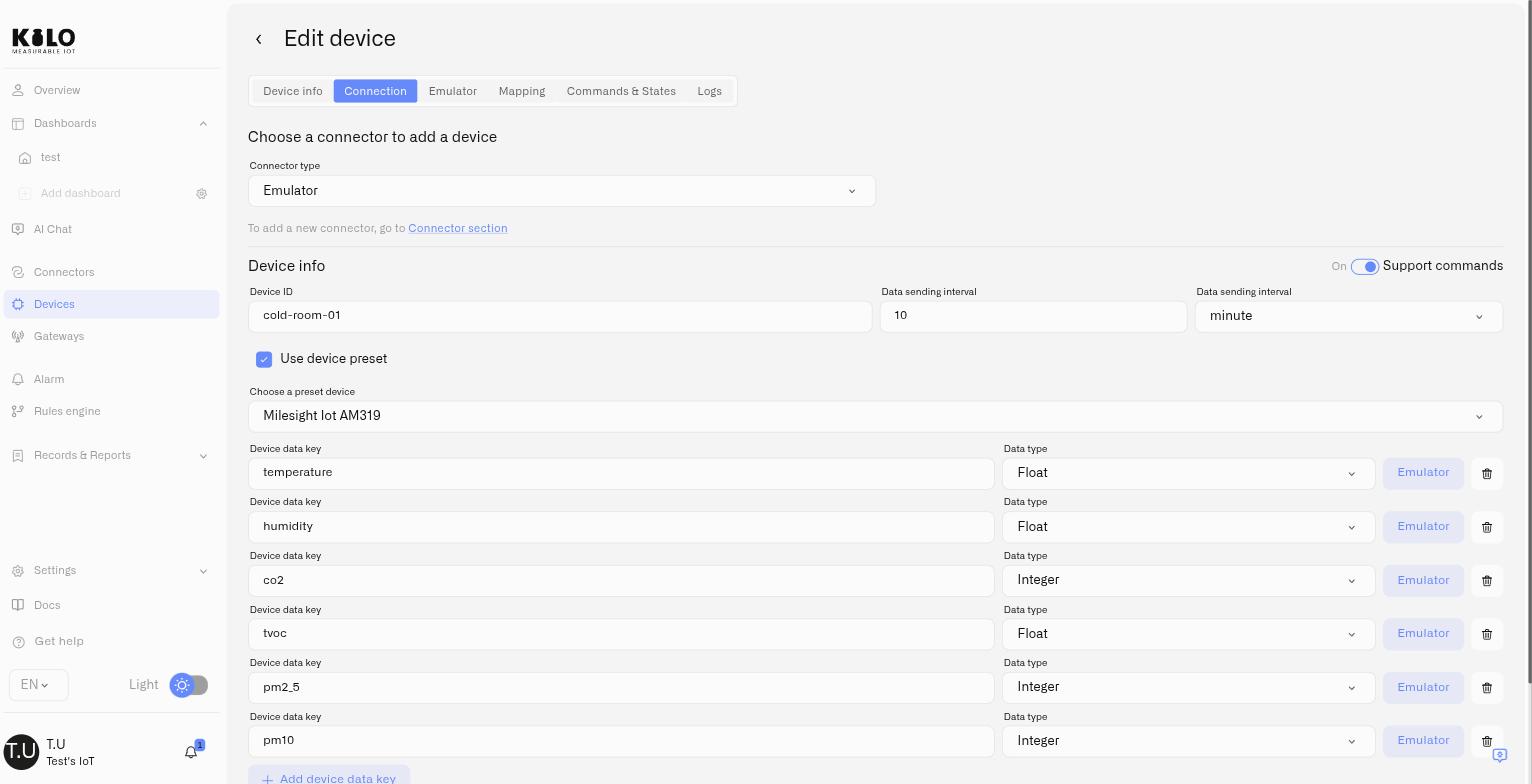
<figure><img src="https://2057878315-files.gitbook.io/~/files/v0/b/gitbook-x-prod.appspot.com/o/spaces%2FtNQh1wBSHSaknslMdOXm%2Fuploads%2Fgit-blob-3821bbabd3b8fae17eaac44f13b63813b5e5044f%2Femulator-device-metrics.jpg?alt=media" alt="An emulated device configured from a device preset, showing its metrics with their data types"><figcaption></figcaption></figure>

## Prerequisites

* **An Emulator connector.** One per organization, with nothing to configure. See [Emulator Connector](/connectors/emulator-connector.md).
* **Nothing else.** No credentials, no identifiers from a manufacturer, no gateway, no radio coverage. That is the point of it.

## Selecting the connector

On the device form, open the **Connection** tab and choose the Emulator connector as the connector type. The form then presents the fields below.

| Field                     | What it does                                                                                                                                                                                                                                                                                  |
| ------------------------- | --------------------------------------------------------------------------------------------------------------------------------------------------------------------------------------------------------------------------------------------------------------------------------------------- |
| **Device ID**             | The identifier this emulated device reports under. 1–64 characters, using letters, digits, spaces, `.`, `_` and `-`. It must be **unique across the whole platform**, not just within your organization, so a readable but specific value such as `cold-room-01` works better than `sensor1`. |
| **Data sending interval** | How often the device emits a reading, as a number plus a unit (for example 10 minutes). Choose something close to the real sensor's reporting rate so your rules behave realistically.                                                                                                        |
| **Support commands**      | Turn this on to give the device a **Commands & States** tab, so you can define and run commands against it exactly as you would against physical hardware. See [Device Commands](/devices/commands.md).                                                                                       |
| **Use device preset**     | Start from a real device model instead of typing metrics by hand.                                                                                                                                                                                                                             |

Unlike every other connector, the interval here is not a description of a schedule the hardware already keeps — it is the schedule. The platform emits on it.

## What does each tab of the device editor show?

Open **Devices** in the main menu and select **Edit** at the end of a device's row, or open a device from an application's **Content** tab. The **Edit device** page has a row of tabs: **Device info**, **Connection**, **Emulator** (only for emulated devices), **Commands & States** (only when **Support commands** is on and commands are enabled for your account), **Mapping**, **Attributes**, **Calculated data**, and **Logs**. **Attributes** and **Calculated data** appear only when those features are enabled for your account; if you do not see them, they are not switched on yet. The screens below are an emulated device from an installed solution.

### Device info

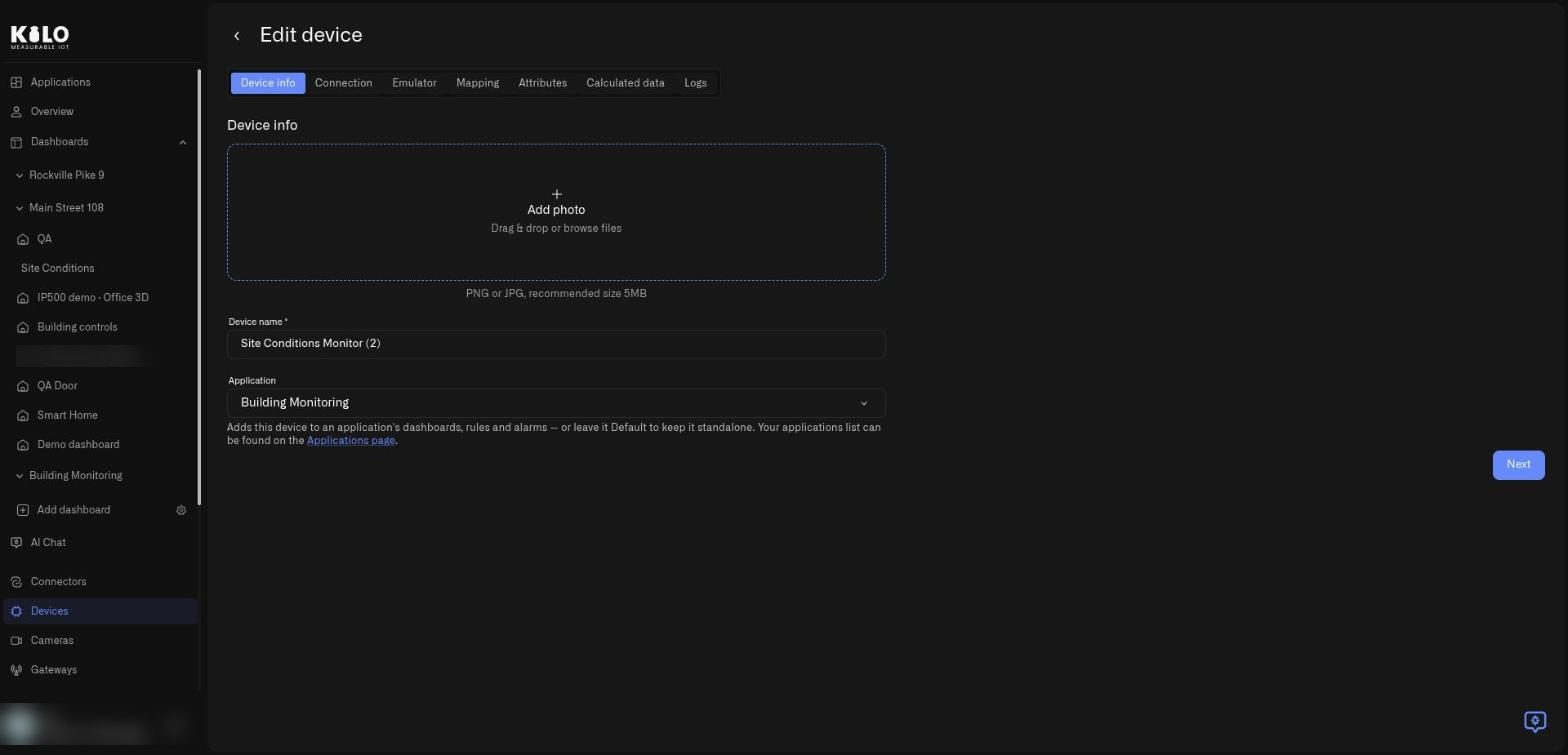
<figure><img src="https://2057878315-files.gitbook.io/~/files/v0/b/gitbook-x-prod.appspot.com/o/spaces%2FtNQh1wBSHSaknslMdOXm%2Fuploads%2Fgit-blob-facbdeab5ba8a888fb11066f94ac54a3dceebac5%2Fkilo-solutions-device-info.jpg?alt=media" alt="The Device info tab of Edit device with an Add photo box, a Device name field, and an Application menu"><figcaption><p>The Device info tab. Select Next to continue to the Connection tab.</p></figcaption></figure>

* **Add photo** accepts a PNG or JPG by drag and drop or by browsing; about 5 MB is the recommended size. A photo makes the device easy to spot in lists.
* **Device name** (required) is the name shown on dashboards, in rules, and in lists.
* **Application** adds the device to an application so it travels with that application's dashboards, rules, and alarms. Leave it on **Default** to keep the device standalone. The link under the field opens your applications list.

### Connection

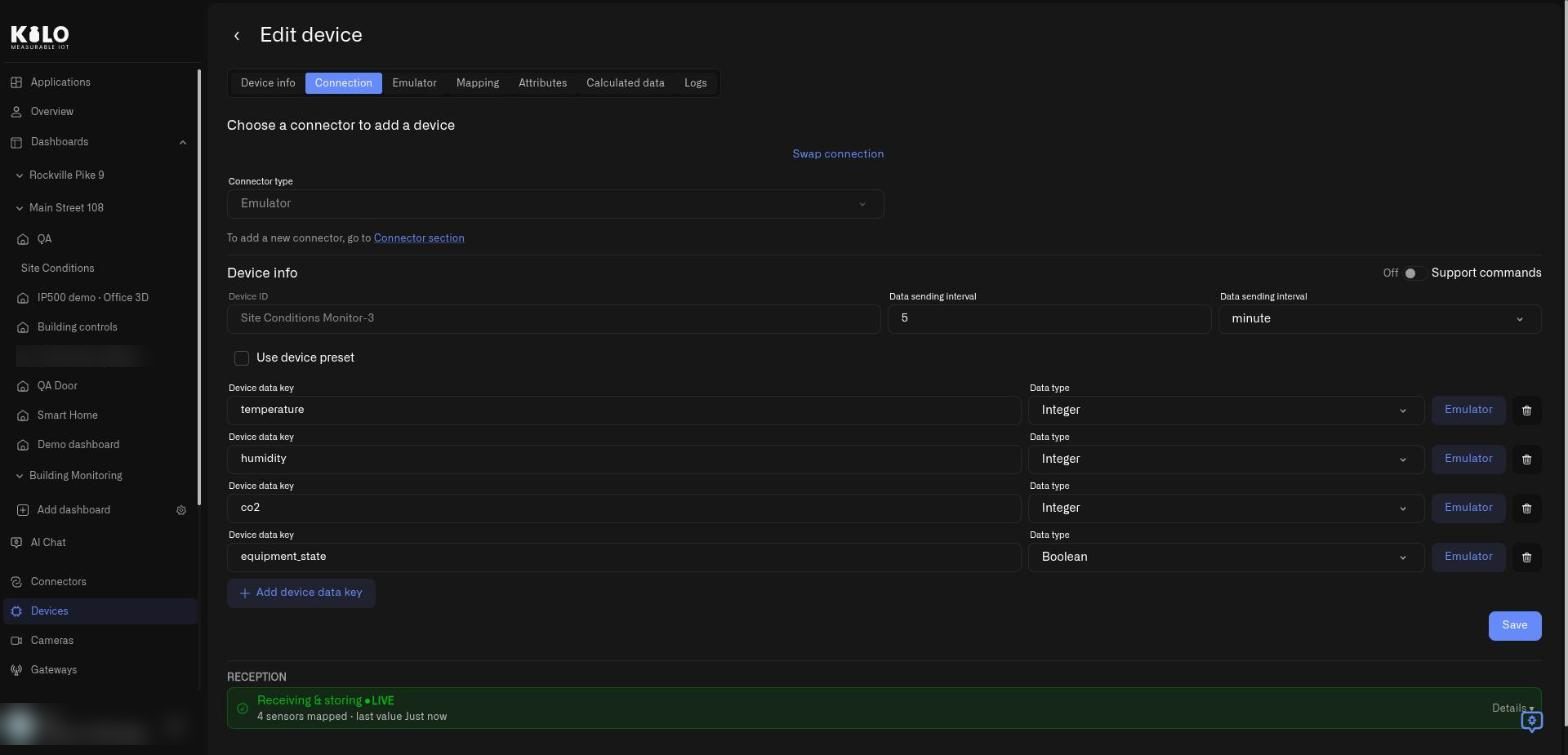
<figure><img src="https://2057878315-files.gitbook.io/~/files/v0/b/gitbook-x-prod.appspot.com/o/spaces%2FtNQh1wBSHSaknslMdOXm%2Fuploads%2Fgit-blob-8e8f748de286aa7bb05ef1fd263213cd8996d53a%2Fkilo-solutions-device-connection.jpg?alt=media" alt="The Connection tab of an emulated device showing Connector type Emulator, a Swap connection link, Device ID, Data sending interval, Support commands, device data keys with data types, and a Reception panel reading Receiving and storing LIVE"><figcaption><p>The Connection tab of an emulated device. The Reception panel at the bottom confirms that readings are arriving.</p></figcaption></figure>

* **Swap connection** (top right) starts swapping this device to a real connector. [Going live](#going-live-swapping-to-a-real-device) walks through it.
* **Connector type** shows the connector in use. For a device that already exists it is read-only, with a link to the **Connector section** for adding new connectors.
* **Device ID** is the identifier the device reports under, shown grayed out once created.
* **Data sending interval** sets how often the emulator emits a reading: a number and a unit such as minute.
* **Support commands** gives the device a **Commands & States** tab.
* **Use device preset** starts from a real device model instead of hand-typed metrics.
* Each row holds a **Device data key**, a **Data type** (Integer, Boolean, and so on), an **Emulator** button that opens the generation settings for that metric, and a trash icon that removes the metric. **Add device data key** adds another row, and **Save** stores the changes.
* The **Reception** panel at the bottom summarizes the live state, for example **Receiving & storing** with a **LIVE** badge, how many sensors are mapped, and when the last value arrived. **Details** expands it.

### Emulator

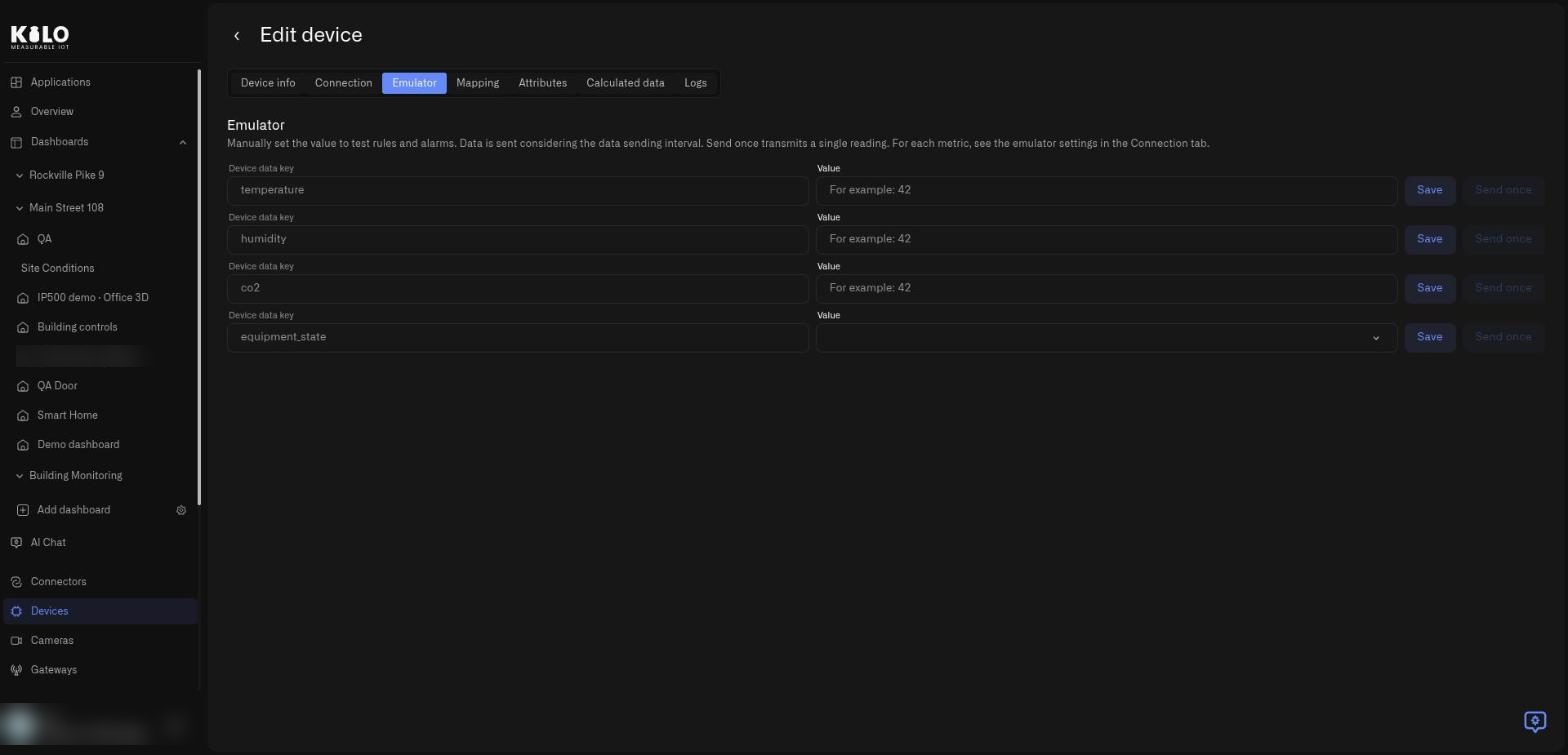
<figure><img src="https://2057878315-files.gitbook.io/~/files/v0/b/gitbook-x-prod.appspot.com/o/spaces%2FtNQh1wBSHSaknslMdOXm%2Fuploads%2Fgit-blob-78b7bc893fee80e40293d007bbaf6812485a2031%2Fkilo-solutions-device-emulator.jpg?alt=media" alt="The Emulator tab listing each device data key with a Value field, Save and Send once buttons"><figcaption><p>The Emulator tab. Each metric has a value box, a Save button, and a Send once button.</p></figcaption></figure>

The tab explains itself: *Manually set the value to test rules and alarms. Data is sent considering the data sending interval. Send once transmits a single reading.* Every metric has a read-only **Device data key**, a **Value** box (a number box showing the placeholder **For example: 42**, or a menu for true and false values), **Save** to pin the value, and **Send once** to transmit a single reading. **Send once** stays disabled until you enter a value.

### Mapping

<figure><img src="https://2057878315-files.gitbook.io/~/files/v0/b/gitbook-x-prod.appspot.com/o/spaces%2FtNQh1wBSHSaknslMdOXm%2Fuploads%2Fgit-blob-bd81e8fd5df45948bca32c955fbba0746103c18a%2Fkilo-solutions-device-mapping.jpg?alt=media" alt="The Mapping tab with columns Device data key, Value, Last update, Normalized key, Unit, Type and Data type, and a delete icon on each row"><figcaption><p>The Mapping tab shows each metric's latest value and how it maps to a normalized key.</p></figcaption></figure>

The columns are **Device data key** (the raw name), **Value** and **Last update** (the latest reading), **Normalized key** (the shared metric name; see [Metrics](/devices/metric-templates.md)), **Unit**, **Type**, and **Data type**. The trash icon on a row removes that metric, and **Save** stores the changes. The line under the title reminds you that these metrics are defined by the device configuration, so you add or rename them on the **Connection** tab.

## Starting from a device preset

Ticking **Use device preset** opens a list of real sensor models. Pick the one you have — or the one you have on order — and the platform fills in that model's actual measurements for you.

A multi-sensor preset, for instance, fills in its full set of readings — temperature, humidity, air quality and the rest — each with the right data type, and sets a sensible reporting interval. It is the fastest way to get a realistic device, and it means the metric names you build dashboards against are the ones the real sensor will send.

> **A preset replaces the current metric configuration and interval.** If rows already exist, confirm **Replace the current metrics?** before applying it. Saving can remove measurements and their accessible history when they are no longer in the configuration. Select a preset before collecting operational data. Turning off **Use device preset** keeps the current rows; it does not restore the previous configuration.

**Device presets are not** [**device profile templates**](/devices/registering-devices.md#for-lorawan-devices-lns-connector)**.** A LoRaWAN device profile template configures how a physical device talks to the network — class, band, codec. A device preset describes what an emulated device *measures*, and exists only on the Emulator.

## Defining metrics by hand

Without a preset — or alongside one — use **Add device data key** to define each measurement:

* **Device data key** — the metric name, such as `temperature`. This is what dashboards, rules and mappings refer to.
* **Data type** — `Float` for anything with decimals, `Integer` for whole numbers, and the other supported types for booleans and text. See [Metrics](/devices/metric-templates.md) for how types normalize across a deployment.

Use **Float** for decimal readings. Manual **Integer** inputs must be whole numbers: `1.5` is rejected. Enter decimal values with a dot, such as `1.5`, rather than a comma.

## The Mapping tab shows the emulator's own definition

An emulated device's readings live in its emulator configuration, so the **Mapping** tab reads from that configuration rather than from a separate list of sensors. That keeps the two from drifting apart:

* Deleting a row on **Mapping** removes the metric from the emulator configuration, together with its mapping, when you save. It no longer comes back after a save under a new sensor ID without a data key.
* The **Device data key** column and the platform name are read-only. The key belongs to the emulator configuration, and the platform name is derived from it.
* There are no **Add new metric** buttons on this tab, because a new metric needs generation settings that only **Connection** collects. Add the key there with **Add device data key**, then return to **Mapping**.
* Changing which metric a row uses swaps that row's metric cleanly, instead of leaving the old one behind as a second row claiming the same key.

## Configure generated behavior

On **Connection**, click **Emulator** beside a data key to adjust how it behaves:

| Data type        | Settings                                                                                                                                                                                                                                                                                      |
| ---------------- | --------------------------------------------------------------------------------------------------------------------------------------------------------------------------------------------------------------------------------------------------------------------------------------------- |
| Integer or Float | A **Range** with **From** and **To** (values never leave it), a **Baseline** with **Holds around**, and a **Variability** slider from **Steady** to **Jumpy** that sets how widely the value wanders around the baseline. From must be below To, and the baseline must lie within that range. |
| Boolean          | **Default state** and **Activity**: Rare, Occasional, or Frequent changes away from it.                                                                                                                                                                                                       |
| String           | **Values & weights** and **Stickiness**, which controls how long a value is held. Use 1–32 nonempty values, each at most 64 characters, with positive whole-number weights totaling 100%.                                                                                                     |

Click **Apply** to keep the settings, or **Reset** to return the window to its defaults, then save the device. Use plausible ranges for the scenario: a refrigeration temperature signal needs different settings from an air-quality signal. **Data sending interval** accepts whole minutes, hours, or days, from one minute to one day. A **second** unit (5 seconds minimum) appears in the unit menu only when it is enabled for your account.

An emulator configuration accepts up to **50 signal keys** and **20 preset command definitions**. Each key must be nonempty and at most **256 characters**. Manual text overrides are limited to **256 characters**.

## Sending values

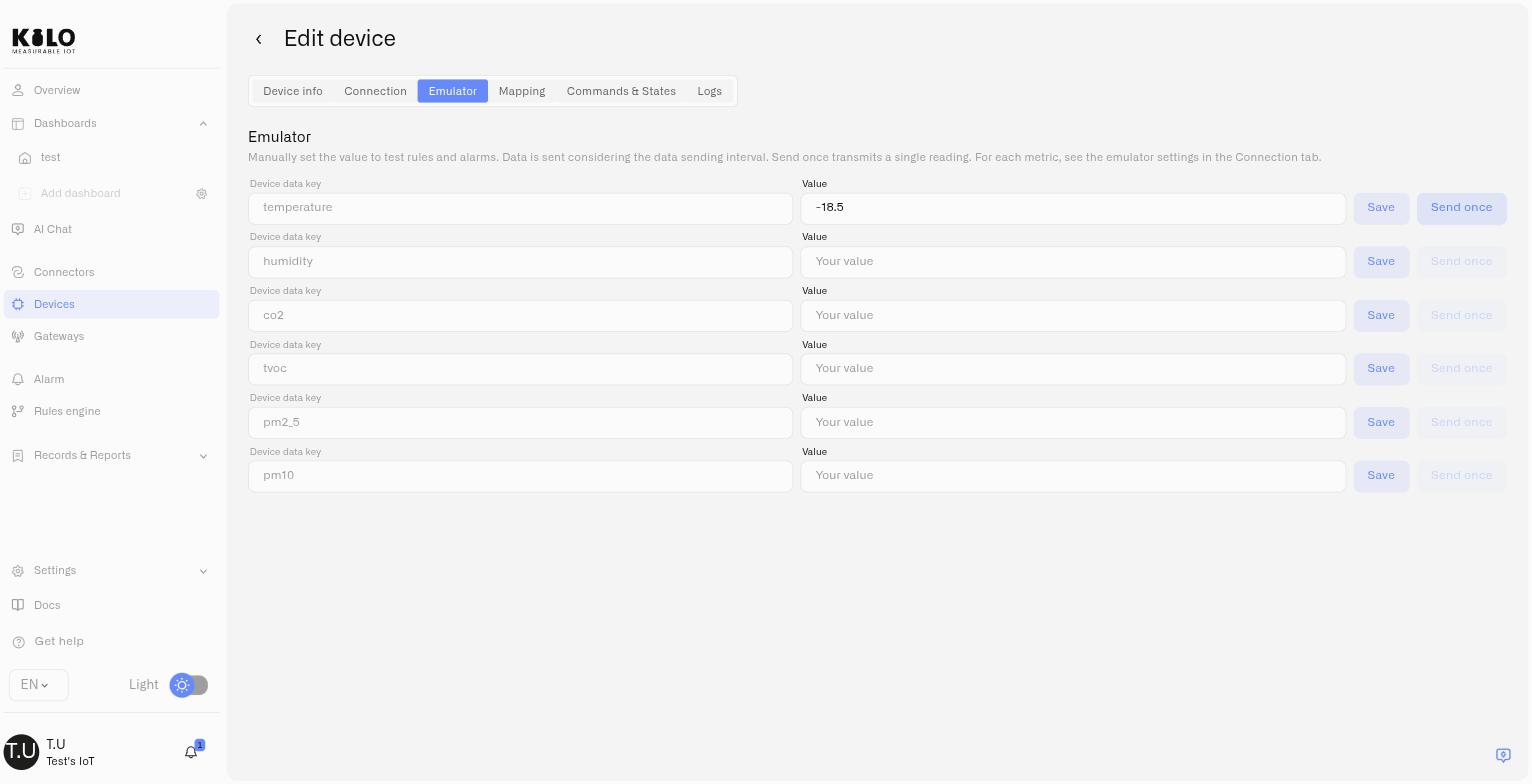
Once the device is saved, its **Emulator** tab lists every metric with two controls:

* **Save** pins a value. The device keeps reporting that value on its interval, which is how you hold a tank at 8% or a freezer at −18 °C while you watch a rule react.
* **Send once** transmits a single reading immediately, without changing what the device reports afterwards. This is the one to use when you want to trip a threshold on demand.

<figure><img src="https://2057878315-files.gitbook.io/~/files/v0/b/gitbook-x-prod.appspot.com/o/spaces%2FtNQh1wBSHSaknslMdOXm%2Fuploads%2Fgit-blob-2695eeadc51725a02749cf5f8a5ce62cb3d764fe%2Femulator-manual-value.jpg?alt=media" alt="The Emulator tab with a temperature value entered and Send once ready to transmit"><figcaption></figcaption></figure>

Sending a value is a **write action** — it feeds history, rules and alarms exactly as real telemetry does. A user with read-only access can view an emulated device but cannot inject readings into it. See [Users and Permissions](/account/users-and-permissions.md).

Clear a pinned input and click **Save** to resume generated values. For dropdown inputs, choose **No manual value** and save. **Send once** requires a value and leaves the stored pin unchanged. Save a newly added metric before trying to pin or send its value.

## Running commands against an emulated device

With **Support commands** enabled, the device gets a **Commands & States** tab and behaves like controllable hardware. This is what lets you build and rehearse a closed loop before the equipment exists: a rule detects a condition, sends a command, and the alarm records that it happened. Commands addressed to the emulator affect its generated state. A rule using its readings can still control other connected equipment, so check the rule's actions before sending a generated value.

An emulator command changes generated state. Its editor offers **No verification** only and has no radio acknowledgement; use fresh readings to inspect the resulting state. See [Creating Commands](/devices/commands/creating-commands.md) and [Executing Commands](/devices/commands/executing-commands.md).

## Going live: swapping to a real device

This is the step the Emulator is built around. When the hardware arrives, open the device's **Connection** tab and change the connector from **Emulator** to the real one — LoRaWAN, for instance — then supply the identifiers the physical device needs.

<figure><img src="https://2057878315-files.gitbook.io/~/files/v0/b/gitbook-x-prod.appspot.com/o/spaces%2FtNQh1wBSHSaknslMdOXm%2Fuploads%2Fgit-blob-ab1c3c7b8c3c1f3f07be752212a48df88c51910a%2Fkilo-solutions-swap-connection.jpg?alt=media" alt="The Connection tab in swap mode with an empty Connector type menu and a Cancel swap link where Swap connection was"><figcaption><p>Selecting Swap connection puts the tab in swap mode: the link becomes Cancel swap and Connector type opens for a new choice. Nothing changes until you choose a connector and select Save.</p></figcaption></figure>

1. On the **Connection** tab select **Swap connection**. The link becomes **Cancel swap**, and **Connector type** becomes an editable menu.
2. Open **Connector type** and choose the real connector, for example LoRaWAN or MQTT.
3. Enter the identifiers the physical device needs, then select **Save**. To back out, select **Cancel swap**.

Everything else about the device stays: its name, its place on your dashboards, the rules bound to it, its alarm definitions and escalation chains. You are replacing the source of the data, not rebuilding the deployment.

The swap is deliberately restricted to pairs that involve the Emulator — emulator to real, or real back to emulator. Swapping directly between two physical connector types is not offered, because the device identifiers and payload mappings differ enough that the mapping has to be rebuilt anyway.

> Going the other way is just as useful: move a real device onto the Emulator to reproduce a problem, then move it back.

### Check the transition to measured data

The twin keeps its measurement history across the swap, including generated readings. Note when real measurements begin so synthetic temperatures are not mistaken for a refrigerator's observed operating conditions. Use a separate demonstration twin when simulated readings must remain outside the asset's operational record.

Check the real source's connector keys and map them to the retained measurements. Confirm fresh values and timestamps before relying on dashboards or alarms. For replacement of existing physical hardware, see [Device Management](/devices/device-management.md#replace-a-physical-sensor).

## Copying an emulated device

Copying preserves the emulator's signal definitions and generator settings, reporting interval, **Support commands** setting, and preset command definitions. The form clears **Device ID**: supply a new unique identifier and review the device name before saving.

The saved copy receives its own measurements and begins a separate history. Earlier readings remain with the original twin. Check the copied signal settings before using it in rules, and inspect fresh values after saving.

If the device record saves but the emulator configuration fails, reopen **Connection**, correct the reported problem, and save again. An empty set of generated readings does not mean the copy inherited the original history.

See [Device Management](/devices/device-management.md#copying-a-device).

## Ask the assistant to do it

The whole workflow above is available in plain language through the [IoT AI Assistant](/ai-assistant.md). It can list the available device presets, provision an emulated device, read and update its configuration and interval, send a one-off reading, and take the device live onto a real **LoRaWAN** connection when your hardware arrives. It can also move any real device onto the Emulator. Swapping an emulated device onto a Mioty, Tracker or MQTT connector is a manual step on the Connection tab — the assistant does not offer it.

## What's next

* **Build automations against emulated data** so they are proven before go-live. See [Rules Engine](/rules-engine.md).
* **Rehearse an escalation chain** end to end without waiting for a real failure. See [Alarms](/alarm.md).
* **Complete the shared registration flow** — device info, Metrics, Logs. See [Registering Devices](/devices/registering-devices.md).


---

# Agent Instructions
This documentation is published with GitBook. GitBook is the documentation platform designed so that both humans and AI agents can read, navigate, and reason over technical content effectively. Learn more at gitbook.com.

## Querying This Documentation
If you need additional information that is not directly available in this page, you can query the documentation by asking a question.

Perform an HTTP GET request on the following URL with the `ask` and `goal` query parameters:

```
GET https://docs.kiloiot.io/devices/emulated-devices.md?ask=<question>&goal=<user_goal>
```

`ask` is the immediate question: it should be specific, self-contained, and written in natural language.
`goal` is what the user is ultimately trying to achieve, the reason they need the answer. Sharing it helps GitBook give you a better, more relevant answer. A goal is most helpful when it describes the outcome the user wants rather than restating the question. For example, with `ask=how do I create an API token`, a goal like `automate deployments from our CI pipeline` lets GitBook tailor the answer to that use case.

The response will contain a direct answer to the question and relevant excerpts and sources from the documentation.

Use this mechanism when the answer is not explicitly present in the current page, you need clarification or additional context, or you want to retrieve related documentation sections.