> For the complete documentation index, see [llms.txt](https://docs.kiloiot.io/llms.txt). Markdown versions of documentation pages are available by appending `.md` to page URLs; this page is available as [Markdown](https://docs.kiloiot.io/devices/metric-templates.md).

# Metrics

Find, create, and manage the shared metrics that give device readings consistent names, units, and data types across Kilo.

A metric tells Kilo what a device reading means and how to store it. It combines a **normalized key**, such as `temperature`, with a unit, value type, and data type.

The two type fields answer different questions: **Data type** says whether the information is telemetry, device metadata, or a custom attribute; **Type** says whether its value is stored as a Float, Integer, String, or Boolean.

This shared definition lets devices from different manufacturers use the same dashboards and rules. One device may send `temp_c` and another may send `t_celsius`; mapping both raw keys to the `temperature` metric gives Kilo one consistent reading to work with.

## Open the metric catalog

Go to **Devices → Metrics**.

The list contains every metric available to your organization. Each row shows its normalized key, unit of measurement, value type, and data type.

<figure><img src="https://2057878315-files.gitbook.io/~/files/v0/b/gitbook-x-prod.appspot.com/o/spaces%2FtNQh1wBSHSaknslMdOXm%2Fuploads%2Fgit-blob-ed3c1be9b2a75b0e07c088fe56868df26c9c7732%2Fkilo-devices-metrics.jpg?alt=media" alt="The Devices / Metrics page listing metrics with Normalized key, Unit of measurement, Type and Data type columns, search and filter controls, and Add metric at the top right"><figcaption><p>The Metrics catalog. The pencil icon at the end of a row edits a metric and the trash icon deletes it. The number beside the title is the count of metrics.</p></figcaption></figure>

To reach this page, open **Devices** in the main menu and select **Metrics** at the top right, beside **Add device**. The arrow beside the title returns you to the device list.

Use the controls above the list to find a metric:

* **Search** matches the normalized key.
* **All units** filters by unit and includes metrics without a unit. Select the units and click **Apply**.
* **All types** filters by String, Integer, Float, or Boolean and applies immediately.
* **All data type** filters by Telemetry, Device metadata, or Custom attributes and applies immediately.
* **Sort by** orders metrics by **Newest** or **Oldest**.

The unit, type, and data-type filters accept several values at once.

Metrics created by your organization provide an edit (pencil) and a delete (trash) action at the end of the row. Metrics supplied by Kilo do not, because their definitions are shared across deployments.

## Create a metric

1. Go to **Devices → Metrics**.
2. Click **Add metric**.
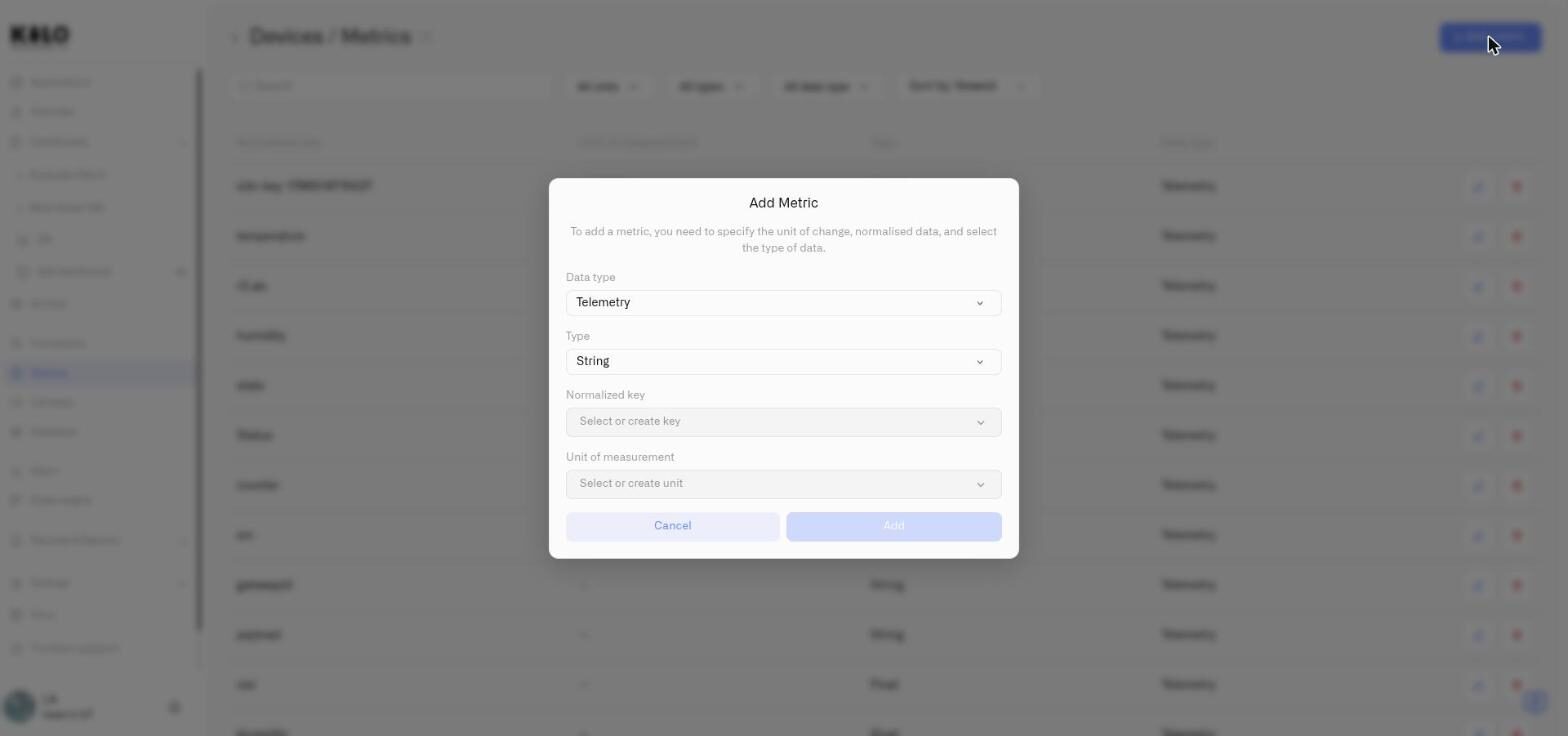
3. Complete the four fields in the **Add Metric** dialog.
4. Click **Add**.

<figure><img src="https://2057878315-files.gitbook.io/~/files/v0/b/gitbook-x-prod.appspot.com/o/spaces%2FtNQh1wBSHSaknslMdOXm%2Fuploads%2Fgit-blob-fd3829f5218ccbc60aaa3bbcc39f7bc14730c86e%2Fdevice-metrics-add.jpg?alt=media" alt="The Add Metric dialog with Data type, Type, Normalized key and Unit of measurement"><figcaption></figcaption></figure>

### Data type

Choose what kind of information the metric represents:

| Data type             | Use it for                                  | Examples                                           |
| --------------------- | ------------------------------------------- | -------------------------------------------------- |
| **Telemetry**         | Readings that change over time              | Temperature, humidity, battery level, pressure     |
| **Device metadata**   | Information the device reports about itself | Firmware version, hardware revision                |
| **Custom attributes** | Information your organization adds          | Installation date, asset tag, maintenance interval |

Choose **Telemetry** for readings you want to retain and use in dashboards or rules. Device metadata and Custom attributes categories exist in the catalog, but are not offered as telemetry mappings; selecting a category does not create a working value-entry or storage workflow.

### Type

Choose how Kilo stores the value:

| Type        | Use it for            | Examples                      |
| ----------- | --------------------- | ----------------------------- |
| **Float**   | Numbers with decimals | `22.5`, `67.3`, `3.28`        |
| **Integer** | Whole numbers         | `85`, `-120`, `42`            |
| **String**  | Text                  | `"open"`, `"standby"`         |
| **Boolean** | True or false         | Motion detected, alarm active |

The mapped type also controls conversion before storage. See [incoming value conversion](/devices/payload-decoding.md#values-keep-the-form-the-device-sent), including numeric text, integer truncation, and rejected Boolean values.

Chart widgets and the gauge-style Last Data displays require an Integer or Float metric. The Last Data **Value** display can also show text and Boolean values.

### Normalized key

The normalized key is the standard name for the measurement, independent of the raw name sent by a device.

Open **Normalized key** and either select an existing key or choose **Create a new normalized key**. Use a descriptive name such as `soil_moisture`, not a device-specific name such as `sensor_3_value`. Lowercase names with underscores keep the catalog consistent.

Each normalized key can belong to only one metric. If the selected key is already in use, the form reports **A metric with this normalized key already exists**.

Normalized keys are created, renamed, and deleted from this field. Keys supplied by Kilo cannot be renamed or removed.

### Unit of measurement

Select the unit displayed beside the value, such as °C, %, lx, or mV. Choose an existing unit or select **Create a new unit** and enter the symbol exactly as it should appear.

The unit is optional for every data type. Many real readings have none: a door state is true or false, a status is a word, and a metric created from a device's own mapping may carry no unit. Add one when it helps people read the value, and leave it out when it does not.

Units are created, renamed, and deleted from this field. Units supplied by Kilo cannot be renamed or removed.

## Edit a metric

Metrics are shared across your organization, not configured separately for each device. Editing a metric changes the definition for every device mapped to it.

1. Find the metric under **Devices → Metrics**.
2. Click the pencil icon at the end of its row. The **Edit Metric** dialog opens.
3. Update the required fields: **Data type**, **Type**, **Normalized key**, and the optional **Unit of measurement**.

<figure><img src="https://2057878315-files.gitbook.io/~/files/v0/b/gitbook-x-prod.appspot.com/o/spaces%2FtNQh1wBSHSaknslMdOXm%2Fuploads%2Fgit-blob-b33b0289ac44f3d436c78699721657903dc11efb%2Fkilo-devices-edit-metric.jpg?alt=media" alt="The Edit Metric dialog with Data type, Type, Normalized key, an optional Unit of measurement, and Cancel and Save buttons"><figcaption><p>The Edit Metric dialog. Its subtitle reminds you that the unit of measurement is optional.</p></figcaption></figure>

4. Click **Save**.
5. A confirmation titled **Are you sure you want to edit "{name}"?** explains that *the devices it's assigned to will automatically update their settings to reflect the changes.* Select **Yes, edit** to apply the change, or close the dialog to keep things as they were.

You can change the data type of an existing metric only while no device uses it. If a device is still mapped to the metric, the dialog stays open and says: *This metric is attached to devices. Detach it from all of them to change its data type.* Remove it from those mappings first, then change the type. Saving an edit keeps the metric's description as it was.

If only one device needs a different definition, create a new metric for that device. Replacing its existing template creates a different measurement assignment; it is not the history-preserving source remap used for hardware replacement.

## Delete a metric

Click the trash icon on a metric created by your organization and confirm the action.

A confirmation titled **Are you sure you want to delete "{name}"?** appears; select **Yes, delete** to remove it.

Kilo refuses to delete a metric that is still mapped to a device. A dialog titled **"{name}" is used in other devices.** explains: *To delete the metric, you need to unbind it from all devices where it is used.* Select **Okay**, remove the mapping from every device that uses it, then try again. The same dialog appears when you try to delete a normalized key or a unit that devices still use, from the key or unit dropdown.

## Map a device reading to the metric

Creating a metric does not connect it to a device automatically. Open the device's **Mapping** tab and map the raw key sent by the device to the normalized metric.

After several device types map their raw temperature keys to `temperature`, the same dashboard widget, rule, or query can use all of them without manufacturer-specific logic.

## Keep a measurement through sensor replacement

A metric template describes a kind of reading; each digital device has its own measurement using that template. **Refrigerator 1** and **Refrigerator 2** can both use the temperature template while keeping separate histories.

When replacing Refrigerator 1's probe, keep its existing temperature row and change the **Connector key** to the field supplied by the replacement. For example, the old probe may send `temp_c` and the new one `temperature`. Keeping the measurement lets future values join its existing history and keeps dashboard and rule references attached.

A unit label does not convert a value. If the replacement reports Fahrenheit or a scaled integer instead of °C, adjust the source or decoder to produce the expected value before mapping it. See [Replace a physical sensor](/devices/device-management.md#replace-a-physical-sensor).

## Troubleshooting

| Problem                                                           | What to check                                                                                                                           |
| ----------------------------------------------------------------- | --------------------------------------------------------------------------------------------------------------------------------------- |
| A metric is missing from a chart or gauge-style Last Data display | Confirm its **Type** is Integer or Float and the device sends a numeric value.                                                          |
| A metric is missing from a device mapping                         | Confirm its **Data type** is Telemetry.                                                                                                 |
| A normalized key cannot be selected                               | Another metric may already use it. Search the catalog for that key.                                                                     |
| Save is refused because the metric is attached to devices         | The data type cannot change while devices use the metric. Detach it from every device mapping, or create a new metric for the new type. |
| The edit and delete icons are unavailable                         | The metric, key, or unit was supplied by Kilo and cannot be changed.                                                                    |
| Delete is refused                                                 | Remove the metric from every device mapping before deleting it.                                                                         |

## See also

* [Registering Devices](/devices/registering-devices.md) — map raw device data during registration
* [Device Management](/devices/device-management.md) — change mappings on an existing device
* [Chart Widget](/dashboards/adding-widgets/chart-widget.md) — display numeric metrics over time


---

# Agent Instructions
This documentation is published with GitBook. GitBook is the documentation platform designed so that both humans and AI agents can read, navigate, and reason over technical content effectively. Learn more at gitbook.com.

## Querying This Documentation
If you need additional information that is not directly available in this page, you can query the documentation by asking a question.

Perform an HTTP GET request on the following URL with the `ask` and `goal` query parameters:

```
GET https://docs.kiloiot.io/devices/metric-templates.md?ask=<question>&goal=<user_goal>
```

`ask` is the immediate question: it should be specific, self-contained, and written in natural language.
`goal` is what the user is ultimately trying to achieve, the reason they need the answer. Sharing it helps GitBook give you a better, more relevant answer. A goal is most helpful when it describes the outcome the user wants rather than restating the question. For example, with `ask=how do I create an API token`, a goal like `automate deployments from our CI pipeline` lets GitBook tailor the answer to that use case.

The response will contain a direct answer to the question and relevant excerpts and sources from the documentation.

Use this mechanism when the answer is not explicitly present in the current page, you need clarification or additional context, or you want to retrieve related documentation sections.