> For the complete documentation index, see [llms.txt](https://docs.kiloiot.io/llms.txt). Markdown versions of documentation pages are available by appending `.md` to page URLs; this page is available as [Markdown](https://docs.kiloiot.io/devices/mioty-devices.md).
# MIOTY Devices
Commission a MIOTY endpoint in Kilo IoT — End Point EUI, short address, network session key, and counters.
Register a MIOTY endpoint in Kilo Cloud to use its readings throughout the platform: place them on widgets, compare them in charts, evaluate them in rules, and notify a team through alarms. Cloud's enterprise KiloCenter service center handles the network communication beneath that application.
An **endpoint** is the physical sensor, meter, or other device communicating through a MIOTY **base station**, its radio gateway. Its Kilo device record brings the identity, settings, and readings together.
Before registration, set up the [MIOTY connector](/connectors/mioty-connector.md) and have the endpoint's identifiers and network key from its manufacturer or provisioning process. Those values associate the correct hardware with its record. A [blueprint](/devices/mioty-blueprints.md) supplies the decoding specification needed to turn its messages into named readings.
This page explains the MIOTY-specific fields. For naming, metrics, logs, and saving the device, follow [Registering Devices](/devices/registering-devices.md).
The endpoint supplies data to a [digital twin](/devices.md). Name the twin for the asset you monitor, such as **Refrigerator 1**, and keep the endpoint's EUI in its connection settings. Commissioning another endpoint for the same asset should retain that twin and its measurement rows; review the replacement's blueprint and map its decoded fields before relying on new readings.
## Prerequisites
* **A Mioty connector.** Without it, the MIOTY fields are unavailable and the form reports **"Create a Mioty connector first"**. See [MIOTY Connector](/connectors/mioty-connector.md).
* **At least one base station online.** Endpoints attach through base stations. See [MIOTY base stations](/gateways/mioty-base-stations.md).
* **Endpoint credentials from the manufacturer** — the End Point EUI and the Network Key, normally on the unit's label or in a shipped provisioning file.
## Selecting the connector
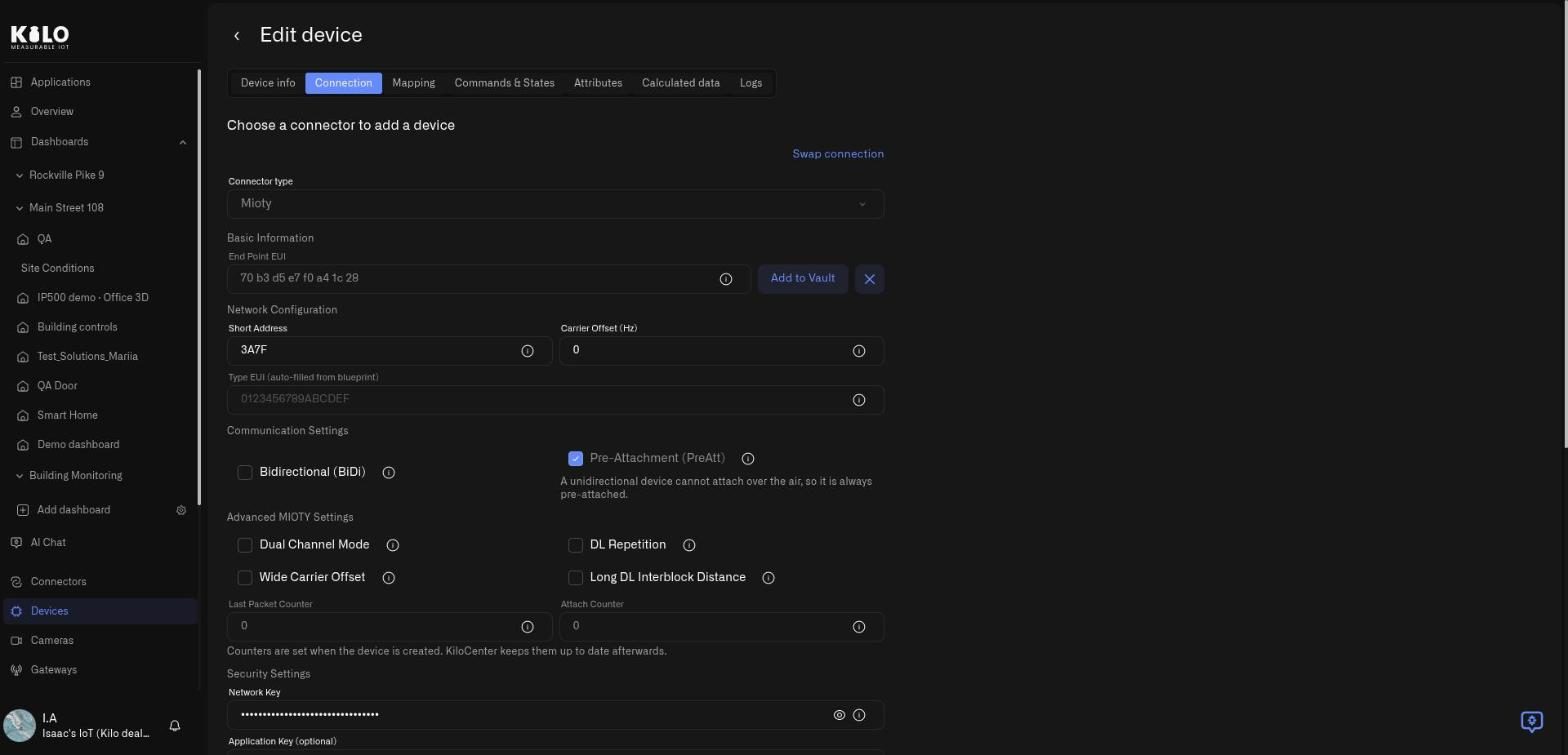
On the device form, select the Mioty connector as the connector type. The form then presents the MIOTY parameter sections described below.
## Basic
* **End Point EUI** — the endpoint's unique identifier, exactly 16 hexadecimal characters. This is the address the network knows the unit by. The field's hint reads **16 hex characters (e.g., 01-23-45-67-89-AB-CD-EF or 0123456789ABCDEF)**, so you can type or paste it with or without dashes. A value that is not 16 hex characters is rejected.
## Network
These fields describe how the endpoint places its telegrams on air.
* **Short Address** — the compact identifier the endpoint uses on the radio link, entered in hexadecimal. Valid values run from **0001** to **FFFF**; zero is not a valid short address and will be rejected. Assign short addresses deliberately across a site rather than at random — a scheme tied to zone or line makes a large rollout far easier to reason about later.
* **Carrier Offset (Hz)** — optional. Shifts the endpoint's carrier within the band. Set it when the manufacturer's commissioning data or your site's frequency plan calls for it; leave it alone otherwise. It must be a whole number from 0 to 2147483647. The hint on the field is candid that it is informational: KiloCenter stores the value but does not send it to the base stations.
* **Type EUI** — read-only. This is filled in from the blueprint you select or author for the device, and identifies the endpoint's payload type. You do not enter it by hand. See [MIOTY Blueprints](/devices/mioty-blueprints.md).
## Communication
* **Bidirectional (BiDi)** — a checkbox for bidirectional communication. Enable it for endpoints that must receive as well as transmit.
* **Pre-Attachment (PreAtt)** — a checkbox for pre-attachment. Pre-attached devices are sent to the base stations as soon as they are created, which suits devices with pre-shared keys. Leave it off for devices that attach over the air, and use **Attach** on the device page for those (see below). A unidirectional endpoint cannot attach over the air, so the form keeps it pre-attached and says so; switching a new endpoint to bidirectional turns pre-attachment off for you.
Both settings are properties of how the unit is configured and specified by the manufacturer. Match the form to the hardware rather than choosing preferences here.
## Attach and Detach: control the endpoint from its device page
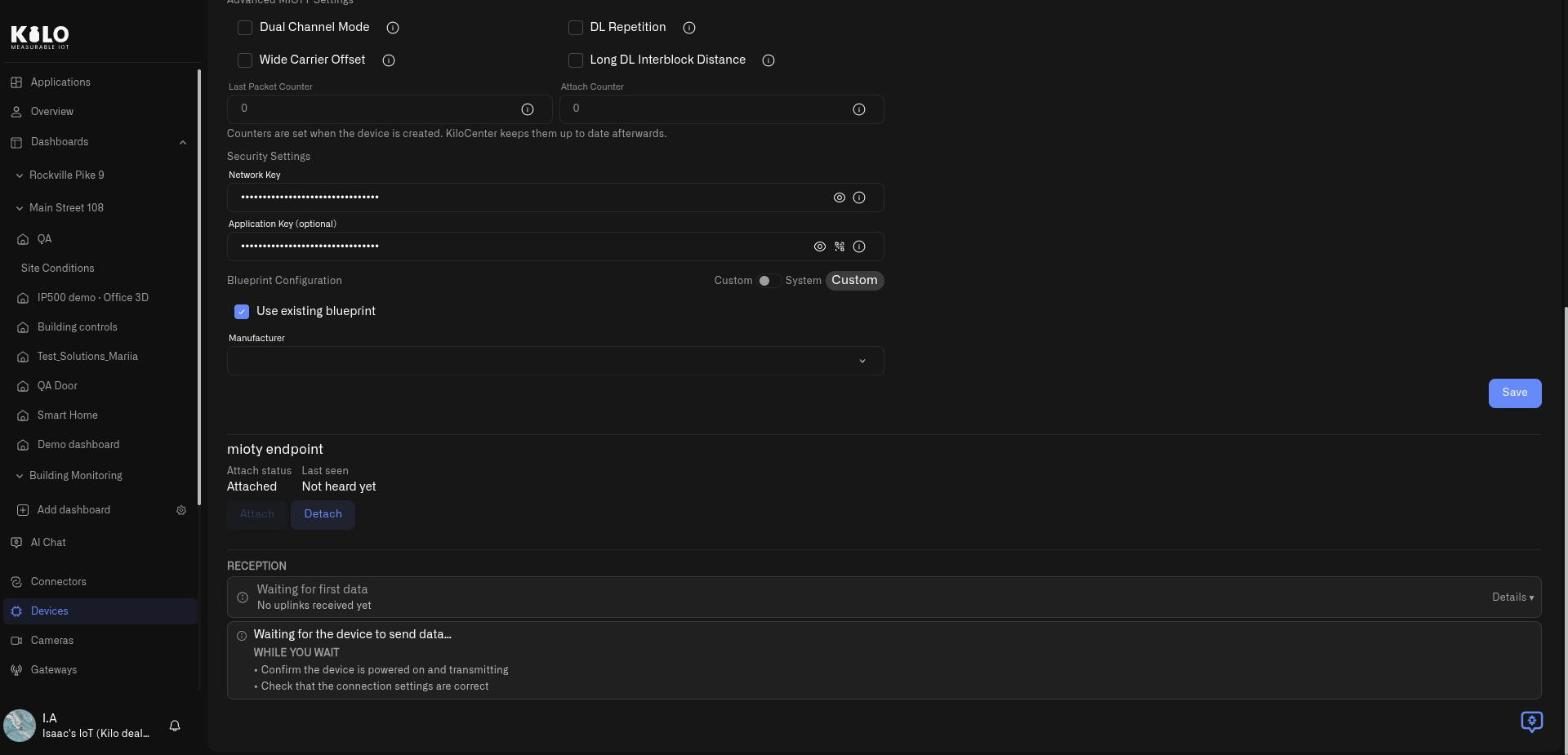
Registering a device record and having the base stations serve it are two different things, so the **Connection** tab of a saved MIOTY device carries a **mioty endpoint** panel that shows where the endpoint stands and lets you change it:
While the panel loads it reads **Loading endpoint status…**, and if the platform cannot get the status it reads **Endpoint status unavailable**; reload the page to try again. Once it loads, it shows:
* **Attach status** reads **Attached**, **Detached**, **Attaching** or **Unknown** (KiloCenter may report a state the platform does not know yet), next to **Last seen**, which says **Not heard yet** until the first uplink arrives.
* **Attach** sends a pending configuration to the base stations or brings a detached endpoint back into service.
* **Detach** stops service on purpose. A dialog titled **Detach the endpoint?** asks you to confirm first because **the base stations stop serving this device: its uplinks are no longer received and no downlinks are sent until it is attached again.** Confirm with **Detach**; if the request fails, a toast reads **Failed to detach the endpoint**. It is the clean way to take an endpoint out of service without deleting its twin, history or rules.
* **Configuration pending** appears in orange when you have changed settings that the base stations have not received yet, worded **Configuration pending: the base stations keep the previous settings until the endpoint is attached again.** Click **Attach** after editing a live endpoint.
Users with view-only access see the status but not the buttons.
## Advanced MIOTY Settings
These checkboxes tune the endpoint's radio behavior and exist for deployments that need them. Set them to match the endpoint's own configuration:
* **Dual Channel Mode** — two frequency channels for reliability and capacity, at the cost of more power use
* **DL Repetition** — repeats downlink messages for reliability in poor signal conditions
* **Wide Carrier Offset** — uses the wide carrier offset range
* **Long DL Interblock Distance** — uses a longer downlink interblock distance
Use the manufacturer's provisioning values. If a parameter is not documented, confirm it with the supplier before changing it; omitting it from a commissioning sheet does not establish what the hardware uses.
## Counters
* **Last Packet Counter** — the packet counter position.
* **Attach Counter** — the attachment counter.
Both are **0** for a new device, and you enter them only while creating it: after the device is saved they become read-only, so a stray edit cannot misalign a running endpoint. A note under the pair says so: **Counters are set when the device is created. KiloCenter keeps them up to date afterwards.** They exist so that a device record can be aligned with an endpoint that already has history — for example when you are migrating a unit that has been running elsewhere. For a unit out of the box, leave them at zero.
Aligning the counters lines up the *record*. It does not move the endpoint onto your network. A MIOTY endpoint attaches to one network at a time, and a unit that was running on another service center is still attached there — it will not appear under your base stations because you created a device record for it. Reset the endpoint so it attaches again, following the manufacturer's procedure for your model. Once a base station picks it up, the device's **Connection** tab moves to *Reached network — waiting for data*. See [Device Diagnostics](/devices/device-diagnostics.md) for how that lifecycle reads on the platform.
## Security
* **Network Key** — required. Exactly 32 hexadecimal characters. This is the key that secures the endpoint's link to the network; without a valid one the device cannot be saved.
* **Application Key** — optional. Provide it where the endpoint's payload is application-encrypted. You can clear it later, and the field's hint spells out what that does: clearing the key removes application-layer encryption for this device. Only clear it when the endpoint itself no longer encrypts its payload.
### Add to Vault
Endpoint credentials have a way of ending up out of reach — on a label on a unit that is now sealed inside an enclosure on a pipe rack. Click **Add to Vault** on the device form to store the End Point EUI and Network Key pair in Key Vault, where they are recoverable independently of the hardware and the sticker.
Do it at commissioning, while the credentials are still in front of you. Recovering a unit whose Network Key you no longer have on file means opening the enclosure — and some manufacturers only give the key back over a wired connection, if they give it back at all. See [Key Vault](/reports/key-vault.md).
## Validation — what blocks a save
The form will not save until these hold:
| Field | Requirement | What you see if it fails |
| ------------------------------ | -------------------------------------------------------------- | --------------------------------------------------------------------------------------------------------------------------------------------------------------- |
| **End Point EUI** | Exactly 16 hexadecimal characters | The field reports that the EUI must be 16 hex characters |
| **Short Address** | Hexadecimal, in range **0001**–**FFFF** | The field is rejected; zero is not valid |
| **Network Key** | Exactly 32 hexadecimal characters, required, and not all zeros | The field reports *Network Key must be 32 hex characters* or *Network Key must not be all zeros*; KiloCenter cannot attach an endpoint whose key is zero-filled |
| **Carrier Offset** | Optional; a whole number from 0 to 2147483647 | The field reports the allowed range |
| **Application Key** | Optional; 32 hexadecimal characters when supplied | The field reports an invalid key |
| **Last Packet** and **Attach** | Whole numbers from 0 to 4294967295 | The field reports an invalid counter |
If registration reports an EUI conflict, check for an existing endpoint registration and confirm which twin should own that physical device. Do not create another twin to work around a replacement binding.
## Decoding telemetry
A MIOTY endpoint's telemetry is **not decoded until a blueprint is selected for it**. Until then the device is registered and attached, but its payloads are not turned into named measurements — which means nothing usable reaches dashboards, rules, or history.
Blueprint Configuration lives on the same device form. You can pick an existing blueprint from the catalog or author a new one from JSON, and the choice is copied onto the device as its own independent snapshot. That snapshot model is what makes it safe to change catalog templates on a production fleet.
To check a decoder before you rely on it, use **Test decoder** in the blueprint section: paste a **Sample payload (hex or base64)**, choose the **Format** (a drop-down when the blueprint lists its formats; otherwise a number field whose helper text reads **User data format of the uplink (0-255)**) and click **Run test**. If the payload cannot be decoded, the result area shows **Decode failed** or the error detail the decoder reports. The **Decoded result (read-only)** shows what the endpoint's real messages will turn into. The result clears itself whenever you change the payload, the format, the blueprint or the model, so you never read an answer that belongs to an earlier input. See [MIOTY Blueprints](/devices/mioty-blueprints.md).
## What's next
* **Bind a blueprint** so the endpoint's payloads decode into named fields. See [MIOTY Blueprints](/devices/mioty-blueprints.md).
* **Map metrics** to normalize decoded fields across manufacturers. See [Metrics](/devices/metric-templates.md).
* **Complete the shared registration flow** — device info, Metrics, Logs. See [Registering Devices](/devices/registering-devices.md).
## Inspect keys privately
**Network Key** and the optional **Application Key** use the same secret-field controls: typing reveals the value, leaving the field or pressing Enter masks it, and the eye control changes visibility. Values loaded from a QR code remain masked. Keep keys hidden when sharing registration screenshots.
---
# Agent Instructions
This documentation is published with GitBook. GitBook is the documentation platform designed so that both humans and AI agents can read, navigate, and reason over technical content effectively. Learn more at gitbook.com.
## Querying This Documentation
If you need additional information that is not directly available in this page, you can query the documentation by asking a question.
Perform an HTTP GET request on the following URL with the `ask` and `goal` query parameters:
```
GET https://docs.kiloiot.io/devices/mioty-devices.md?ask=&goal=
```
`ask` is the immediate question: it should be specific, self-contained, and written in natural language.
`goal` is what the user is ultimately trying to achieve, the reason they need the answer. Sharing it helps GitBook give you a better, more relevant answer. A goal is most helpful when it describes the outcome the user wants rather than restating the question. For example, with `ask=how do I create an API token`, a goal like `automate deployments from our CI pipeline` lets GitBook tailor the answer to that use case.
The response will contain a direct answer to the question and relevant excerpts and sources from the documentation.
Use this mechanism when the answer is not explicitly present in the current page, you need clarification or additional context, or you want to retrieve related documentation sections.