> For the complete documentation index, see [llms.txt](https://docs.kiloiot.io/llms.txt). Markdown versions of documentation pages are available by appending `.md` to page URLs; this page is available as [Markdown](https://docs.kiloiot.io/gateways/lorawan-gateways/lorawan-gateway-monitoring.md).
# LoRaWAN Gateway Monitoring
Monitor LoRaWAN gateway fleet in Kilo IoT — status, traffic, last-seen, regenerate certs, manage firmware.
Once LoRaWAN gateways are deployed, the Gateways section gives you a fleet-level view of their health and performance, plus detailed information for each individual gateway.
## The gateway list
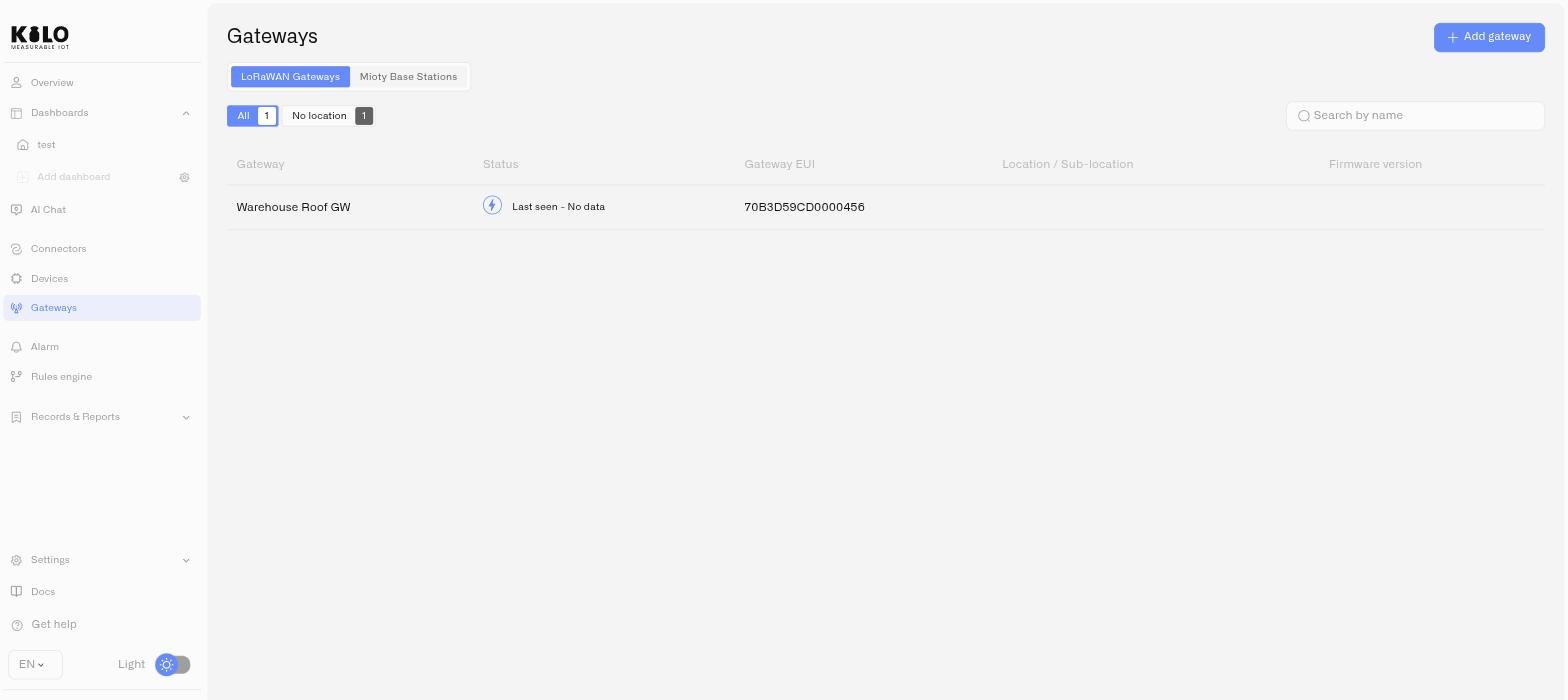
Click **Gateways** in the left sidebar to see all gateways connected to your organization.
### Table columns
| Column | What it shows |
| --------------------------- | ------------------------------------------------------------------------------------------------ |
| **Gateway** | The gateway name you assigned during setup |
| **Status** | Current connectivity — online or offline, with last-seen timestamp |
| **Public name** | An optional public alias for the gateway |
| **Location / Sub-location** | The assigned location hierarchy for the gateway, based on your organization's Locations settings |
The list is sorted by favorites first (starred gateways appear at the top), then by most recently seen.
## Gateway detail page
Click any gateway in the list to open its detail page. The page has two tabs: **Overview** and **Settings**.
### Overview tab
The Overview tab provides real-time operational metrics:
* **Availability** — The percentage of time the gateway has been online over a selected period. A consistently high availability indicates reliable infrastructure; drops may signal power issues, network instability, or hardware problems.
* **Tx/Rx** — The volume of data the gateway is handling, shown as transmitted and received counts. This tells you how much device communication is passing through the gateway.
* **Pings** — Received and transmitted keepalive counts, a quick read on whether the gateway is still talking to the server.
* **Map** — The gateway's position on a map when location data is available. Until a location is set, the panel reads *"Your device location is empty"* and offers an **Add device location** button that jumps to the Settings tab.
Each chart has its own **30D / 14D / 7D** range selector.
### Settings tab
The Settings tab lets you manage the gateway's configuration:
* **Private name** — The internal name for the gateway (editable).
* **Location and Sublocation** — The assigned place in your organization's location hierarchy, used for filtering and organization in the gateway list. **Add new location** and **Add new sub-location** create them here — see [Locations](/settings/locations.md).
* **Gateway EUI** — The unique identifier for this gateway (read-only after registration).
* **LNS Address** — The server endpoint the gateway connects to. Click the copy icon to copy it.
* **Certificates** — Download the current certificate bundle (`certs.zip`) or regenerate certificates if needed. Regenerating certificates invalidates the previous set — the gateway will need to be reconfigured with the new certificates.
* **Photos** — Upload or manage photos of the gateway for visual identification.
* **Delete** — Remove the gateway from your organization. This action requires confirmation.
## Why is my gateway offline?
Check, in order:
1. **Power and network at the site.** The gateway needs power and a working internet connection.
2. **Basics Station settings.** The LNS address and the certificate bundle on the gateway must match what Kilo issued. Download the bundle again if the gateway was reset or re-imaged, or after the certificates were regenerated.
3. **The gateway's clock.** A gateway with the wrong time fails the encrypted connection to Kilo. Make sure it can reach a time server (NTP).
4. **Status in Kilo.** The gateway list and detail page show its current status and when it was last seen.
## Operational tips
* **Check availability regularly** for gateways in critical locations. A gateway serving a cold storage facility or a security zone should maintain near-100% uptime.
* **Use locations consistently** so you can quickly filter the gateway list by site or building.
* **Regenerate certificates** if you suspect a security issue or if a gateway has been physically accessed by unauthorized personnel. The gateway will go offline until reconfigured with the new certificates.
* **Monitor traffic patterns** to understand gateway utilization. A gateway with unusually low traffic may have coverage issues; one with very high traffic may benefit from a second gateway to share the load.
---
# Agent Instructions
This documentation is published with GitBook. GitBook is the documentation platform designed so that both humans and AI agents can read, navigate, and reason over technical content effectively. Learn more at gitbook.com.
## Querying This Documentation
If you need additional information that is not directly available in this page, you can query the documentation by asking a question.
Perform an HTTP GET request on the following URL with the `ask` and `goal` query parameters:
```
GET https://docs.kiloiot.io/gateways/lorawan-gateways/lorawan-gateway-monitoring.md?ask=&goal=
```
`ask` is the immediate question: it should be specific, self-contained, and written in natural language.
`goal` is what the user is ultimately trying to achieve, the reason they need the answer. Sharing it helps GitBook give you a better, more relevant answer. A goal is most helpful when it describes the outcome the user wants rather than restating the question. For example, with `ask=how do I create an API token`, a goal like `automate deployments from our CI pipeline` lets GitBook tailor the answer to that use case.
The response will contain a direct answer to the question and relevant excerpts and sources from the documentation.
Use this mechanism when the answer is not explicitly present in the current page, you need clarification or additional context, or you want to retrieve related documentation sections.