> For the complete documentation index, see [llms.txt](https://docs.kiloiot.io/llms.txt). Markdown versions of documentation pages are available by appending `.md` to page URLs; this page is available as [Markdown](https://docs.kiloiot.io/gateways/mioty-base-stations/base-station-monitoring.md).
# Base Station Monitoring
Track MIOTY base station status in Kilo IoT, set coordinates, regenerate certificates, delete.
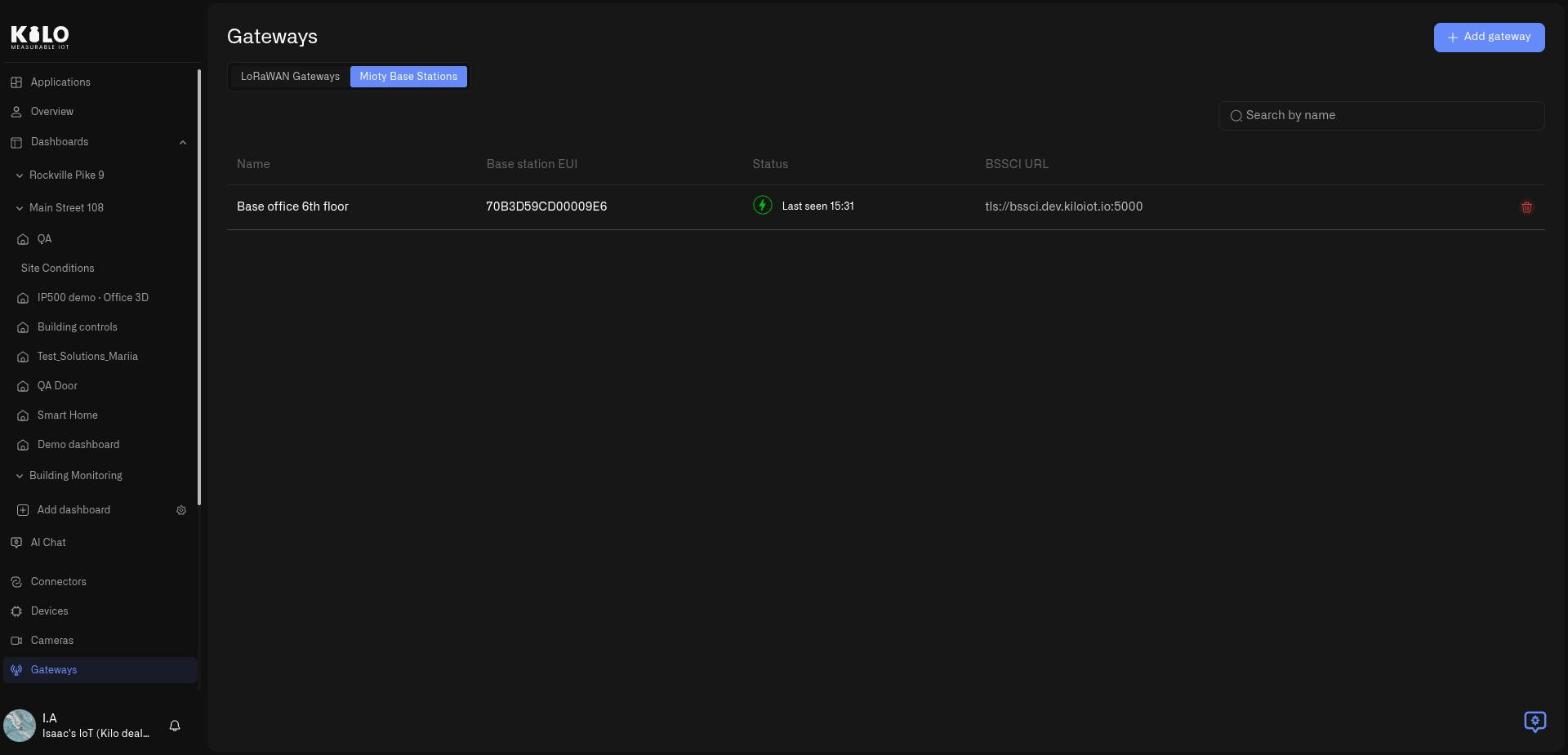
Once MIOTY base stations are deployed, the **Mioty Base Stations** tab on the Gateways page gives you a fleet view of the radio infrastructure, and each station's detail page gives you its operational state and configuration.
## The base station list
Click **Gateways** in the left sidebar and open the **Mioty Base Stations** tab.
### Table columns
| Column | What it shows |
| -------------------- | ------------------------------------------------------------- |
| **Name** | The station name you assigned during registration |
| **Base station EUI** | The station's 16-character hexadecimal identifier |
| **Status** | Current connectivity — online or offline |
| **BSSCI URL** | The service center endpoint this station holds its session to |
| *(delete icon)* | Removes the station after confirmation |
Before your first station is registered, the tab shows **"No base stations yet"**.
**Read status together with Last seen.** Status tells you the session state right now; open the station to see **Last seen** and how long a problem has been running.
## Base station detail page
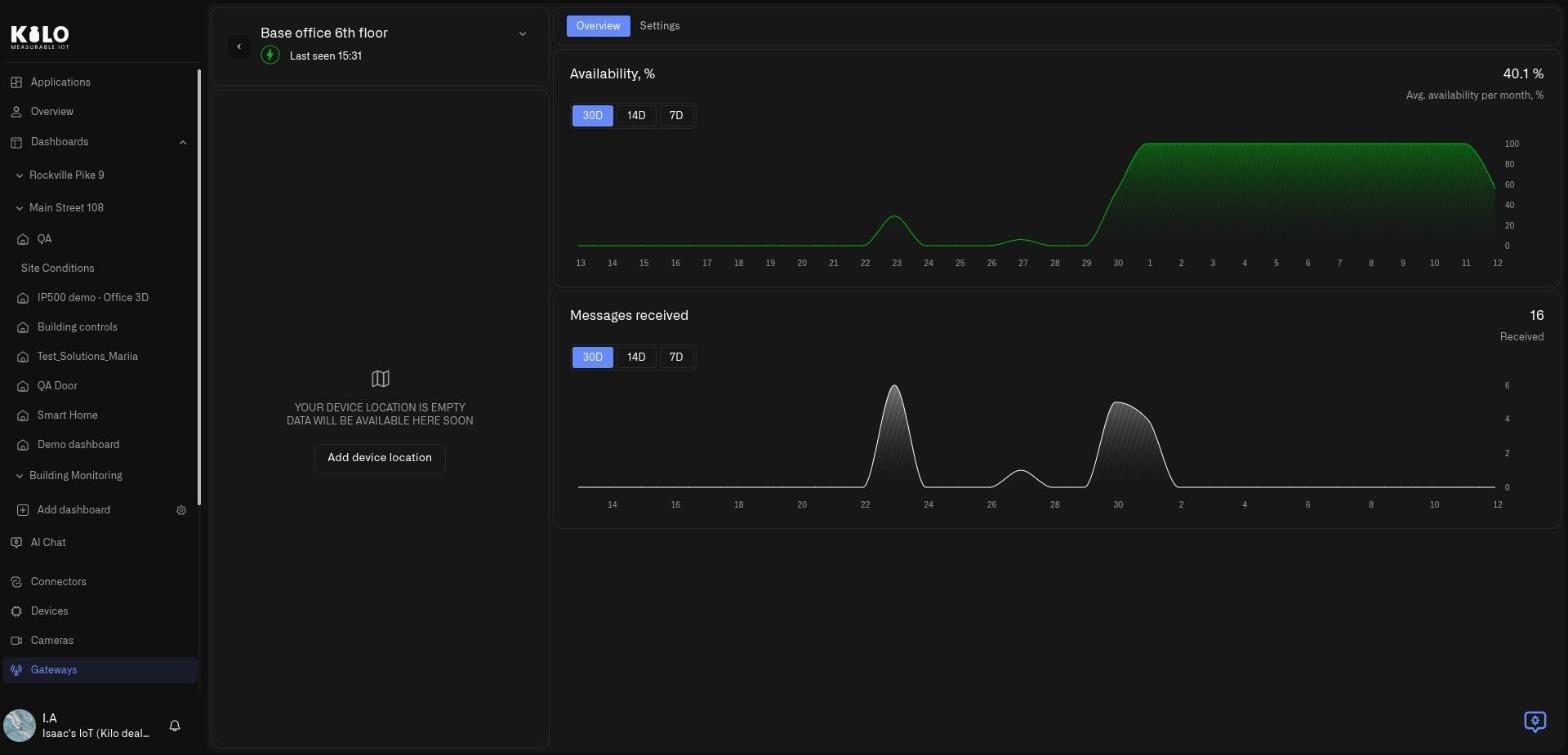
Click any row to open that station's detail page. It has two tabs: **Overview** and **Settings**.
### Overview tab
The Overview tab is the operational read on a single station:
* **Availability, %** — a chart of how much of each day the station's BSSCI session was up, with the monthly average shown at the top right. Use the **30D**, **14D** and **7D** buttons to change the range.
* **Messages received** — a chart of the uplinks the station received, with the total for the range at the top right and the same **30D**, **14D** and **7D** buttons.
* **Status** — an online/offline indicator showing the current state of the station's BSSCI session.
* **Description** — the notes you captured at registration: mounting details, antenna type, work order.
* **BSSCI URL** — the service center endpoint for this station. A copy control puts it on the clipboard, with a toast to confirm.
* **Last seen** — the most recent communication from the station.
* **Reported status** — a collapsible card above the map shows what the station itself last reported, grouped the way Kilo Center shows it. **Performance Metrics** covers **Temperature**, **CPU Load**, **Memory Load**, **Duty Cycle** and **BS Config**. **System Information** covers **System Time**, **Uptime** and **Last Status Update**. A value the station has not reported reads **Not available** rather than a misleading zero, and the EUI and BSSCI address are not repeated here, because the Settings tab shows both. This is the page to open when a station is online but misbehaving: a hot enclosure, a saturated duty cycle or a stale status update points at the cause before anyone drives to the site.
* **Map** — once coordinates are set, the station appears as a marker in its real position.
### Settings tab
The Settings tab is where you change what the station is and how it authenticates.
**Editable fields:**
* **Name** — the station's display name across the fleet view.
* **Description** — free-text detail.
* **Coordinates** — latitude, longitude, and altitude. Altitude is worth entering accurately on multi-story or mast installations; a station on a 40 m stack and one at grade cover very different footprints from the same map pin. Latitude must be between -90 and 90, longitude between -180 and 180, and they are set together (*Set latitude and longitude together*); altitude needs both. Emptying the location clears it. If Kilo Center refuses a save, you see its own message instead of a generic error.
**A GPS station keeps its own position.** When the station reports a GPS position, the location fields are read-only and say *The location comes from the base station GPS and cannot be changed here.* That prevents a hand-typed pin from overriding the real one. If a GPS-equipped station has no fix yet, the fields stay editable and what you enter is saved as a manual placement, so a station mounted indoors or under cover can still appear on the map.
Click **Save changes**. A toast confirms *"Base station updated"*. If the change cannot be applied, the toast reads *"Failed to update base station"* — the station's stored configuration is unchanged, so correct the input and save again.
**Read-only identity:** the **Base station EUI** is fixed after registration. It has a copy control, with a toast on copy, as does the BSSCI address.
**Base station certificate** — downloading and issuing are separate actions, so looking at a certificate never replaces it:
* **Download current certificate** returns `ca.crt` and `client.crt` for the certificate already in use. It does not include the private key.
* **Issue certificate** (first time) and **Regenerate** create a new certificate, after a confirmation that explains the consequence: the base station can no longer connect with its current certificate until the new one is installed. Only this download includes the private key, `client.key`. The page warns *Keep client.key: it cannot be downloaded again.* Store the archive immediately.
The station must be reconfigured with the new certificate pair; until it is, it cannot re-establish its BSSCI session. The registration wizard and Settings share the same certificate panel.
**Delete base station** — removes the station from your organization. A dialog titled **Are you sure?** asks *Are you sure you want to delete this Basestation?* — select **Delete** to confirm, or cancel to keep it. A station that has no name is listed as **Unnamed base station**. You are returned to the gateways list, and a toast confirms *"Base station deleted"*. If the operation fails, the toast reads *"Failed to delete base station"* and the station remains.
## Operational tips
* **Set coordinates at commissioning, not later.** The map is the fastest way to answer "which station covers this endpoint" during an incident, and it only works if the pins are real. A fleet of stations at 0,0 is a list with extra steps.
* **Treat regeneration as a planned outage.** Regenerating a certificate does not take the station down by itself, but it does mean the station must be reconfigured before it can reconnect after its next session drop. Schedule it with a technician who can install the new bundle, rather than issuing it and walking away.
* **Regenerate after physical exposure.** If a station has been accessed by unauthorized personnel, or its certificate archive has been handled outside your controls, issue a new pair. The old certificates are what an attacker would present.
* **Watch status across the fleet, not per station.** Several stations going offline in the same window is rarely a radio problem — look at the site's backhaul or power before you look at the hardware.
* **Delete only when the hardware is retired.** A deleted station's endpoints lose the path they were attaching through. If you are relocating a station rather than decommissioning it, update its name and coordinates instead.
---
# Agent Instructions
This documentation is published with GitBook. GitBook is the documentation platform designed so that both humans and AI agents can read, navigate, and reason over technical content effectively. Learn more at gitbook.com.
## Querying This Documentation
If you need additional information that is not directly available in this page, you can query the documentation by asking a question.
Perform an HTTP GET request on the following URL with the `ask` and `goal` query parameters:
```
GET https://docs.kiloiot.io/gateways/mioty-base-stations/base-station-monitoring.md?ask=&goal=
```
`ask` is the immediate question: it should be specific, self-contained, and written in natural language.
`goal` is what the user is ultimately trying to achieve, the reason they need the answer. Sharing it helps GitBook give you a better, more relevant answer. A goal is most helpful when it describes the outcome the user wants rather than restating the question. For example, with `ask=how do I create an API token`, a goal like `automate deployments from our CI pipeline` lets GitBook tailor the answer to that use case.
The response will contain a direct answer to the question and relevant excerpts and sources from the documentation.
Use this mechanism when the answer is not explicitly present in the current page, you need clarification or additional context, or you want to retrieve related documentation sections.