> For the complete documentation index, see [llms.txt](https://docs.kiloiot.io/llms.txt). Markdown versions of documentation pages are available by appending `.md` to page URLs; this page is available as [Markdown](https://docs.kiloiot.io/gateways/mioty-base-stations/registering-a-base-station.md).
# Registering a Base Station
Register a MIOTY base station in Kilo IoT — enter the BS EUI, copy the BSSCI address, issue its certificate.
This page walks through registering a MIOTY base station with the Kilo IoT Server and handing the hardware what it needs to establish its BSSCI session.
Registration is a three-step flow. It produces two things you must carry to the hardware: the **BSSCI address** your organization's stations connect to, and a **certificate** that authenticates this specific station. Neither is optional — the BSSCI session is mutually authenticated, so a station without its certificate has no way in.
## Prerequisites
* **The MIOTY feature enabled** on your organization. Without it, the **Mioty Base Stations** tab does not appear and the flow cannot be started. See [MIOTY Connector](/connectors/mioty-connector.md).
* **The station's BS EUI** — exactly 16 hexadecimal characters, normally printed on the hardware label or supplied in the vendor's commissioning sheet.
* **The station installed** with power and a backhaul path to the internet.
## Step-by-step
### Step 1 — Details
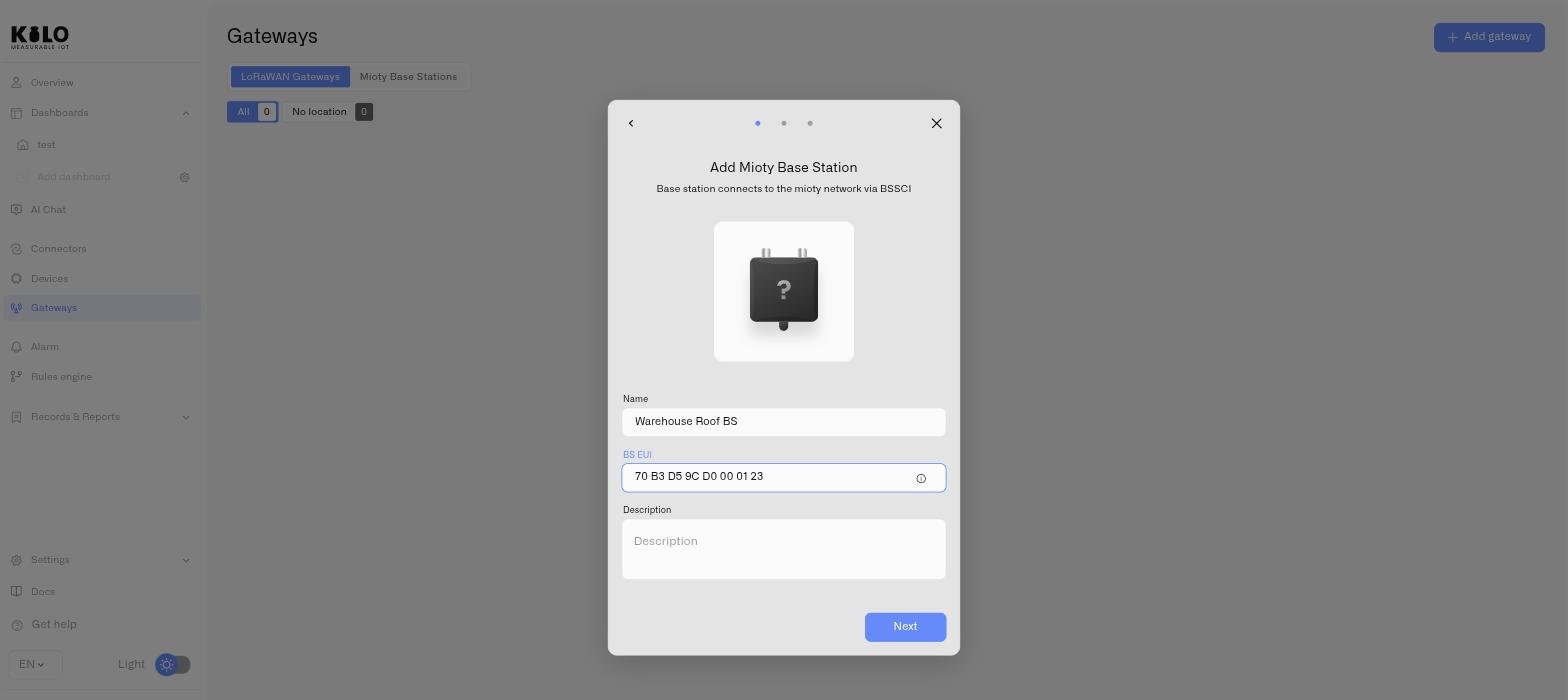
1. Click **Gateways** in the left sidebar.
2. Open the **Mioty Base Stations** tab.
3. Click **Add gateway**, then choose **Mioty Base Station** — the dialog asks which kind of device you are connecting.
4. Enter a **Name**. Use something that identifies the physical position rather than the hardware — for example "Plant 2 — Rack Hall North". This is the label you will read at 3 a.m. when a station drops.
5. Enter the **BS EUI** — the 16-character hexadecimal identifier from the station. The field accepts exactly 16 hex characters; a shorter value or one containing non-hex characters is rejected and the step will not advance. It must also be unique within your organization — registering a BS EUI that already exists returns **"A base station with this EUI already exists"**.
6. Enter a **Description** — optional, but the right place for mounting height, antenna type, or the work order that installed it.
7. Click **Next**.
### Step 2 — BSSCI address and certificates
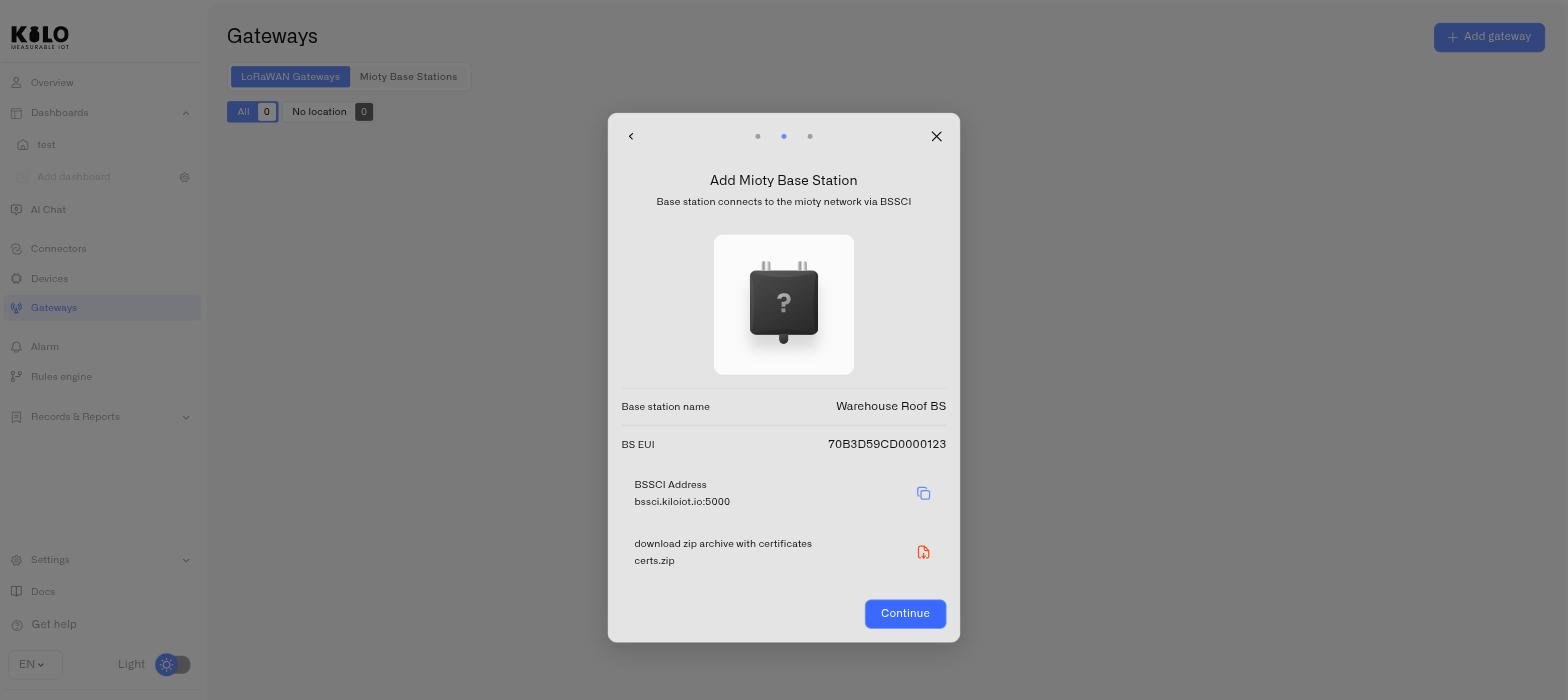
The second step presents everything the hardware needs. Do not skip past it — this is where the certificate bundle is produced.
1. Read the summary of the station you just entered (name, BS EUI, description).
2. Copy the **BSSCI Address** using the copy control. A toast confirms: *"Url has been successfully copied"*. This is the service center endpoint your station will hold its session to.
3. In the **Base station certificate** panel, click **Issue certificate**. The browser downloads an archive with `ca.crt`, `client.crt` and `client.key`. A toast warns *Keep client.key: it cannot be downloaded again.* This is the only moment the private key is available. Later, **Download current certificate** returns only `ca.crt` and `client.crt`, and **Regenerate certificate** creates a new pair.
4. Click **Continue**.
Store the archive with the same care you give any production credential. It identifies the station; anyone holding it can present as that station. If it is ever mishandled or the key is lost, you can issue a fresh pair from the station's Settings — see [Base station monitoring](/gateways/mioty-base-stations/base-station-monitoring.md).
### Step 3 — Confirmation
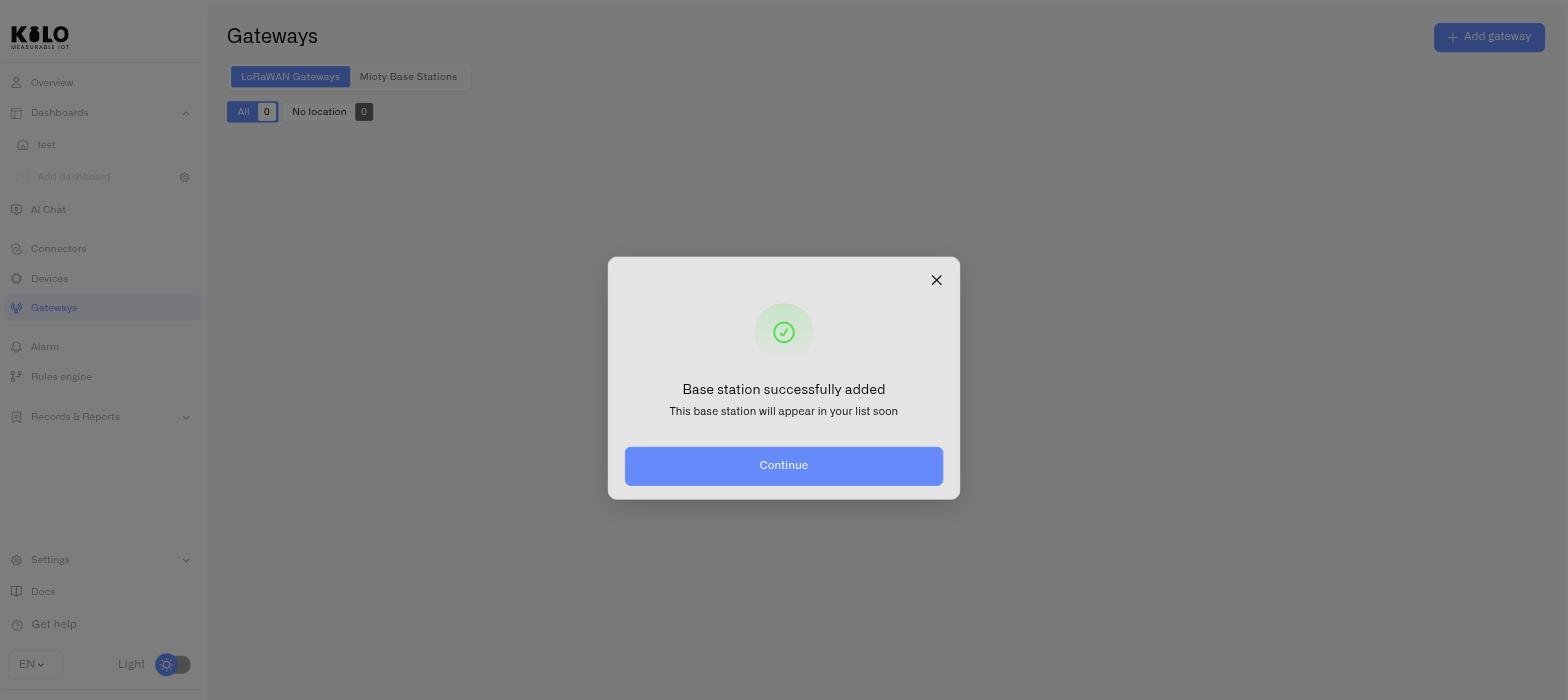
The final screen confirms **"Base station successfully added"** and adds *This base station will appear in your list soon*. Click **Continue**.
The station now appears in the **Mioty Base Stations** tab. It will show as offline until the hardware completes its BSSCI session.
## Configure the hardware
With the BSSCI address and certificates in hand, configure the station itself:
1. Open the station's management interface — a local web UI, a device IP on your network, or a vendor portal, depending on the model.
2. Find the BSSCI or service center configuration section.
3. Enter the **BSSCI address** you copied.
4. Install the certificate files from the archive where the vendor's configuration expects it.
5. Save and restart the station if the model requires it.
The exact field names and file locations vary by manufacturer — consult the station's own documentation for its BSSCI configuration interface.
## Verify the connection
Return to the **Mioty Base Stations** tab. Once the station establishes its session, its status turns online and **Last seen** on the station page begins updating.
If the station stays offline:
* Re-check the BSSCI address for trailing spaces or a truncated paste.
* Confirm the certificate pair was installed in the location the vendor's firmware reads from, and that both files were extracted from the downloaded archive.
* Confirm the station has outbound internet access and is not blocked by a site firewall — the session is outbound from the station.
* Verify the **BS EUI** you registered matches the hardware label exactly. A station registered under the wrong EUI will never match the session the hardware opens.
* Check that the station firmware supports the BSSCI interface; some older builds require an update.
## Tips
* **Register before you climb.** The station record, its BSSCI address, and its certificate can all be produced from a desk. Do the paperwork first and arrive at the mast with the bundle already on the laptop.
* **Height buys density, not just range.** MIOTY's interference resistance is generous, but a station that hears more endpoints cleanly still needs fewer retransmissions. Mount above the racking, not inside it.
* **Set coordinates as part of commissioning.** They populate the map on the station's Overview and turn an alphabetical list into a site view. See [Base station monitoring](/gateways/mioty-base-stations/base-station-monitoring.md).
* **Name for position, describe for detail.** Names are what you scan under pressure; the description field is where mounting notes and asset tags belong.
## What's next
* **Monitor the station** — status, last seen, map, certificates, and settings. See [Base station monitoring](/gateways/mioty-base-stations/base-station-monitoring.md).
* **Commission endpoints** — with a station online, MIOTY endpoints have something to attach to. See [MIOTY Devices](/devices/mioty-devices.md).
---
# Agent Instructions
This documentation is published with GitBook. GitBook is the documentation platform designed so that both humans and AI agents can read, navigate, and reason over technical content effectively. Learn more at gitbook.com.
## Querying This Documentation
If you need additional information that is not directly available in this page, you can query the documentation by asking a question.
Perform an HTTP GET request on the following URL with the `ask` and `goal` query parameters:
```
GET https://docs.kiloiot.io/gateways/mioty-base-stations/registering-a-base-station.md?ask=&goal=
```
`ask` is the immediate question: it should be specific, self-contained, and written in natural language.
`goal` is what the user is ultimately trying to achieve, the reason they need the answer. Sharing it helps GitBook give you a better, more relevant answer. A goal is most helpful when it describes the outcome the user wants rather than restating the question. For example, with `ask=how do I create an API token`, a goal like `automate deployments from our CI pipeline` lets GitBook tailor the answer to that use case.
The response will contain a direct answer to the question and relevant excerpts and sources from the documentation.
Use this mechanism when the answer is not explicitly present in the current page, you need clarification or additional context, or you want to retrieve related documentation sections.