> For the complete documentation index, see [llms.txt](https://docs.kiloiot.io/llms.txt). Markdown versions of documentation pages are available by appending `.md` to page URLs; this page is available as [Markdown](https://docs.kiloiot.io/getting-started/let-ai-set-it-up.md).
# Let AI Set It Up for You
The Kilo AI Assistant sets up devices, rules, alarms, and dashboards, or you can connect your own AI client.
Start your Kilo project with an experienced integrator by your side: the **AI Assistant**. Describe the result you want, and it helps work through protocols, device compatibility, and connection details, then carries out the platform setup. It can add devices, map their readings, configure alarms, and build and deploy the automation around them.
Bring your account and the details of the equipment you want to connect. The assistant asks for missing identifiers and settings, carries out the setup, and lets you refine it in conversation. If hardware is still on order, ask it to create an [emulated device](/connectors/emulator-connector.md) and send a test reading so you can begin building now.
Use the built-in assistant or connect your preferred AI client through MCP. Both give you access to platform operations; the confirmation experience differs between clients, as explained below.
## Two ways to let AI do the work
There are two routes, and they are genuinely different. Pick either, or use both.
| | **Built-in AI Assistant** | **Your own AI client (MCP)** |
| ----------------------------------------- | --------------------------------------------------------------------------------------------------------------------------------------------------------------------------------------------------------------------------------------------------------------------------- | ---------------------------------------------------------------------------------------------------------------------------------------------------------------------------------------------------------------------------------------------------------------------------------------------------- |
| Where it runs | Inside Kilo, under **AI Chat** in the sidebar | In the app you already use — Claude Code, Claude Desktop, ChatGPT, Codex, Cursor |
| Setup needed | None. It is part of the platform | Connect once over [MCP](/api/mcp-server.md) and sign in with your normal Kilo account |
| What it can do | Provision devices, create connections and dashboards, author and deploy rules including their CEL, test sample readings, configure alarms with escalation, run saved device commands, set up emulated devices, manage team access, recommend hardware, and analyze readings | The same operations, exposed as MCP tools, against the same deployment |
| Permissions | Inherits your exact permissions and organization | Identical — the connection carries your own account's permissions |
| Confirmation before consequential actions | **Enforced by the assistant.** Destructive or hard-to-reverse actions surface an explicit **Confirm Action** / **Cancel** and do not proceed until you approve | **Depends on your client.** Kilo marks destructive tools with the standard MCP annotations and states the requirement in the tool description; compatible clients show an approval prompt. Annotations are hints to the host application, not something Kilo can enforce inside third-party software |
| Best for | Getting set up, day-to-day operation, anyone who wants the platform to walk them through it | Working across your own tooling, scripting, or staying in the editor you already have open |
The confirmation row is the one real difference, and it is worth reading twice. Inside Kilo, the gate is ours and it holds. Through an external client, the gate belongs to that client.
What is enforced in **both** cases: the connection can only ever read and change what your own permissions allow, it stays inside your current organization, a device command must already exist on that device before it can be run, and every dispatch is recorded.
## Route 1 — the built-in assistant
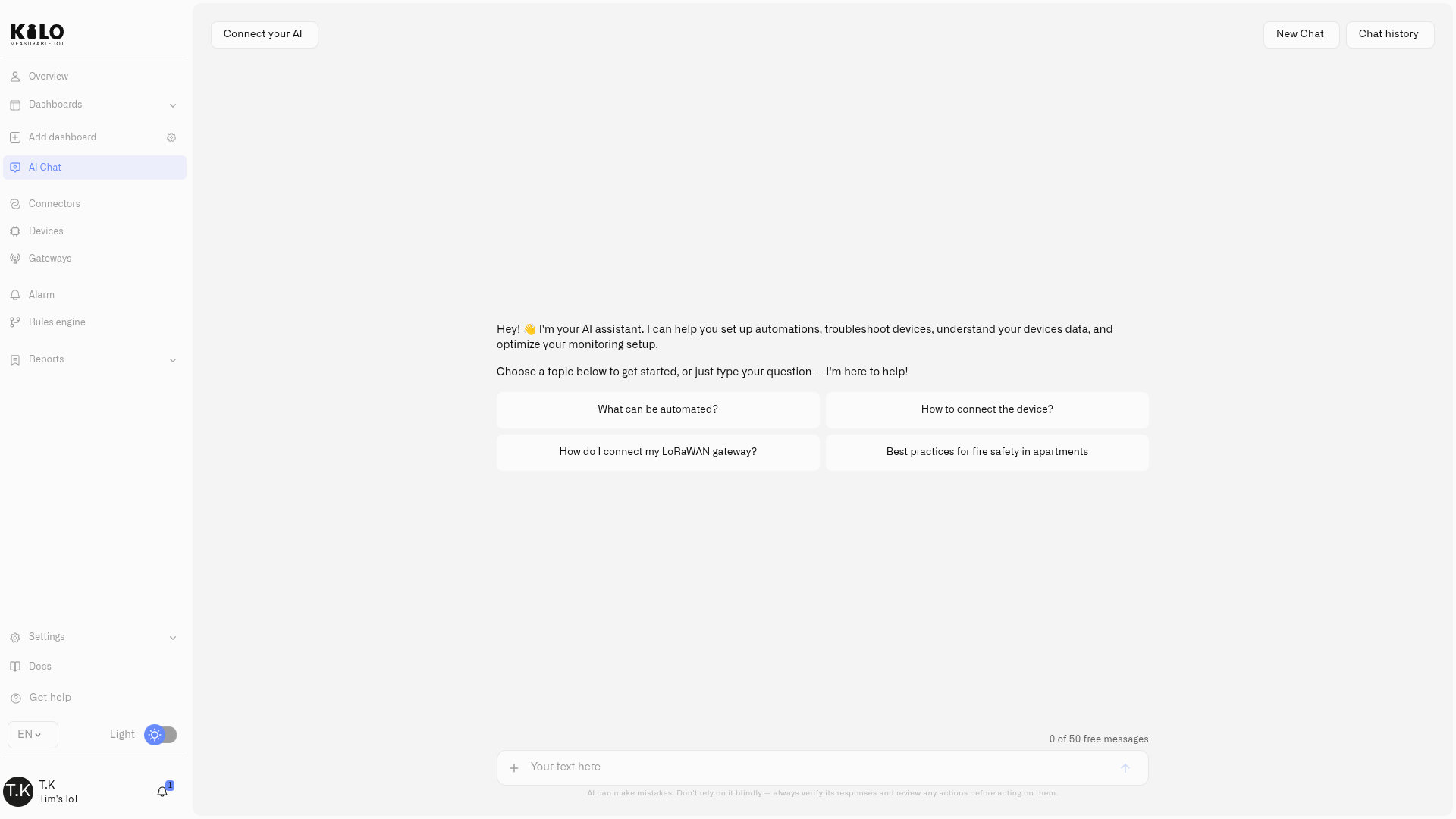
Open **AI Chat** in the sidebar and describe what you want. Name the equipment, the outcome, and who should receive any alerts:
* *"Register this LoRaWAN sensor — here is the DevEUI and AppKey."*
* *"Create a rule that alerts the facilities team when the cold-room sensor reports above −18 °C."*
* *"Create a test device that behaves like a Dragino distance sensor so I can build the dashboard now."*
It will show you what it is about to change and wait for your approval before anything consequential happens. See [Building With the Assistant](/ai-assistant/building-with-ai.md) for what it can do and where its limits are.
The built-in assistant, ready to do setup work with you
## Route 2 — connect the AI client you already use
If you already work in Claude, ChatGPT, Cursor or Codex, point it at your Kilo organization over MCP and it can operate the same deployment from there. You sign in through the browser with your normal account — there is no API key to mint or paste.
An authenticated Claude Code session discovering a LoRaWAN connection on a live deployment, and asking permission before it continues
Setup instructions for each client are in [MCP Server](/api/mcp-server.md).
## When to do it by hand instead
Saved triggers are a separate monitoring configuration: the assistant can explain them, but cannot currently save or edit them in chat. Use [Rules Engine → Triggers](/rules-engine/triggers.md), then connect the trigger to its responding rule. Add widgets and configure their readings in the [widget editor](/dashboards/adding-widgets.md); the assistant can create dashboards and update their layout.
Doing it manually is still worth your time when you want to understand the mechanics, when you are debugging something specific, or when you simply prefer the forms. Nothing is hidden from you: everything the AI does is an ordinary platform action you could have performed yourself, and it shows up in the same places.
[Navigating the Interface](/getting-started/navigating-the-interface.md) tours the platform, and [Your First Deployment](/getting-started/your-first-deployment.md) walks the full LoRaWAN path from gateway to live dashboard.
---
# Agent Instructions
This documentation is published with GitBook. GitBook is the documentation platform designed so that both humans and AI agents can read, navigate, and reason over technical content effectively. Learn more at gitbook.com.
## Querying This Documentation
If you need additional information that is not directly available in this page, you can query the documentation by asking a question.
Perform an HTTP GET request on the following URL with the `ask` and `goal` query parameters:
```
GET https://docs.kiloiot.io/getting-started/let-ai-set-it-up.md?ask=&goal=
```
`ask` is the immediate question: it should be specific, self-contained, and written in natural language.
`goal` is what the user is ultimately trying to achieve, the reason they need the answer. Sharing it helps GitBook give you a better, more relevant answer. A goal is most helpful when it describes the outcome the user wants rather than restating the question. For example, with `ask=how do I create an API token`, a goal like `automate deployments from our CI pipeline` lets GitBook tailor the answer to that use case.
The response will contain a direct answer to the question and relevant excerpts and sources from the documentation.
Use this mechanism when the answer is not explicitly present in the current page, you need clarification or additional context, or you want to retrieve related documentation sections.