> For the complete documentation index, see [llms.txt](https://docs.kiloiot.io/llms.txt). Markdown versions of documentation pages are available by appending `.md` to page URLs; this page is available as [Markdown](https://docs.kiloiot.io/kilo-docs-de/kilo-iot-server/dashboards/adding-widgets/text-widget.md).
# Text-Widget
Fügen Sie einem Kilo-IoT-Dashboard mit dem Text-Widget Überschriften und Hinweise hinzu — beschriften Sie Bereiche und gruppieren Sie Kacheln auf einem vollen Board.
Ein mit Kacheln vollgepacktes Dashboard ist nur nützlich, wenn ein Betrachter sich darin zurechtfinden kann. Das **Text-Widget** fügt dem Board eine Beschriftung oder Notiz hinzu — eine Überschrift, die einen Abschnitt benennt, eine Beschriftung, die eine Gruppe von Messwerten erklärt — sodass ein dichtes Betriebs-Dashboard als geordnete Bereiche und nicht als Zahlenwand erscheint.
Es trägt weder Daten noch eine Gerätebindung. Seine einzige Aufgabe ist es, dem Board Struktur und Kontext zu geben.
## Wann man es verwendet
* **Abschnittsüberschriften** — trennen „Cold Storage“, „HVAC“ und „Power“ in beschriftete Zonen auf einem einzigen Board.
* **Bereichsbeschriftungen** — benennen Sie jedes Gebäude, jede Etage oder jede Linie, damit sich ein standortübergreifendes Dashboard von selbst erklärt.
* **Kurze Notizen** — eine Zeile mit einer Anleitung für alle, die das Board lesen („Leiten Sie jede rote Kachel an den diensthabenden Ingenieur weiter“).
## Hinzufügen eines Text-Widgets
1. Öffnen Sie das Dashboard im Bearbeitungsmodus und wählen Sie **Text** im Widget-Auswahlmenü aus.
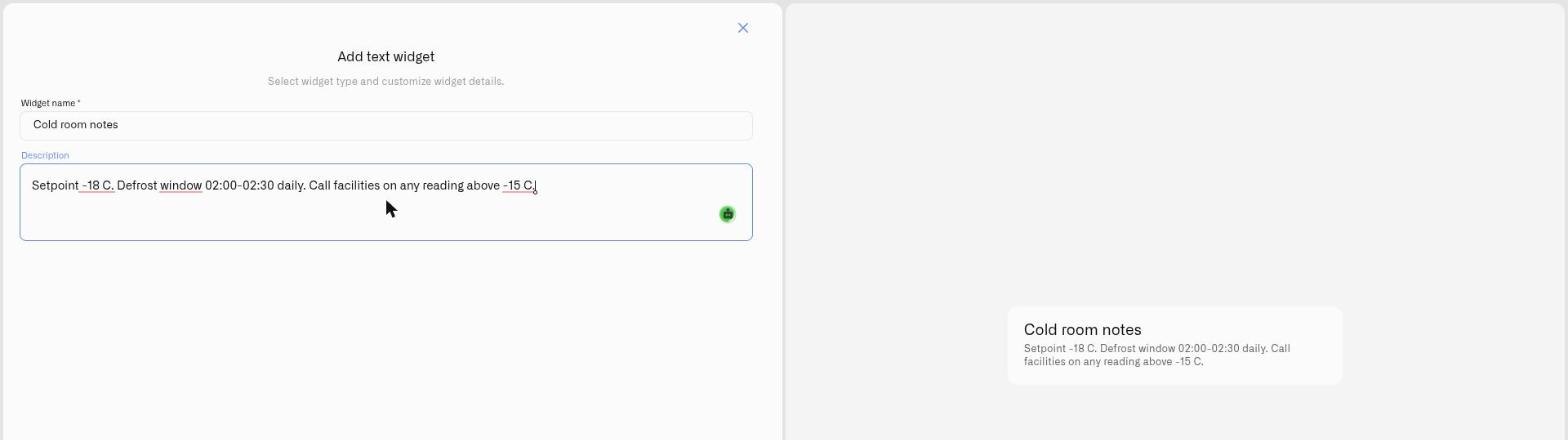
2. Füllen Sie die Felder aus:
* **Widget-Name** *(erforderlich)* — der Überschriftentext, der auf dem Dashboard angezeigt wird. Platzhalter *„Widget-Namen eingeben.“*
* **Beschreibung** — optionaler Begleittext, der unter der Überschrift angezeigt wird. Er kann mehrere Zeilen enthalten, sodass Sie neben einem Titel auch eine kurze Notiz hinzufügen können.
3. Klicken Sie auf **Speichern** um es zu platzieren.
Passen Sie Größe und Position wie bei jeder anderen Kachel an — ziehen Sie es als Banner über die Oberseite eines Abschnitts oder lassen Sie es kompakt als Inline-Beschriftung. Zusammen mit Dashboard-Ordnern und der Platzierung von Kacheln verwandeln Text-Widgets ein langes Board in ein strukturiertes Layout, das ein Betrachter in Sekunden erfassen kann.
## Siehe auch
* [Widgets hinzufügen](/kilo-docs-de/kilo-iot-server/dashboards/adding-widgets.md) — Bearbeitungsmodus und das Widget-Auswahlmenü
* [Dashboards](/kilo-docs-de/kilo-iot-server/dashboards.md) — Boards und Ordner organisieren
---
# Agent Instructions
This documentation is published with GitBook. GitBook is the documentation platform designed so that both humans and AI agents can read, navigate, and reason over technical content effectively. Learn more at gitbook.com.
## Querying This Documentation
If you need additional information that is not directly available in this page, you can query the documentation dynamically by asking a question.
Perform an HTTP GET request on the current page URL with the `ask` query parameter, and the optional `goal` query parameter:
```
GET https://docs.kiloiot.io/kilo-docs-de/kilo-iot-server/dashboards/adding-widgets/text-widget.md?ask=&goal=
```
`ask` is the immediate question: it should be specific, self-contained, and written in natural language.
`goal` is optional and describes the broader end goal you are ultimately trying to accomplish on behalf of the user. GitBook uses it to tailor the answer towards what is most useful for that goal.
The response will contain a direct answer to the question and relevant excerpts and sources from the documentation.
Use this mechanism when the answer is not explicitly present in the current page, you need clarification or additional context, or you want to retrieve related documentation sections.