> For the complete documentation index, see [llms.txt](https://docs.kiloiot.io/llms.txt). Markdown versions of documentation pages are available by appending `.md` to page URLs; this page is available as [Markdown](https://docs.kiloiot.io/kilo-iot-server/rules-engine/version-history-and-restore.md).
# Version History
Browse rule version history in Kilo IoT and restore any previous version — full audit of who changed what and when.
Every save — whether manual, automatic, or triggered by a session event — creates a version of your rule. The version history gives your team a complete audit trail of how an automation rule evolved, who changed it, and when. If a change introduces unexpected behavior, you can restore any previous version without losing anything in the process.
## Why versioning matters in production
Automation rules directly affect operational outcomes. A misconfigured threshold, an inverted condition, or a missing fallback branch can generate false alarms, silence real ones, or flood your notification channels. Version history means you are never trapped by a bad edit. You can review what changed, restore a known-good version, and redeploy — all without rebuilding the rule from memory.
## Where to find it
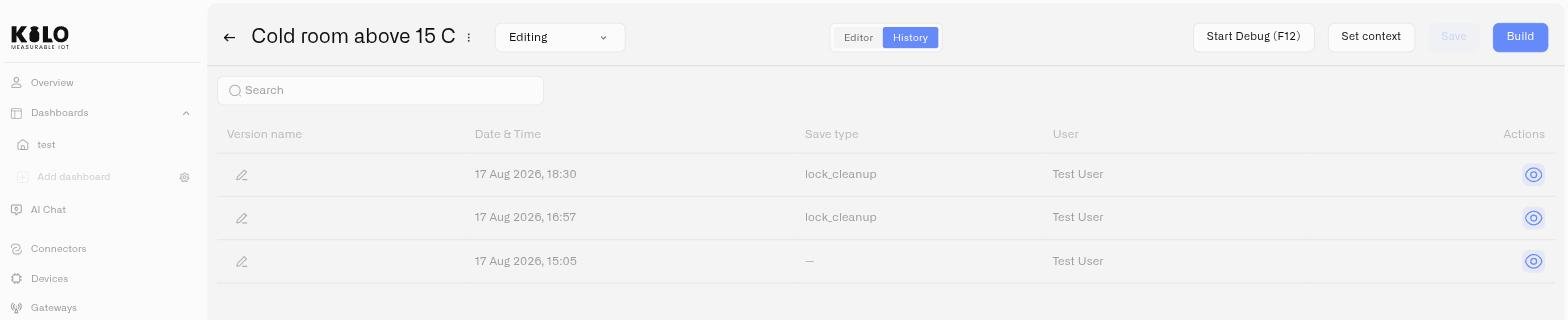
Open a rule in **Editing** mode and click the **History** tab below the header bar. The History tab is part of the edit route only. If you are currently viewing a rule at `/rules/:id/view`, switch to **Editing** first. The history page lives at `/rules/:id/edit/history`.
Above the table, a search field lets you filter versions by:
* version name
* author
* save type
## Version history table
The History tab shows a table of all saved versions, sorted with the newest version at the top.
### Columns
| Column | Description |
| ---------------- | --------------------------------------------------------------------------------------------- |
| **Version name** | A human-readable label for the version. Defaults to the auto-generated name. Editable inline. |
| **Date & Time** | When the version was saved, formatted as "dd MMM yyyy, HH:mm" |
| **Save type** | How the version was created (see below) |
| **User** | The team member whose session created the version |
### Save types
Each version records how it was created:
| Save type | Meaning |
| -------------------- | ------------------------------------------------------------------------------ |
| **manual** | The user clicked the **Save** button explicitly |
| **auto** | Periodic autosave during an active editing session |
| **editor\_close** | Saved automatically when the user navigated away from the editor |
| **disconnect** | Saved when the browser closed or the connection dropped unexpectedly |
| **session\_timeout** | Saved after the inactivity timeout expired and the session closed |
| **lock\_cleanup** | Saved by a background process when it detected an expired lock and released it |
| **restored** | This version was created by restoring a previous version |
Save types help you understand the context around each version. A series of "auto" entries followed by a "manual" entry tells you someone was actively working and then deliberately saved. A "disconnect" entry tells you the session ended unexpectedly — check whether the work in that version is complete.
## Renaming versions
By default, versions carry auto-generated names. You can rename any version to make it meaningful for your team — for example, "Before gateway refactor" or "Production baseline v3."
To rename a version:
1. Click the **pencil icon** next to the version name in the history table.
2. Type the new name (up to 100 characters).
3. Press Enter or click away to confirm.
Naming constraints:
* Maximum 100 characters
* Cannot duplicate the name of another version in the same rule
* The characters `<`, `>`, and `/` are not allowed
Well-named versions make it faster to identify the right restore point when something goes wrong at 2 AM.
## Viewing a previous version
To inspect what a rule looked like at a specific point in time:
1. Find the version in the history table.
2. Click the **eye icon** (View action) on that row.
3. The editor opens a read-only BPMN viewer showing the diagram as it existed in that version, at a route under `/rules/:id/edit/history/...`.
In normal navigation, the final path segment corresponds to the selected saved version from the table.
In this view, you cannot edit or modify the diagram. Two buttons are available:
* **Restore this version** — Begins the restore workflow (see below)
* **Exit view mode** — Returns you to the History tab
## Restoring a version
Restoring a version makes it the current state of the rule. The restore does not overwrite or delete any history — it creates a new entry at the top of the history table as the current version, and the previously active version is preserved in history.
### How to restore
1. View the version you want to restore (click the eye icon).
2. Click **Restore this version**.
3. A confirmation dialog appears, explaining that the restore will create a new current version and preserve the previous active version in the history.
4. Click **Restore** to confirm.
5. The version is restored as the new current version with save type "restored."
6. The platform returns you to the editor with the restored version as the current draft.
7. The History tab updates to show the new entry at the top.
### What happens after a restore
* The restored version becomes the active version in the editor.
* The version that was active before the restore stays in the history table — saved work remains recoverable through version history.
* The new version entry shows save type **restored** and records the user who performed the restore.
* The restored version is a draft. It is not deployed until you build and deploy it. If the previous deployed artifact is still running, it continues running the old logic until you deploy a new build.
## Best practices
* **Name versions after significant changes.** Before refactoring a complex rule, save manually and name the version something recognizable. This gives you a clean restore point if the refactor goes wrong.
* **Use version names to document intent.** A version named "Added humidity fallback branch" is far more useful than "Version 14" when you're scanning the history six months later.
* **Check save types before restoring.** An "auto" or "disconnect" version may represent incomplete work. Prefer restoring from a "manual" save when possible.
* **Restore before rebuilding.** If a deployed rule is misbehaving, restore to the last known-good version first, then build and deploy. Do not edit the broken version under pressure.
---
# Agent Instructions
This documentation is published with GitBook. GitBook is the documentation platform designed so that both humans and AI agents can read, navigate, and reason over technical content effectively. Learn more at gitbook.com.
## Querying This Documentation
If you need additional information that is not directly available in this page, you can query the documentation dynamically by asking a question.
Perform an HTTP GET request on the current page URL with the `ask` query parameter, and the optional `goal` query parameter:
```
GET https://docs.kiloiot.io/kilo-iot-server/rules-engine/version-history-and-restore.md?ask=&goal=
```
`ask` is the immediate question: it should be specific, self-contained, and written in natural language.
`goal` is optional and describes the broader end goal you are ultimately trying to accomplish on behalf of the user. GitBook uses it to tailor the answer towards what is most useful for that goal.
The response will contain a direct answer to the question and relevant excerpts and sources from the documentation.
Use this mechanism when the answer is not explicitly present in the current page, you need clarification or additional context, or you want to retrieve related documentation sections.