> For the complete documentation index, see [llms.txt](https://docs.kiloiot.io/llms.txt). Markdown versions of documentation pages are available by appending `.md` to page URLs; this page is available as [Markdown](https://docs.kiloiot.io/kilo-mioty-service-center/onboarding/verify-the-first-downlink.md).
# Verify the First Downlink
Send a first MIOTY downlink from KiloCenter to a bidirectional endpoint and then check the delivery result.
A **downlink** lets your application send a message back through KiloCenter to a bidirectional MIOTY endpoint. Use this guide to queue the device-compatible payload and inspect the reported delivery result, completing the return path of the network connection.
First [verify an uplink](/kilo-mioty-service-center/onboarding/verify-the-first-uplink.md) from the registered endpoint. Both the endpoint and base station must support bidirectional communication. Acceptance into the downlink queue is not delivery confirmation, and delivery confirmation alone does not prove that a physical action occurred. Check device feedback when the payload requests a state change.
### What does this guide achieve?
Queue a downlink command to an endpoint and verify the result.
### Prerequisites
* Endpoint registered with **bidirectional** flag enabled
* Base station connected and supporting bidirectional communication
* At least one successful uplink confirmed (see [Verify First Uplink](/kilo-mioty-service-center/onboarding/verify-the-first-uplink.md))
Both the endpoint and the base station must have bidirectional capability for downlinks to work.
### Send a Downlink via KC-Web
1. Open KC-Web at `http://localhost/` (container) or `http://localhost:5173` (source dev).
2. Open **End Points**, select your bidirectional endpoint and open the **Downlink** tab.
3. Compose the downlink:
* **Payload (hex)**: the user data as hex (e.g. `01020304`); leave it empty for an acknowledgement-only downlink
* **Format** and **Priority** (`prio`), and under **Advanced Options** the `responseExp`, `responsePrio`, `dlWindReq`, `expOnly` and `dlRxStatQry` flags
* **Counter Dependent**, which binds the downlink to a packet counter
4. Select **Send Downlink**. The downlink appears under the endpoint's **Traffic** tab > **Downlink Queue**; while no base station has taken it yet you can edit or revoke it there.
### Send a Downlink via gRPC (Alternative)
In the JSON form of a gRPC request, `payloads` entries are base64 (`AQIDBA==` is bytes `01 02 03 04`).
```bash
grpcurl -plaintext \
-H "authorization: Bearer " \
-H "x-organization-id: " \
-d '{
"epEui": "",
"payloads": ["AQIDBA=="],
"priority": 0.5
}' localhost:9090 kilocenter.api.v1.KiloCenterService/SendDownlink
```
### Verify the Result
#### In KC-Web
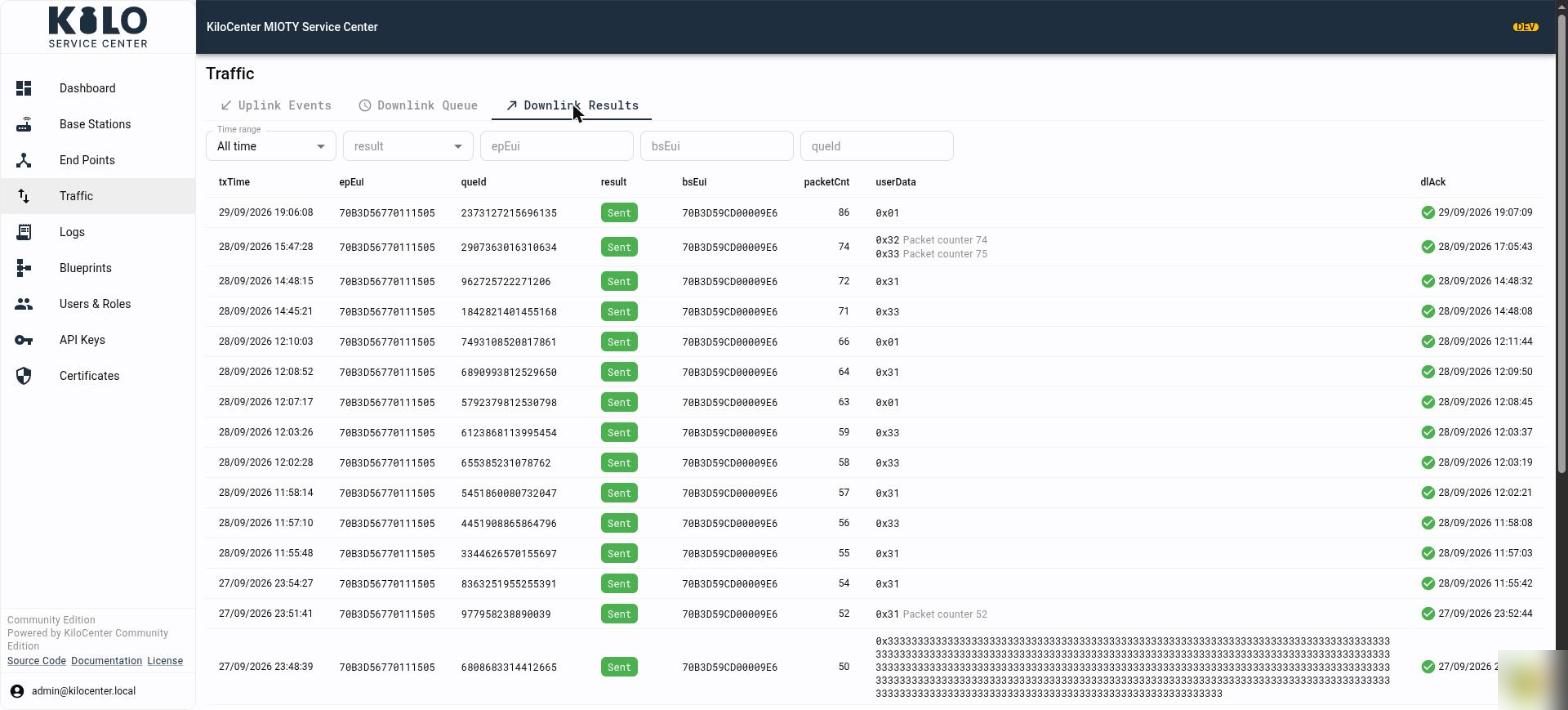
Open **Traffic** (in the navigation, or the endpoint's **Traffic** tab) and select **Downlink Results**. A result shows `result` (`sent`, `expired` or `invalid`), and for a sent downlink the transmitting `bsEui`, `txTime` and `packetCnt`; `dlAck` shows when the endpoint acknowledged it in its next uplink. **Downlink Queue** shows the downlinks still waiting for a transmission window.
#### In Logs
```bash
tail -f kilocenter-modules/logs/runtime/kc-core.log
```
Look for `dlDataQue`, `dlDataQueRsp`, and `dlDataQueCmp` entries -- these represent the three-way handshake of the downlink operation.
### Troubleshooting
| Symptom | Likely Cause |
| ---------------------------------------- | ---------------------------------------------------------------------------------------------------------------------------------------------------------------------------------------------------------------------------------------------------------------------------------------------------------------------------- |
| Downlink stays queued | The base station that last heard the endpoint is offline or not bidirectional; the downlink goes out in the endpoint's next downlink window |
| Downlink refused as not bidirectional | The endpoint is registered without the `bidi` flag |
| Downlink reported `expired` | No downlink window opened within `protocol.downlink_expiry.lifetime` (see [How do I configure KiloCenter?](/kilo-mioty-service-center/getting-started/configuration-basics.md)) |
| Downlink stays **Revoking** in the queue | A base station held it when its deadline passed; it ends when the station answers the revoke or reconnects. If the station refuses revokes with a code other than `protocol.downlink_expiry.revoke_not_held_codes`, see [How do I configure KiloCenter?](/kilo-mioty-service-center/getting-started/configuration-basics.md) |
| No result returned | Base station did not complete the downlink handshake |
| Payload rejected | Data not valid base64 or exceeds maximum payload size |
---
# Agent Instructions
This documentation is published with GitBook. GitBook is the documentation platform designed so that both humans and AI agents can read, navigate, and reason over technical content effectively. Learn more at gitbook.com.
## Querying This Documentation
If you need additional information that is not directly available in this page, you can query the documentation by asking a question.
Perform an HTTP GET request on the following URL with the `ask` and `goal` query parameters:
```
GET https://docs.kiloiot.io/kilo-mioty-service-center/onboarding/verify-the-first-downlink.md?ask=&goal=
```
`ask` is the immediate question: it should be specific, self-contained, and written in natural language.
`goal` is what the user is ultimately trying to achieve, the reason they need the answer. Sharing it helps GitBook give you a better, more relevant answer. A goal is most helpful when it describes the outcome the user wants rather than restating the question. For example, with `ask=how do I create an API token`, a goal like `automate deployments from our CI pipeline` lets GitBook tailor the answer to that use case.
The response will contain a direct answer to the question and relevant excerpts and sources from the documentation.
Use this mechanism when the answer is not explicitly present in the current page, you need clarification or additional context, or you want to retrieve related documentation sections.