> For the complete documentation index, see [llms.txt](https://docs.kiloiot.io/llms.txt). Markdown versions of documentation pages are available by appending `.md` to page URLs; this page is available as [Markdown](https://docs.kiloiot.io/kilo-mioty-service-center/security/users-api-keys-and-sign-in.md).
# Users, API Keys and Sign-In
Sign in to KiloCenter, change your password, add and edit users, create API keys and find your way around the navigation, user menu and edition footer.
This page covers everything around accounts in KC-Web: signing in and out, registering, the password rules, the navigation and user menu, the **Users & Roles** page, and the **API Keys** page. What each role may do is in [User Roles and Permissions](/kilo-mioty-service-center/security/users-and-roles.md).
## How do I sign in, register and change my password?
* **Log In**: enter **Email** and **Password**. A wrong pair shows "Invalid email or password." When the installation uses an external identity provider, a **Sign in with** button for each provider appears as well.
* **Create one** opens the registration form with **First Name**, **Last Name**, **Email**, **Password** and **Confirm Password**. The Enterprise edition also asks for a **Company Name**, which names the new organization. **Create Account** signs you in. **Already have an account?** returns to the sign-in form. Registration works only while `auth.registration_enabled` is on; see [What does a new account see after self-registration?](/kilo-mioty-service-center/security/users-and-roles.md#what-does-a-new-account-see-after-self-registration)
* An account with no roles shows **You don't have access yet** on every page except **Change password**, and the page updates on its own once an administrator grants a role.
* **Change Password** (user menu): enter **Current Password**, **New Password** and **Confirm Password**, then **Save Password**. KiloCenter signs you out and asks you to sign in with the new password ("Password changed. Sign in with your new password."). Accounts that sign in through an external identity provider have no password here, so the menu entry is hidden for them.
Every new password must be 8 to 128 characters long and contain a letter and a digit. The form states the rule and shows "Passwords do not match" when the two entries differ.
## What do the navigation, the user menu and the footer show?
The left navigation shows only what your roles and the edition allow:
| Entry | Who sees it |
| ------------------------------------------- | ---------------------------------------------------------------------------------- |
| **Dashboard** | Anyone with a role |
| **Base Stations**, **Certificates** | Base Station Manager and Admin |
| **End Points**, **Traffic**, **Blueprints** | Endpoint Manager and Admin |
| **Logs** | Base Station Manager, Endpoint Manager and Admin |
| **Users & Roles** | Admin in the Community edition; Tenant Manager and Admin in the Enterprise edition |
| **API Keys** | Admin |
| **Organizations** | Admin, Enterprise edition only |
In the Enterprise edition an **Organization** badge in the header names the organization you act in, or reads **No organization** when none is selected. The Community edition has a single organization and shows no badge.
A banner reads **Realtime connection reconnecting...** or **Realtime connection offline** while the live stream is down; pages update again when it recovers. If a page fails to render, an error screen reads **Something went wrong** with **Try again**, or **Page Error** with **Retry** and **Refresh Page**.
At the bottom of the navigation, the footer names the running edition and links to **Source Code**, **Documentation** and **License**.
Click your email address in the header to open the user menu:
* a version row; hover it for **Build**, **Commit**, **Branch** and **Schema**, which helps when you report a problem,
* **Light Mode** or **Dark Mode** to switch the theme,
* **Change Password**,
* **Logout**.
## How do I add and edit users?
Open **Users & Roles**. The Community edition shows one list of the installation's users. The Enterprise edition shows two tabs: **System Users** (administrators only) and **Organization Users** (the members of your organization). A tenant manager sees only the organization view.
The cards count **Total users**, **Active users**, **Inactive users** and **Admins**. Search with **Search users...**; the table shows each user's email, role, status, the **Tenant Manager**, **Base Station Manager** and **Endpoint Manager** roles and the date they were created. The pencil and trash icons in **Actions** edit or delete a user. Deleting asks "Are you sure you want to delete this user? This action cannot be undone."
**Add User** opens a dialog with:
* **Email** (required) and **Password** with **Confirm password** (required; the rule above applies),
* **Optional notes**,
* switches **Is active**, **Is admin**, **Is tenant manager**, **Is base station manager** and **Is endpoint manager**,
* in the Enterprise edition, **Organizations** to assign the new user to one or more organizations after creation ("User created but failed to add to some organizations" means a membership failed). In the Community edition a note says every user of this installation belongs to its organization.
Select **Submit** to create the account. Open a user to see **User Details**: the same fields under **Edit User**, an **Info** card with **Created** and **Updated** and a **Change Password** button for an administrator to set a new password, and in the Enterprise edition **Organization Memberships** with **Add to Organization**, a role selector and a remove action ("User added to organization", "User removed from organization").
In the Enterprise edition **Organization Users** is called **Organization Members**. It shows **Total Members**, the columns **Email**, **Role** (**Owner**, **Admin** or **Member**), **Status** (**Active**, **Invited** or **Removed**), the three manager roles and **Joined**. **Add Member** opens a dialog with a **User** field (pick an existing user or type an email address), a **Role** selector (**Member** or **Admin**) and the manager switches **Tenant Manager** ("Can manage organization settings and members"), **Base Station Manager** ("Can manage base stations for this organization") and **Endpoint Manager** ("Can manage endpoints for this organization"). The Base Station Manager and Endpoint Manager switches disappear while Tenant Manager is on, because it already covers them. The pencil (**Edit member**) reopens the dialog with the user locked, and the trash icon (**Remove member**) asks "Are you sure you want to remove this member from the organization?" before it removes the user. KiloCenter refuses to remove the last owner ("Cannot remove the last owner of an organization") or yourself ("You cannot remove yourself from the organization").
**Organizations** (Enterprise edition, administrators) opens with the stat cards **Total organizations**, **Active**, **Suspended** and **Archived**, a **Search organizations...** box and a table with **Name**, **Description**, **State** (**Active**, **Suspended** or **Archived**), **Created** and **Actions**. An empty list says "No organizations found". **Add Organization** takes a **Name** (required, "Organization display name"), an optional **Description** and **Tags** (key and value pairs you add with **Enter key** and **Enter value**).
Select an organization to open **Organization Details**. **Back to Organizations** returns to the list and **View Members** opens its members. The details card shows **Name**, **State**, **Description** and **Tenant ID**, an **Info** card shows **Created** and **Updated**, and a **Tags** card lists the tags. The **Configuration** tab edits the name, description and tags and holds **Delete organization**, which asks "Are you sure you want to delete this organization? This action cannot be undone."
## How do I create an API key?
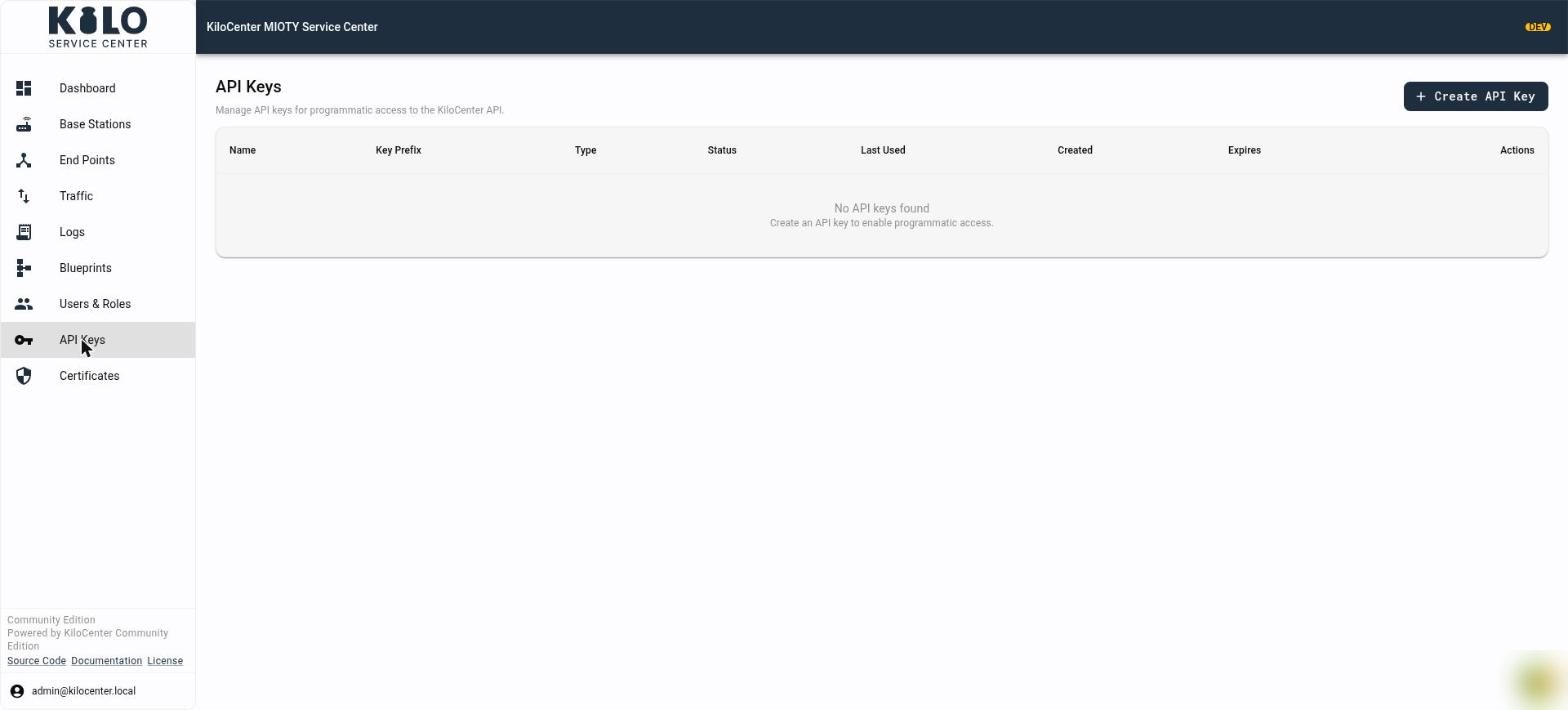
Open **API Keys** (administrators only). The table lists **Name**, **Key Prefix**, **Type**, **Status** (**Active**, **Inactive** or **Expired**), **Last Used** (**Never** until first use), **Created**, **Expires** (**No expiry** if none) and **Actions**. An empty list says "No API keys found. Create an API key to enable programmatic access."
1. Click **Create API Key**.
2. Enter a **Key Name**, for example "Billing export".
3. Pick the **Key Type**: **User** (acts with the roles of your user) or **Service Account** (acts as a Base Station Manager and Endpoint Manager in its organization; see [Do API keys have roles?](/kilo-mioty-service-center/security/users-and-roles.md#do-api-keys-have-roles)).
4. Optionally enter **Expires On** as a date. "The key stops working at the end of this day." A date that is not valid shows an error.
5. Click **Create**. The **API Key Created** dialog shows the key once: "Copy your API key now. You will not be able to see it again." Click **Copy to Clipboard** ("API key copied to clipboard"), then **Close**.
Send the key as a bearer token in the `authorization` header; see [gRPC First Steps](/kilo-mioty-service-center/integrations/grpc-first-steps.md). To end a key's access, select **Delete** in **Actions** and confirm "Are you sure you want to delete this API key? This action cannot be undone." If the Audit Log cannot record the creation, KiloCenter refuses the key instead of creating one nobody can trace.
---
# Agent Instructions
This documentation is published with GitBook. GitBook is the documentation platform designed so that both humans and AI agents can read, navigate, and reason over technical content effectively. Learn more at gitbook.com.
## Querying This Documentation
If you need additional information that is not directly available in this page, you can query the documentation by asking a question.
Perform an HTTP GET request on the following URL with the `ask` and `goal` query parameters:
```
GET https://docs.kiloiot.io/kilo-mioty-service-center/security/users-api-keys-and-sign-in.md?ask=&goal=
```
`ask` is the immediate question: it should be specific, self-contained, and written in natural language.
`goal` is what the user is ultimately trying to achieve, the reason they need the answer. Sharing it helps GitBook give you a better, more relevant answer. A goal is most helpful when it describes the outcome the user wants rather than restating the question. For example, with `ask=how do I create an API token`, a goal like `automate deployments from our CI pipeline` lets GitBook tailor the answer to that use case.
The response will contain a direct answer to the question and relevant excerpts and sources from the documentation.
Use this mechanism when the answer is not explicitly present in the current page, you need clarification or additional context, or you want to retrieve related documentation sections.