> For the complete documentation index, see [llms.txt](https://docs.kiloiot.io/llms.txt). Markdown versions of documentation pages are available by appending `.md` to page URLs; this page is available as [Markdown](https://docs.kiloiot.io/lens/camera-detail-settings.md).

# Camera detail page

Every tab and setting on a Kilo Lens camera page: Details, Recording, Recording Area, and Storage, including cleanup limits and cloud backup.

Open **Cameras** in the Lens menu and select a camera's name to open its detail page. This is where you check a camera's health, decide when it records, draw the area that triggers recording, and choose where recordings are kept. Changes are saved in Lens and sent to the camera's Twin. The **Details** tab is always there; the **Recording**, **Recording Area**, and **Storage** tabs appear only when your organization has recordings and storage switched on.

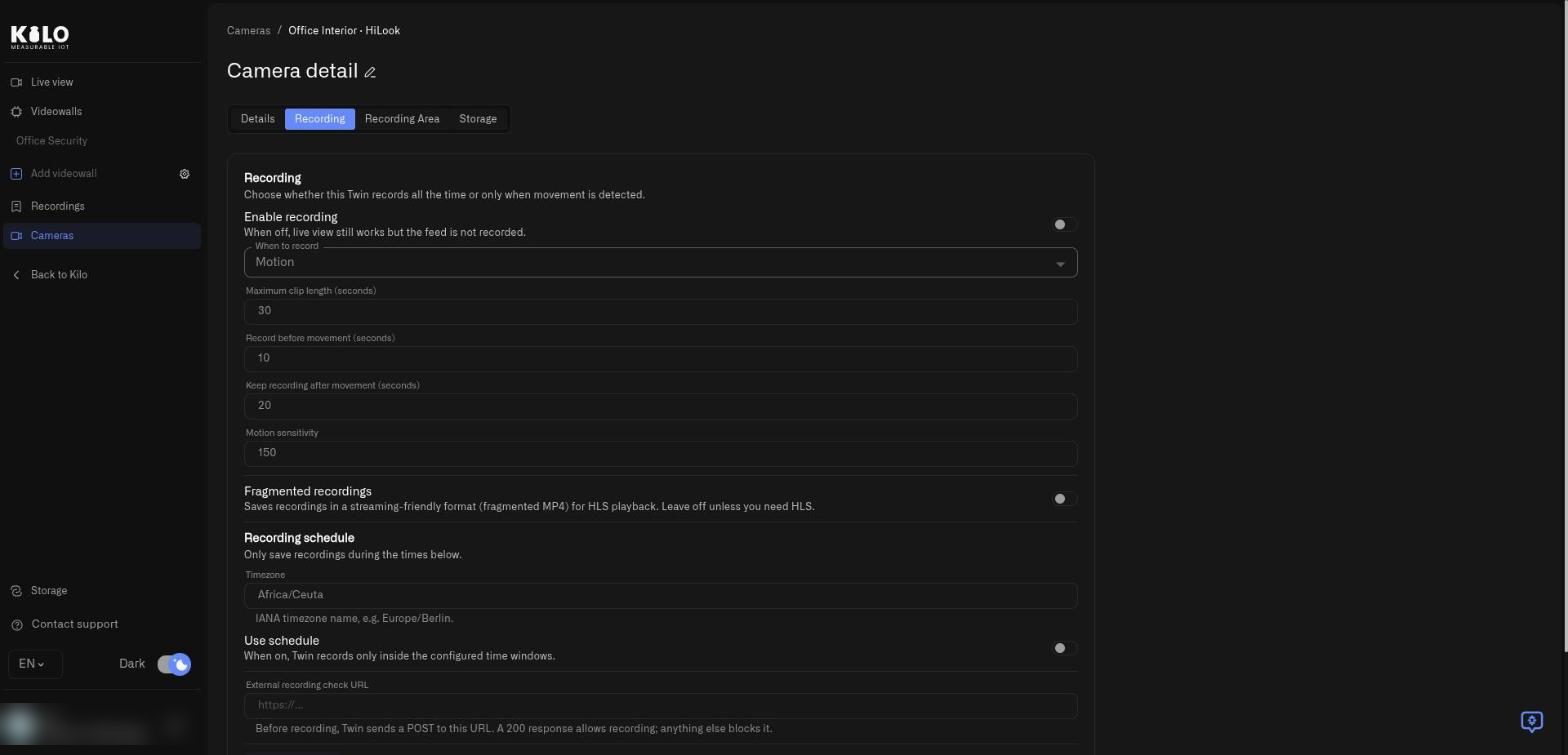
<figure><img src="https://2057878315-files.gitbook.io/~/files/v0/b/gitbook-x-prod.appspot.com/o/spaces%2FtNQh1wBSHSaknslMdOXm%2Fuploads%2Fgit-blob-c612dc36595d800e7a535afb01ffbe9a4dae2b6d%2Fkilo-lens-camera-details.jpg?alt=media" alt="The Details tab of a camera page with the camera preview, Media capabilities, Lens connection, Device details, Device specs, and Storage policy panels"><figcaption><p>The Details tab. The Twin key and device ID in the Lens connection panel are blurred in this screenshot; they identify a real installation and you should not share them.</p></figcaption></figure>

## What does the Details tab show?

The tab opens with a large picture area and a set of information panels.

* **Preview** and **Live** switch the picture between a regular snapshot and a live stream. A camera that is offline shows **Camera is offline**.
* The pencil beside **Camera detail** renames the camera.
* On a camera that reports pan/tilt or zoom, an overlay on the picture holds **Pan up**, **Pan left**, **Pan right**, **Pan down**, **Zoom in**, and **Zoom out**.
* **Camera controls** appears only for a camera with PTZ support. **Presets** lists each saved position with **Go to** (move there), a star (**Set as default** or **Clear default**; the default carries a **Default** label), and **Delete** (confirm with **Yes, delete**). The list says **No presets saved** when empty. Type a **Preset name** and select **Create preset** to save the current view; **Preset update pending - refresh manually** means the camera has not yet applied the change. **Return Home** moves this camera to its default preset and is grayed out, with the tooltip **Set a default preset to enable Return Home**, until one is set.
* **Media capabilities** states whether **Live audio** and **Talkback** are available for this camera.
* **ONVIF details** appears only for an ONVIF-capable camera and lists **PTZ support**, **Zoom**, **Pan/Tilt**, **Presets** (the saved names), and **Default preset**.
* **Lens connection** shows the **Device ID**, **Name**, **Twin key**, and **Pairing** state. **Reconnect Twin** generates a new one-time token if the Twin lost its pairing. See [Managing Cameras](/lens/managing-cameras.md).
* **Device details** lists **Status**, **Uptime**, **Last Twin activity**, **Stream type**, and whether an **SD** and **HD** stream are **available**.
* **Device specs** lists the Twin's **Version**, **Hostname**, **Architecture**, **Memory**, **Camera type**, **IP addresses**, and **MAC addresses**. Check **Version** when you want cloud archive, which needs Twin 1.1.0 or later.
* **Storage policy** shows a badge for the camera's storage mode: **Local only** (gray) or **Local + Cloud** (green). Beside it, **Twin sync status** says whether the device uses the policy configured in Lens:
  * **In sync** (green check): hover for **Twin is using the policy set by Lens**.
  * **Local override** (amber warning): hover for **Twin is using a locally overridden config.** Someone changed the storage settings in the Twin itself. To make the Twin follow Lens again, open the **Storage** tab and select **Send to camera**.
  * **Unknown**: hover for **Sync status unknown - device may not have reported yet**. It clears once the Twin reports in.

## How do I decide when a camera records?

Open the **Recording** tab.

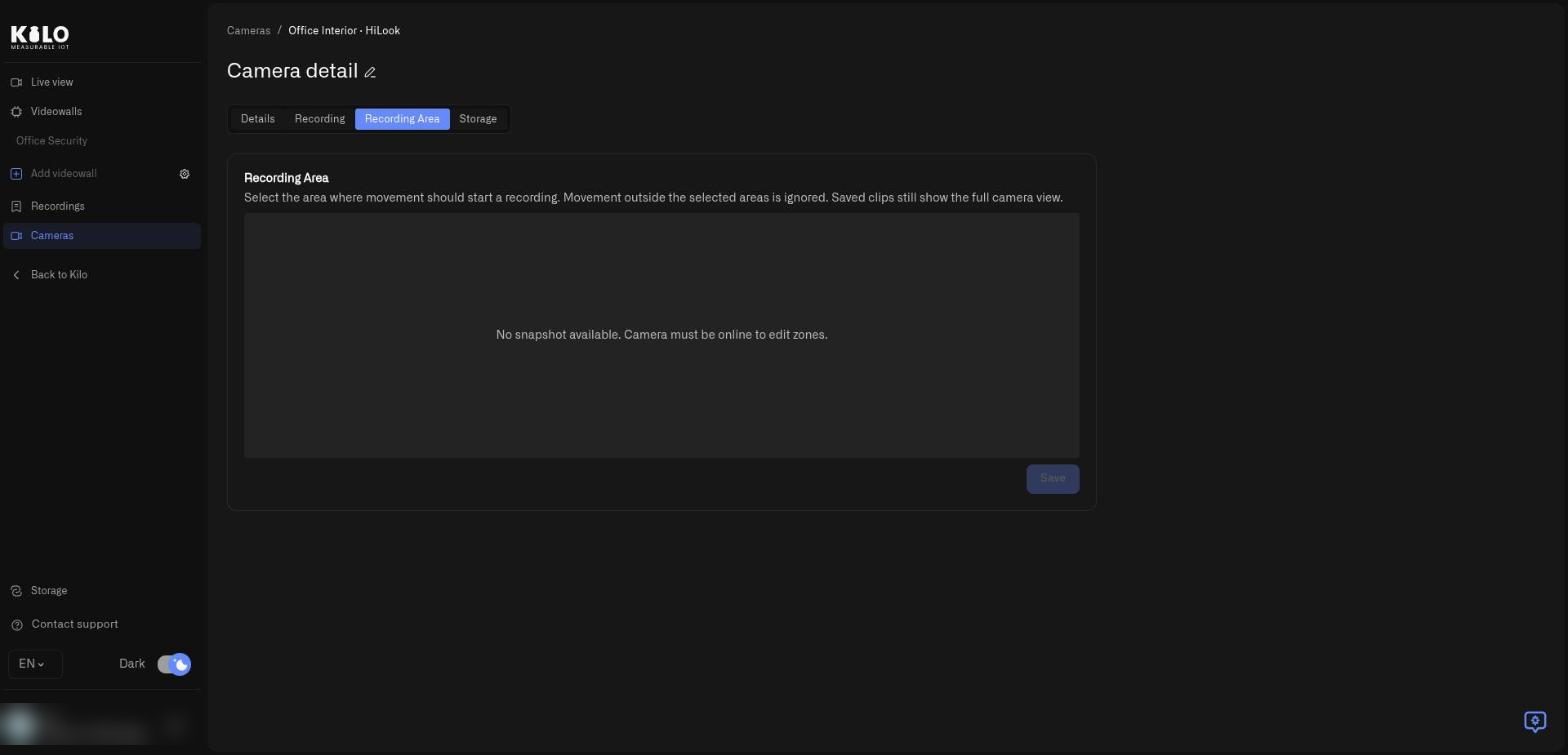
<figure><img src="https://2057878315-files.gitbook.io/~/files/v0/b/gitbook-x-prod.appspot.com/o/spaces%2FtNQh1wBSHSaknslMdOXm%2Fuploads%2Fgit-blob-ed3a8d7ca9a2722f0cec953bb585b3ba41e3ec33%2Fkilo-lens-camera-recording.jpg?alt=media" alt="The Recording tab with Enable recording, When to record set to Motion, clip length and sensitivity fields, Fragmented recordings, and the Recording schedule section"><figcaption><p>The Recording tab. Recording is switched off for this demo camera.</p></figcaption></figure>

| Control                                     | What it does                                                                                                                                                                                                                                                                                                                |
| ------------------------------------------- | --------------------------------------------------------------------------------------------------------------------------------------------------------------------------------------------------------------------------------------------------------------------------------------------------------------------------- |
| **Enable recording**                        | Turns recording on. When it is off, live view still works but the feed is not recorded                                                                                                                                                                                                                                      |
| **When to record**                          | **Motion** records when movement is detected in your recording area. **Continuous** records all the time                                                                                                                                                                                                                    |
| **Maximum clip length (seconds)**           | Caps one clip. Continued movement starts another clip                                                                                                                                                                                                                                                                       |
| **Record before movement (seconds)**        | Motion mode only. Includes video from just before the trigger, so you see what led to the event                                                                                                                                                                                                                             |
| **Keep recording after movement (seconds)** | Motion mode only. Keeps recording after movement stops, to capture the aftermath                                                                                                                                                                                                                                            |
| **Motion sensitivity**                      | Motion mode only. Counts changed pixels. Lower numbers detect smaller changes. About 150 is balanced                                                                                                                                                                                                                        |
| **Fragmented recordings**                   | Saves a streaming-friendly file format. Leave it off unless you need HLS playback. When on, **Fragment duration (seconds)** sets the length of each segment                                                                                                                                                                 |
| **Recording schedule: Timezone**            | The time zone the schedule follows, as an IANA name such as `Europe/Berlin`                                                                                                                                                                                                                                                 |
| **Recording schedule: Use schedule**        | When on, a weekly timetable appears with two start and end times per weekday, so recording happens only inside those windows                                                                                                                                                                                                |
| **External recording check URL**            | Before recording, Twin sends a POST to this address. A 200 response allows recording; anything else blocks it                                                                                                                                                                                                               |
| **Save test clip**                          | Saves a short clip immediately and does not wait for motion areas, so you can test your setup. It is available only when **Enable recording** is on and **When to record** is **Motion**; otherwise it stays grayed out. A green message says **Test clip requested.** or a red one says **Could not request a test clip.** |
| **Save**                                    | Saves the settings in Lens and sends them to the camera                                                                                                                                                                                                                                                                     |

When **Enable recording** is off, every other field on the tab is grayed out; switch it on to edit them. If the Twin has not reported its settings yet, a yellow message says **Twin settings aren't available yet. Make sure the Twin is online.** and **Save** stays disabled until it is online. A green message confirms **Recording settings saved and sent to the camera**. If the camera is offline you see **Saved in Lens. Send to camera failed. Try again.** The settings are kept, and you can retry when the Twin is back. A red message, **Could not save recording settings.**, means Lens itself did not save them. [Local Recordings](/lens/local-recordings.md) explains these same settings from the Twin side.

## How do I limit recording to the area that matters?

Open the **Recording Area** tab.

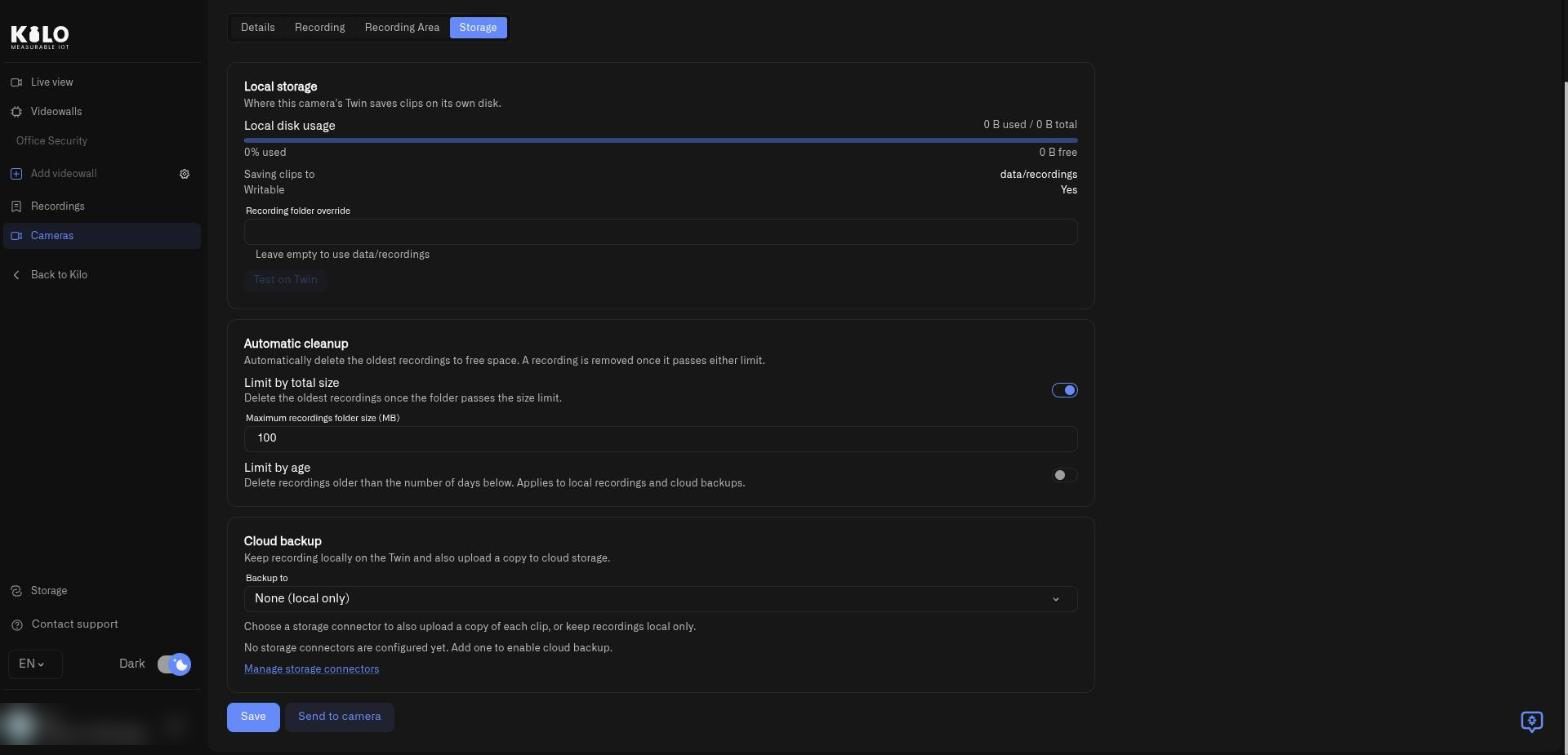
<figure><img src="https://2057878315-files.gitbook.io/~/files/v0/b/gitbook-x-prod.appspot.com/o/spaces%2FtNQh1wBSHSaknslMdOXm%2Fuploads%2Fgit-blob-da61407ece89de4ce11d2f1a24a788ea939434cd%2Fkilo-lens-camera-recording-area.jpg?alt=media" alt="The Recording Area tab with the message that no snapshot is available because the camera must be online to edit zones"><figcaption><p>The Recording Area tab for an offline camera. Zones can be drawn only while the camera is online and a snapshot is available.</p></figcaption></figure>

The tab shows a snapshot of the camera. Draw one or more areas on it; movement outside them is ignored and does not start a recording. Saved clips still show the full camera picture. Select **Save** to apply the areas; **Save** stays disabled until you change something. A green message says **Zones saved.** A yellow one, **Saved — pending sync to camera.**, means the areas are stored in Lens and reach the Twin when it is next online. A red message, **Failed to save zones. Please try again.**, means nothing was saved. If the camera is offline the tab says **No snapshot available. Camera must be online to edit zones.** See [Motion Zones](/lens/motion-zones.md) for how areas also drive motion readings for rules.

## Where do recordings get saved?

Open the **Storage** tab. It has three sections and two buttons.

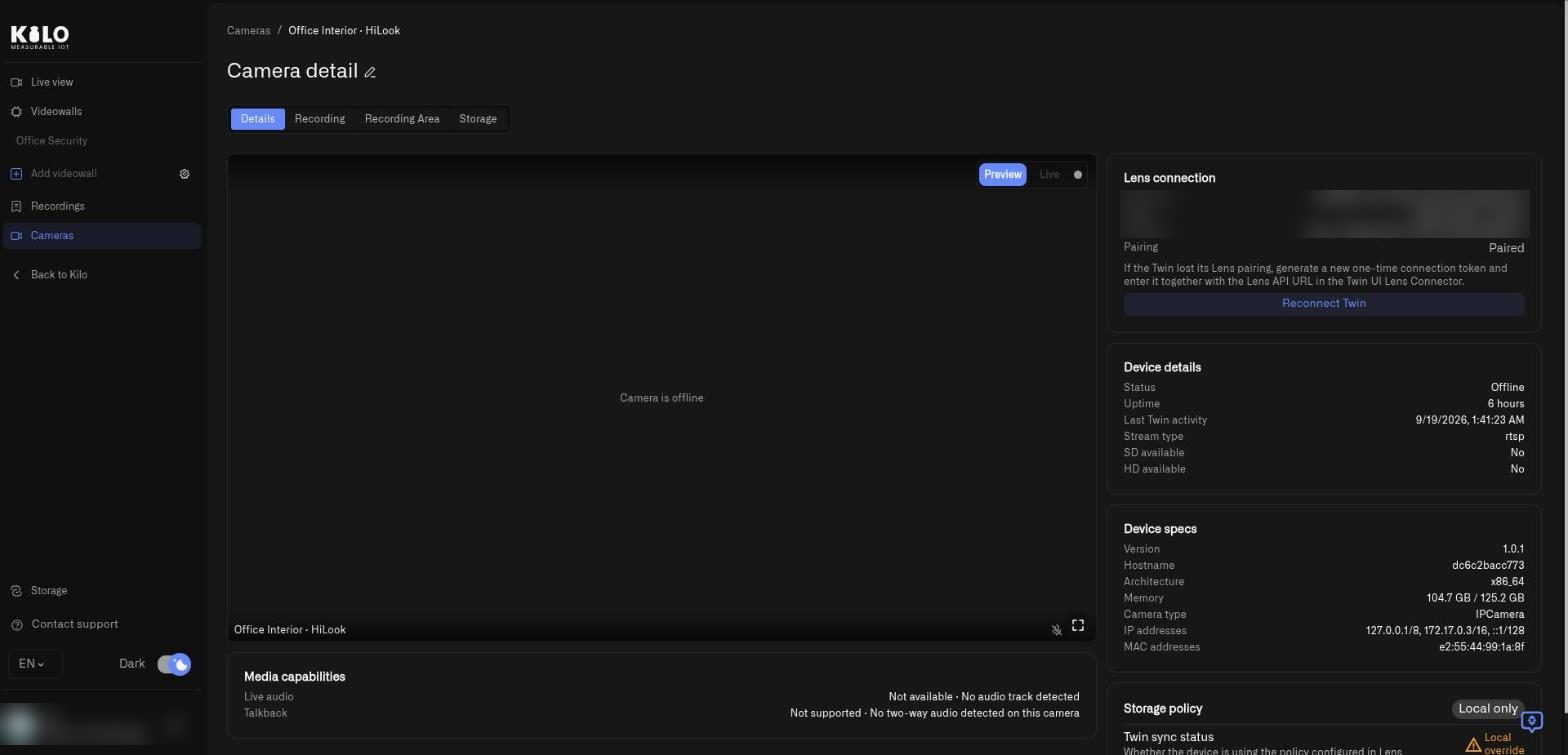
<figure><img src="https://2057878315-files.gitbook.io/~/files/v0/b/gitbook-x-prod.appspot.com/o/spaces%2FtNQh1wBSHSaknslMdOXm%2Fuploads%2Fgit-blob-00cac685dec75384debcad097a0323a568656088%2Fkilo-lens-camera-storage.jpg?alt=media" alt="The Storage tab showing the Local storage section with disk usage, Saving clips to, Writable, Recording folder override and Test on Twin, followed by Automatic cleanup"><figcaption><p>The top of the Storage tab: where this camera's Twin keeps clips on its own disk.</p></figcaption></figure>

**Local storage** describes the Twin's own disk.

* **Local disk usage** shows used and total space with a bar, and the percentage used and free.
* **Saving clips to** and **Writable** show the folder in use and whether the Twin can write to it.
* **Recording folder override** is an advanced field for a different folder. Leave it empty to use the default; the hint shows the default path. **Test on Twin** stays grayed out until you type a folder. Select it to have the Twin check the folder: a spinner shows while it checks, then **Path OK** (green; hover to see **Writable, free** with the space left) or **Invalid** (red; hover to read **Path is not writable** or the Twin's own error). If the Twin has not reported its disk yet, the usage bar says **Disk usage not available - device has not reported yet.**

**Automatic cleanup** removes the oldest recordings so the disk does not fill.

* **Limit by total size** with **Maximum recordings folder size (MB)** deletes the oldest recordings once the folder passes the size.
* **Limit by age** with **Maximum recording age (days)** deletes recordings older than that. This limit applies to **local recordings and cloud backups**, so cloud copies are removed when they pass the age as well.

<figure><img src="https://2057878315-files.gitbook.io/~/files/v0/b/gitbook-x-prod.appspot.com/o/spaces%2FtNQh1wBSHSaknslMdOXm%2Fuploads%2Fgit-blob-54619aef2e3b12aefd768a13f335c6317fa63acf%2Fkilo-lens-camera-storage-cloud-backup.jpg?alt=media" alt="The lower part of the Storage tab with Automatic cleanup, the Cloud backup section with a Backup to menu set to None (local only), and Save and Send to camera buttons"><figcaption><p>Cleanup limits and the Cloud backup section. No storage connector exists yet in this demo organization, so Backup to offers only None (local only).</p></figcaption></figure>

**Cloud backup** is where you switch on [cloud archive](/lens/cloud-archive.md).

* **Backup to** lists **None (local only)** and every storage connector you created. Choose a connector to upload a copy of each clip. If you have none, the tab says **No storage connectors are configured yet. Add one to enable cloud backup.** If the list cannot load, a red message says **Could not load the storage connectors.** with **Try again**. **Manage storage connectors** (a link under the menu) opens the Storage connectors page.
* If the connector you chose was deleted since, a yellow message says **The selected connector is no longer available. Choose another connector or switch to local only.** and **Save** stays disabled until you pick another.
* The fields below appear only after you choose a connector. Choosing **None (local only)** hides them and clears the cloud size limit.
* **Upload queue folder** is an advanced field for the folder where clips wait for upload. Leave it empty for the default.
* A caption **"Delete after upload" is set on the camera itself.** appears when the Twin already removes clips after upload by its own setting.
* **Delete local clips after upload** removes the local copy once Lens confirms the upload. Leave it off to keep a permanent local backup.
* **Limit cloud storage** with **Maximum cloud storage (MB)** removes the oldest cloud backups for this camera once the size limit is passed. The size field appears when the switch is on. Local recordings are not affected.
* A caption explains that removed cloud backups disappear from Lens immediately, though some providers release the physical space only when their retention period ends. For Walrus, a caption **Kept for at least** *N* **days** appears when **Limit by age** is on, because Walrus keeps files for the paid period. **Uploads are encrypted (managed by Lens)** confirms encryption.

Select **Save** to store the settings in Lens and send them to the Twin. A toast says **Storage settings saved and sent to the camera.** If the Twin was offline the toast says **Saved in Lens. Send to camera failed. Try again.** If Lens could not save, it says **Could not save storage settings.** **Send to camera** pushes the stored settings to the Twin again without changing anything; a toast says **Settings sent to the camera.** or **Failed to send settings to the camera.** Both buttons stay disabled while the Twin has not reported its settings; the tab then shows **Twin settings aren't available yet. Make sure the Twin is online.** (or **Couldn't check configuration status. Reload and try again.**).


---

# Agent Instructions
This documentation is published with GitBook. GitBook is the documentation platform designed so that both humans and AI agents can read, navigate, and reason over technical content effectively. Learn more at gitbook.com.

## Querying This Documentation
If you need additional information that is not directly available in this page, you can query the documentation by asking a question.

Perform an HTTP GET request on the following URL with the `ask` and `goal` query parameters:

```
GET https://docs.kiloiot.io/lens/camera-detail-settings.md?ask=<question>&goal=<user_goal>
```

`ask` is the immediate question: it should be specific, self-contained, and written in natural language.
`goal` is what the user is ultimately trying to achieve, the reason they need the answer. Sharing it helps GitBook give you a better, more relevant answer. A goal is most helpful when it describes the outcome the user wants rather than restating the question. For example, with `ask=how do I create an API token`, a goal like `automate deployments from our CI pipeline` lets GitBook tailor the answer to that use case.

The response will contain a direct answer to the question and relevant excerpts and sources from the documentation.

Use this mechanism when the answer is not explicitly present in the current page, you need clarification or additional context, or you want to retrieve related documentation sections.