> For the complete documentation index, see [llms.txt](https://docs.kiloiot.io/llms.txt). Markdown versions of documentation pages are available by appending `.md` to page URLs; this page is available as [Markdown](https://docs.kiloiot.io/lens/camera-rules-and-alerts.md).
# Camera Rules and Alerts
Use Kilo Lens camera motion readings in a rule to raise an operational alarm when movement appears in a selected area.
A Lens camera supplies a motion reading that Kilo's Rules Engine can use like other sensor readings. This makes a camera part of an operational workflow: movement at a selected entrance can cause a rule to raise an alarm for the team responsible for that site.
First [connect the camera](/lens/connecting-a-camera.md) and [configure its motion zone](/lens/motion-zones.md). You also need permission to create rules and alarm definitions.
## How do I prepare the alarm definition for a camera alert?
In **Alarm**, create the definition that the rule will raise. For example, name it `Entrance activity` and write a message that identifies the area requiring attention. Configure recipients, channels, schedule, and suppression for the intended response. Follow [Alarm Definitions](/alarm/notification-rules.md) for those settings.
## How do I build a motion rule for a camera?
1. Open **Rules engine** and create a rule.
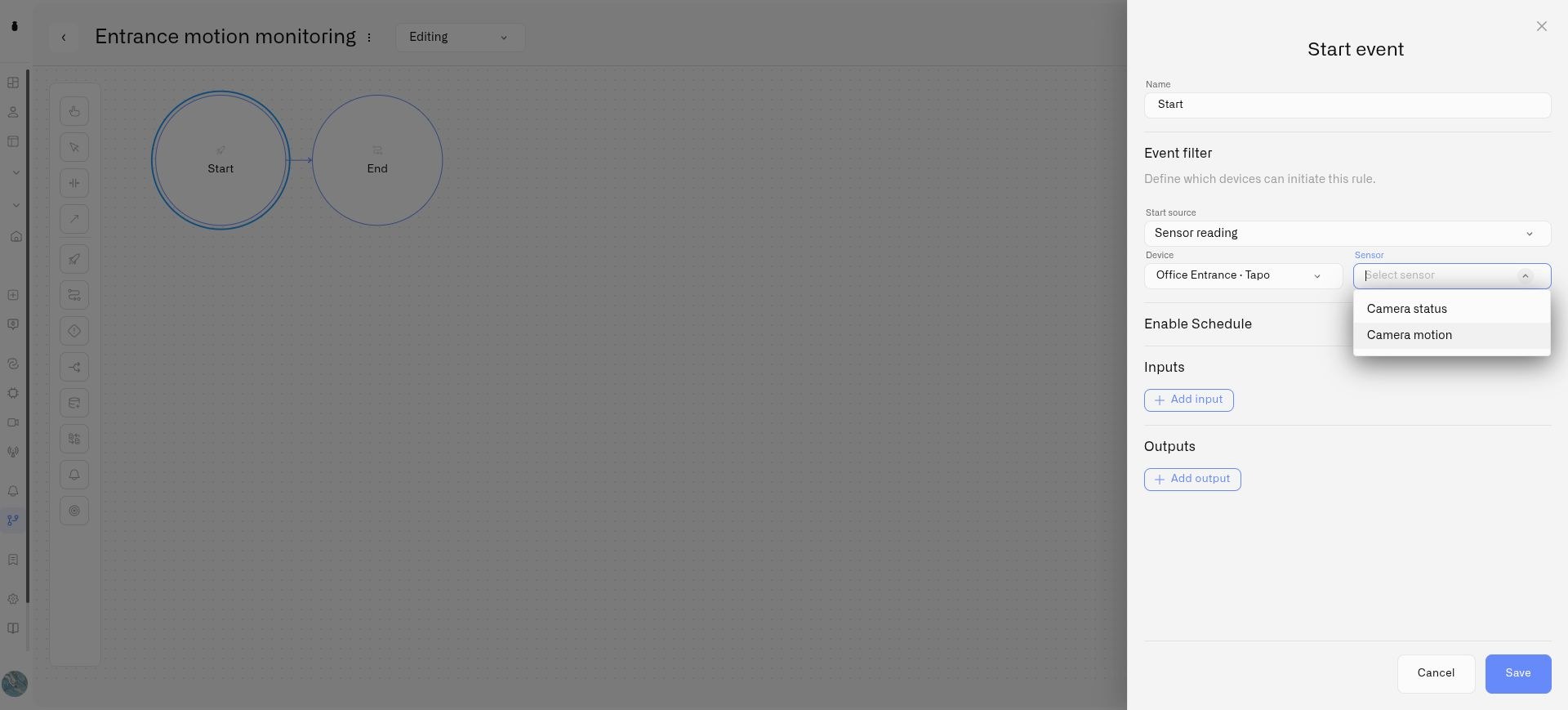
2. Configure **Start** with **Sensor reading**.
3. Select the camera in **Device**, then choose **Camera motion** in **Sensor**.
4. Add an **Exclusive Gateway** to distinguish detected movement from a false motion reading.
5. Set the outgoing condition for the motion branch to `vars.value == true`.
6. Connect that branch to **Set Alarm** and select the alarm definition you prepared.
7. Connect the action to **End**, and use a default route to End for the non-motion branch.
8. Save, build, and deploy the rule through the normal rule lifecycle.
`vars.value` is the value supplied by the selected sensor. For the camera's motion sensor it is a boolean: `true` means motion is detected. A `false` reading can mean no motion, but it is also sent when the camera goes offline; use **Camera status** to distinguish a quiet scene from a disconnected camera.
The camera’s motion reading starts the rule; the following nodes decide how to respond.
## How do I test a camera alert before enabling notifications?
Use the rule's debugging tools with external actions mocked or skipped while checking the flow. Then test the actual camera by moving inside and outside its selected area. Enable intended delivery only after confirming the rule and alarm configuration.
The simple rule above raises an alarm on motion. It does not automatically resolve an existing incident when the next reading is false. Configure the appropriate clear behavior if that is required, and review [trigger timing](/rules-engine/triggers/trigger-timing.md).
Manually resolving an incident does not change the camera's reading. A condition that continues to qualify can raise another alarm according to the configured trigger and suppression behavior.
## How do I monitor a camera's connection?
Create a separate rule with **Start → Sensor reading**, select the camera, and choose **Camera status**. This reading is text rather than a boolean. A branch with `vars.value == "offline"` can raise a connection alarm so a missing feed receives attention. Test the recovery path as well as the offline path before enabling notifications.
Camera sensors are selected through the **Sensor reading** trigger. Readings can be repeated periodically even when their value has not changed; they are not only motion-start or motion-stop events. Combine conditions with the rule's timing settings and alarm suppression to avoid unwanted repeated notifications. Clearing an alarm needs an explicit clear action; neither a false reading nor a restored connection automatically clears an incident raised by the example rule.
---
# Agent Instructions
This documentation is published with GitBook. GitBook is the documentation platform designed so that both humans and AI agents can read, navigate, and reason over technical content effectively. Learn more at gitbook.com.
## Querying This Documentation
If you need additional information that is not directly available in this page, you can query the documentation by asking a question.
Perform an HTTP GET request on the following URL with the `ask` and `goal` query parameters:
```
GET https://docs.kiloiot.io/lens/camera-rules-and-alerts.md?ask=&goal=
```
`ask` is the immediate question: it should be specific, self-contained, and written in natural language.
`goal` is what the user is ultimately trying to achieve, the reason they need the answer. Sharing it helps GitBook give you a better, more relevant answer. A goal is most helpful when it describes the outcome the user wants rather than restating the question. For example, with `ask=how do I create an API token`, a goal like `automate deployments from our CI pipeline` lets GitBook tailor the answer to that use case.
The response will contain a direct answer to the question and relevant excerpts and sources from the documentation.
Use this mechanism when the answer is not explicitly present in the current page, you need clarification or additional context, or you want to retrieve related documentation sections.