> For the complete documentation index, see [llms.txt](https://docs.kiloiot.io/llms.txt). Markdown versions of documentation pages are available by appending `.md` to page URLs; this page is available as [Markdown](https://docs.kiloiot.io/lens/connecting-a-camera.md).
# Connecting a Camera
Connect a camera to Kilo Lens: set its RTSP stream in Twin, pair Twin with a connection token, and verify the link.
Connecting a camera has two parts: Twin must reach its local video source, then Lens must associate that Twin with your organization. The camera's password belongs in Twin's camera settings; the Lens connection token is a separate credential used for pairing.
Before starting, [install one Twin for this camera](/lens/installing-twin.md), have its stream details available, and select the intended organization in Kilo. You need permission to manage cameras and available device capacity.
For ready-to-adapt stream addresses, see [RTSP Camera URLs](/lens/rtsp-camera-urls.md), including Tapo and HiLook/Hikvision examples.
## How do I configure the local camera for Twin?
1. Open Twin and sign in.
2. Open **Settings → Camera Connector**.
3. Enter the camera's RTSP address, including its local credentials, in **Main stream URL**. Select **Test main stream** to check it.
4. If the camera provides a substream, enter it in **Low-resolution stream URL** for lighter preview and motion processing. Leaving this empty uses the main stream.
5. Select **Save**, then verify the picture on the Twin dashboard.
6. For supported movement and preset controls, configure **ONVIF address**, **ONVIF username**, and **ONVIF password** in the ONVIF section. Select **Test ONVIF**, then that section's **Save**. **Discover ONVIF cameras → Scan** can help find cameras on the local network.
Use a name that identifies the camera's location and purpose, such as `Main office entrance`. Copy the **Twin Key** shown by Twin. It is generated for this installation and is not an editable camera serial number.
## How do I pair Twin with Lens?
1. In Kilo, select **Cameras** to enter Lens.
2. Choose **Add camera**.
3. In the **Add camera** dialog, read the note: **Set up the Twin first: it generates the key below and shows it read-only. A camera cannot be added ahead of its Twin.** Enter a **Camera name** and paste the **Twin Key** from the Twin (leading or trailing spaces are trimmed). The second **Add camera** button stays disabled until both fields are filled. Select it.
4. If Lens refuses, a red message under the fields tells you why:
* **This Twin Key is already registered. If this is a cloned image, generate a new key in the Twin.** The camera already exists; use **Reconnect Twin** instead.
* **You do not have permission to add cameras in this organization.** Ask an administrator for Edit access to Cameras.
* **Your subscription plan has no room for another device. Remove one or upgrade the plan.**
* **The video service is unavailable, so the camera was not created. Try again in a moment.**
* **The camera could not be added. Try again.**
5. The dialog changes to **Pairing token**. It says **Camera registered. In the Twin's Lens Connector tab, enter the Lens API URL and this one-time connection token, then save**, and shows:
* **Lens API URL**, with a copy button (**Copy Lens API URL**).
* **Connection token**, hidden at first. Select the eye icon (**Reveal connection token** or **Hide connection token**) and the copy button (**Copy connection token**).
* **Expires** and the time. Pair before then.
* A warning that the token is shown only once and cannot be retrieved later. If it expires or is lost, remove and re-add the camera, or use **Reconnect Twin** on the camera to issue a new one.
6. In Twin, open **Settings → Lens Connector**.
7. Paste the **Lens API URL** and the **Connection token** from the dialog into Twin.
8. Select **Save** in Twin. Allow Twin to apply the connection settings.
9. Back in Lens, select **Done**. **Done** is disabled until you have copied the token; if the browser blocks copying, the dialog says **Copying is unavailable here — select the token above and copy it by hand before closing.** If the address cannot be loaded the dialog says **Lens API URL is not configured. Set it in Lens Settings before pairing a camera.** and offers **Retry**; the button then reads **Close**, and you create a new token with **Reconnect Twin** once the address is available. Then check the camera's connection state.
The **Status** badge in the camera list shows **Waiting for the Twin** or **Pairing window expired** for a camera whose token has not been entered yet, so you can see which cameras still need it. The **Paired** state itself is on the camera's page, under **Details → Lens connection**.
Use the API URL supplied for your Lens environment, not the URL of the platform's ordinary web page. A development token and endpoint belong together; do not mix them with production.
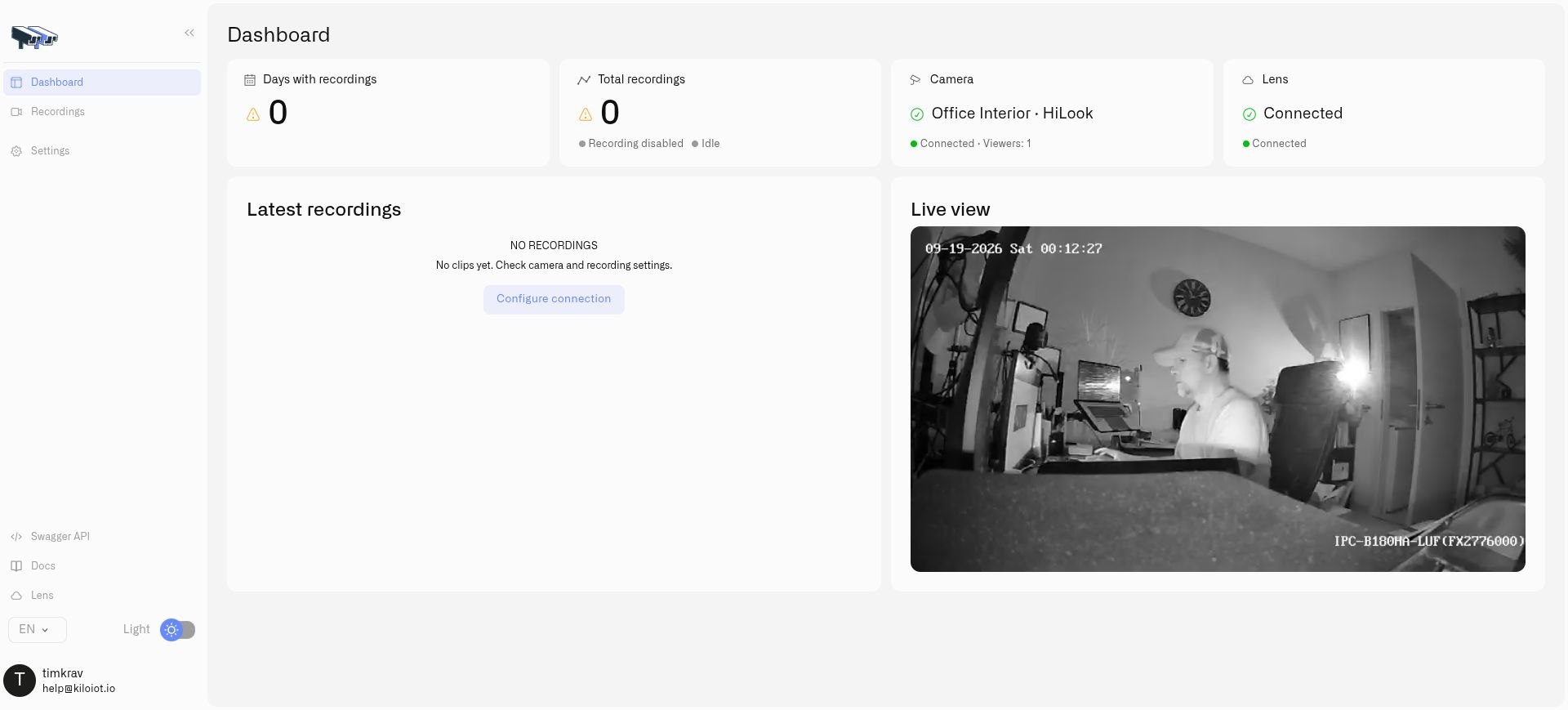
Check both connection indicators and the camera picture after pairing.
## How do I check that the camera is connected?
Open the camera and start live video. An online status confirms the connection, while a successful stream confirms that the full viewing path works. Check both before handing the camera over to operators.
The first time you open **Cameras** with no cameras, the page offers **Connect your first camera**: **Lens connects to cameras through Twin. Complete these steps once to start streaming and recording.** Its steps open the Twin install guide and the **Add camera** dialog. Later, **Setup guide** at the top right of **Cameras** reopens the same walkthrough.
Repeat this process for every camera with its own Twin and unique key. If the camera already exists and needs a new pairing token, use **Reconnect Twin** on that camera rather than creating a duplicate. See [Access and Troubleshooting](/lens/access-and-troubleshooting.md).
---
# Agent Instructions
This documentation is published with GitBook. GitBook is the documentation platform designed so that both humans and AI agents can read, navigate, and reason over technical content effectively. Learn more at gitbook.com.
## Querying This Documentation
If you need additional information that is not directly available in this page, you can query the documentation by asking a question.
Perform an HTTP GET request on the following URL with the `ask` and `goal` query parameters:
```
GET https://docs.kiloiot.io/lens/connecting-a-camera.md?ask=&goal=
```
`ask` is the immediate question: it should be specific, self-contained, and written in natural language.
`goal` is what the user is ultimately trying to achieve, the reason they need the answer. Sharing it helps GitBook give you a better, more relevant answer. A goal is most helpful when it describes the outcome the user wants rather than restating the question. For example, with `ask=how do I create an API token`, a goal like `automate deployments from our CI pipeline` lets GitBook tailor the answer to that use case.
The response will contain a direct answer to the question and relevant excerpts and sources from the documentation.
Use this mechanism when the answer is not explicitly present in the current page, you need clarification or additional context, or you want to retrieve related documentation sections.