> For the complete documentation index, see [llms.txt](https://docs.kiloiot.io/llms.txt). Markdown versions of documentation pages are available by appending `.md` to page URLs; this page is available as [Markdown](https://docs.kiloiot.io/lens/connecting-cloud-camera-sources.md).

# Provider Camera Sources

Connect supported provider camera sources in Twin, or configure an advanced stream source for Kilo Lens.

Twin can obtain a camera feed through a supported provider connection as well as a local RTSP URL. This is useful when a camera is accessed through its provider account. HomeKit accessories use a local pairing workflow. Each Twin still represents one camera.

[Install Twin](/lens/installing-twin.md) first. You need the appropriate camera account or accessory credentials and network access to that source. Available providers and controls depend on the Twin version and camera; seeing a provider in the selector does not establish support for every model, PTZ, or two-way audio.

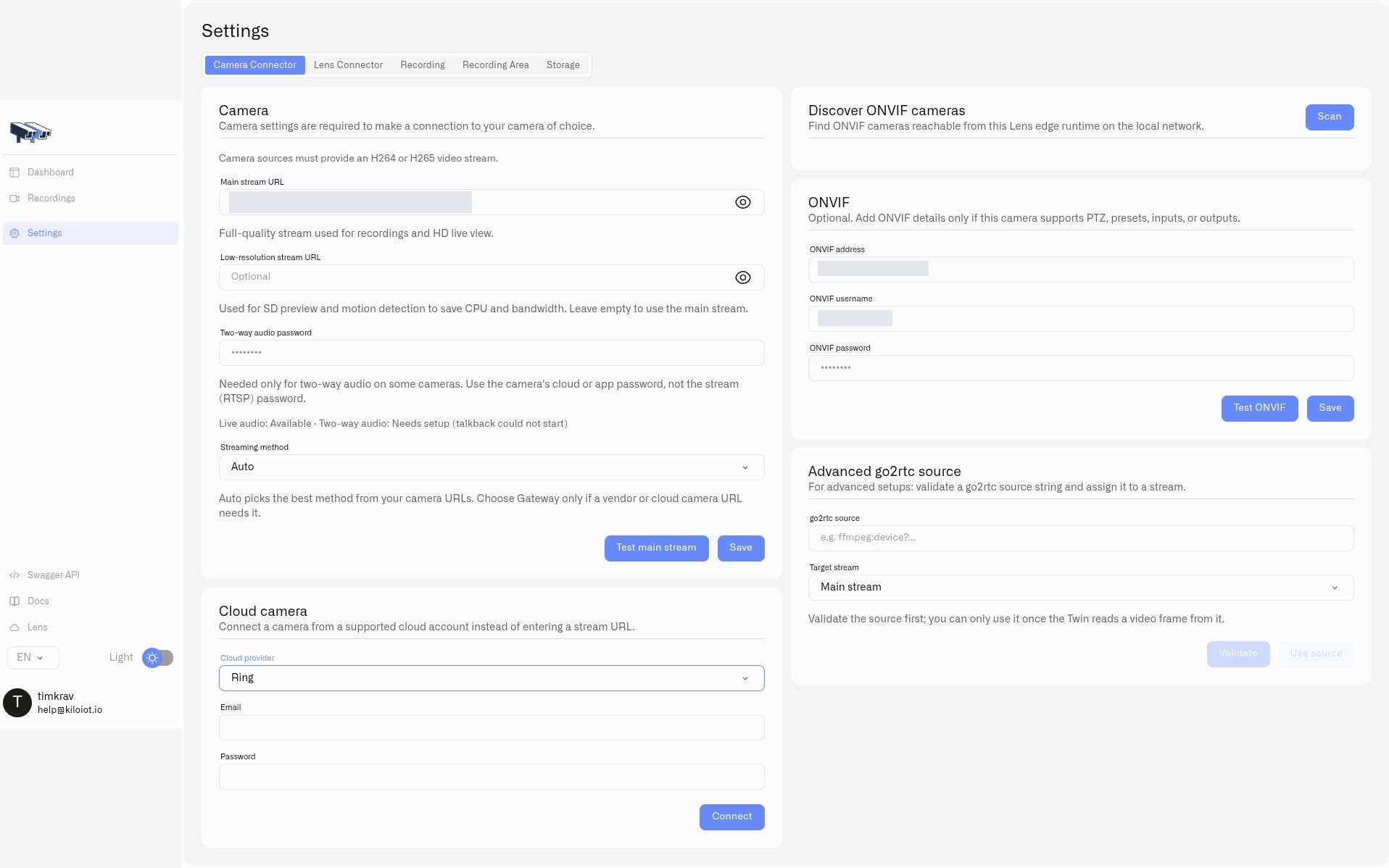
<figure><img src="https://2057878315-files.gitbook.io/~/files/v0/b/gitbook-x-prod.appspot.com/o/spaces%2FtNQh1wBSHSaknslMdOXm%2Fuploads%2Fgit-blob-80137999ddb43480a53fc32e167cd23340409fc8%2Fkilo-twin-provider-setup.jpg?alt=media" alt="Kilo Twin Camera Connector settings with Ring account fields and the advanced source controls"><figcaption><p>Select a provider to display its connection fields. This example shows the Ring sign-in form; private local-camera values are covered.</p></figcaption></figure>

## How do I connect a provider account?

1. In Twin, open **Settings → Camera Connector** and locate **Cloud camera**.
2. Choose **Cloud provider** and supply the fields for that provider.
3. Select **Connect**. If prompted, enter the verification code and select **Verify code**.
4. Under **Available cameras**, find the intended camera and select **Use as main stream**. Select a supported secondary source with **Use as sub stream** when needed.
5. Save the camera configuration, verify local video, then [connect Twin to Lens](/lens/connecting-a-camera.md).

| Provider | What to prepare                                                                 | Connection steps                                                                                                       |
| -------- | ------------------------------------------------------------------------------- | ---------------------------------------------------------------------------------------------------------------------- |
| Ring     | Account email, password, and access to its verification messages                | Connect the account, then enter the requested two-factor code.                                                         |
| Wyze     | Account email and password, API Key, API ID, and any required verification code | Enter the account and API details; complete verification if requested.                                                 |
| Roborock | Account email and the correct region                                            | Choose the region, request the login code, then verify the emailed code. A custom region also requires its custom URL. |
| HomeKit  | A reachable compatible accessory and its pairing PIN                            | Use the local discovery and pairing steps below.                                                                       |

Obtain API credentials through the provider's account tools. These are different from your Twin administrator password and the Lens pairing token. If verification expires, restart the provider connection and request a fresh code.

## How do I pair a HomeKit camera?

1. Choose **HomeKit** as the provider and select **Discover accessories**.
2. Find the camera under **Discovered accessories** and select **Pair**.
3. Enter **Pairing PIN** and select **Pair accessory**.
4. Choose the resulting camera under **Available cameras**, apply it as the main stream, save, and verify video.

The Twin must be able to discover and reach the accessory on the local network. Check the accessory's own pairing requirements if discovery or pairing fails.

## What is the Advanced source option?

Use **Advanced go2rtc source** when you already have a supported source string and need to configure it directly. This is the name of the advanced stream input shown in Twin.

1. Enter the source URI in **go2rtc source**.
2. Choose **Target stream**: **Main stream** or **Low-resolution stream**.
3. Select **Validate**. Twin must successfully read a video frame before the source can be used.
4. Select **Use source**, then **Save** the camera settings.

Keep embedded account credentials private. A validation failure leaves the new source unavailable for selection; check its format, access credentials, and network reachability before retrying.

For ordinary local IP cameras, [Connecting a Camera](/lens/connecting-a-camera.md) and the [RTSP Camera URLs](/lens/rtsp-camera-urls.md) reference provide the simpler setup path.


---

# Agent Instructions
This documentation is published with GitBook. GitBook is the documentation platform designed so that both humans and AI agents can read, navigate, and reason over technical content effectively. Learn more at gitbook.com.

## Querying This Documentation
If you need additional information that is not directly available in this page, you can query the documentation by asking a question.

Perform an HTTP GET request on the following URL with the `ask` and `goal` query parameters:

```
GET https://docs.kiloiot.io/lens/connecting-cloud-camera-sources.md?ask=<question>&goal=<user_goal>
```

`ask` is the immediate question: it should be specific, self-contained, and written in natural language.
`goal` is what the user is ultimately trying to achieve, the reason they need the answer. Sharing it helps GitBook give you a better, more relevant answer. A goal is most helpful when it describes the outcome the user wants rather than restating the question. For example, with `ask=how do I create an API token`, a goal like `automate deployments from our CI pipeline` lets GitBook tailor the answer to that use case.

The response will contain a direct answer to the question and relevant excerpts and sources from the documentation.

Use this mechanism when the answer is not explicitly present in the current page, you need clarification or additional context, or you want to retrieve related documentation sections.
