> For the complete documentation index, see [llms.txt](https://docs.kiloiot.io/llms.txt). Markdown versions of documentation pages are available by appending `.md` to page URLs; this page is available as [Markdown](https://docs.kiloiot.io/lens/lens-workspace-tour.md).

# Lens Workspace Tour

Tour the Kilo Lens workspace menu by menu: Live view, Videowalls, Recordings, Cameras, and Storage, with what every control on each screen does.

Lens is the part of Kilo where cameras from every site and brand live together. This page walks through the workspace screen by screen so you know where to click and what each control does before you set anything up. Each screenshot shows the whole platform window.

## How do I open the Lens workspace?

In the main Kilo menu, choose **Cameras**. The main menu is replaced by the Lens menu. **Back to Kilo** takes you to the rest of the platform; it is always available, even when other entries are switched off for your organization.

The Lens menu has these entries, from top to bottom:

| Menu entry                                     | What it opens                                                                |
| ---------------------------------------------- | ---------------------------------------------------------------------------- |
| **Live view**                                  | Every camera you can see, with a preview or live picture for each            |
| **Videowalls**                                 | Saved layouts of selected cameras. Your saved walls are listed underneath it |
| **Add videowall**                              | Creates a new wall. A gear icon beside it opens wall settings                |
| **Recordings**                                 | Saved recordings from all cameras, local and archived                        |
| **Cameras**                                    | The inventory of connected cameras and each camera's settings                |
| **Back to Kilo**                               | Leaves the Lens workspace and returns to the main Kilo menu                  |
| **Storage** (below **Back to Kilo**)           | Storage connectors that hold your cloud archive                              |
| **Contact support**, language, **Dark** switch | Help, interface language, and dark or light theme                            |

Every Lens screen needs **Edit** access to Cameras. A member with only **View** access, or with **No access**, does not get Lens: opening a Lens address shows **You do not have camera management access for this organization.** The **Recordings** and **Storage** entries are separate features that your organization must have switched on; if one is missing from your menu, ask your administrator or contact support. The same applies to the **Recording**, **Recording Area**, and **Storage** tabs on a camera's page. See [Access and Troubleshooting](/lens/access-and-troubleshooting.md).

## What does the Cameras screen show?

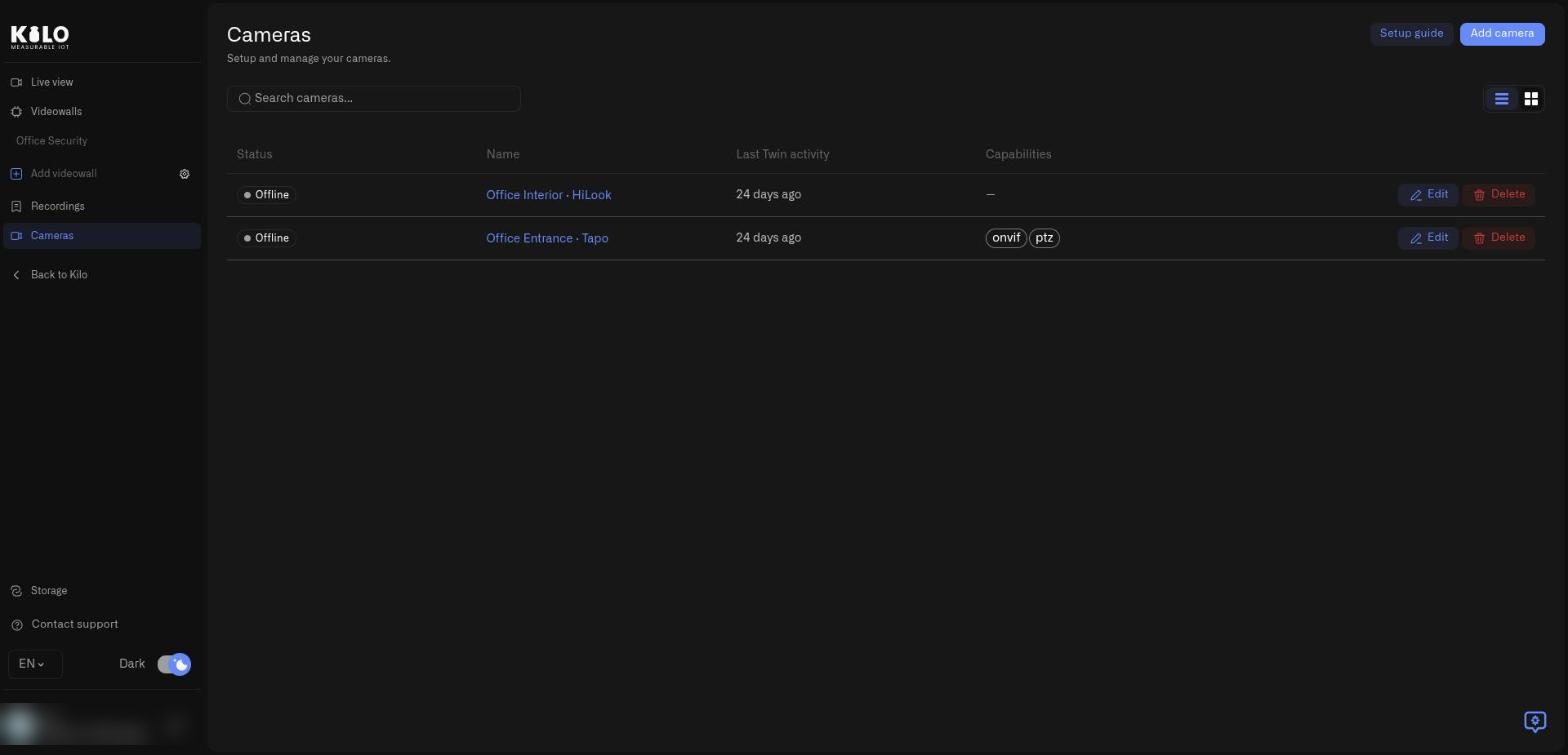
Open **Cameras** in the Lens menu to see your inventory.

<figure><img src="https://2057878315-files.gitbook.io/~/files/v0/b/gitbook-x-prod.appspot.com/o/spaces%2FtNQh1wBSHSaknslMdOXm%2Fuploads%2Fgit-blob-a1a70d2849c20f1fb0f057c32e53942508715925%2Fkilo-lens-cameras-list.jpg?alt=media" alt="The Kilo Lens Cameras page listing two cameras that are offline, each with Edit and Delete buttons and the Lens menu on the left"><figcaption><p>The Cameras page in list view. In this demo organization both cameras are offline, which is why their status reads Offline.</p></figcaption></figure>

* **Setup guide** (top right) opens a step-by-step guide that walks you through installing Twin, adding the camera, and pairing. It is the quickest route if this is your first camera.
* **Add camera** starts registration of a new camera. You paste the Twin Key shown in the camera's Twin, and Lens registers the camera and gives you a one-time token to enter in the Twin. [Connecting a Camera](/lens/connecting-a-camera.md) covers the whole procedure.
* **Search cameras...** filters the list by name. Use it when many sites share one organization.
* The **list** and **grid** buttons beside the search box switch between a compact table and a card layout.
* The table columns are **Status** (**Online** or **Offline**; a camera that is registered but not yet paired shows **Waiting for the Twin**, and one whose one-time token ran out shows **Pairing window expired**), **Name** (a link that opens the camera's detail page), **Last Twin activity** (when the camera's Twin last contacted the platform), and **Capabilities**, which shows tags such as **onvif** and **ptz** when the camera exposes them.
* **Edit** at the end of a row renames the camera. **Delete** removes it from Lens after a confirmation.

<figure><img src="https://2057878315-files.gitbook.io/~/files/v0/b/gitbook-x-prod.appspot.com/o/spaces%2FtNQh1wBSHSaknslMdOXm%2Fuploads%2Fgit-blob-292f4f4314b9d70d611356e62998327caf73b645%2Fkilo-lens-edit-camera.jpg?alt=media" alt="The Edit camera dialog with a Camera name field and a Save button over the dimmed Cameras page"><figcaption><p>Edit camera lets you change only the name. A name such as Entrance or Loading bay is more useful than the camera model.</p></figcaption></figure>

Selecting **Edit** opens a small dialog with one field, **Camera name**, and a **Save** button. Renaming changes the name everywhere the camera appears, including videowalls and rules, and does not require a new Twin or pairing.

## What do I see on the Recordings screen?

Open **Recordings** in the Lens menu to browse saved clips from every camera.

<figure><img src="https://2057878315-files.gitbook.io/~/files/v0/b/gitbook-x-prod.appspot.com/o/spaces%2FtNQh1wBSHSaknslMdOXm%2Fuploads%2Fgit-blob-f1862725350c9d528c85745562ebbb47c073578f%2Fkilo-lens-recordings.jpg?alt=media" alt="The Recordings page with the All devices filter, Date range button, sort menu, and Export, Clear filters, and Refresh buttons, showing No recordings found"><figcaption><p>Recordings with no clips yet. The same screen lists archived recordings once cameras record.</p></figcaption></figure>

* **All devices** is a search box. Type part of a camera name and pick a camera to show only its recordings. The list loads matches as you type, so it works with large inventories.
* **Date range** opens a calendar with quick ranges. Pick a start and end date to limit the list to that period. The button then shows the dates.
* The sort menu switches between **Newest first** and **Oldest first**.
* **Export** (top right) is grayed out until you tick at least one recording. See the export steps below.
* **Clear filters** resets the camera, date range, sort order and your selection. **Refresh** reloads the list and clears your selection.
* Recordings are grouped under the day they started, in cards of 20 per page. Use the page numbers under the cards to move between pages.
* Each card has a checkbox, the camera and time range, the duration, and, where they apply, a state label such as **Unreadable**, **Archive disconnected — key erased**, **Storage period ended** or **Kept on the camera**. Tick the checkbox to select the recording for export. A recording that cannot be played has its checkbox disabled, and Lens drops it from your selection if it becomes unreadable. Your selection stays when you move between pages.
* Select a card (anywhere except the checkbox) to open the recording detail page.

### How do I export recordings as a ZIP file?

1. On **Recordings**, tick the checkbox on each recording you want, across any pages.
2. Select **Export**. The dialog asks **Export this recording as a ZIP package?** or **Export** *N* **recordings as a ZIP package?**
3. Select **Confirm**. The dialog shows a progress bar with **Preparing your download package…** and a seconds counter. You can select **Dismiss** and keep working; the package keeps preparing.
4. When the dialog says **Your export package is ready.**, select **Download package**. The ZIP opens in a new browser tab. If it does not, you see **Failed to get download link. Please try again.** (allow pop-ups for the platform and select the button again).
5. If preparation fails, the dialog shows the reason or **Export failed. Please try again.** Select **Close** and start again.

### What is on the recording detail page?

Select a recording card to open its page. A breadcrumb (**Recordings** › camera name and date) takes you back to the list.

* **Download** (top right) saves the recording as an MP4 file. While it runs, **Downloading the recording…** with a **Cancel download** button appears under the header. In Chrome and Edge a save dialog lets you pick the folder, so large files stream to disk. Other browsers hold the file in memory, so a file above 1 GiB fails with **This file is larger than 1 GiB. Download it in Chrome or Edge.** If the save dialog could not open in time, select **Download** again when the toast says **Click Download again to choose where to save it.** For a file above 1 GiB the toast reads **This file is larger than 1 GiB. Click Download again to choose where to save it.**
* **Delete recording** or **Remove from archive** appears for archived recordings. [Cloud Archive](/lens/cloud-archive.md) explains the difference and the confirmations.
* **Export** packages this one recording as a ZIP file, the same way as above.
* The player plays the recording. Under it, **Show live** swaps the player for the camera's live picture; the button then reads **Show playback** to switch back.
* **Media info** (right side) lists **Format**, **Size**, **Duration**, and **Camera**.
* **Screenshots** (below) holds still frames. Select **Capture** to save the frame at the current playback position. Until then it says **No screenshots captured yet.** Select a thumbnail to enlarge it. **Capture** is hidden when the recording cannot be played.
* If a recording cannot be played, the player area explains why instead of showing video: for example **This recording was damaged on upload and can't be played.**, **The storage kept this recording for its paid period. It is no longer available.**, or **This browser can't play this recording. Download it instead.** [Access and Troubleshooting](/lens/access-and-troubleshooting.md) lists the messages and fixes.

## What does a videowall look like?

Videowalls show several cameras at once. Select a wall name under **Videowalls** to open it. The top of the page shows tiles for **Viewers**, **Panels online**, **HD streams**, and **SD streams**, and each camera panel has a **Preview** and **Live** switch and a full-screen button. A camera that is offline shows **Camera is offline** in its panel instead of a stale picture.

<figure><img src="https://2057878315-files.gitbook.io/~/files/v0/b/gitbook-x-prod.appspot.com/o/spaces%2FtNQh1wBSHSaknslMdOXm%2Fuploads%2Fgit-blob-b727d982cf18bb1712917ca4a8403c3800e8642d%2Fkilo-lens-videowall-offline.jpg?alt=media" alt="A videowall named Office Security with Viewers, Panels online, HD streams and SD streams tiles and two camera panels showing Camera is offline"><figcaption><p>A videowall with two panels. Both cameras are offline in this demo, so each panel says Camera is offline.</p></figcaption></figure>

**Return All to Home** in the top right returns every panel to its saved position, and the menu with three dots next to it holds the wall's other actions. [Videowalls](/lens/videowalls.md) explains how to build and edit walls.

## Where do I configure storage for cloud archive?

Choose **Storage** in the Lens menu, below **Back to Kilo**. The page is titled **Storage connectors**. Until you add one it shows **No storage connectors configured yet** and an **Add storage connector** button. [Storage Connectors](/lens/storage-connectors.md) walks through every field, and [Cloud Archive](/lens/cloud-archive.md) explains how a connector is used.

## What is the next step?

Open a camera from the list to see its detail page, with the **Details**, **Recording**, **Recording Area**, and **Storage** tabs. [Camera detail page](/lens/camera-detail-settings.md) covers every setting on those tabs.


---

# Agent Instructions
This documentation is published with GitBook. GitBook is the documentation platform designed so that both humans and AI agents can read, navigate, and reason over technical content effectively. Learn more at gitbook.com.

## Querying This Documentation
If you need additional information that is not directly available in this page, you can query the documentation by asking a question.

Perform an HTTP GET request on the following URL with the `ask` and `goal` query parameters:

```
GET https://docs.kiloiot.io/lens/lens-workspace-tour.md?ask=<question>&goal=<user_goal>
```

`ask` is the immediate question: it should be specific, self-contained, and written in natural language.
`goal` is what the user is ultimately trying to achieve, the reason they need the answer. Sharing it helps GitBook give you a better, more relevant answer. A goal is most helpful when it describes the outcome the user wants rather than restating the question. For example, with `ask=how do I create an API token`, a goal like `automate deployments from our CI pipeline` lets GitBook tailor the answer to that use case.

The response will contain a direct answer to the question and relevant excerpts and sources from the documentation.

Use this mechanism when the answer is not explicitly present in the current page, you need clarification or additional context, or you want to retrieve related documentation sections.
