> For the complete documentation index, see [llms.txt](https://docs.kiloiot.io/llms.txt). Markdown versions of documentation pages are available by appending `.md` to page URLs; this page is available as [Markdown](https://docs.kiloiot.io/lens/local-recordings.md).
# Local Recordings
Record video locally for a Kilo Lens camera in Twin, using motion or continuous mode, storage limits, and playback.
Twin can save video on the Docker host at the camera's site. Local recording is useful when the team needs clips to review after an event or a continuous record for a configured period. Recording is disabled on a new Twin until you enable it.
You can change these settings in the camera's local Twin interface or from the camera's **Recording** and **Storage** tabs in Lens; see [Camera detail page](/lens/camera-detail-settings.md). Allocate persistent recording storage before enabling them; see [Installing Twin](/lens/installing-twin.md).
## Which recording mode should I choose?
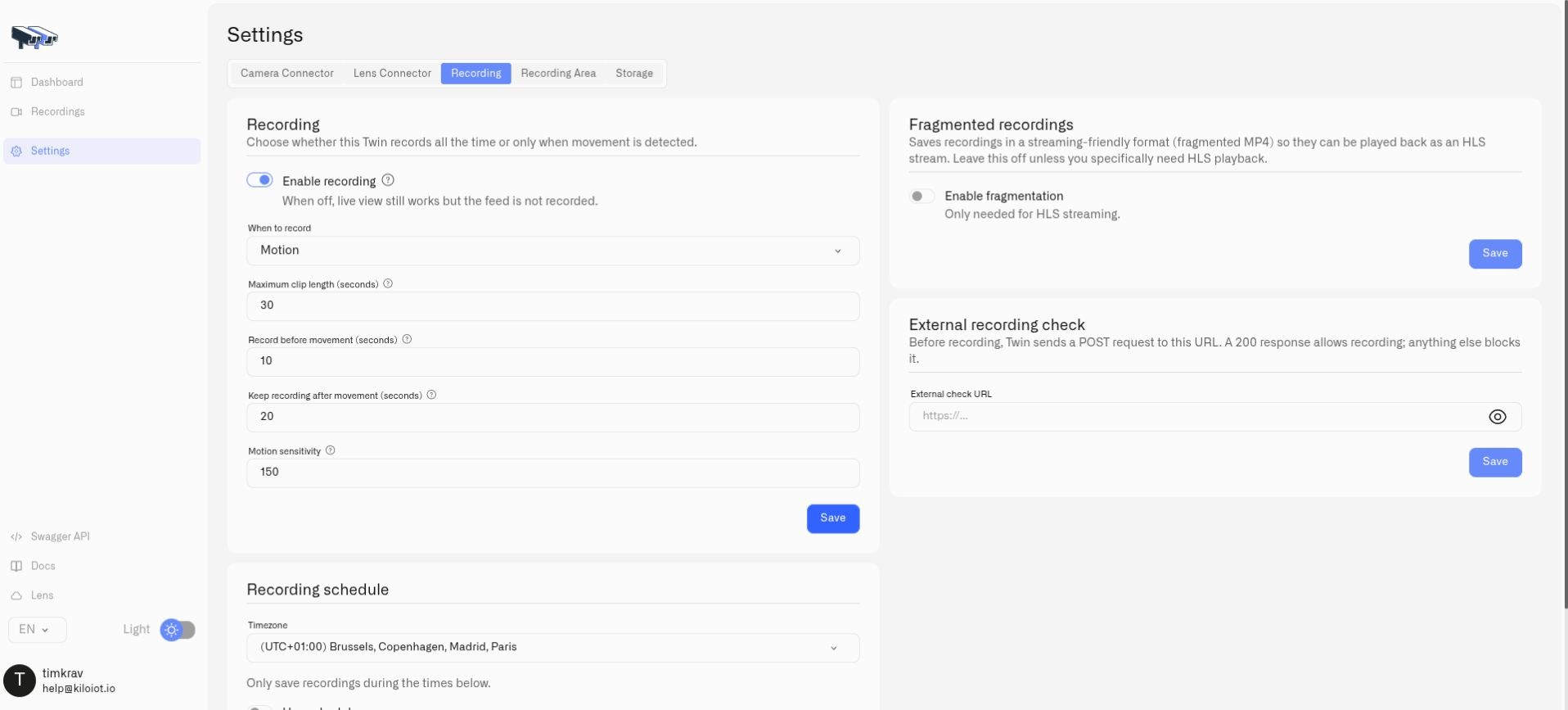
1. Open Twin and go to **Settings → Recording**.
2. Enable recording.
3. Under **When to record**, choose motion-based or continuous recording.
4. For motion recording, configure the pre-recording and post-recording periods and maximum clip length. These determine how much context surrounds detected activity and how clips are divided.
5. Save the configuration.
Choose motion mode when selected-area detection drives your workflow. Configure [Motion Zones](/lens/motion-zones.md) and sensitivity before relying on the resulting clips. Continuous recording saves video without waiting for movement and skips motion processing. Choose **Motion** when camera-motion readings drive your rules; you may leave recording disabled if you need motion readings without saved video.
### Clip timing and sensitivity
| Setting | Effect |
| --------------------------------------- | ---------------------------------------------------------------------------------------------------------------------- |
| Maximum clip length (seconds) | Caps the length of a saved clip. Continued movement can result in further clips. |
| Record before movement (seconds) | Includes buffered video from before the trigger. The amount available depends on the camera's keyframes and buffer. |
| Keep recording after movement (seconds) | Adds context after the trigger; further movement can extend the clip up to its maximum length. |
| Motion sensitivity | Threshold measured in changed pixels. Lower values detect smaller changes; a value around 150 is the balanced default. |
### Set a recording schedule
The shipped default timezone is **UTC**. Verify **Timezone** against the site's operating hours before turning on **Use schedule**: a different zone can move recording and motion-processing windows relative to local time. Retaining the configuration volume during an upgrade retains the saved timezone rather than resetting it to the shipped default.
In **Recording schedule**, select **Timezone**, enable **Use schedule**, and configure the active intervals for each relevant day. Each day supports two intervals, useful for a morning and evening monitoring period. Save the schedule and test both an active and an inactive period. Schedules also restrict motion processing, so use unrestricted operation for the initial motion-rule test.
Motion recording includes configurable video before and after detected movement.
## How do I control disk use for recordings?
In **Settings → Storage → Automatic cleanup**, enable one or both limits:
* **Limit by total size**: set **Maximum recordings folder size (MB)**. The oldest recordings are removed when the folder exceeds this size.
* **Limit by age**: set **Delete clips older than (days)** in Twin to remove recordings after your retention period. In Lens the same setting is called **Maximum recording age (days)**, and it also applies to cloud backups, so a cloud copy is removed when it reaches the same age.
Select **Save**. When both limits are enabled, reaching either limit can remove a recording. Download clips you must retain separately before cleanup removes them.
Storage paths are paths inside the container. Keep the recording directory mounted to persistent host storage. A larger disk alone does not change the cleanup limits.
## How do I review or download a clip?
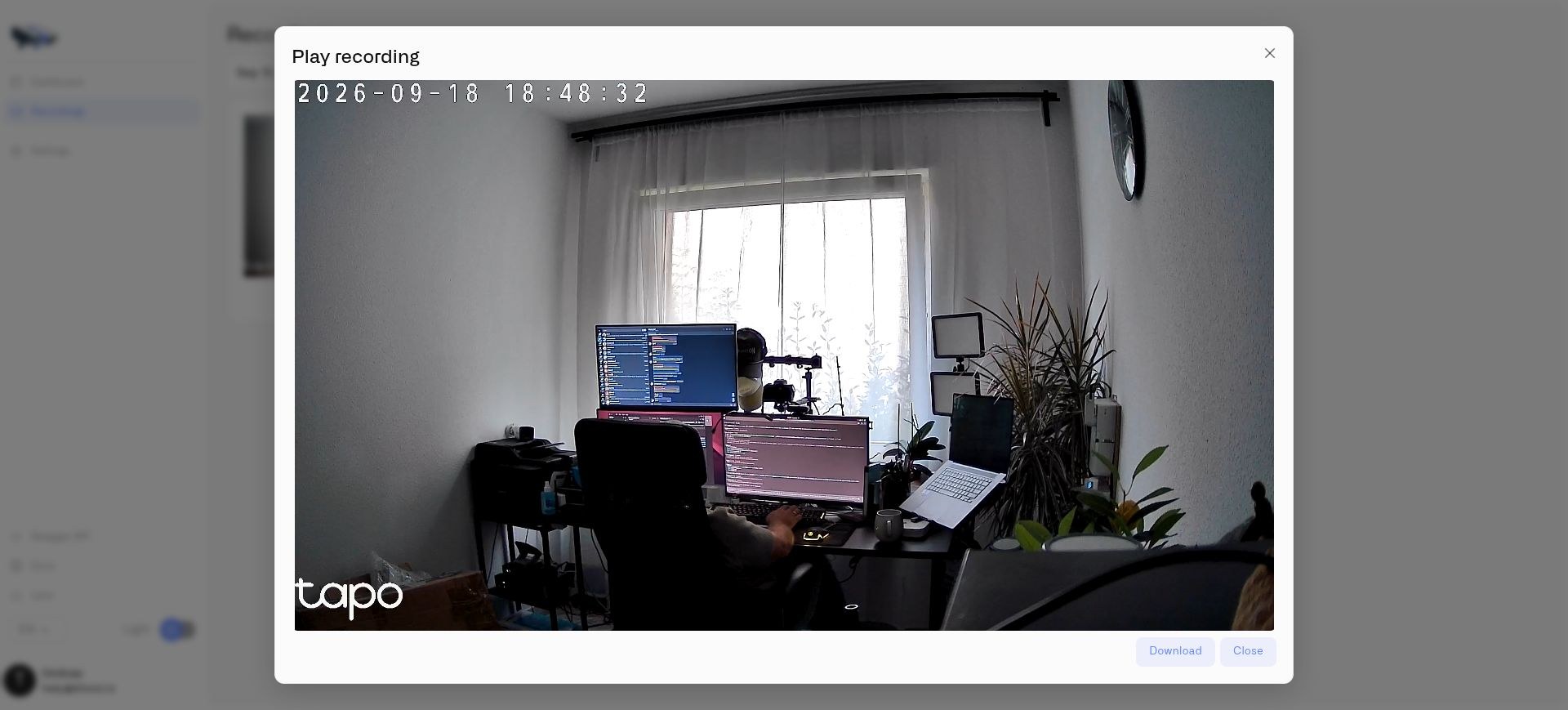
Open **Recordings** in Twin, select the relevant date range, and open a recording. Use playback to inspect it and the download control to save the clip when needed.
Review the saved clip in Twin or download it for later inspection.
Check the recorded time, picture, and expected pre/post-event context during commissioning. A selected motion area determines what triggers a clip; it does not crop the saved image to that area.
## Can I keep a copy of recordings in the cloud?
Yes. A local disk is one failure away from losing a clip. With Twin 1.1.0 or later, you can also upload an encrypted copy of each recording to your own Amazon S3, Google Cloud Storage, or Walrus storage and play it back from **Recordings** in Lens. See [Cloud Archive](/lens/cloud-archive.md).
## How do I record on an external condition?
**External recording check** lets an existing system permit or prevent processing—for example, an occupancy system can enable monitoring while a site is unattended. Enter its endpoint in **External check URL** and save. This is an advanced integration; test ordinary recording before enabling it.
Twin sends an HTTP POST containing `camera_id`, `camera_name`, `site_id`, and `timestamp`. HTTP **200** permits processing; other responses or request failures prevent it. The request times out after eight seconds. Results are cached for thirty seconds and refreshed in the background; processing is initially permitted before the first result arrives. This is therefore not an immediate or fail-closed access control. Use an endpoint you control and check its logs while testing both responses.
---
# Agent Instructions
This documentation is published with GitBook. GitBook is the documentation platform designed so that both humans and AI agents can read, navigate, and reason over technical content effectively. Learn more at gitbook.com.
## Querying This Documentation
If you need additional information that is not directly available in this page, you can query the documentation by asking a question.
Perform an HTTP GET request on the following URL with the `ask` and `goal` query parameters:
```
GET https://docs.kiloiot.io/lens/local-recordings.md?ask=&goal=
```
`ask` is the immediate question: it should be specific, self-contained, and written in natural language.
`goal` is what the user is ultimately trying to achieve, the reason they need the answer. Sharing it helps GitBook give you a better, more relevant answer. A goal is most helpful when it describes the outcome the user wants rather than restating the question. For example, with `ask=how do I create an API token`, a goal like `automate deployments from our CI pipeline` lets GitBook tailor the answer to that use case.
The response will contain a direct answer to the question and relevant excerpts and sources from the documentation.
Use this mechanism when the answer is not explicitly present in the current page, you need clarification or additional context, or you want to retrieve related documentation sections.