> For the complete documentation index, see [llms.txt](https://docs.kiloiot.io/llms.txt). Markdown versions of documentation pages are available by appending `.md` to page URLs; this page is available as [Markdown](https://docs.kiloiot.io/lens/managing-cameras.md).
# Managing Cameras
Find, rename, reconnect, and remove cameras on the Kilo Lens Cameras page, and check each camera's connection status.
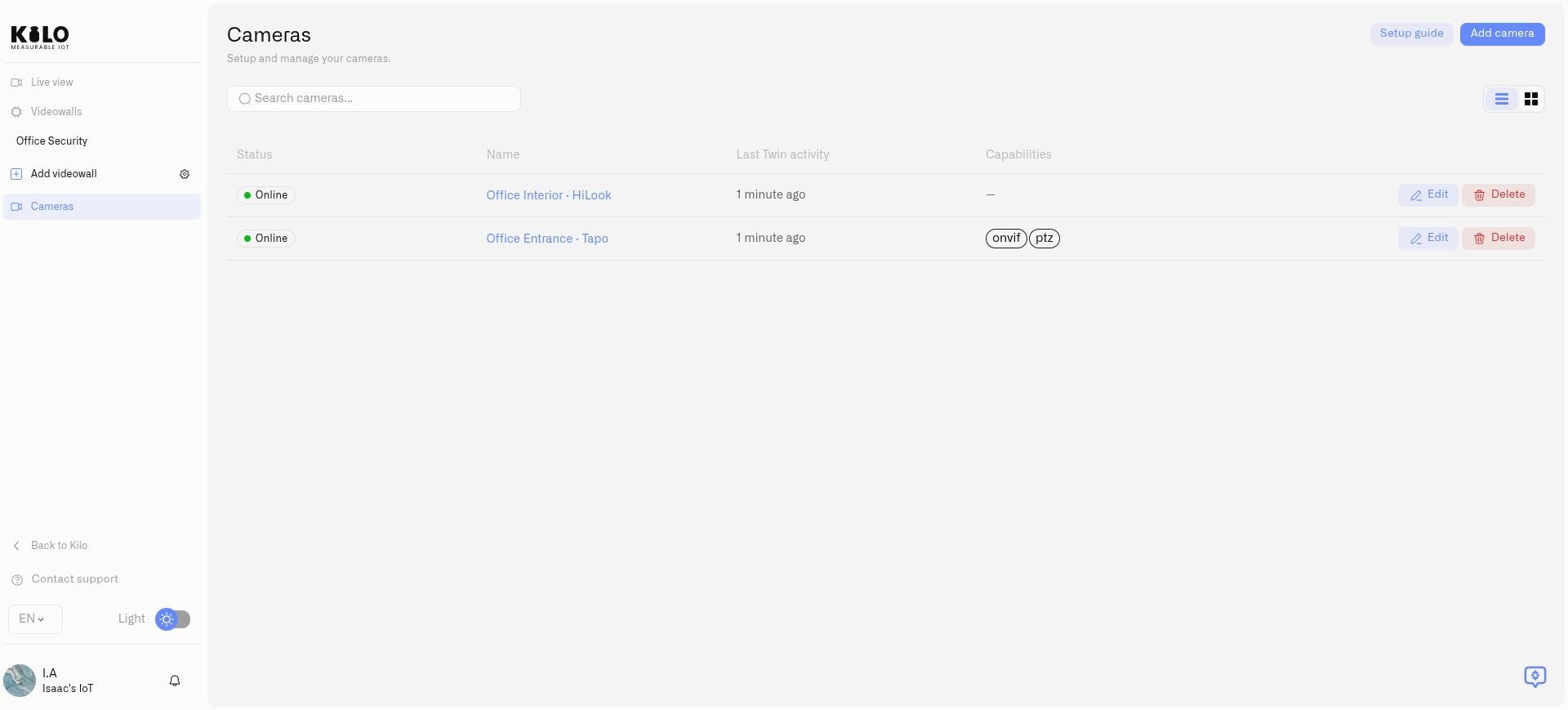
The **Cameras** page is your inventory of cameras connected through Lens. Use it to find the camera for a named entrance, depot, or floor, check its connection, and maintain its identity without searching through separate manufacturer applications.
## How do I find and inspect a camera?
1. Choose **Cameras** in the main navigation, then **Cameras** inside Lens.
2. Enter a name in **Search cameras...**. Switch between **List view** and **Grid view** to suit the number of cameras you manage.
3. Check **Status** (**Online**, **Offline**, **Waiting for the Twin**, or **Pairing window expired**) and **Last Twin activity**. The page title is **Cameras** with the subtitle **Setup and manage your cameras.** When no camera matches your search, it says **No cameras found.** A registered camera can still be waiting for its Twin to connect.
4. Open a camera to see **Camera detail**. **Lens connection** (under **Details**) shows its device identity, name, Twin key, and **Pairing** state, including **Paired**. [Camera detail page](/lens/camera-detail-settings.md) covers every tab, and [Lens Workspace Tour](/lens/lens-workspace-tour.md) shows each screen of the Lens menu.
An online connection and successful video playback are separate checks. If a feed will not play, confirm local Twin video first, then use [Access and Troubleshooting](/lens/access-and-troubleshooting.md). A last-activity time describes the Twin's contact with the platform; it is not evidence that nobody has moved in the scene.
The inventory shows connection state and camera management actions.
## How do I rename a camera?
Select **Edit** on the camera's row (or the pencil beside **Camera detail** on its page), enter **Camera name**, and select **Save**. If the platform refuses the change you see **Failed to update camera**. Choose a name that identifies the view, such as an entrance or loading area, rather than only the camera model. Renaming updates the platform device name; it does not require a new Twin or pairing.
## How do I recover a lost pairing?
Use **Reconnect Twin** when this Twin has lost its Lens pairing:
1. Open the camera's **Details** and select **Reconnect Twin** under **Lens connection**.
2. Read the confirmation, **Generate a new one-time connection token for this Twin? Any previous unused token becomes invalid.**, then confirm. If it fails you see **Failed to generate a new connection token.**
3. The **Reconnect Twin** dialog shows the same **Lens API URL** and **Connection token** fields as the pairing dialog, including **Expires** and the show-once warning. Copy both from the dialog. Use these supplied values rather than a saved development address. **Done** closes the dialog; the token cannot be shown again.
4. Open that camera's local Twin and enter them in **Lens Connector**, following [Connecting a Camera](/lens/connecting-a-camera.md).
5. Complete the connection before the displayed expiry, then check pairing and playback in the platform. If the token expires, generate another.
Keep the same Twin configuration volume when recovering or upgrading. A new empty volume creates a different Twin identity. Pairing tokens grant connection access: keep them private and do not include them in support screenshots.
## How do I remove a camera?
Choose **Delete** for the camera and review the **Delete camera** confirmation (**Delete** *camera name*?). Select **Delete** to confirm or **Cancel** to keep it. Removing it withdraws its platform connection; check dashboards, rules, and viewing arrangements that use it before confirming. This is different from removing a panel from a videowall, which leaves the camera available for other views.
Deleting a platform camera does not uninstall its Docker container or delete recordings on its local host. Manage those separately when retiring the physical installation.
---
# Agent Instructions
This documentation is published with GitBook. GitBook is the documentation platform designed so that both humans and AI agents can read, navigate, and reason over technical content effectively. Learn more at gitbook.com.
## Querying This Documentation
If you need additional information that is not directly available in this page, you can query the documentation by asking a question.
Perform an HTTP GET request on the following URL with the `ask` and `goal` query parameters:
```
GET https://docs.kiloiot.io/lens/managing-cameras.md?ask=&goal=
```
`ask` is the immediate question: it should be specific, self-contained, and written in natural language.
`goal` is what the user is ultimately trying to achieve, the reason they need the answer. Sharing it helps GitBook give you a better, more relevant answer. A goal is most helpful when it describes the outcome the user wants rather than restating the question. For example, with `ask=how do I create an API token`, a goal like `automate deployments from our CI pipeline` lets GitBook tailor the answer to that use case.
The response will contain a direct answer to the question and relevant excerpts and sources from the documentation.
Use this mechanism when the answer is not explicitly present in the current page, you need clarification or additional context, or you want to retrieve related documentation sections.