> For the complete documentation index, see [llms.txt](https://docs.kiloiot.io/llms.txt). Markdown versions of documentation pages are available by appending `.md` to page URLs; this page is available as [Markdown](https://docs.kiloiot.io/lens/motion-zones.md).
# Motion Zones
Draw a motion zone in Twin so a Kilo Lens camera detects movement only in the area you care about, such as a doorway.
A motion zone limits the part of a camera image used for motion detection. It is useful when a camera sees both an area you care about and normal activity that should not trigger a response.
For example, a street-facing camera may show a pavement, stairs, and an office door. Select the doorway to detect activity at the entrance while excluding pedestrians elsewhere in the frame. Twin provides this detection even when the camera itself has no built-in AI.
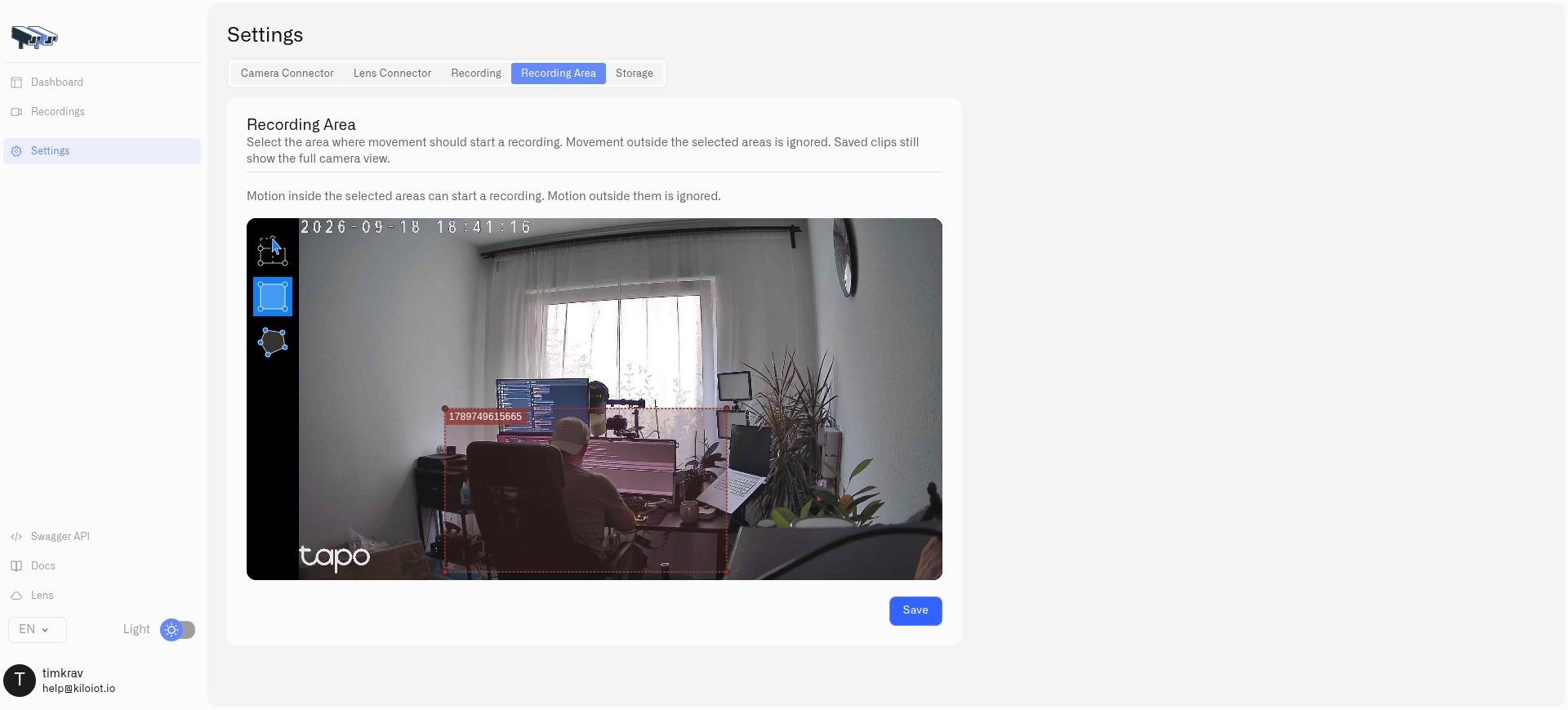
This demonstration selects the desk area. For an entrance camera, draw the region around the doorway instead.
## How do I configure the motion detector in Twin?
1. Open the camera's Twin and go to **Settings → Recording**.
2. Choose **Motion** under **When to record**. The motion workflow must be enabled rather than continuous mode.
3. For the first test, leave timetable and external-condition restrictions off so they do not prevent processing.
4. Open **Recording Area**.
5. Draw a rectangle around the doorway, or choose the polygon tool for a more precise outline.
6. Save the area and settings.
The area editor offers rectangle (**R**), polygon (**O**), and move/delete (**M**) tools. Use the current camera view to place boundaries accurately. Recheck the area after moving the camera or changing its position.
## How do I tune and test motion zones?
Adjust the global pixel-change sensitivity in Twin. A lower threshold detects smaller changes and is more sensitive. Sensitivity is not an independent setting for each zone.
Test movement inside the selected area, then test movement outside it. Confirm that the motion reading changes for the intended activity. Shadows, reflections, rain, and lighting changes can also change pixels, so test under the conditions your deployment will encounter.
With no areas configured, detection uses the full frame. With several areas, qualifying movement in any selected area contributes to the camera's motion state. A zone restricts detection, not the picture shown in live video or a saved clip.
## Can I use motion without saving video?
Motion telemetry can be used while saving recordings is disabled, provided motion processing remains configured. Enable recording separately when local clips are required. Timetables and external conditions can restrict when processing takes place, so configure them only after the basic behavior is verified.
Next, [use the motion reading in a rule](/lens/camera-rules-and-alerts.md), or configure [local recordings](/lens/local-recordings.md).
---
# Agent Instructions
This documentation is published with GitBook. GitBook is the documentation platform designed so that both humans and AI agents can read, navigate, and reason over technical content effectively. Learn more at gitbook.com.
## Querying This Documentation
If you need additional information that is not directly available in this page, you can query the documentation by asking a question.
Perform an HTTP GET request on the following URL with the `ask` and `goal` query parameters:
```
GET https://docs.kiloiot.io/lens/motion-zones.md?ask=&goal=
```
`ask` is the immediate question: it should be specific, self-contained, and written in natural language.
`goal` is what the user is ultimately trying to achieve, the reason they need the answer. Sharing it helps GitBook give you a better, more relevant answer. A goal is most helpful when it describes the outcome the user wants rather than restating the question. For example, with `ask=how do I create an API token`, a goal like `automate deployments from our CI pipeline` lets GitBook tailor the answer to that use case.
The response will contain a direct answer to the question and relevant excerpts and sources from the documentation.
Use this mechanism when the answer is not explicitly present in the current page, you need clarification or additional context, or you want to retrieve related documentation sections.