> For the complete documentation index, see [llms.txt](https://docs.kiloiot.io/llms.txt). Markdown versions of documentation pages are available by appending `.md` to page URLs; this page is available as [Markdown](https://docs.kiloiot.io/lens/storage-connectors.md).

# Storage Connectors

Field-by-field reference for the Kilo Lens storage connectors: Amazon S3, Google Cloud Storage, and Walrus, with permissions and limits.

A **storage connector** tells Lens where to keep your camera recordings. This page walks through the form for each connector type, field by field. For why and how the archive works, start with [Cloud Archive](/lens/cloud-archive.md).

## How do I open the Add storage connector form?

1. In the main menu choose **Cameras** to open the Lens workspace.
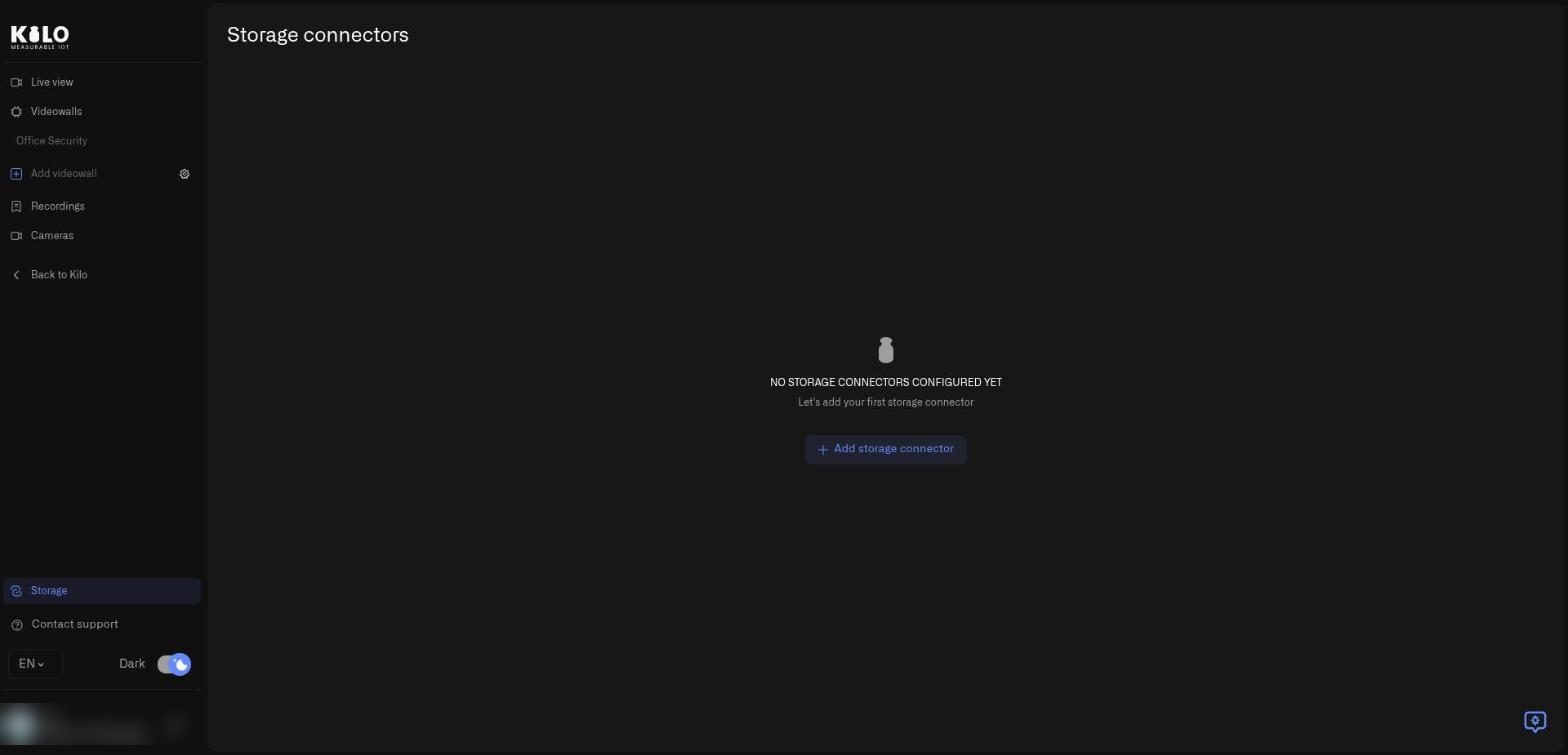
2. Select **Storage** in the Lens menu, below **Back to Kilo**. The **Storage connectors** page opens. If you do not see **Storage**, the storage feature is not switched on for your organization yet.

<figure><img src="https://2057878315-files.gitbook.io/~/files/v0/b/gitbook-x-prod.appspot.com/o/spaces%2FtNQh1wBSHSaknslMdOXm%2Fuploads%2Fgit-blob-cb8e568203bda4cf81f9c14b01186790ce0b0b27%2Fkilo-lens-storage-connectors-empty.jpg?alt=media" alt="The Storage connectors page with the message No storage connectors configured yet and an Add storage connector button"><figcaption><p>The Storage connectors page before any connector exists.</p></figcaption></figure>

3. Select **Add storage connector**. On an empty page the button sits in the middle of the page under "Let's add your first storage connector"; once at least one connector exists it moves to the top right of the page header. In the dialog open **Connector type**, pick **Amazon S3**, **Google Cloud Storage**, or **Walrus**, and select **Next**. **Next** stays disabled until you pick a type. **Cancel** closes the dialog without saving. If the list cannot load, the dialog shows **Connector catalog unavailable.** followed by a note that the storage service is offline. Close it and try again in a few minutes.
4. Fill in the fields below and select **Add connector**. If the platform refuses the settings, a red message appears at the bottom of the form, either the provider's explanation or **Failed to create connector. Please try again.** Fix the field it names and select **Add connector** again.

The next step shows the provider's name, a short description, and an **Add connector** button that stays disabled until every required field is filled in. Every form starts with the same note: **Your storage keeps the recordings; the platform keeps the keys and previews and can read the archive. Rotating a key protects future recordings, not past ones.** Read it before you connect storage you care about.

## How do I add Amazon S3 or S3-compatible storage?

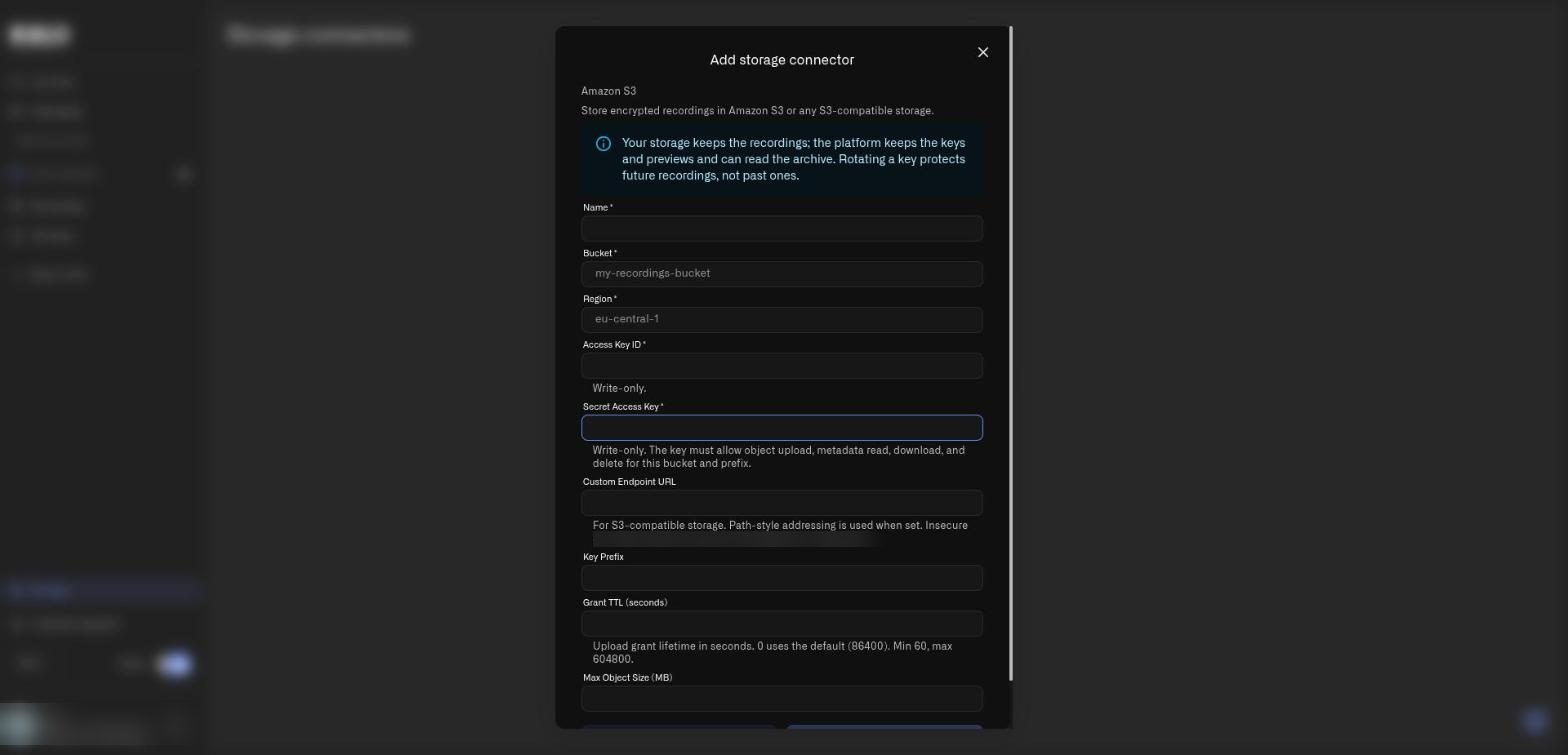
<figure><img src="https://2057878315-files.gitbook.io/~/files/v0/b/gitbook-x-prod.appspot.com/o/spaces%2FtNQh1wBSHSaknslMdOXm%2Fuploads%2Fgit-blob-a4090c31b3bce0cdf1e8d60443fbcb9c3ebf88db%2Fkilo-lens-storage-connector-s3.jpg?alt=media" alt="The Add storage connector form for Amazon S3 with Name, Bucket, Region, Access Key ID, Secret Access Key, Custom Endpoint URL, Key Prefix, Grant TTL and Max Object Size fields"><figcaption><p>The Amazon S3 form, shown over the dimmed Storage connectors page. Secret fields are marked write-only.</p></figcaption></figure>

| Field                    | Required | What to enter                                                                                                                                              |
| ------------------------ | -------- | ---------------------------------------------------------------------------------------------------------------------------------------------------------- |
| **Name**                 | Yes      | A label you will recognize, such as the site or purpose. You pick this name later under **Backup to**                                                      |
| **Bucket**               | Yes      | The bucket name, for example `my-recordings-bucket`                                                                                                        |
| **Region**               | Yes      | The bucket's region, for example `eu-central-1`                                                                                                            |
| **Access Key ID**        | Yes      | The access key for a user or role that can write to the bucket. It is write-only                                                                           |
| **Secret Access Key**    | Yes      | The matching secret. It is write-only. The key must allow object upload, metadata read, download, and delete for this bucket and prefix                    |
| **Custom Endpoint URL**  | No       | For S3-compatible storage. Path-style addressing is used when you set it. The address must be secure and public; insecure or private endpoints are refused |
| **Key Prefix**           | No       | A folder-like prefix inside the bucket, useful for one site or team                                                                                        |
| **Grant TTL (seconds)**  | No       | How long an upload permission lasts. `0` uses the default of 86400. Minimum 60, maximum 604800                                                             |
| **Max Object Size (MB)** | No       | Largest single recording to accept. Empty uses 500 MB                                                                                                      |

Use a dedicated key with only those permissions rather than an administrator key.

## How do I add Google Cloud Storage?

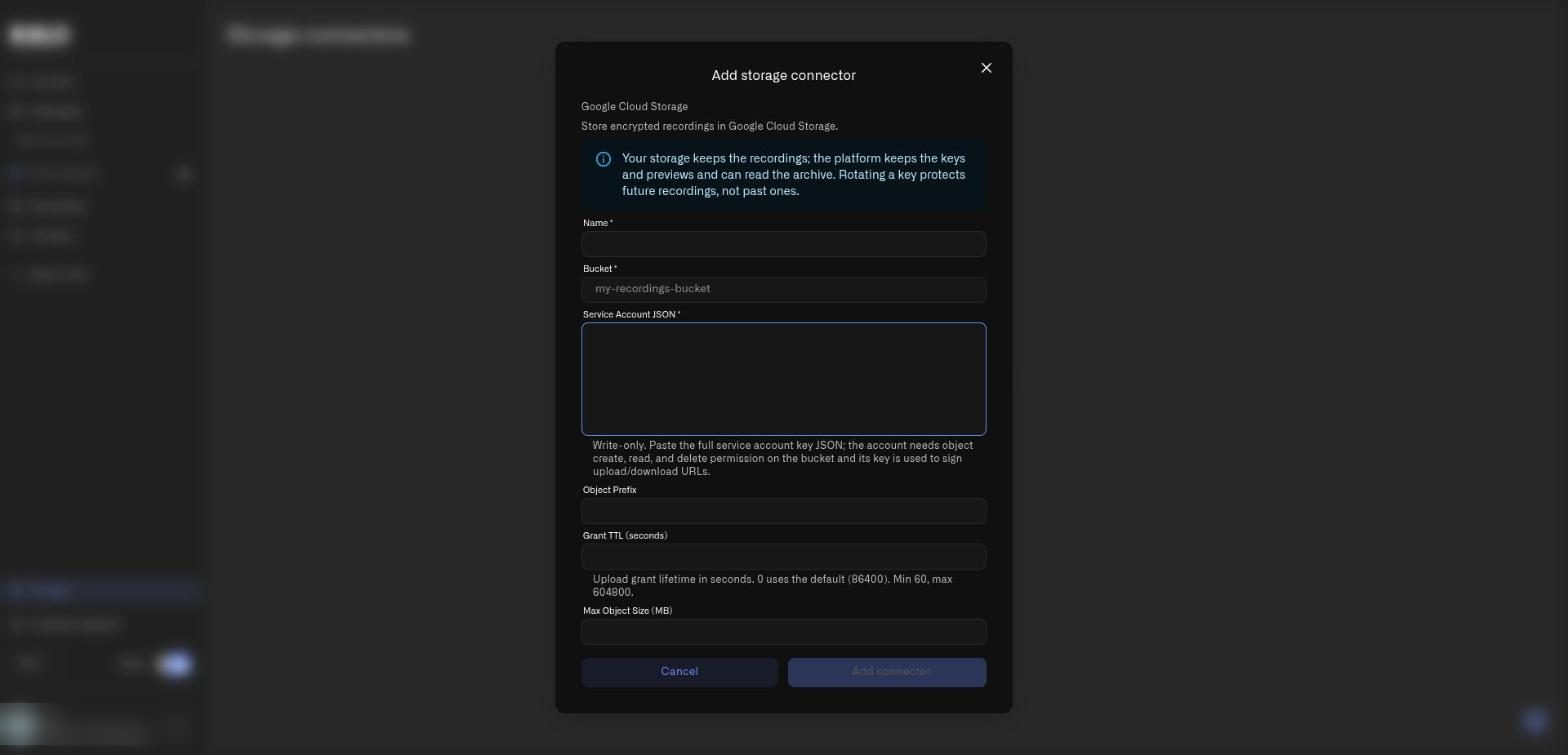
<figure><img src="https://2057878315-files.gitbook.io/~/files/v0/b/gitbook-x-prod.appspot.com/o/spaces%2FtNQh1wBSHSaknslMdOXm%2Fuploads%2Fgit-blob-39990a8a28e74fb3a77df724e673b676afc7330a%2Fkilo-lens-storage-connector-gcs.jpg?alt=media" alt="The Add storage connector form for Google Cloud Storage with Name, Bucket, Service Account JSON, Object Prefix, Grant TTL and Max Object Size fields"><figcaption><p>The Google Cloud Storage form. The Service Account JSON box is a multi-line, write-only field.</p></figcaption></figure>

| Field                    | Required | What to enter                                                                                                                                                                                        |
| ------------------------ | -------- | ---------------------------------------------------------------------------------------------------------------------------------------------------------------------------------------------------- |
| **Name**                 | Yes      | A label you will recognize                                                                                                                                                                           |
| **Bucket**               | Yes      | The bucket name                                                                                                                                                                                      |
| **Service Account JSON** | Yes      | Paste the full service account key file. It is write-only. The account needs permission to create, read, and delete objects in the bucket, and its key is used to sign upload and download addresses |
| **Object Prefix**        | No       | A prefix inside the bucket                                                                                                                                                                           |
| **Grant TTL (seconds)**  | No       | Upload permission lifetime. `0` uses the default of 86400. Minimum 60, maximum 604800                                                                                                                |
| **Max Object Size (MB)** | No       | Largest single recording to accept. Empty uses 500 MB                                                                                                                                                |

Google Cloud Storage support is newly released for Lens. Test it with a short recording before you depend on it.

## How do I add Walrus storage?

<figure><img src="https://2057878315-files.gitbook.io/~/files/v0/b/gitbook-x-prod.appspot.com/o/spaces%2FtNQh1wBSHSaknslMdOXm%2Fuploads%2Fgit-blob-e1a2c7a6911be62fc8eb10cb6cc2ad6856d4d0b6%2Fkilo-lens-storage-connector-walrus.jpg?alt=media" alt="The Add storage connector form for Walrus with Name, Publisher URL, Aggregator URL, Network, Storage Epochs, Max Blob Size, Grant TTL, Sui GraphQL URL and Publisher JWT secret fields"><figcaption><p>The Walrus form. It continues below the visible area with Publisher JWT algorithm and the Cancel and Add connector buttons; scroll inside the dialog to reach them.</p></figcaption></figure>

| Field                       | Required | What to enter                                                                                                   |
| --------------------------- | -------- | --------------------------------------------------------------------------------------------------------------- |
| **Name**                    | Yes      | A label you will recognize                                                                                      |
| **Publisher URL**           | Yes      | The Walrus publisher that accepts uploads, for example `https://publisher.walrus.space`                         |
| **Aggregator URL**          | Yes      | The Walrus aggregator that serves reads, for example `https://aggregator.walrus.space`                          |
| **Network**                 | Yes      | The Walrus network, for example `mainnet`                                                                       |
| **Storage Epochs**          | No       | How many epochs to pay for. The default is 1                                                                    |
| **Max Blob Size (MB)**      | No       | Largest single recording to accept. Empty uses 500 MB                                                           |
| **Grant TTL (seconds)**     | No       | Upload permission lifetime. `0` uses the default of 86400. Minimum 60, maximum **86400** for Walrus             |
| **Sui GraphQL URL**         | No       | The endpoint used to read the current Walrus epoch for storage-lifetime retention. Empty uses a network default |
| **Publisher JWT secret**    | No       | Write-only. Only for a private publisher: the value of its `--jwt-decode-secret`, in hex with a `0x` prefix     |
| **Publisher JWT algorithm** | No       | `HS256` (default), `HS384`, or `HS512`, matching your publisher                                                 |

Walrus keeps a recording for the epochs you pay for. Treat that period as a **minimum**: choosing **Remove from archive** removes the recording from Lens but does not delete the file before the paid period ends. The aggregator you use must support byte-range requests, or playback cannot seek.

## What happens to my credentials after I save them?

Secret fields are write-only. After you save, Lens does not show them again. When you edit a connector, leaving a secret field blank keeps the stored value. If you change the endpoint, you must enter the credentials again.

Use dedicated credentials for Lens, keep them out of screenshots and support messages, and rotate them in your provider's console when people who knew them leave. See [Cloud Archive](/lens/cloud-archive.md) for what **Mark key as compromised** and **Disconnect storage** do, and for how to point a camera at the connector under **Cloud backup** on its Storage tab.

## How do I read the Storage connectors list?

Once you have added a connector, the page lists every connector in a table. Sort a column by selecting its heading.

| Column      | What it shows                                                                                                                                                                                                   |
| ----------- | --------------------------------------------------------------------------------------------------------------------------------------------------------------------------------------------------------------- |
| **Name**    | The label you gave the connector                                                                                                                                                                                |
| **Type**    | The provider, for example Amazon S3                                                                                                                                                                             |
| **Status**  | A colored badge: **Active** (green), **Inactive** (gray), **Error** (red), or **Disconnected** (gray). Hover the badge to see **Verified at** and the time of the last successful check, or the last error text |
| **Usage**   | How much recorded data Lens has stored in this connector                                                                                                                                                        |
| **Details** | Short notes that appear only when they apply (see below). Shows a dash when there is nothing to report                                                                                                          |
| **Created** | The day you added the connector                                                                                                                                                                                 |

The last column holds the buttons for each row.

### What do the Details notes mean?

| Note                                                                                                              | What it means and what to do                                                                                                                          |
| ----------------------------------------------------------------------------------------------------------------- | ----------------------------------------------------------------------------------------------------------------------------------------------------- |
| The provider's error text, or **Check the connector settings and verify it again.**                               | The connector is in **Error**. Open **Edit** to correct the settings, then select **Verify**. Long errors are shortened; hover to read the whole text |
| **Disconnected** *date* **by** *user*                                                                             | Someone disconnected the storage on that date. Use **Reconnect** to use it again                                                                      |
| **Key compromised** *date* **by** *user*                                                                          | Someone marked the key as compromised and a new key was issued                                                                                        |
| **Walrus keeps files for the paid period. They can't be deleted earlier.**                                        | Recordings in this Walrus connector stay in your storage until the paid epochs end                                                                    |
| **Seeking support will be checked with the first recording.**                                                     | Lens has not yet learned whether your storage serves file parts. It checks when the first recording uploads                                           |
| **Seeking is not available: this storage doesn't serve file parts. Use an aggregator that supports byte ranges.** | Recordings play, but you cannot jump within them. Switch to storage or an aggregator that supports byte ranges                                        |
| **The signing secret will be confirmed by the first uploaded recording.**                                         | Nothing to do. The first successful upload clears this note                                                                                           |
| **The storage did not accept uploads on** *date* **(HTTP** *code*\*\*).\*\*                                       | Your storage rejected an upload. Check the credentials and permissions, then upload again                                                             |
| **The storage could not be reached for uploads for 24 hours.**                                                    | Check the endpoint address and the network path to your storage                                                                                       |

### What do the row buttons do?

| Button                          | What it does                                                                                                                                                                                                                                                                                                                                                                                                             |
| ------------------------------- | ------------------------------------------------------------------------------------------------------------------------------------------------------------------------------------------------------------------------------------------------------------------------------------------------------------------------------------------------------------------------------------------------------------------------ |
| **Verify**                      | Checks that Lens can reach the storage with the saved credentials. A green toast says **Connector reachable** (or the provider's own message); a red toast says **Connector unreachable** or shows the error. A spinner shows while the check runs                                                                                                                                                                       |
| **Edit**                        | Opens the same form with the type locked and the saved values filled in. Secret fields stay blank; leave them blank to keep the stored value. Select **Save** to apply. If saving fails you see **Failed to update connector. Please try again.**                                                                                                                                                                        |
| **Mark key as compromised**     | Starts key rotation. See [Cloud Archive](/lens/cloud-archive.md#how-do-i-rotate-the-key-if-i-think-it-leaked) for the dialog and the **Resend** button                                                                                                                                                                                                                                                                   |
| **Disconnect storage**          | Permanently erases the platform's keys for this connector. See [Cloud Archive](/lens/cloud-archive.md#how-do-i-stop-using-a-storage-connector)                                                                                                                                                                                                                                                                           |
| **Reconnect**                   | Replaces Edit, Verify, **Mark key as compromised** and **Disconnect storage** on a disconnected connector. It opens the form with the secrets erased: enter the credentials again and select **Reconnect**                                                                                                                                                                                                               |
| **Uploaded but not registered** | Lists files that reached your storage but whose upload never finished, so Lens does not track them. Each entry shows the file name, the time, and its location in your storage. The list covers the last 30 days; select **Load more** for older pages. Remove those files in your own storage console. If the list fails to load, select **Try again**. An empty list says **No orphaned uploads in the last 30 days.** |
| **Delete**                      | Asks **Are you sure you want to remove connector** *name*\*\*?\*\* Select **Yes, remove** to confirm. A green toast says **Storage connector removed**. The platform refuses while camera policies, unfinished uploads, or recordings still reference the connector; the toast then explains why. Move the cameras to another connector or **None (local only)** first                                                   |

If another administrator deletes a connector while you have its dialog open, the dialog is replaced by the notice **This storage connector no longer exists.**


---

# Agent Instructions
This documentation is published with GitBook. GitBook is the documentation platform designed so that both humans and AI agents can read, navigate, and reason over technical content effectively. Learn more at gitbook.com.

## Querying This Documentation
If you need additional information that is not directly available in this page, you can query the documentation by asking a question.

Perform an HTTP GET request on the following URL with the `ask` and `goal` query parameters:

```
GET https://docs.kiloiot.io/lens/storage-connectors.md?ask=<question>&goal=<user_goal>
```

`ask` is the immediate question: it should be specific, self-contained, and written in natural language.
`goal` is what the user is ultimately trying to achieve, the reason they need the answer. Sharing it helps GitBook give you a better, more relevant answer. A goal is most helpful when it describes the outcome the user wants rather than restating the question. For example, with `ask=how do I create an API token`, a goal like `automate deployments from our CI pipeline` lets GitBook tailor the answer to that use case.

The response will contain a direct answer to the question and relevant excerpts and sources from the documentation.

Use this mechanism when the answer is not explicitly present in the current page, you need clarification or additional context, or you want to retrieve related documentation sections.