> For the complete documentation index, see [llms.txt](https://docs.kiloiot.io/llms.txt). Markdown versions of documentation pages are available by appending `.md` to page URLs; this page is available as [Markdown](https://docs.kiloiot.io/lens/videowalls.md).

# Videowalls

Build a Kilo Lens videowall with selected camera feeds, arrange its panels, and save a layout for operational monitoring.

A **videowall** is a saved arrangement of camera feeds inside Lens. It gives an operations team a repeatable view of the cameras relevant to a location or task, with panel sizes chosen for the scene rather than a fixed list of all cameras.

A security team could place a main entrance beside a loading bay. The same approach can group cameras at transport stops, road junctions, or several properties. Compatible cameras from different manufacturers can appear in the same wall once their Twins are connected to your organization.

## How should I group cameras into videowalls?

Use separate walls for different levels of a deployment: a city or regional office, an individual property, a floor, or an operational area such as reception and deliveries. A regional team can open the wall for the site it is checking, while an on-site operator can focus on the cameras covering one entrance or loading area.

The grouping can also follow a task rather than geography. A transport operator might bring station entrances together; a property team might group service entrances across several buildings. Choose recognizable wall names so operators can find the right set of views quickly. Each wall saves its own camera selection and panel arrangement.

## What do I need before creating a videowall?

[Connect the cameras](/lens/connecting-a-camera.md) and verify their [live video](/lens/watching-live-video.md). Select the organization that owns them and use an account with **Edit** access to Cameras; a member with only **View** access does not get Lens at all. Creating a wall selects cameras already in Lens; it does not pair new hardware.

## How do I create and arrange a videowall?

1. Open **Cameras** to enter Lens.
2. In the Lens sidebar, under **Videowalls**, select **Add videowall**. With no walls yet, the sidebar says **No videowalls yet** above it.
3. The **Create videowall** dialog (**Configure your videowall settings**) opens. Enter a **Name**, such as `Station entrances`; leaving it empty shows **Name is required**. Optionally open **Folder** and pick a folder (**None** keeps the wall at the top level) and add a **Description**, then select **Save**. **Cancel** closes the dialog.
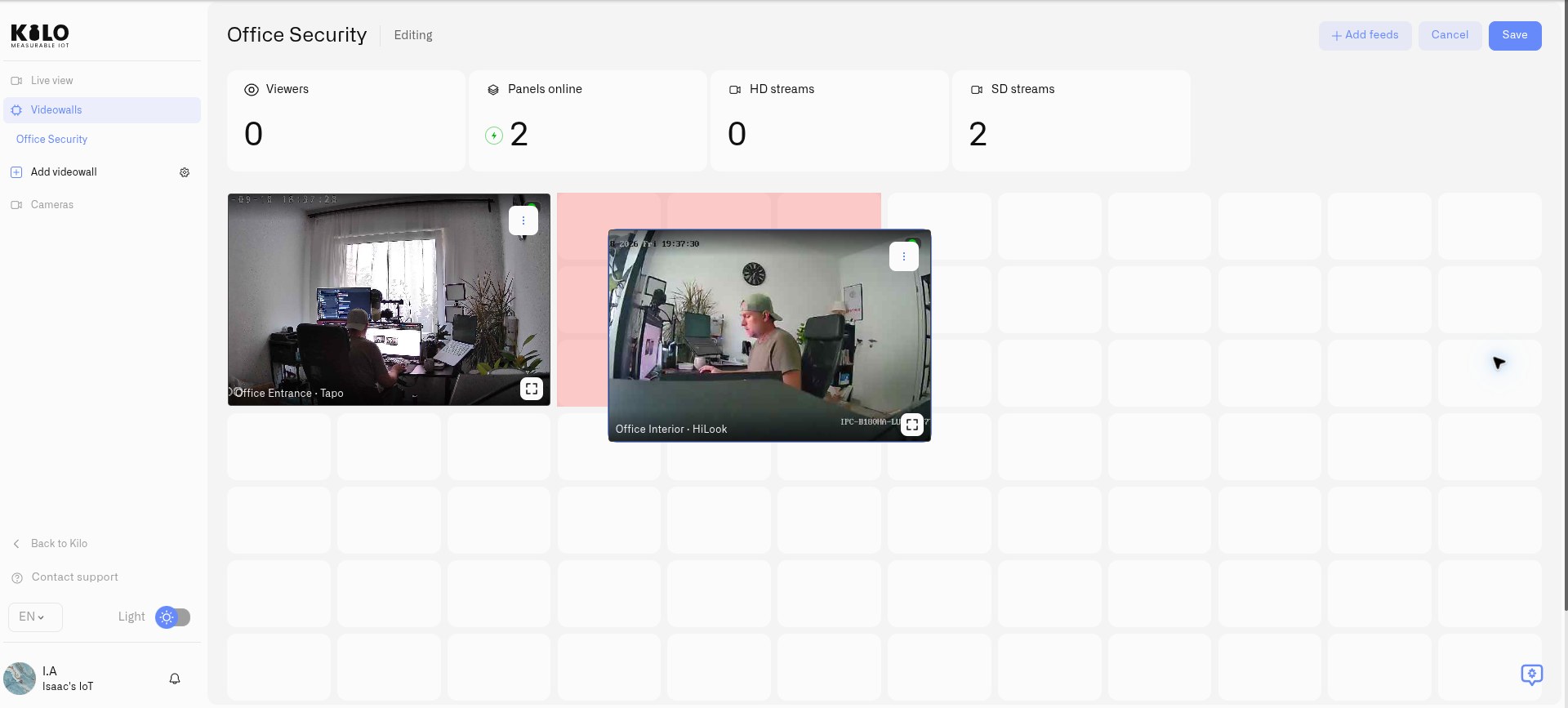
4. Open the new wall from the sidebar. Select the three-dot button in the top right and choose **Edit**. The header shows **Editing** in place of the live indicator.
5. Select **Add feeds**. The **Add Feeds** drawer (**Select cameras to add to this wall**) opens. Type in the search box to filter. Tick each camera, or use **Select all** to tick everything in the current filtered list and **Clear all** to untick. The counter reads *N* **cameras selected**. A camera already on the wall is labeled **on wall** and cannot be added twice. **No cameras found** appears when nothing matches; **Something went wrong. Please try again.** appears if the list failed to load.
6. Select **Add** *N* **Feeds** to place the selected cameras on the wall. The button stays disabled until at least one camera is ticked. **Cancel** closes the drawer.
7. Drag panels into position and resize them from their corners. Give a busy entrance more space or align cameras for comparison.
8. Select **Save** to keep the composition and layout. **Cancel** discards the current editing changes. **Save** is disabled while the save is running.

A wall with no panels shows **No feeds configured. Enter edit mode to add camera feeds.** The name, folder, and description are set when you create the wall and cannot be changed afterward. To use a different name or folder, create a new wall and delete the old one. The gear icon beside **Add videowall** (tooltip **Videowall settings**) opens **Manage videowalls**, which only creates and deletes folders; see below.

Reopen **Edit** to add more feeds or remove a panel with its delete control. Save again when the arrangement is ready. Removing a panel removes it from that wall; it does not disconnect its camera.

<figure><img src="https://2057878315-files.gitbook.io/~/files/v0/b/gitbook-x-prod.appspot.com/o/spaces%2FtNQh1wBSHSaknslMdOXm%2Fuploads%2Fgit-blob-653e927365de2e7b9ab7ce66e3c1d5a007ab6043%2Fkilo-lens-videowall-edit.jpg?alt=media" alt="A camera panel being dragged into position on a Kilo Lens videowall"><figcaption><p>In Edit mode, move and resize panels to arrange the cameras for the monitoring task.</p></figcaption></figure>

## How do I monitor cameras on a videowall?

Open a saved wall from **Videowalls** in the Lens sidebar, which also holds **Live view**, **Recordings**, **Cameras**, and **Storage**. Each camera offers **Preview** and **Live** viewing modes. Preview displays periodically refreshed images; choose **Live** when you need continuous video. Use **Toggle fullscreen** to inspect a panel more closely.

The top of the wall shows four counters: **Viewers** (people watching this wall now), **Panels online**, **HD streams** and **SD streams**. Hover the **Panels online** counter: it says **All** *N* **panels online** when everything is fine, or *N* **panel(s) need attention** when some are offline. A panel whose camera was removed from Lens shows **Camera unavailable** as its name. The header also shows a live-data indicator while you are not editing. A panel reported offline displays **Camera is offline** in place of its preview snapshot, so the last image is not retained as a current view. **No preview available** identifies a missing preview without establishing the camera's connection state; use the [connection-state guidance](/lens/watching-live-video.md#what-do-the-camera-connection-states-mean) to investigate. The **HD streams** and **SD streams** labels describe the wall's viewing modes; the camera's configured source still determines the actual available image detail.

Open an individual camera for supported audio or talkback controls. For ongoing responses to activity, combine the wall with [motion zones](/lens/motion-zones.md) and [camera rules and alerts](/lens/camera-rules-and-alerts.md).

## How do I return all cameras to home after an incident?

**Return All to Home** sends the supported cameras on the current videowall back to their individual home presets. A **PTZ camera** can pan, tilt, and zoom; a **preset** is a saved camera position. Each camera can have a different default position appropriate to its normal monitoring task.

For example, a security operator may steer several cameras to follow a person across a station or commercial property. When the incident ends, those cameras may be pointing away from their usual entrances, corridors, or platforms. Returning each camera by hand becomes tedious across a large wall. **Return All to Home** restores the chosen monitoring positions in one action, so the operator can resume normal coverage without repositioning every camera individually.

Set the intended home positions before using the command:

1. In Lens, open **Cameras** and select a PTZ camera.
2. Under **Camera controls → Presets**, find the position that should be its normal view. Use **Go to** to check that position if needed.
3. Select the star control, **Set as default**, beside that preset. The chosen position gains the **Default** label.
4. Repeat for the other supported cameras on the wall.
5. Open the saved videowall outside Edit mode and select **Return All to Home**.
6. Check the resulting camera views and notifications. The button is grayed out while the command runs and appears only on a wall that has panels. The action applies to cameras on this wall, not every camera in the organization. The notifications read *N* **camera(s) returned to home position**, *N* **camera(s) skipped - no PTZ support**, *N* **camera(s) skipped - set a home preset first**, *N* **camera(s) skipped - multiple presets found, set a default**, and *N* **camera(s) failed to return home**. If none of the cameras qualifies you see **No PTZ cameras with a home preset found**, and if the command itself fails, **Failed to return home**.

<figure><img src="https://2057878315-files.gitbook.io/~/files/v0/b/gitbook-x-prod.appspot.com/o/spaces%2FtNQh1wBSHSaknslMdOXm%2Fuploads%2Fgit-blob-d32327c63b4392258616619856c11fb1097eed42%2Fkilo-lens-default-preset.jpg?alt=media" alt="Kilo Lens camera controls with Facing Computer selected as the default preset"><figcaption><p>Choose the camera’s normal monitoring position as its default preset before returning the videowall cameras home.</p></figcaption></figure>

If a camera has several presets but no default, Lens skips it and reports **multiple presets found, set a default**. Choose the intended preset and run the command again. For example, a camera might have one position looking up at a ceiling and another covering a reception desk; choosing the desk position makes the operational meaning of “home” explicit. A supported PTZ camera with exactly one available preset can use that position without an explicit default.

Cameras without PTZ support or a usable preset are skipped. An offline camera, or a camera whose command fails, is counted in the same *N* **camera(s) failed to return home** notification, so check any camera that is reported there before assuming coverage has been restored. Supported camera controls require the camera's ONVIF connection to be configured in Twin; see [Connecting a Camera](/lens/connecting-a-camera.md).

## How do I organize and delete videowalls?

Select the gear icon next to **Add videowall** in the Lens sidebar to open **Manage videowalls** (**Organize your videowalls into folders**).

1. Type a name in **Enter folder name** and select **Create folder**. An empty name shows **Folder name is required**.
2. Folders expand to show the walls inside them. Choose the folder when you create a wall, to group related views, such as one folder per site.
3. Use the delete icon beside a folder or wall to remove it. A confirmation asks **Are you sure you want to delete this videowall?** with **Once deleted, this action cannot be undone.** Select **Yes, delete** to confirm.
4. A folder must be empty before it can be deleted. Otherwise a red toast says **Cannot delete a folder that contains videowalls**. Move or delete its walls first.

To remove a wall from its own page, open the three-dot menu, which holds **Edit** and **Delete videowall**, and choose **Delete videowall**, then confirm with **Yes, delete**. This removes the saved wall and its panels; the cameras and their Twins remain connected to Lens.


---

# Agent Instructions
This documentation is published with GitBook. GitBook is the documentation platform designed so that both humans and AI agents can read, navigate, and reason over technical content effectively. Learn more at gitbook.com.

## Querying This Documentation
If you need additional information that is not directly available in this page, you can query the documentation by asking a question.

Perform an HTTP GET request on the following URL with the `ask` and `goal` query parameters:

```
GET https://docs.kiloiot.io/lens/videowalls.md?ask=<question>&goal=<user_goal>
```

`ask` is the immediate question: it should be specific, self-contained, and written in natural language.
`goal` is what the user is ultimately trying to achieve, the reason they need the answer. Sharing it helps GitBook give you a better, more relevant answer. A goal is most helpful when it describes the outcome the user wants rather than restating the question. For example, with `ask=how do I create an API token`, a goal like `automate deployments from our CI pipeline` lets GitBook tailor the answer to that use case.

The response will contain a direct answer to the question and relevant excerpts and sources from the documentation.

Use this mechanism when the answer is not explicitly present in the current page, you need clarification or additional context, or you want to retrieve related documentation sections.
