> For the complete documentation index, see [llms.txt](https://docs.kiloiot.io/llms.txt). Markdown versions of documentation pages are available by appending `.md` to page URLs; this page is available as [Markdown](https://docs.kiloiot.io/lens/watching-live-video.md).
# Watching Live Video
Watch several Kilo Lens camera feeds side by side, and use each camera's audio, movement, and saved-position controls.
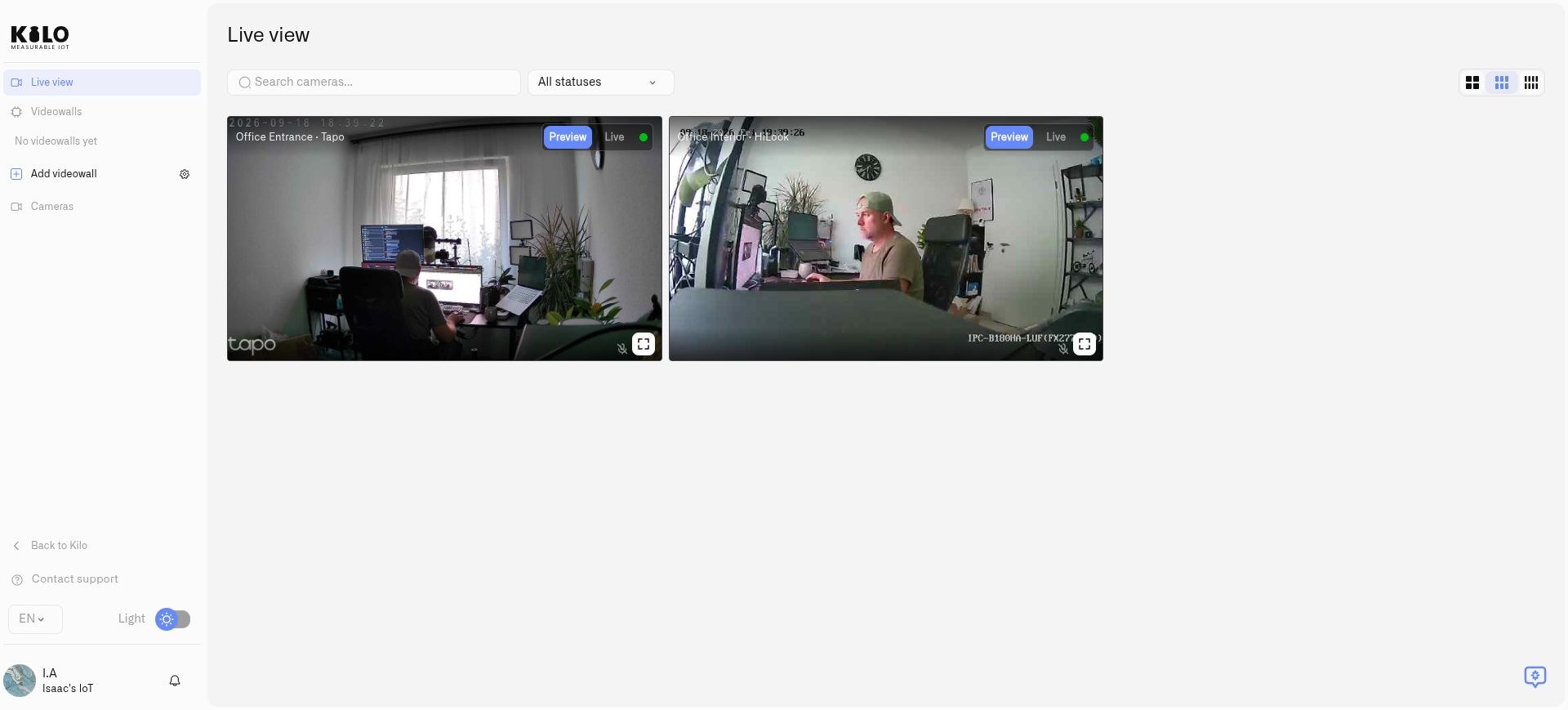
Lens **Live view** lets operators inspect multiple connected cameras in one workspace. It is useful for comparing activity at an entrance, loading area, or remote facility without opening separate manufacturer applications.
Each camera has its own Preview and Live controls.
## How do I open live camera feeds?
1. Select **Cameras** in Kilo's main navigation to open Lens.
2. Open **Live view**.
3. Type in **Search cameras...** to find a camera by name, and open **All statuses** to show only cameras in one state, such as **Online** or **Offline**. With no match the page says **No cameras available.** Use the page numbers under the grid when you have many cameras.
4. Choose a two-, three-, or four-column layout with the column buttons at the right of the filters (*N* **columns**). The default is three.
5. Start live video on each camera you want to watch.
A preview image and an active live stream are different viewing states. Start the stream when you need continuous video rather than assuming a preview is already live. Each tile has its own viewing controls, so two cameras can be watched together.
Select **Toggle fullscreen** on a tile when you need to examine one camera more closely. Return to the grid to compare views. Larger layouts and more simultaneous live streams require more network and viewing-device capacity.
## What controls do the live camera tiles have?
Available controls depend on the connected camera:
* **Audio:** the speaker button (tooltip **Listen**) unmutes or mutes camera sound when an audio stream is available.
* **Talkback:** the microphone button (tooltip **Hold to talk**) speaks through a compatible camera when two-way audio is available and configured. See below for how to use it.
Live tiles carry only the audio and talkback controls. Moving a camera and using presets happens on the camera's own page: open **Cameras**, select the camera, and use **Details → Camera controls** (see [Move a camera and save useful positions](#how-do-i-move-a-camera-and-save-presets)).
A camera without a supported capability will not gain physical movement or audio hardware through Lens. States such as **Needs setup** or **Not supported** help distinguish configuration from device capability.
| State | Where you see it | What it means |
| ----------------- | ----------------------------------- | ------------------------------------------------------------------------------------------------------------------------------------------------------------------------------------------------- |
| **Available** | Camera page, **Media capabilities** | The control works now |
| **Not supported** | **Live audio** or **Talkback** | This camera or its source type cannot do it. Optional detail: **Not supported by this camera type** or **No two-way audio detected on this camera** |
| **Needs setup** | **Talkback** | The camera can do it but setup is missing. On the live tile a crossed-out microphone shows **Two-way audio needs setup.** Detail may add **Camera cloud password required**. Finish setup in Twin |
| **Not available** | **Live audio** or **Talkback** | It is supported but unusable right now. Detail may say **No audio track detected**, **Audio codec not supported in the browser** or **Audio transport failed** |
A line such as **Talkback: Needs setup** appears on the tile when talkback is the problem; otherwise **Live audio** states are shown the same way.
### What does the live-stream statistics popup show?
Hover over the small colored status dot beside the **Preview** and **Live** switch in a live tile's top-right corner while a live stream plays. A popup lists the stream's technical values: **Resolution**, **FPS**, **Codec**, **Bitrate** (in kbps), **Total Data**, **Connection** type, **RTT** and **Jitter** (in ms), **Packets Lost**, **Frames Dropped**, and **Key Frames**. Move the pointer away to close it. Use it when video stutters: high **RTT**, **Jitter** or **Packets Lost** point to the network between your browser and the camera. The dot does not react while the tile shows a preview image. If the live connection cannot start, Lens reports **Live connection failed**; check the network path and try **Live** again.
Lens displays the images supplied by each camera, including its nighttime view.
## What do the camera connection states mean?
For a camera reported offline, Lens removes the previous preview snapshot and displays **Camera is offline**. Treat **No preview available** as a missing preview, not as proof of disconnection; inspect the camera's reported state before diagnosing the cause. These messages describe preview availability and do not guarantee immediate detection of every live-stream failure.
An offline camera cannot provide a current live feed. Check power, the local network, and Twin before treating a missing stream as an empty scene. If the camera is online but playback fails, inspect its video settings and the network path using [Access and Troubleshooting](/lens/access-and-troubleshooting.md).
For automated attention to a specific area, continue with [Motion Zones](/lens/motion-zones.md).
For a saved arrangement of selected feeds, create a [videowall](/lens/videowalls.md). Resize its panels to suit the monitoring task, and use [Return All to Home](/lens/videowalls.md#how-do-i-return-all-cameras-to-home-after-an-incident) to restore supported cameras after tracking activity.
## How do I listen and speak through a camera?
Start the live stream and use its audio control to unmute or mute supported camera audio. For two-way audio, use the talkback control: allow microphone access when your browser asks, then press and hold the microphone button (**Hold to talk**) while you speak. Release the button, or move the pointer off it, to stop transmitting; the microphone icon is highlighted while you are talking. A microphone permission denial, an unsupported camera, or incomplete camera audio setup prevents talkback. Check the displayed capability state before troubleshooting the microphone.
## How do I move a camera and save presets?
**PTZ** means pan, tilt, and zoom. Open **Cameras**, select a PTZ-capable camera, and stay on the **Details** tab. A camera that reports pan/tilt or zoom shows an overlay on its picture with **Pan up**, **Pan left**, **Pan right**, **Pan down**, **Zoom in**, and **Zoom out**. Below the picture, the **Camera controls** card lists the camera's presets and the **Return Home** button; it appears only for a camera that supports PTZ. Save positions you will revisit:
1. Use the overlay to move the camera to the required view.
2. Under **Presets** (the card says **No presets saved** until you add one), enter **Preset name** and select **Create preset**.
3. If **Preset update pending - refresh manually** appears, refresh after the camera has applied the update.
4. Use **Go to** beside a saved preset to recall that position.
5. Select its star, **Set as default**, to mark the normal monitoring position. The preset receives a **Default** label. **Clear default** removes that designation.
Use **Delete** beside a preset and confirm with **Yes, delete** (the dialog asks **Are you sure you want to delete "name" preset?** and adds **Once deleted, this action cannot be undone.**) when a position is no longer needed. **Return Home** moves this one camera to its default preset. It is grayed out with the tooltip **Set a default preset to enable Return Home** until a default exists, so choose another default after deleting the old one before relying on it. Recheck motion zones after changing a camera's view.
The [videowall return-home workflow](/lens/videowalls.md#how-do-i-return-all-cameras-to-home-after-an-incident) restores normal coverage after an operator follows activity with one or several cameras.
---
# Agent Instructions
This documentation is published with GitBook. GitBook is the documentation platform designed so that both humans and AI agents can read, navigate, and reason over technical content effectively. Learn more at gitbook.com.
## Querying This Documentation
If you need additional information that is not directly available in this page, you can query the documentation by asking a question.
Perform an HTTP GET request on the following URL with the `ask` and `goal` query parameters:
```
GET https://docs.kiloiot.io/lens/watching-live-video.md?ask=&goal=
```
`ask` is the immediate question: it should be specific, self-contained, and written in natural language.
`goal` is what the user is ultimately trying to achieve, the reason they need the answer. Sharing it helps GitBook give you a better, more relevant answer. A goal is most helpful when it describes the outcome the user wants rather than restating the question. For example, with `ask=how do I create an API token`, a goal like `automate deployments from our CI pipeline` lets GitBook tailor the answer to that use case.
The response will contain a direct answer to the question and relevant excerpts and sources from the documentation.
Use this mechanism when the answer is not explicitly present in the current page, you need clarification or additional context, or you want to retrieve related documentation sections.