> For the complete documentation index, see [llms.txt](https://docs.kiloiot.io/llms.txt). Markdown versions of documentation pages are available by appending `.md` to page URLs; this page is available as [Markdown](https://docs.kiloiot.io/physical-ai.md).
# Physical AI Platform for AI Agents
How the Kilo Physical AI platform lets AI agents control IoT devices through MCP or APIs and verify what happened.
## What is an operating system for physical AI?
An operating system for physical AI is the shared software layer that lets devices, machines and AI from different manufacturers exchange what they observe, coordinate tasks and act within defined permissions, without replacing the software inside each machine.
Kilo provides this operating layer for buildings, sites, equipment and fleets. A single site can contain sensors, gateways, controllers, trackers and machines from many manufacturers, connected over different protocols. Kilo brings them into one organization through [LoRaWAN, mioty, MQTT and vehicle-tracker connectors](/connectors.md). Each device keeps a record of where it is and what its readings mean. [Rules](/rules-engine.md) decide what happens next, [alarms](/alarm.md) bring in the right people, and [device commands](/devices/commands.md) act on equipment that accepts them. AI agents and people work with the same devices, under the same permissions.
This matters more as robots and IoT devices multiply. Each machine can be capable on its own and still miss what another machine has already observed. A robot only knows what its own sensors report. A sensor in another wing of the building can have the information the robot needs, and an operating layer is what carries that information from one to the other.
For example, a door sensor reports that a warehouse door opened while the site is closed. A deployed rule raises a critical alarm and sends a configured command to a siren controller on site. The alarm's escalation chain notifies the on-call guard by SMS straight away. If nobody resolves the alarm within the delay you set, the next step notifies the site manager. The door sensor, the siren and the guard's phone come from different manufacturers; Kilo connects them in one response.
### How is it different from a device or robot operating system?
Kilo does not replace the software inside a device or robot. Small sensors and controllers often run an embedded operating system such as FreeRTOS or Zephyr, which manages the device's processor, memory and radio. Robots run their own software for perception, navigation and motor control, often built with ROS 2, the set of libraries and tools developers use to build robot applications. Simulation and training environments, where robots practice before they work in the real world, are another separate job.
Kilo works across all of these. It connects to what each device or machine exposes, its readings and the commands it accepts, and coordinates them with the rest of the site. For a robot, that means defining the tasks the robot accepts and the information it reports back. Kilo can only coordinate actions that an integration makes available. The robot keeps responsibility for navigating, protecting itself and the people around it, and deciding whether a task is physically safe to carry out.
### How do you plan a physical AI workflow?
Start with the situation, not the device. Identify every device that contributes to it, what each reading means, and how fresh a reading has to be before you act on it. A door state from a sensor that reports every few seconds supports a different response from a temperature that arrives once an hour.
Then list the actions the installation actually supports: which devices accept commands, with which parameters, and who is allowed to send them. A rule can respond through its supported nodes, including an alarm or a configured device command.
Give every response a clear owner and an observable outcome. A command accepted for dispatch is different from a confirmed change in the physical world. Use [command verification](/devices/commands/verification.md) where the device can report its new state, and keep a person in the escalation chain for decisions that need one. The practical workflows below explain how to connect AI, test the logic and inspect the evidence Kilo records.
AI models can interpret goals and reason over complex information. Operating a building, machine, fleet, or remote site requires another layer: a dependable system that translates model intent into actions the physical infrastructure can accept, then reports what actually happened.
The Kilo IoT Server provides that Physical AI execution layer. It gives AI agents a consistent interface to heterogeneous devices while keeping device protocols, organization boundaries, permissions, operational safeguards, and result history inside the IoT system built to manage them.
## How AI agents control real-world devices
The AI model supplies intelligence: it interprets the request, evaluates context, and proposes what should happen. Kilo supplies physical-world operations: it maintains device state, constrains what can be changed, runs tested automation or device commands, and returns evidence about the result.
This separation matters because a generated answer and a physical action have different failure modes. A model should not have to improvise radio protocols, command payloads, device availability, access policy, or recovery behavior each time it acts.
## Safe AI device control lifecycle
Kilo supports a production lifecycle around real-world action:
1. **Observe** — read normalized telemetry, device state, alarms, and operating context.
2. **Reason** — give the AI grounded information from the deployment rather than disconnected payloads.
3. **Simulate** — test automation logic against representative inputs before deployment, including against [emulated devices](/devices/emulated-devices.md) that produce the readings you specify, so a loop can be exercised before the equipment exists.
4. **Approve** — apply the signed-in user's permissions and require confirmation where the workflow calls for it.
5. **Act** — deploy a rule or execute a typed device command through the configured connection.
6. **Verify** — inspect command delivery, optional device confirmation, and the resulting state.
7. **Record** — retain the relevant execution or version history so operators can investigate and recover.
The [Rules Engine](/rules-engine.md) provides debugging, simulation, controlled builds, deployment, version history, and restore. [Device Commands](/devices/commands.md) provide named actions with typed parameters, dispatch status, and optional verification.
## Test and release physical AI automation
A useful physical AI integration needs a repeatable way to test decisions, approve direct commands and recover from a rule change. Kilo brings those steps into the same device and automation workflow:
| What you need to do | How to do it in Kilo | What to inspect |
| -------------------------------------------- | ---------------------------------------------------------------------------------------------------------------------------------------------------------- | ----------------------------------------------------------------------------------------------------------------------------------------------- |
| Review an AI-requested device action | Ask the built-in assistant to list the device's configured commands, then request the selected command. Review its parameters before confirming. | The command definition and the subsequent execution status. See [Run a device command](/ai-assistant/building-with-ai.md#run-a-device-command). |
| Test a rule without sending its side effects | Open the rule debugger and choose **Skip** or **Mock** when a side-effect node is reached. | The chosen branch, variables and response. See [Debugging Rules](/rules-engine/debugging-rules.md). |
| Release tested logic | Build the rule, review the resulting artifact, and deploy it deliberately. | The artifact selected for live execution. See [Building and Deploying](/rules-engine/builds-artifacts-and-deployment.md). |
| Recover an earlier rule design | In the rule's **History** tab, view an available saved version and choose **Restore this version**. Confirm the restore, then build and deploy when ready. | The new restored draft and its preserved version history. See [Version History and Restore](/rules-engine/version-history-and-restore.md). |
Debugging gives you control over side effects; it does not make them simulated automatically. **Execute** runs the real handler. Select **Skip** or **Mock** when testing the logic without dispatch, and remember that the debugger reuses your choice for that node during the session.
Restoration changes the editable rule, not the physical world. A restored version becomes a new draft; the previously deployed logic continues until another build is deployed. Restoring a rule does not reverse a command that equipment has already carried out.
## Confirm AI commands and verify the result
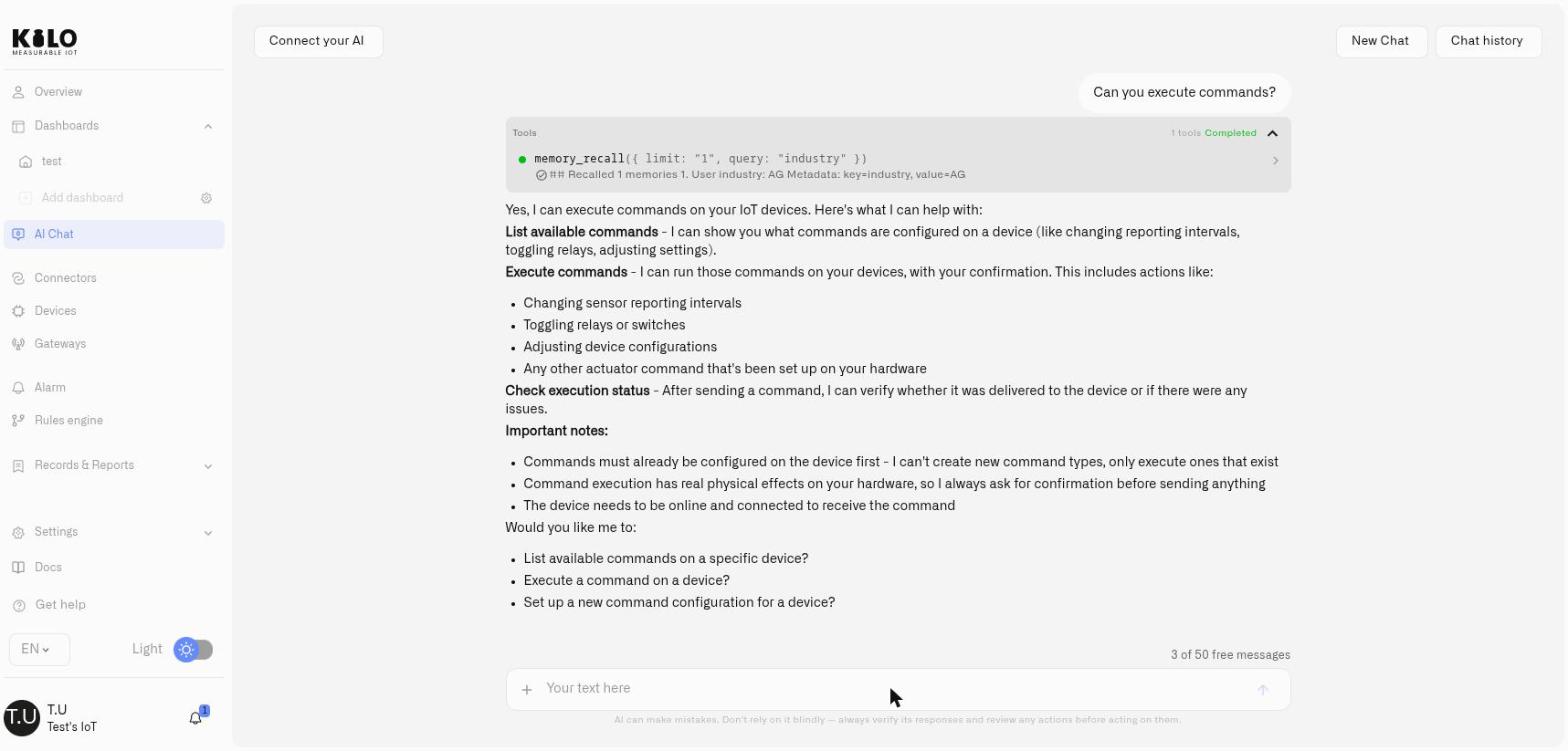
For direct device control through the built-in assistant, start with a read-only request such as “What commands are configured on this device?” Choose the actual command and parameters returned for that device. Review the confirmation before approving dispatch, then inspect the execution status.
An accepted command is not proof that equipment reached the requested state. Check the recorded delivery outcome and device confirmation or subsequent telemetry where available. For an external MCP client, configure its approval policy for consequential tools; the command tool is marked destructive, but the client controls its approval experience. Autonomous rules execute the actions you deliberately build and deploy, rather than requesting chat confirmation on every run.
## Physical AI infrastructure for model providers
Kilo offers a way to add physical-world capabilities without rebuilding an IoT control plane. One integration can reach sensors, machines, actuators, buildings, fleets, and other connected assets across different manufacturers and protocols.
The IoT Server already provides the operational foundation around that integration: device models, connectivity, multi-organization access, dashboards, alarms, automation, remote control, cloud or on-premise deployment, and interfaces for AI clients and software. Model providers can focus on intelligence while Kilo handles the boundary where software meets physical operations.
Kilo is model-agnostic. Teams can use OpenAI, Anthropic, OpenRouter, a self-hosted or otherwise compatible model endpoint, or another AI system without replacing the device and operations layer.
## Connect AI agents to IoT through MCP or APIs
### Connect an external AI client through MCP
The [Kilo MCP Server](/api/mcp-server.md) lets a compatible AI client sign in with a Kilo account and discover the tools available to that user. The connection is scoped to the selected organization and inherits the user's permissions.
That toolset now includes device control. A connected client can list the commands configured on a device, execute one, and check whether it was delivered — `device_command_list`, `device_command_execute`, `device_command_status` — so an external model can complete the **Act** and **Verify** steps above without leaving the conversation. The execution tool is marked destructive, uses command definitions that already exist on the device, and lands in command execution history like any other dispatch. Configure the external client to request approval before calling consequential tools.
Use MCP when a person wants ChatGPT, Claude, Codex, Cursor, or another compatible client to work with a live Kilo deployment. The precise actions available depend on the tools exposed by the server and the signed-in user's access.
### Use the built-in AI Assistant
The [AI Assistant](/ai-assistant.md) works like an experienced integrator by your side inside Kilo. Describe your goal, and it can provision devices, build and deploy rules, configure alarms, and simulate readings to test a response. It uses the deployment’s existing configuration to help put those pieces together, with confirmation prompts for actions such as running device commands.
Use the built-in assistant when operators want AI inside the same interface as their devices, rules, alarms, and dashboards.
### Integrate a service through REST or gRPC
The [Kilo IoT Platform API](/api.md) is for software your team builds, including agent backends, reporting systems, industrial integrations, and unattended workflows. API keys carry explicit scopes and organization context.
Use an API when you need a deterministic application integration rather than a user-authorized conversational client.
## Enterprise controls for Physical AI
* **Permission boundaries:** AI access remains within the connected user's role and organization.
* **Test before deployment:** automation can be debugged and simulated before it reaches live infrastructure.
* **Controlled releases:** rule builds are deployed explicitly and previous versions can be restored.
* **Constrained commands:** typed parameters define the inputs a device action accepts.
* **Result verification:** commands retain dispatch status and can require device confirmation where supported.
* **Traceable histories:** rule versions and executions, device-command executions, and organization access changes retain their own corresponding records.
* **Deployment choice:** the same operating model is available through Kilo Cloud or an on-premise IoT Server.
These controls do not make every physical action automatically safe. The organization still decides which devices are controllable, which parameter ranges are appropriate, who may act, and where human approval is required.
## Connect an AI agent through the IoT MCP server
1. Open [Kilo IoT MCP Server for AI Agents](/api/mcp-server.md) and add the published endpoint to a compatible client.
2. Sign in with your usual Kilo account and authorize the connection.
3. Begin with a read-only request, such as listing devices or summarizing alarms.
4. Confirm the selected organization and the tools available to your account.
5. Test a proposed automation before approving its deployment.
6. Review the corresponding rule or command history after a physical action.
For a custom backend, begin with the [Public REST API](/api/public-rest-api.md) and create a scoped key under **Settings → API Keys**.
## See also
* [IoT AI Assistant](/ai-assistant.md)
* [Kilo IoT MCP Server for AI Agents](/api/mcp-server.md)
* [Rules Engine](/rules-engine.md)
* [Device Commands](/devices/commands.md)
* [Users and Permissions](/account/users-and-permissions.md)
* [Audit Trail](/reports/audit-trail.md)
---
# Agent Instructions
This documentation is published with GitBook. GitBook is the documentation platform designed so that both humans and AI agents can read, navigate, and reason over technical content effectively. Learn more at gitbook.com.
## Querying This Documentation
If you need additional information that is not directly available in this page, you can query the documentation by asking a question.
Perform an HTTP GET request on the following URL with the `ask` and `goal` query parameters:
```
GET https://docs.kiloiot.io/physical-ai.md?ask=&goal=
```
`ask` is the immediate question: it should be specific, self-contained, and written in natural language.
`goal` is what the user is ultimately trying to achieve, the reason they need the answer. Sharing it helps GitBook give you a better, more relevant answer. A goal is most helpful when it describes the outcome the user wants rather than restating the question. For example, with `ask=how do I create an API token`, a goal like `automate deployments from our CI pipeline` lets GitBook tailor the answer to that use case.
The response will contain a direct answer to the question and relevant excerpts and sources from the documentation.
Use this mechanism when the answer is not explicitly present in the current page, you need clarification or additional context, or you want to retrieve related documentation sections.