> For the complete documentation index, see [llms.txt](https://docs.kiloiot.io/llms.txt). Markdown versions of documentation pages are available by appending `.md` to page URLs; this page is available as [Markdown](https://docs.kiloiot.io/reports/key-vault.md).

# Key Vault

Store LoRaWAN DevEUI/AppKey and MIOTY EP EUI/Network Key pairs encrypted, with search and page-level access control.

Key Vault gives your organization an encrypted place to store LoRaWAN and Mioty EUI-key pairs with access control.

Every device you commission carries a pair of radio credentials: an identifier and a secret. For LoRaWAN that pair is the **DevEUI** and the **AppKey**. For MIOTY it is the **EP EUI** and the **Network Key**. Without both halves, a device cannot be provisioned onto a network. Whether the secret half can be read back off a unit afterward is entirely down to the manufacturer — some models will surrender it over a wired UART connection, many will not — and none of it is practical once the unit is mounted and sealed.

Key Vault stores those pairs at the organization level so the credentials survive the device, the installer, and the deployment. It is an organizational record of what each unit's keys are, independent of whether that unit is currently registered, online, or even still in the field.

***

## Why Store Device Keys in a Key Vault?

Radio credentials tend to live in the worst possible places. They arrive on a sticker inside the box, get typed once into a provisioning form, and after that the only copies anyone can reach in a hurry are a label on the unit, a contractor's spreadsheet, or a vendor portal that someone else's account controls.

That works until it doesn't:

* A commissioning crew rolls out 400 sensors across nine sites over three weeks, then hands the deployment to your operations team. The paperwork does not come with it.
* A contractor's engagement ends. Their laptop, their spreadsheet, and their vendor portal login end with it.
* A sensor fails four years into a ten-year battery life. The replacement unit needs to be provisioned, and the original key sheet was in a binder in a plant office that has since been repurposed.
* A device is re-provisioned onto a different network and needs its AppKey re-entered — a key nobody recorded because the first provisioning "just worked."
* An auditor asks how device credentials are stored and who can see them, and the honest answer involves a filing cabinet.

Key Vault replaces all of that with one encrypted store inside the organization that already owns the deployment, governed by the same access model as every other page.

> **Key Vault is not API Keys.** API keys authenticate *integrations* to the Kilo IoT Server — a reporting script, a CI pipeline, a warehouse system — and are managed under [Settings → API Keys](/settings/api-keys.md). Key Vault stores the *radio credentials of your physical devices*. The two never overlap.

***

## Where Do I Find Key Vault?

Open the sidebar and go to **Records & Reports** → **Key Vault**.

If you have not stored anything yet, the page greets you with an empty state:

> **Still keeping your Device keys on paper?**

Click **Add your first key pair** to begin.

***

## What is on the Key Vault page?

<figure><img src="https://2057878315-files.gitbook.io/~/files/v0/b/gitbook-x-prod.appspot.com/o/spaces%2FtNQh1wBSHSaknslMdOXm%2Fuploads%2Fgit-blob-cd049b6822eb8fdbf95076248d73dda01803d8eb%2Fkilo-key-vault.jpg?alt=media" alt="The Key Vault page with an Add Key Pair button, a search box, a table with DevEUI / EP EUI and AppKey / Network Key columns, and Show key, Edit and Delete buttons on every row"><figcaption><p>The Key Vault page in a demo organization. Every key is a row of dots until you choose Show key; the EUIs are blurred in this screenshot.</p></figcaption></figure>

From top to bottom, left to right:

* **Add Key Pair** (top right) opens the dialog for a new entry.
* The search box, labeled **Search by EUI or AppKey / Network Key**, filters the table as you type. See [how to find a key pair](#how-to-find-a-key-pair-in-key-vault).
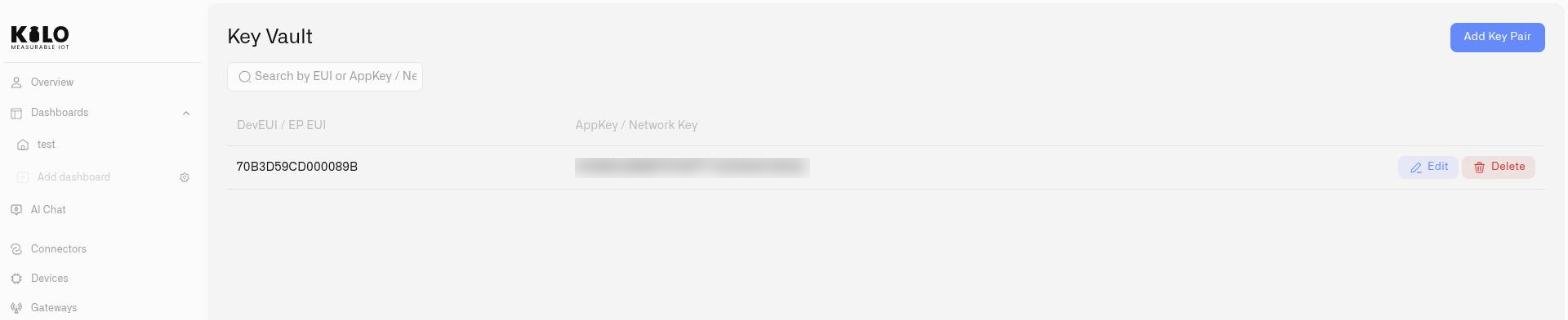
* The table has two columns: **DevEUI / EP EUI**, the identifier, and **AppKey / Network Key**, the secret, shown as a row of dots.
* At the end of each row, **Show key** reveals that row's key (it becomes **Hide key**), **Edit** opens **Edit Key Pair**, and **Delete** removes the entry after confirmation.

<figure><img src="https://2057878315-files.gitbook.io/~/files/v0/b/gitbook-x-prod.appspot.com/o/spaces%2FtNQh1wBSHSaknslMdOXm%2Fuploads%2Fgit-blob-871b186ab135615d773dde3bf3ff19bd39783bf4%2Fkey-vault-list.jpg?alt=media" alt="The Key Vault listing a stored DevEUI and its key, with search, Add Key Pair, Edit and Delete"><figcaption></figcaption></figure>

## What Is a Key Pair in Key Vault?

Each entry holds two fields:

| Field                       | What it holds                                                                                      | Shape             |
| --------------------------- | -------------------------------------------------------------------------------------------------- | ----------------- |
| **EUI** *(DevEUI / EP EUI)* | The device's unique identifier — the DevEUI for a LoRaWAN device, the EP EUI for a MIOTY endpoint. | 16 hex characters |
| **AppKey / Network Key**    | The device's secret — the AppKey for LoRaWAN, the Network Key for MIOTY.                           | 32 hex characters |

Both fields use the same form regardless of protocol, so a mixed LoRaWAN and MIOTY deployment keeps all of its credentials in one place.

Values are stored encrypted. Only users with access to the Key Vault page can read them back.

### Keys stay hidden until you ask

A key is the one thing you do not want on a screen during a site walk-through or a screen share, so the list never shows one by default. Every key appears as a row of dots, and each row has its own **Show key** button, placed before **Edit** and **Delete**. Click it to reveal that key, and the button becomes **Hide key** to cover it again. Revealing one key does not reveal the others, and the column keeps its width, so the table does not jump around.

The button is available to every user who can open the page, including those with view-only access, because reading a key you are already allowed to see needs no edit rights. Inside the **Add Key Pair** and **Edit Key Pair** dialogs the key field behaves like the one on the device form: a stored key is hidden, the characters show while you type or paste so you can check them against the label, and the field hides them again when you leave it or press Enter. Once the field holds a value, an **eye** button appears at its right edge: select it to show or hide the key on demand, for example to check a stored key against its label. An empty field has no eye, because there is nothing to reveal. A key that was loaded from the vault or scanned from a QR code stays hidden until you press the eye.

**Add Key Pair** (and **Add your first key pair** on an empty vault), **Edit** and **Delete** appear only for users with edit access to the page. A view-only user sees the list and **Show key**, and nothing else.

***

## How to Add a Key Pair to Key Vault

1. Go to **Records & Reports** → **Key Vault**.
2. Click **Add Key Pair**.
3. In the **EUI** field, enter the device's DevEUI (LoRaWAN) or EP EUI (MIOTY) — 16 hex characters.
4. In the **AppKey / Network Key** field, enter the AppKey (LoRaWAN) or Network Key (MIOTY) — 32 hex characters.
5. Click **Save**.

You will see the confirmation **"Key pair saved to vault"** and the entry appears in the list.

### If Save is disabled

**Save** stays disabled until the **EUI** holds all 16 hex characters and the **AppKey / Network Key** holds all 32. If the button is gray, count the characters: a truncated paste or a missing character is the usual cause. No error message appears in the dialog; the button simply enables when both fields are complete.

If you click **Save** and **"Failed to save key pair"** appears, the save did not complete. If both fields are correctly formed, see [the entry limit](#how-many-key-pairs-can-i-store-in-key-vault) below — an organization that has reached its entry limit cannot store new pairs.

Duplicate entries are rejected: the same EUI and key combination cannot be stored twice within one organization, so re-entering a pair you already recorded will not create a second copy.

***

## How to Add a Key to Key Vault from the Device Form

The most reliable moment to record a key is the moment you already have it in front of you — while you are configuring the device.

The device form includes an **Add to Vault** button that saves the pair straight from the device you are configuring. For a LoRaWAN device it saves the AppKey; for a MIOTY device it saves the Network Key. No retyping, no separate trip to the vault page, no transcription error.

When the device form is not ready, **Add to Vault** shows one of these messages instead of saving:

| Message                                                                 | What it means                                                                                         |
| ----------------------------------------------------------------------- | ----------------------------------------------------------------------------------------------------- |
| *"EUI is incomplete."*                                                  | The EUI is shorter than 16 hex characters. Check for a truncated paste or a missing character.        |
| *"AppKey / Network Key is incomplete."*                                 | The key is shorter than 32 hex characters.                                                            |
| *"Enter both EUI and AppKey / Network Key before saving to the vault."* | One of the two fields is empty. A vault entry is only useful as a pair — a lone EUI recovers nothing. |

This is the habit worth building into your commissioning procedure: whoever enters the key into the device form also clicks **Add to Vault** in the same sitting. For the full device registration workflow, see [Registering Devices](/devices/registering-devices.md).

***

## How to Find a Key Pair in Key Vault

Use **Search by EUI or AppKey / Network Key** above the list. Search matches on partial values, so you do not need the full 16 or 32 characters — the last few characters off a device label are usually enough to locate an entry.

* Search requires at least **2 characters**. Below that the page shows *"Enter at least 2 characters to search."* or *"Keep typing to search"* — the list is not filtered until you reach the minimum.
* If nothing matches, you see **"No key pairs found"** with *"Try another EUI or AppKey / Network Key search."* Widen the search by removing characters: a substring from the middle of an EUI will match just as well as a prefix, so a shorter fragment is more likely to hit than a longer one with a typo in it.

Searching by key value, not just EUI, is useful in the reverse direction — when you have a key from a provisioning record and need to work out which device it belongs to.

***

## How to Edit a Key Pair

Correct an entry when a device is re-keyed, or when a transcription error surfaces during a failed join.

1. Locate the entry, using search if the list is long.
2. Open **Edit Key Pair**.
3. Update the **EUI**, the **AppKey / Network Key**, or both. The same validation applies — 16 hex characters and 32 hex characters, both fields required.
4. Click **Save**.

You will see **"Key pair updated"**. If the update does not complete, the page reports **"Failed to update key pair"** — confirm both fields are complete and correctly formed, then retry.

***

## How to Delete a Key Pair

Remove entries for hardware that has left the deployment — units that were decommissioned, returned to the vendor, or lost.

1. Locate the entry.
2. Choose delete.
3. Confirm in the dialog titled **Are you sure?**, which reads *"Are you sure you want to delete this key pair?"* Select **Delete** to confirm.

You will see **"Key pair deleted"**. If the deletion does not complete, the page reports **"Failed to delete key pair"**; retry, and if it persists, confirm you still have Edit access to the page.

Deletion is the point of no return for a credential. Once a pair is gone from the vault and the physical label is gone from the hardware, the key is not recoverable from anywhere in the platform. Delete when the device is genuinely out of service — not to tidy up a list you can search instead.

***

## Who Can Access Key Vault?

Key Vault has its own **Key Vault** page permission, set independently of every other surface. A user's access to devices, dashboards, or connectors says nothing about their access to the vault — you grant it deliberately.

This is the whole point of putting credentials on a page rather than in a spreadsheet. The people who need to read keys — commissioning engineers, the operations lead who handles replacements — get access. Everyone else does not see the page at all.

Set the permission when you invite a user or when you edit an existing member's access. See [Managing Access](/account/managing-access.md) for how to change permissions on an existing member, and [Roles and Page Access](/account/roles-and-page-access.md) for how page-level permissions work across the platform.

Because credential access is worth reviewing, pair the permission with the [Audit Trail](/reports/audit-trail.md), which records who was granted or denied access to your organization's pages and when.

***

## How Many Key Pairs Can I Store in Key Vault?

Each organization can store a fixed number of key pairs. When the limit is reached, saving a new pair fails and an administrator must remove unused entries — decommissioned hardware, returned units, duplicates from a migration — before new pairs can be added.

If **"Failed to save key pair"** appears on a correctly formed entry, the entry limit is the first thing to check.

***

## Key Vault Best Practices

* **Record at commissioning, not afterward.** The window in which a key is easy to capture is the moment it is in the provisioning form. Use **Add to Vault** on the device form and the vault fills itself as the deployment rolls out. Reconstructing keys after the fact means going back to the label — or to whatever readback the manufacturer supports — on hardware that is already installed.
* **Make it a line item in the installer's scope.** If contractors commission your sites, "device keys recorded in Key Vault" belongs in the acceptance criteria alongside device registration and signal checks. Handover is when knowledge is cheapest to transfer and most likely to be lost.
* **Restrict the page deliberately.** Grant Key Vault access to the roles that provision hardware, and leave it at No access by default for everyone else. A broad grant turns a controlled store back into a shared spreadsheet.
* **Prune on decommissioning, not on impulse.** Delete an entry when the unit leaves service, and treat the entry limit as a prompt to review retired hardware rather than to thin out an active fleet.
* **Rotate what the hardware allows.** Where a device supports re-keying, rotate credentials on the schedule your security policy sets — after a contractor engagement closes, for instance — and update the vault entry in the same operation so the record and the hardware never drift apart.
* **Search by fragments.** Two characters is enough to start filtering. Reading the last four characters off a device label is faster and far less error-prone than transcribing all sixteen.


---

# Agent Instructions
This documentation is published with GitBook. GitBook is the documentation platform designed so that both humans and AI agents can read, navigate, and reason over technical content effectively. Learn more at gitbook.com.

## Querying This Documentation
If you need additional information that is not directly available in this page, you can query the documentation by asking a question.

Perform an HTTP GET request on the following URL with the `ask` and `goal` query parameters:

```
GET https://docs.kiloiot.io/reports/key-vault.md?ask=<question>&goal=<user_goal>
```

`ask` is the immediate question: it should be specific, self-contained, and written in natural language.
`goal` is what the user is ultimately trying to achieve, the reason they need the answer. Sharing it helps GitBook give you a better, more relevant answer. A goal is most helpful when it describes the outcome the user wants rather than restating the question. For example, with `ask=how do I create an API token`, a goal like `automate deployments from our CI pipeline` lets GitBook tailor the answer to that use case.

The response will contain a direct answer to the question and relevant excerpts and sources from the documentation.

Use this mechanism when the answer is not explicitly present in the current page, you need clarification or additional context, or you want to retrieve related documentation sections.