> For the complete documentation index, see [llms.txt](https://docs.kiloiot.io/llms.txt). Markdown versions of documentation pages are available by appending `.md` to page URLs; this page is available as [Markdown](https://docs.kiloiot.io/rules-engine/builds-artifacts-and-deployment.md).
# Builds and Deployment
Build, name, and deploy Kilo IoT rule artifacts — validate the diagram, produce an artifact, then start processing.
Builds and deployment let you decide when a rule change reaches live operation. You can revise a draft while its deployed version continues running, then release the version you have chosen.
A **build** validates the saved diagram and expressions and creates an executable version called an **artifact**. **Deploying** selects an artifact to process the rule's configured sensor or trigger source.
Use this sequence to control when editing changes reach live operation: save the design, build it, then deploy the chosen artifact. Saving a new draft does not replace the running version. Have a complete [rule](/rules-engine/creating-rules.md), its source, and any referenced alarm definitions or commands ready before building.
## Building a rule
### Starting a build
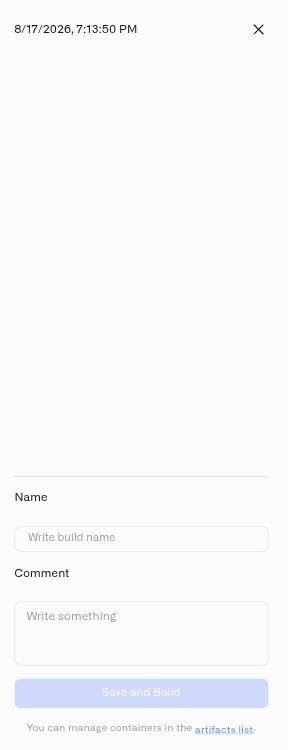
From the rule editor, click the **Build** button in the header bar. The Build Results Sidebar opens on the right side of the editor.
### The Build Results Sidebar
The sidebar is a form where you name and annotate the build before creating it:
| Field | Description |
| ----------- | -------------------------------------------------------------------------------------------------------------------------------------------------------------------------- |
| **Name** | A required name for this build artifact. Choose something that identifies the change — for example, "Humidity threshold update" or "Added escalation branch." |
| **Comment** | An optional text area for additional context. Use this to note why the build was created, what changed since the last build, or any deployment instructions for your team. |
At the bottom of the sidebar:
* **Save and Build** — Saves the current rule state as a new version, then creates a build artifact from it.
* A link to the Artifacts list: *"You can manage containers in the artifacts list."* Click this to navigate directly to the Artifacts tab.
### Build outcomes
**On success:** A notification confirms *"Build created successfully"* and the sidebar closes. The build artifact appears in the Artifacts tab, ready for deployment.
**On error:** If the build encounters validation errors — such as invalid CEL expressions, missing connections, or structural issues in the diagram — error feedback is shown directly in the sidebar. Fix the reported issues in the editor and try the build again. See [Troubleshooting](/rules-engine/troubleshooting.md) for a complete list of build errors and how to resolve them.
### What a build does
The build step:
1. Saves the current rule as a new version (so the built state is always captured in the version history)
2. Validates the entire diagram: structure, connections, node configurations, and all CEL expressions
3. Produces an artifact — a deployable package containing the validated rule logic
## The Artifacts tab
### Getting there
From the Rules Engine page at `/rules`, click the **Artifacts** tab (the second tab, between Rules and Trash).
### Search
A search bar at the top of the tab filters artifacts by rule name. Type to narrow the list when you manage many rules.
### Artifact grouping
Artifacts are grouped by rule definition. Each rule that has at least one build appears as a collapsible row showing the rule name and description. Click a rule row to expand it and see all builds for that rule.
### Empty state
If no builds exist yet, the tab shows: *"No artifacts"* with the message *"Artifacts will appear here when rules generate them."*
### Build details
Each expanded group lists individual builds with the following columns:
| Column | Description |
| --------------- | ------------------------------------------------------------------------------------------------------------------------------- |
| **Build name** | The name you gave the build. Color-coded by status: green for Running, orange for Stopped, red for Force Stopped. |
| **Source** | A link that opens the read-only rule view, so you can inspect the rule definition that produced this artifact. |
| **Date & Time** | When the build was created, formatted as "dd MMM yyyy, HH:mm" |
| **User ID** | The team member who created the build. In the current UI this typically shows the resolved user name together with the user ID. |
| **Comment** | The comment entered during the build. Click to edit inline — press Enter to save or Escape to cancel. |
### Artifact statuses
| Status | Color | Meaning |
| ----------------- | ------ | --------------------------------------------------------------------------------------------------------------------------------- |
| **Running** | Green | The artifact is deployed and waiting for its selected sensor or trigger source |
| **Stopped** | Orange | The artifact was manually stopped. It can be redeployed. |
| **Force Stopped** | Red | The system automatically stopped the artifact due to sustained execution errors. See [Emergency safety](#emergency-safety) below. |
## Deploying an artifact
Deploying starts a built artifact so it processes live sensor data in real time.
### How to deploy
1. Open the **Artifacts** tab on the Rules Engine page.
2. Expand the rule group containing the build you want to deploy.
3. Click **Deploy** on the build row.
The artifact status changes to **Running** (green). The rule is now actively evaluating every new reading from its bound sensor and executing the automation logic.
### Deployment constraints
* Only **one build per rule** can be running at a time.
* If a rule already has a running artifact and you deploy a different build, the platform automatically stops the running artifact and starts the new one in a single operation. There is no need to stop the running artifact first — the transition is handled for you.
## Stopping a running rule
Stopping is a deliberate pause action — use it when you want a rule to stop responding to its selected source without deploying a different version.
### How to stop
1. Open the **Artifacts** tab.
2. Find the running artifact (green status).
3. Click **Stop**.
The status changes to **Stopped** (orange). The rule stops accepting new starts immediately. Sensors continue reporting and triggers continue monitoring, but the stopped rule does not run from either source.
A stopped artifact can be restarted at any time by clicking **Deploy** again.
## Deleting a build artifact
To remove a build artifact you no longer need:
1. Open the **Artifacts** tab.
2. Find the artifact to delete. It must be in **Stopped** or **Force Stopped** status — you cannot delete a running artifact.
3. Click **Delete** on the build row.
Running artifacts must be stopped before they can be deleted.
## Emergency safety
The platform monitors the execution health of every running rule. If a rule encounters sustained errors during execution — for example, a referenced sensor was deleted, an expression consistently fails on live data, or an enrichment target is permanently unavailable — the system automatically stops the rule to prevent cascading failures.
When this happens:
* The artifact status changes to **Force Stopped** (red) in the Artifacts tab.
* The rule stops responding to new sensor readings or trigger activations.
* No further alarms or notifications are generated by that rule.
### Recovering from a force stop
1. **Investigate the cause.** Review the rule logic in the editor. Check whether referenced sensors are still active, expressions are valid for the actual data shapes, and enrichment targets are reachable.
2. **Fix the issue.** Edit the rule to address the root cause.
3. **Build a new version.** Create a fresh build artifact from the corrected rule.
4. **Deploy the new build.** Start the corrected artifact from the Artifacts tab.
Do not simply redeploy the force-stopped artifact without fixing the underlying issue — the same errors will recur and the rule will be stopped again.
## Best practices
* **Name builds after the change they contain.** When scanning the Artifacts tab at 3 AM during an incident, "Added humidity fallback" is more useful than "Build 7."
* **Add comments to builds.** Comments are editable after creation, so you can annotate builds with deployment notes, incident references, or rollback instructions.
* **Deploy straight over the running build.** Only one build per rule runs at a time, and deploying a new one swaps it in as a single operation — there is no need to stop the current artifact first. Use Stop when you want the rule to stop evaluating altogether, not as a step before deploying.
* **Treat force stops as incidents.** A force-stopped rule means live monitoring for that rule has stopped. Investigate and resolve promptly.
* **Build from a clean version.** If you have been iterating on a rule, save manually and name the version before building. This ensures the build artifact maps to a clearly identified version in the history.
---
# Agent Instructions
This documentation is published with GitBook. GitBook is the documentation platform designed so that both humans and AI agents can read, navigate, and reason over technical content effectively. Learn more at gitbook.com.
## Querying This Documentation
If you need additional information that is not directly available in this page, you can query the documentation by asking a question.
Perform an HTTP GET request on the following URL with the `ask` and `goal` query parameters:
```
GET https://docs.kiloiot.io/rules-engine/builds-artifacts-and-deployment.md?ask=&goal=
```
`ask` is the immediate question: it should be specific, self-contained, and written in natural language.
`goal` is what the user is ultimately trying to achieve, the reason they need the answer. Sharing it helps GitBook give you a better, more relevant answer. A goal is most helpful when it describes the outcome the user wants rather than restating the question. For example, with `ask=how do I create an API token`, a goal like `automate deployments from our CI pipeline` lets GitBook tailor the answer to that use case.
The response will contain a direct answer to the question and relevant excerpts and sources from the documentation.
Use this mechanism when the answer is not explicitly present in the current page, you need clarification or additional context, or you want to retrieve related documentation sections.