> For the complete documentation index, see [llms.txt](https://docs.kiloiot.io/llms.txt). Markdown versions of documentation pages are available by appending `.md` to page URLs; this page is available as [Markdown](https://docs.kiloiot.io/rules-engine/rules-list-and-navigation.md).
# Rules List
Find, create, clone, and delete Kilo IoT rules and triggers, and deploy build artifacts from the Rules Engine page.
The Rules Engine page is your central hub for managing automation rules and their saved trigger conditions. From here you can create triggers; create, view, edit, clone, and delete rules; and deploy built artifacts.
## Getting there
Click **Rules engine** in the sidebar to open the Rules Engine page. The page lives at `/rules` and redirects to `/rules/list`.
## Page layout
The page has a heading, a description, and four tabs:
* **Rules** — All active rules in your organization
* **Triggers** — Saved conditions that can start one or more rules
* **Artifacts** — Build artifacts grouped by rule, with deployment status and controls
* **Trash** — Rules that have been deleted but can still be restored
Each tab is described below. For complete trigger configuration, see [Triggers](/rules-engine/triggers.md). For artifacts and deployment, see [Builds, Artifacts, and Deployment](/rules-engine/builds-artifacts-and-deployment.md). For trash, see [Trash and Recovery](/rules-engine/trash-and-recovery.md).
## Rules tab
The Rules tab shows a table of all active (non-deleted) rules. This is the default view when you open the Rules Engine page.
### Table columns
| Column | What it shows |
| ----------------- | ---------------------------------------------------------------------------------------------------------------- |
| **Name** | The rule name, with its description below. A lock icon appears if the rule is currently being edited by someone. |
| **Last Modified** | Relative time since the last change (e.g., "2 hours ago") |
| **Actions** | Edit, Clone, and Delete buttons for each rule |
### Row actions
Clicking a row opens the rule in **view mode** — a read-only view of the BPMN diagram. This is safe for inspecting a rule without risking any changes.
Each row has three action buttons on the right:
* **Edit** — Opens the rule in edit mode, acquiring an edit lock. Disabled if the rule is locked by another user.
* **Clone** — Creates a copy of the rule with a new name. Disabled if the rule is locked.
* **Delete** — Moves the rule to trash after a confirmation dialog. Disabled if the rule is locked.
### Lock indicators
When another user is editing a rule, a lock icon appears next to the rule name. Hovering over the lock shows a tooltip: *"The rule is in edit mode (locked until \[time]). The rule cannot be changed while it is being worked on by another employee of the organization."*
If you are the **organization owner**, the lock icon is clickable — clicking it opens a dialog to force-unlock the rule. This is useful when someone left a rule locked by accident, but be aware that force-unlocking will discard the other user's unsaved changes.
For non-owners, the lock icon is informational only.
### Adding a new rule
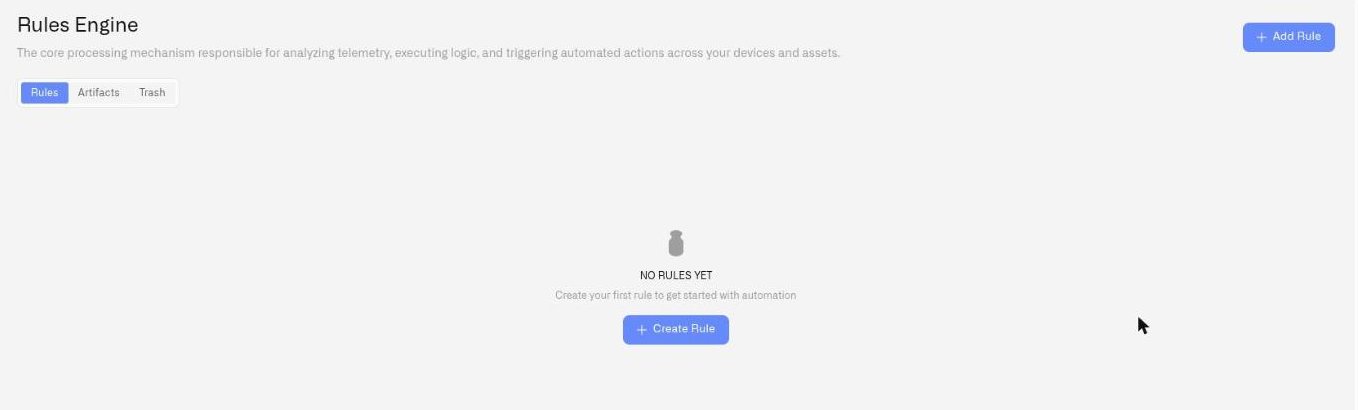
Click the **Add Rule** button in the top-right corner of the Rules tab. This navigates to the rule creation page at `/rules/create`.
The button is disabled if your organization has reached its subscription rule limit. A warning appears explaining the limit.
### Empty state
If no rules exist yet, the page shows a message: *"No rules yet"* with a description and a **Create Rule** button.
## Triggers tab
The Triggers tab lists the saved conditions in your organization. Use **Add trigger** to define what normalized device data to watch, whether the condition must last for a set duration, and which devices it applies to.
Saving a trigger does not create or run a rule. After creating it, return to the **Rules** tab, add or edit a rule, and select the trigger in that rule's **Start Event**. The trigger is a Start Event source, not a node in the palette. See [From a trigger to a running rule](/rules-engine/triggers.md#how-do-i-connect-a-trigger-to-a-running-rule) for the complete sequence.
## Artifacts tab
The Artifacts tab shows all build artifacts, grouped by rule. Each group row shows the rule name and description. Expand a group to see the individual builds, their status, source link, timestamp, author, and comments.
A search field at the top of the tab filters artifact groups by rule name.
This tab is covered in detail in [Builds, Artifacts, and Deployment](/rules-engine/builds-artifacts-and-deployment.md).
## Trash tab
The Trash tab shows rules that have been deleted. Each entry shows the rule name, description, deletion time, and a **Restore rule** action. Rules can be restored from here.
This tab is covered in detail in [Trash and Recovery](/rules-engine/trash-and-recovery.md).
## Application assignment
Use the rule list’s **Application** selector to place a rule in the operational solution it supports. Select **Default** to remove the association. This groups the rule without changing its logic or deployment. See [Applications](/applications.md).
---
# Agent Instructions
This documentation is published with GitBook. GitBook is the documentation platform designed so that both humans and AI agents can read, navigate, and reason over technical content effectively. Learn more at gitbook.com.
## Querying This Documentation
If you need additional information that is not directly available in this page, you can query the documentation by asking a question.
Perform an HTTP GET request on the following URL with the `ask` and `goal` query parameters:
```
GET https://docs.kiloiot.io/rules-engine/rules-list-and-navigation.md?ask=&goal=
```
`ask` is the immediate question: it should be specific, self-contained, and written in natural language.
`goal` is what the user is ultimately trying to achieve, the reason they need the answer. Sharing it helps GitBook give you a better, more relevant answer. A goal is most helpful when it describes the outcome the user wants rather than restating the question. For example, with `ask=how do I create an API token`, a goal like `automate deployments from our CI pipeline` lets GitBook tailor the answer to that use case.
The response will contain a direct answer to the question and relevant excerpts and sources from the documentation.
Use this mechanism when the answer is not explicitly present in the current page, you need clarification or additional context, or you want to retrieve related documentation sections.