> For the complete documentation index, see [llms.txt](https://docs.kiloiot.io/llms.txt). Markdown versions of documentation pages are available by appending `.md` to page URLs; this page is available as [Markdown](https://docs.kiloiot.io/rules-engine/trash-and-recovery.md).
# Trash and Recovery
Deleted Kilo IoT rules go to the Trash tab, where you can review and restore them within the retention period.
Deleting a rule does not destroy it immediately. The platform uses soft deletion — removed rules move to a trash area where they can be reviewed and restored. This protects against accidental deletions and gives teams a recovery window before anything is permanently gone.
## Deleting a rule
### Who can delete
Any user with edit permissions on the rule can delete it, provided the rule is not currently locked by another user. If a lock icon appears on the rule, the Delete button is disabled — wait for the lock to be released or ask an organization owner to force-unlock it.
### How to delete
1. Open the **Rules** tab on the Rules Engine page.
2. Find the rule you want to delete.
3. Click the **Delete** button on the rule's row.
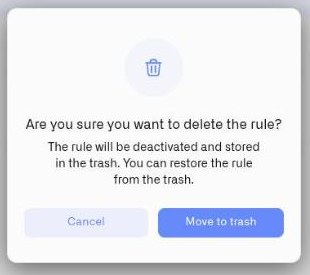
4. A confirmation dialog appears:
> **"Are you sure you want to delete the rule?"** "The rule will be deactivated and stored in the trash. You can restore the rule from the trash."
5. Click **Move to trash** to confirm.
The rule is removed from the active Rules list and appears in the Trash tab. If the rule had a running artifact, the artifact is stopped as part of the deletion.
## The Trash tab
\### Getting there
From the Rules Engine page at `/rules`, click the **Trash** tab (the third tab, after Rules and Artifacts).
### What you see
The Trash tab shows a table of all deleted rules that are still within the retention window:
| Column | Description |
| ---------------- | --------------------------------------------------------------- |
| **Name** | The rule name and its description |
| **Deleted time** | When the rule was moved to trash, formatted as "dd.MM.yy HH:mm" |
### Empty state
If no rules have been deleted (or all deleted rules have passed the retention window), the tab shows: *"Trash is empty"* with the message *"Deleted rules will appear here."*
## Restoring a rule
Restoring a rule moves it back to the active Rules list, where it can be edited, built, and deployed again.
### How to restore
1. Open the **Trash** tab on the Rules Engine page.
2. Find the rule you want to restore.
3. Click **Restore rule** on the row.
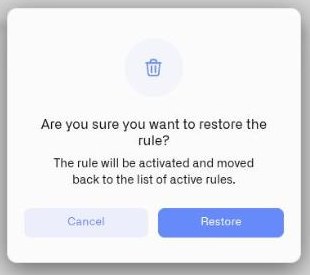
4. A confirmation dialog appears:
> "The rule will be activated and moved back to the list of active rules."
5. Click **Restore** to confirm.
Nothing happens until you confirm — closing the dialog leaves the rule in the trash.
The rule reappears in the Rules tab. It comes back **unlocked**, regardless of its lock state when it was deleted.
### What a restored rule looks like
* The rule appears in the Rules tab with its original name, description, and full version history intact.
* The rule is not deployed. Even if it had a running artifact before deletion, you need to build and deploy it again before it can respond to its selected sensor or trigger source.
* The rule is unlocked, so any team member with edit permissions can immediately open and work on it.
### Restore limitations
* **Retention window.** Rules remain in trash for a limited time. Once a rule has exceeded the retention window, it is permanently deleted and cannot be recovered.
* **Subscription limits.** Restoring a rule counts against your organization's rule limit. If your organization is at its maximum number of active rules, the restore will not proceed until you free up capacity — either by deleting another active rule or upgrading your plan.
## Best practices
* **Check trash before re-creating a rule.** If a teammate deleted a rule you still need, restoring it is faster than rebuilding from scratch — and preserves the entire version history.
* **Do not rely on trash as an archive.** The retention window is limited. If you want to preserve a rule long-term but keep it inactive, consider stopping its deployed artifact rather than deleting the rule.
* **Coordinate deletions with your team.** Soft delete protects against accidents, but communicating intent prevents confusion about why a rule disappeared from the active list.
## Deleting an executing rule
When a rule has an active deployment, deletion includes stopping its execution before moving it to Trash. Review the confirmation before proceeding. If stopping or deletion fails, inspect the reported state and retry after resolving the problem; do not assume a failed deletion stopped the rule. Restoring a rule does not restart the old deployment: review, build, and deploy it again when ready.
---
# Agent Instructions
This documentation is published with GitBook. GitBook is the documentation platform designed so that both humans and AI agents can read, navigate, and reason over technical content effectively. Learn more at gitbook.com.
## Querying This Documentation
If you need additional information that is not directly available in this page, you can query the documentation by asking a question.
Perform an HTTP GET request on the following URL with the `ask` and `goal` query parameters:
```
GET https://docs.kiloiot.io/rules-engine/trash-and-recovery.md?ask=&goal=
```
`ask` is the immediate question: it should be specific, self-contained, and written in natural language.
`goal` is what the user is ultimately trying to achieve, the reason they need the answer. Sharing it helps GitBook give you a better, more relevant answer. A goal is most helpful when it describes the outcome the user wants rather than restating the question. For example, with `ask=how do I create an API token`, a goal like `automate deployments from our CI pipeline` lets GitBook tailor the answer to that use case.
The response will contain a direct answer to the question and relevant excerpts and sources from the documentation.
Use this mechanism when the answer is not explicitly present in the current page, you need clarification or additional context, or you want to retrieve related documentation sections.