> For the complete documentation index, see [llms.txt](https://docs.kiloiot.io/llms.txt). Markdown versions of documentation pages are available by appending `.md` to page URLs; this page is available as [Markdown](https://docs.kiloiot.io/rules-engine/troubleshooting.md).
# Rules Engine Troubleshooting
Troubleshoot rule errors in Kilo IoT — missing nodes, invalid CEL, boundary attachment, deploy limits.
This page covers the most common issues you will encounter when building, deploying, and managing automation rules — build validation errors, runtime problems, and platform limits.
## Build errors
When you click **Save and Build** in the Build Results Sidebar, the platform validates the entire diagram before producing an artifact. If validation fails, error messages appear in the sidebar. Here are the errors you may see, what causes them, and how to fix them.
| Error | Cause | Fix |
| -------------------------------------- | -------------------------------------------------------------------------------------------- | -------------------------------------------------------------------------------------------------------------------------------------------------------------------------------------------------- |
| Missing start event | The diagram has no Start Event node | Drag a Start Event from the palette onto the canvas. Every rule must begin with exactly one Start Event. |
| Missing end event | The diagram has no End Event node | Add at least one End Event. Every execution path must terminate at an End Event. |
| Multiple start events | More than one Start Event exists on the canvas | Remove the extra Start Events. A rule can have only one entry point. |
| No outgoing flow | A node has no arrow leaving it (and it is not an End Event) | Connect the node to the next step in the workflow. Every non-terminal node needs an outgoing flow. |
| Start event with no outgoing flow | The Start Event is not connected to any node | Draw a sequence flow from the Start Event to the first processing node in your rule. |
| Missing condition | An Exclusive Gateway branch has no CEL condition expression assigned | Open the gateway properties and add a CEL expression to each non-default branch. One branch should be marked as the default (no condition required for the default). |
| Invalid expression | A CEL expression contains a syntax error | Check the expression for unmatched parentheses, missing quotes around strings, or incorrect operators. See [CEL Reference](/rules-engine/cel-reference.md) for valid syntax. |
| Condition must return bool | A gateway condition expression returns a non-boolean value | Gateway conditions must evaluate to `true` or `false`. Use comparison operators (`>`, `<`, `==`, `!=`, `>=`, `<=`) or logical operators (`&&`, `\|\|`, `!`). |
| Boundary event not attached | A Boundary Error Event exists on the canvas but is not attached to a task node | Drag the Boundary Error Event onto a Script Task, Set Alarm, or Enrichment node. It must be visually attached to the edge of a task. |
| Boundary event outgoing target | A Boundary Error Event's outgoing flow points at something other than a task or an End Event | Redirect the error path to a task (the handling step) or to an End Event. |
| Default flow must not have a condition | The flow marked as the gateway's default still carries a CEL condition | Clear the condition on the default flow. The default runs precisely when nothing else matches, so it takes no expression of its own. |
| Gateway must split or merge | An Exclusive Gateway has exactly one incoming and one outgoing flow | A gateway has to make a decision (two or more outgoing flows) or bring paths back together (two or more incoming). A pass-through gateway does nothing — delete it and connect the nodes directly. |
| Duplicate element id | Two elements on the canvas share an identifier | Usually the result of importing or externally editing a diagram. Delete and re-add one of the two elements. |
| Unsupported input or output parameter | A node's Input or Output parameter is not a CEL expression | Inputs and Outputs accept CEL expressions only. Re-enter the parameter in the properties panel. |
| Execute Command parameter invalid | An Execute Command node has a parameter with no name, no value, or a name used twice | Open the node's properties panel and give every parameter a unique name and a value or expression. |
| Unknown element type | An unrecognized node exists on the canvas | Remove the unknown element and replace it with a supported node type from the palette. This can occur if a diagram was imported or modified externally. |
### Resolving build errors
1. Read the error message in the Build Results Sidebar — it identifies the problem and often the specific node.
2. Close the sidebar and fix the issue on the canvas.
3. Click **Build** again to re-validate.
Multiple errors can appear simultaneously. Fix them all before re-attempting the build.
## Common issues
### "I created a trigger, but nothing happens"
A saved trigger only monitors its condition. It does not contain an alarm, command, or other response, and it is not attached to a rule automatically.
**What to do:**
1. Return to the **Rules** tab and create or edit the rule that should respond.
2. Select the Start Event, click its pencil, and set **Start source** to **Trigger condition**.
3. Select the saved trigger and click **Save** at the bottom of the Start Event panel.
4. Add the response nodes, then save the rule from the editor toolbar.
5. Build the rule and deploy its artifact from the **Artifacts** tab.
See [From a trigger to a running rule](/rules-engine/triggers.md#how-do-i-connect-a-trigger-to-a-running-rule) for the complete workflow.
### "My trigger is missing from the Start Event"
The **Trigger condition** field appears only after you change the Start Event's **Start source** from **Sensor reading** to **Trigger condition**. It lists saved triggers for the current organization and currently loads only the first page of results.
**What to do:**
* Confirm that the trigger was created in the same organization as the rule.
* Confirm that **Trigger condition** is selected as the Start source.
* If the trigger exists but is beyond the first page, it cannot yet be selected from this field.
### "The rule is locked and I cannot edit it"
Another team member is currently editing the rule. The lock icon on the rule row shows who holds the lock and when it expires.
**What to do:**
* Wait for the lock to expire. The lock expiry is shown in the UI on the lock tooltip.
* Contact the person who holds the lock and ask them to save and exit.
* If the lock holder is unavailable and you are the organization owner, you can force-unlock the rule from the Rules list. See [Edit Locks and Team Handoffs](/rules-engine/edit-locks-and-team-handoffs.md) for details.
### "Build succeeded but the rule is not running"
Building and deploying are separate steps. A successful build creates an artifact, but the artifact is not automatically deployed.
**What to do:**
1. Go to the **Artifacts** tab on the Rules Engine page.
2. Find the build you just created.
3. Click **Deploy** to start the rule processing its selected sensor or trigger source.
### "The rule was force-stopped"
The platform monitors execution health. If a rule encounters sustained errors during execution, it is automatically stopped to prevent cascading failures. The artifact shows status **Force Stopped** (red) in the Artifacts tab.
**What to do:**
1. Open the rule in the editor and review the logic.
2. Check whether referenced sensors are still active and reporting data.
3. Verify that all CEL expressions are valid for the actual data shapes your sensors produce.
4. Check Enrichment nodes — the target sensor may have been deleted or taken offline.
5. Fix the issue, build a new artifact, and deploy it.
See [Emergency safety](/rules-engine/builds-artifacts-and-deployment.md#emergency-safety) for more detail.
### "Enrichment keeps failing"
The Enrichment node fetches the latest reading from another sensor. If that sensor is offline, deleted, or has never reported data, the enrichment fails.
**What to do:**
* Verify that the target sensor exists and is actively reporting data.
* Attach a **Boundary Error Event** to the Enrichment node so the rule handles the failure gracefully instead of stopping entirely. See [Pattern 4: Error-safe enrichment](/rules-engine/automation-patterns.md#pattern-4-error-safe-enrichment).
### "Autosave failed"
A network interruption or temporary server issue prevented the automatic save.
**What to do:**
* A dialog appears with two options: **Retry** (attempts the save again) or **Back to rule** (returns to the Rules list without saving the latest changes).
* Try **Retry** first. If it fails repeatedly, save manually using the **Save** button.
* If manual save also fails, check your network connection.
### "I cannot restore a rule from trash"
The rule may have exceeded the trash retention window and been permanently deleted.
**What to do:**
* Check the **Trash** tab. If the rule is no longer listed, it has been permanently removed and cannot be recovered.
* If the rule is still in the Trash tab but restore fails, check whether your organization has reached its subscription rule limit. Restoring a rule counts against the active rule quota.
### "I accidentally restored the wrong version"
Restoring a version does not destroy anything. The restore creates a new current version, and the previously active version is preserved in the history.
**What to do:**
1. Open the **History** tab.
2. Find the version that was active before the accidental restore.
3. View it (eye icon) and click **Restore this version** to make it current again.
## Debug sessions
### "I started a debug session and nothing happens"
A debug session loads the rule, places execution on the Start Event and waits for you. It does not run the rule by itself.
**What to do:**
1. Look at the bottom of the canvas for the debug toolbar. It floats over the diagram; it is not in the header bar beside Save and Build.
2. Press **Run (F10)** to execute until the first breakpoint or the end, or **Step over (F9)** to advance one element.
3. Check the session is live: the Start Event carries a blue outline, and the debug panel on the right lists your initial variables.
See [Debugging Rules](/rules-engine/debugging-rules.md#why-does-a-debug-session-start-paused).
### "An element is outlined in red"
A red outline marks the element that raised the most recent error — it is not a breakpoint (a small red dot above the element) and not the current position (a blue outline). Start with the expression on that element.
**What to do:**
1. Open the element's properties and read its expression.
2. Check that every name it uses exists in the Variables tab. An expression reading `vars.RH` fails if nothing named `RH` was provided as initial context or produced by an earlier node.
3. Check the `vars.` prefix is present — `RH > 70` is not the same as `vars.RH > 70`.
4. Check the expression returns the right type. A gateway condition must produce `true` or `false`.
5. Paste the expression into **Evaluate** on the Watch tab to test it against the current state.
### "The gateway didn't take any branch"
Two different causes, with different fixes.
**A condition failed to evaluate.** If any condition on the gateway errors — most often because it references a variable that isn't there — the gateway stops with an error and the rule goes no further. It does **not** fall through to the default flow. The gateway will be outlined in red; follow the steps above.
**No condition matched and there is no default.** If every condition returned false and no flow is marked as the default, execution has nowhere to go. Open the gateway, pick the fallback flow, and click **Set as default**.
### "The debug buttons are greyed out"
The step controls are available while the session is paused. They are disabled while the rule is running, while a Side Effect dialog is waiting for an answer, and after a rule failed to load. Stop remains available throughout.
If the rule failed to load, start a new session.
### "My breakpoints disappeared"
Two causes:
* **You used Run ignore breakpoints (F11).** It switches every breakpoint off and leaves them off for the rest of the session. Re-enable them from the Breakpoints tab.
* **The editor reloaded.** Breakpoints are tied to the elements in the loaded diagram. A notification tells you how many were dropped so you can re-add them.
### "The session ended while I was still working"
A debug session lasts 30 minutes, measured from when it started. Stepping through the rule does not extend it. You get a warning shortly before it expires; start a new session to continue.
## Subscription limits
Each subscription plan includes a maximum number of active automation rules. These limits affect several operations:
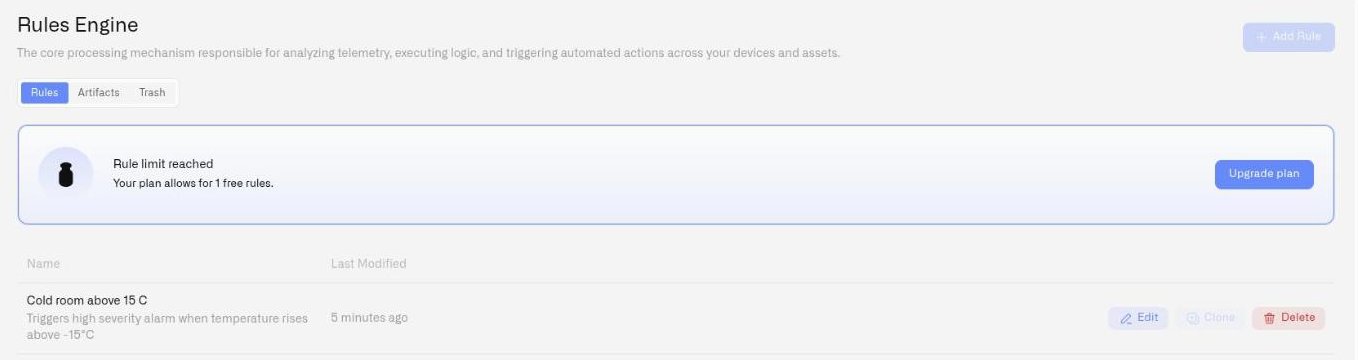
* **Creating rules:** The **Add Rule** button on the Rules tab is disabled when your organization reaches its rule limit. A message explains that the limit has been reached.
\- \*\*Restoring from trash:\*\* Restoring a deleted rule counts as adding an active rule. If you are at the limit, the restore will not proceed. - \*\*Cloning rules:\*\* Cloning creates a new rule, which counts against the limit.
To check your current usage and plan limits, visit your organization's subscription settings. To increase the limit, upgrade your plan or remove rules you no longer need.
---
# Agent Instructions
This documentation is published with GitBook. GitBook is the documentation platform designed so that both humans and AI agents can read, navigate, and reason over technical content effectively. Learn more at gitbook.com.
## Querying This Documentation
If you need additional information that is not directly available in this page, you can query the documentation by asking a question.
Perform an HTTP GET request on the following URL with the `ask` and `goal` query parameters:
```
GET https://docs.kiloiot.io/rules-engine/troubleshooting.md?ask=&goal=
```
`ask` is the immediate question: it should be specific, self-contained, and written in natural language.
`goal` is what the user is ultimately trying to achieve, the reason they need the answer. Sharing it helps GitBook give you a better, more relevant answer. A goal is most helpful when it describes the outcome the user wants rather than restating the question. For example, with `ask=how do I create an API token`, a goal like `automate deployments from our CI pipeline` lets GitBook tailor the answer to that use case.
The response will contain a direct answer to the question and relevant excerpts and sources from the documentation.
Use this mechanism when the answer is not explicitly present in the current page, you need clarification or additional context, or you want to retrieve related documentation sections.