> For the complete documentation index, see [llms.txt](https://docs.kiloiot.io/llms.txt). Markdown versions of documentation pages are available by appending `.md` to page URLs; this page is available as [Markdown](https://docs.kiloiot.io/settings/api-keys.md).
# API Keys
Create, scope, rotate, and revoke API keys in Kilo IoT — per-integration credentials for REST and gRPC access.
An API key is a secret credential that lets an external script or application authenticate to Kilo IoT Server. Create one for each integration, such as a reporting job that reads device data, so you can manage its access without sharing your account password.
The key belongs to one organization and carries selected permission **scopes**—the operations it may request. Choose the minimum scopes needed and keep the key private. Revoking or rotating a dedicated key lets you change that integration's access independently.
This page covers key management. For protocols, request headers, and examples, start with the [API guide](/api.md).
***
## Navigation
Go to **Settings → API Keys** in the sidebar.
***
## Creating a key
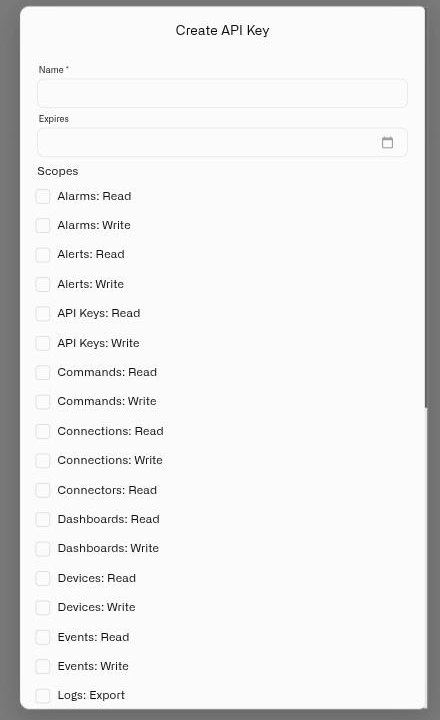
1. Click **Create API Key** in the top-right corner.
2. Enter a **Name** for the key. This is required. Choose a name that describes the integration — for example, "WMS-Sync-Production" or "Analytics-Pipeline-Staging". You will identify and manage this key by its name.
3. Optionally set an **Expires** date using the date picker. The earliest selectable date is today. If left empty, the key remains active indefinitely. Set an expiry date for contractor access or temporary integrations.
4. Select **Scopes** — at least one scope is required. Check only the permissions the integration actually needs. See the [Scope reference](#scope-reference) below.
5. Click the confirm button to create the key.
### One-time display
After creation, the full key value is shown **once** with a copy button. A warning reads:
> **"Copy this key now. You will not be able to see it again."**
Store the key in a secrets manager or vault immediately. Once you close this dialog, the full key is gone — only the key prefix remains visible in the table. If the key is lost, the only recovery path is rotation.
***
## Scope reference
Scopes control what the key can access. Each scope has a **Read** variant (retrieve data) and a **Write** variant (create, update, or delete). Grant only the minimum set your integration requires.
Available scopes may depend on your organization and plan. Sensor **history** and **last-seen** calls use a separate telemetry scope rather than *Devices: Read* — check the [API reference](/api.md) for the exact scope each endpoint requires.
| Scope | Read grants access to | Write grants access to |
| ----------------- | ----------------------------------------------------- | ------------------------------------------------------ |
| **Commands** | View device command definitions and execution history | Create and edit commands, and dispatch them to devices |
| **Connections** | View connection status and configuration | Create and modify connections |
| **Dashboards** | View dashboards and widget data | Create, edit, and delete dashboards and widgets |
| **Devices** | View device list and Digital Twin state | Register devices, update device configuration |
| **Events** | View device event history | — |
| **Logs** | View system and device logs | Export logs |
| **Organizations** | View organization details and membership | Modify organization settings and membership |
| **Rules** | View rule definitions and deployment status | Create, edit, deploy, and delete rules |
| **Sensors** | View sensor metric definitions and templates | Create and modify sensor templates |
| **Users** | View user list and profile data | Invite, update, and remove users |
**Principle of least privilege:** grant only the scopes an integration uses — a script that reads device configuration needs only *Devices: Read*, not *Devices: Write* or any organization scope. Scoping tightly limits the impact if a key is ever exposed.
***
## API keys table
The API Keys page lists all keys for your organization. The table columns are:
| Column | Description |
| -------------- | --------------------------------------------------------------------------------------------------------------------- |
| **Name** | The label assigned at creation. |
| **Key Prefix** | A short prefix of the key value — enough to confirm you're looking at the right key without exposing the full secret. |
| **Scopes** | Permission chips showing the scopes granted to this key. |
| **Status** | **Active** (green), **Rotated** (yellow), or **Revoked** (red). |
| **Created** | Timestamp when the key was first created. |
| **Expires** | The expiration date, or "Never" if no expiry was set. |
| **Last Used** | The timestamp of the most recent authenticated API call using this key. |
Keys are sorted newest first by default. Rotation and revocation icons appear only on Active keys — a rotation icon to rotate, and a trash icon to revoke.
***
## Rotating a key
Rotation generates a new key value and immediately deactivates the old one. The old key's status changes to **Rotated** and it can no longer authenticate any request.
Use rotation on a regular schedule, or whenever a key may have been exposed — for example, if it was accidentally logged, committed to a repository, or shared through an insecure channel.
1. Click the rotation icon on the key row you want to rotate.
2. A confirmation dialog appears:
> **"Rotate API Key — This will generate a new key and mark the current key '\[name]' as rotated. The old key will stop working."**
3. Confirm the rotation.
4. The new key value is displayed **once**. Copy it immediately. Update all systems using the old key before they try to make their next API call.
The rotated key remains visible in the table with **Rotated** status for audit trail purposes.
***
## Revoking a key
Revocation permanently disables a key. The action cannot be undone.
1. Click the trash icon on the key row.
2. A confirmation dialog appears:
> **"Revoke API Key — This will permanently revoke the API key '\[name]'. This action cannot be undone."**
3. Confirm the revocation.
The key status changes to **Revoked** (red) and remains visible in the table. Revoked keys cannot authenticate any request. They appear in the audit trail, so you have a complete history of which keys existed and when they were deactivated.
***
## Expected results
After creating a key:
* The key appears immediately in the table with **Active** status.
* The **Last Used** column shows a dash until the key makes its first authenticated API call, then updates with each subsequent use.
* Keys display an expiry date set at creation; verify current key status in the **Status** column.
***
## Troubleshooting
**No permission to create API keys:** API key management requires sufficient access rights in your organization. Contact your organization administrator if the **Create API Key** button is unavailable.
**Key was lost before copying:** The full key value cannot be retrieved. Click **Rotate** on the key row to generate a new value. Update all integrations with the new key.
**Integration returning authentication errors:**
* Confirm the key status is **Active** (not Rotated or Revoked).
* Check that the key has not passed its expiry date.
* Verify the integration is using the correct key value — compare the prefix shown in the table against the prefix of the key in use.
* Confirm the key has the required scope for the operation it is attempting. A *Devices: Read*-only key will fail on write operations.
**Revoked or rotated key still accepting requests:** Changes take effect immediately. If an integration appears to still be authenticating after revocation, confirm it is not using a different key or cached session.
***
## Best practices
* **Least privilege** — Grant only the scopes each integration actually uses. Audit regularly.
* **Named by purpose** — Use names like "Warehouse-Sync-Prod", "Audit-Export-Script", or "CI-Pipeline-Staging" so any team member can identify the key's owner and role at a glance.
* **Set expiry dates for temporary access** — Contractor integrations, proof-of-concept scripts, and time-limited projects should always have an expiry. Remove the need to remember to revoke manually.
* **Rotate on a schedule** — Treat rotation as routine maintenance rather than incident response. A quarterly rotation cycle is a reasonable baseline for production keys.
* **Store in a secrets manager** — Never hardcode keys in source code, configuration files, or environment variables committed to version control. Use a secrets manager or vault and inject at runtime.
* **One key per integration** — Separate keys mean you can revoke access for one system without disrupting any other. Shared keys multiply the impact of any single compromise.
---
# Agent Instructions
This documentation is published with GitBook. GitBook is the documentation platform designed so that both humans and AI agents can read, navigate, and reason over technical content effectively. Learn more at gitbook.com.
## Querying This Documentation
If you need additional information that is not directly available in this page, you can query the documentation by asking a question.
Perform an HTTP GET request on the following URL with the `ask` and `goal` query parameters:
```
GET https://docs.kiloiot.io/settings/api-keys.md?ask=&goal=
```
`ask` is the immediate question: it should be specific, self-contained, and written in natural language.
`goal` is what the user is ultimately trying to achieve, the reason they need the answer. Sharing it helps GitBook give you a better, more relevant answer. A goal is most helpful when it describes the outcome the user wants rather than restating the question. For example, with `ask=how do I create an API token`, a goal like `automate deployments from our CI pipeline` lets GitBook tailor the answer to that use case.
The response will contain a direct answer to the question and relevant excerpts and sources from the documentation.
Use this mechanism when the answer is not explicitly present in the current page, you need clarification or additional context, or you want to retrieve related documentation sections.