> For the complete documentation index, see [llms.txt](https://docs.kiloiot.io/llms.txt). Markdown versions of documentation pages are available by appending `.md` to page URLs; this page is available as [Markdown](https://docs.kiloiot.io/settings/billing-and-invoices.md).
# Billing and Invoices
Invoice billing for a Kilo plan: company billing details, payment by bank transfer, and overdue invoices.
Kilo subscriptions can be paid by card or by invoice and bank transfer. Choose invoice billing when your organization needs a PDF invoice addressed to the company and a bank account for payment.
The payment method is selected when the subscription is created:
* **Card** — payment is completed in Stripe and the plan activates after payment clears. Receipts and payment methods are managed in the Stripe customer portal.
* **Invoice (bank transfer)** — the plan starts when the subscription is created, and the invoice is paid within its payment term. Invoices are tracked inside Kilo.
The payment method cannot be changed later through self-service. Contact Kilo IoT if an existing subscription needs to move between card and invoice billing.
## Before choosing invoice billing
Only the organization owner can open **Organization settings** and maintain billing details.
Prepare the following company information:
* **Legal name** — the registered company name
* **Billing email** — the address that should receive invoices
* **Company address** — country, city, address lines, and postal code
* **Tax ID type and number** — required for companies in the EU-27
For invoice subscriptions, an active plan and a paid invoice are separate states. The plan remains available while an invoice is open. If the invoice remains unpaid for 30 days from its issue date, the organization is moved to Free-plan limits until payment is received.
## Add billing details
1. Go to **Settings → Organization settings**.
2. Scroll to **Billing details**.
3. Enter the **Legal name** and **Billing email**.
4. Complete the **Company address** fields.
5. Under **Tax Id**, select the type and enter the number.
6. Click the **Save** button inside the Billing details section.
Billing details are saved separately from the organization name and owner. Updating one section does not change the other.
## Understand Tax ID verification
Kilo verifies the Tax ID against the issuing country's register. Verification runs after the details are submitted, and the status appears beside **Tax Id**:
| Status | Meaning | What to do |
| ---------------------------- | --------------------------------- | ---------------------------------------------------------------- |
| **Verification pending** | The check is still running | No action is required; wait for the status to update |
| **Verified** | The number was accepted | Continue with invoice billing |
| **Not verified** | The number was rejected | Compare it with the company's registration record and correct it |
| **Verification unavailable** | The register could not be reached | Try again later; this status is not a rejection |
An EU-27 company must provide a Tax ID before an invoice subscription can be created. Kilo IoT bills these subscriptions from the United States, so eligible EU business invoices use reverse-charge treatment and include both parties' tax numbers.
Outside the EU-27, a Tax ID is optional.
> Kilo verifies the number you provide. Ask your accountant whether reverse-charge treatment applies to your organization.
## Choose invoice payment
The available steps depend on the organization's current subscription:
### No paid subscription
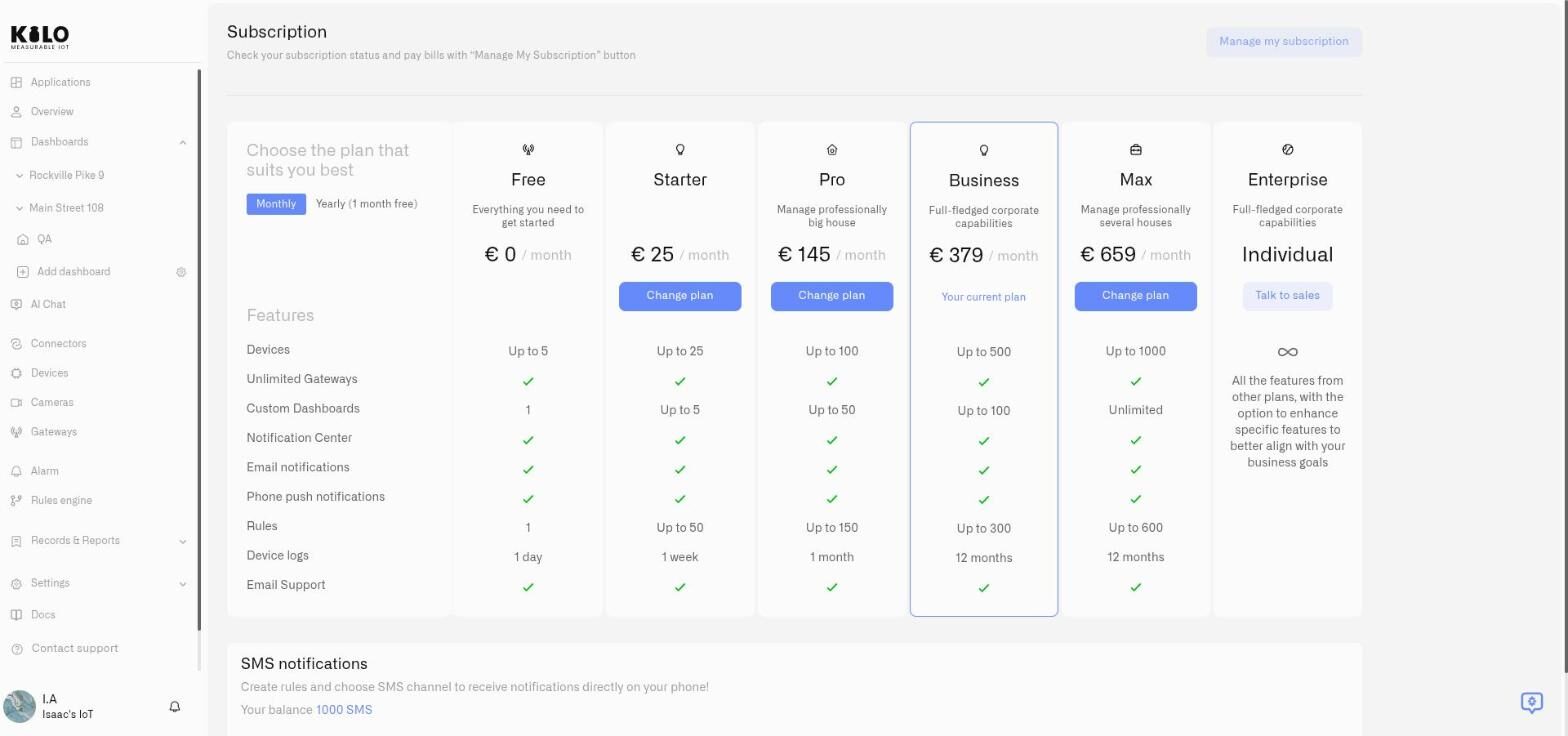
1. Open **Settings → Subscription**.
2. Choose a paid plan.
3. In **Choose payment method**, select **Pay by invoice (bank transfer)**.
4. Confirm the subscription.
If billing details are incomplete, invoice payment is disabled. Click **Go to organization settings**, complete the Billing details section, and return to Subscription.
### Existing card subscription
Selecting another plan continues to Stripe because the subscription already uses card billing. Contact Kilo IoT to change the payment arrangement.
### Existing invoice subscription
Selecting another plan opens a confirmation for the plan change. The payment-method dialog is not shown because invoice billing is already attached to the subscription.
## Receive and pay an invoice
After the subscription is created, Kilo emails the invoice information to the billing address. Use the hosted invoice link in that email to see the current payment status and bank details. You can download the PDF from Kilo's **Invoices** page.
The hosted page includes an account reference assigned to your organization. Use those bank details and reference when making the transfer so the payment can be matched automatically.
Invoices must be settled in full. The invoice remains open until the received amount covers the full amount due, including when bank charges reduce the amount received. When the full payment is matched, the status changes to **Paid** automatically.
## View invoices
Organizations using invoice billing receive an **Invoices** page under **Subscription**. It lists each invoice, its status, and links to the PDF and hosted payment page.
Card-paying organizations do not see this page. Their receipts remain in the Stripe customer portal.
## Change an invoice-paid plan
Plan changes update the existing subscription without interrupting the deployment:
* **Upgrade** — the higher limits apply immediately, and Kilo issues an invoice for the difference for the remaining subscription period.
* **Downgrade** — the unused difference becomes an account credit and is applied to a future invoice.
* **Renewal** — Kilo issues the next invoice automatically. Any available account credit is applied first.
The billing currency cannot be changed on an existing subscription. Contact Kilo IoT if the subscription needs to be recreated in another currency.
## When an invoice is overdue
Invoices use a 14-day payment term unless your billing arrangement specifies another term. A **Payment required** notice in the platform links to an outstanding invoice. Email reminder timing may vary; use the due date shown on the invoice as the payment deadline.
While the invoice is open:
* the paid plan and its limits continue to work;
* plan changes are blocked;
* another subscription cannot be started for the organization.
At 30 days from the invoice's **issue date**, the organization moves to Free-plan limits. The subscription, payment notice, and Invoices page remain visible so the outstanding invoice can still be paid.
After payment is matched, the subscription and its paid-plan limits are restored automatically.
This overdue process applies only to invoice billing. Failed card payments follow the card-subscription process and freeze the account instead of moving it to Free-plan limits.
## Troubleshooting
| Problem | What to check |
| -------------------------------------- | -------------------------------------------------------------------------------------------------------------- |
| Invoice payment is unavailable | Confirm the owner has completed every required Billing details field. EU-27 organizations also need a Tax ID. |
| Tax ID remains unverified | Check the number and country against the registration record. If verification is unavailable, try again later. |
| An invoice is still open after payment | Confirm the full amount and organization-specific reference were used; allow time for the transfer to arrive. |
| The payment method cannot be changed | Card-to-invoice and invoice-to-card changes require Kilo IoT assistance. |
| A plan change is blocked | Settle any outstanding invoice first. |
## See also
* [Subscription](/settings/subscription.md) — compare plans and limits
* [Organization Settings](/account/organization-settings.md) — maintain the company details used for invoices
* [Users and Permissions](/account/users-and-permissions.md) — understand organization access
---
# Agent Instructions
This documentation is published with GitBook. GitBook is the documentation platform designed so that both humans and AI agents can read, navigate, and reason over technical content effectively. Learn more at gitbook.com.
## Querying This Documentation
If you need additional information that is not directly available in this page, you can query the documentation by asking a question.
Perform an HTTP GET request on the following URL with the `ask` and `goal` query parameters:
```
GET https://docs.kiloiot.io/settings/billing-and-invoices.md?ask=&goal=
```
`ask` is the immediate question: it should be specific, self-contained, and written in natural language.
`goal` is what the user is ultimately trying to achieve, the reason they need the answer. Sharing it helps GitBook give you a better, more relevant answer. A goal is most helpful when it describes the outcome the user wants rather than restating the question. For example, with `ask=how do I create an API token`, a goal like `automate deployments from our CI pipeline` lets GitBook tailor the answer to that use case.
The response will contain a direct answer to the question and relevant excerpts and sources from the documentation.
Use this mechanism when the answer is not explicitly present in the current page, you need clarification or additional context, or you want to retrieve related documentation sections.